1. 서론
This manual provides essential information for the proper setup, operation, and maintenance of your MESWAO 15.6-inch Android 14 Tablet (Model MES-B3). Please read this manual thoroughly before using the device to ensure optimal performance and longevity. Keep this manual for future reference.
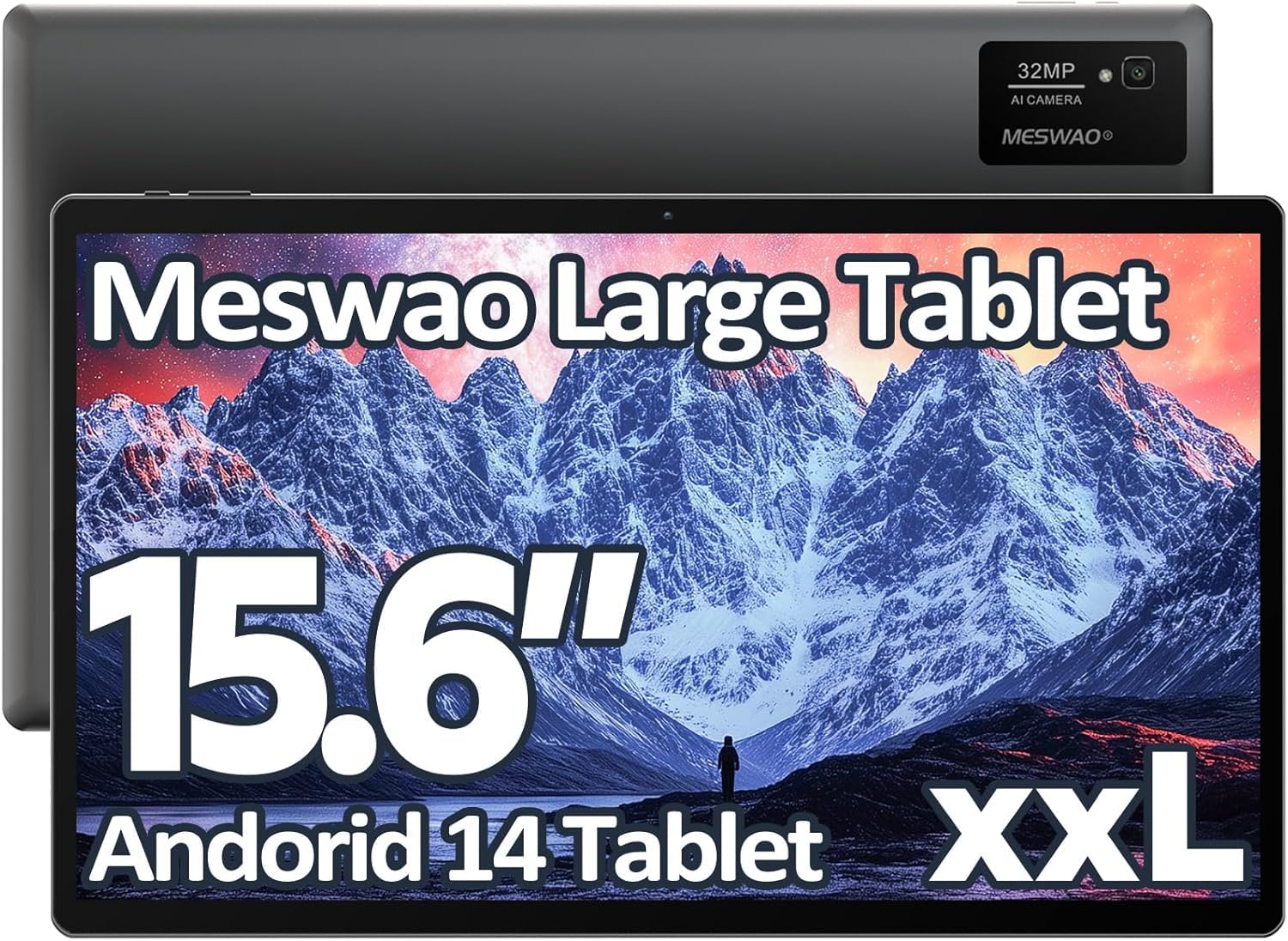
Image: The MESWAO 15.6-inch Android 14 Tablet, showcasin대형 디스플레이와 세련된 디자인이 특징입니다.
2. 설정
2.1 언박싱 및 초기 검사
Carefully remove all components from the packaging. Verify that all items listed in the package contents are present and undamaged. If any items are missing or damaged, contact customer support immediately.
2.2 태블릿 충전
Before first use, fully charge the tablet. Connect the provided USB-C cable to the tablet's charging port and the other end to the power adapter. Plug the power adapter into a wall outlet. The charging indicator will illuminate. A full charge typically takes approximately 3 hours with the 30W fast charging capability.
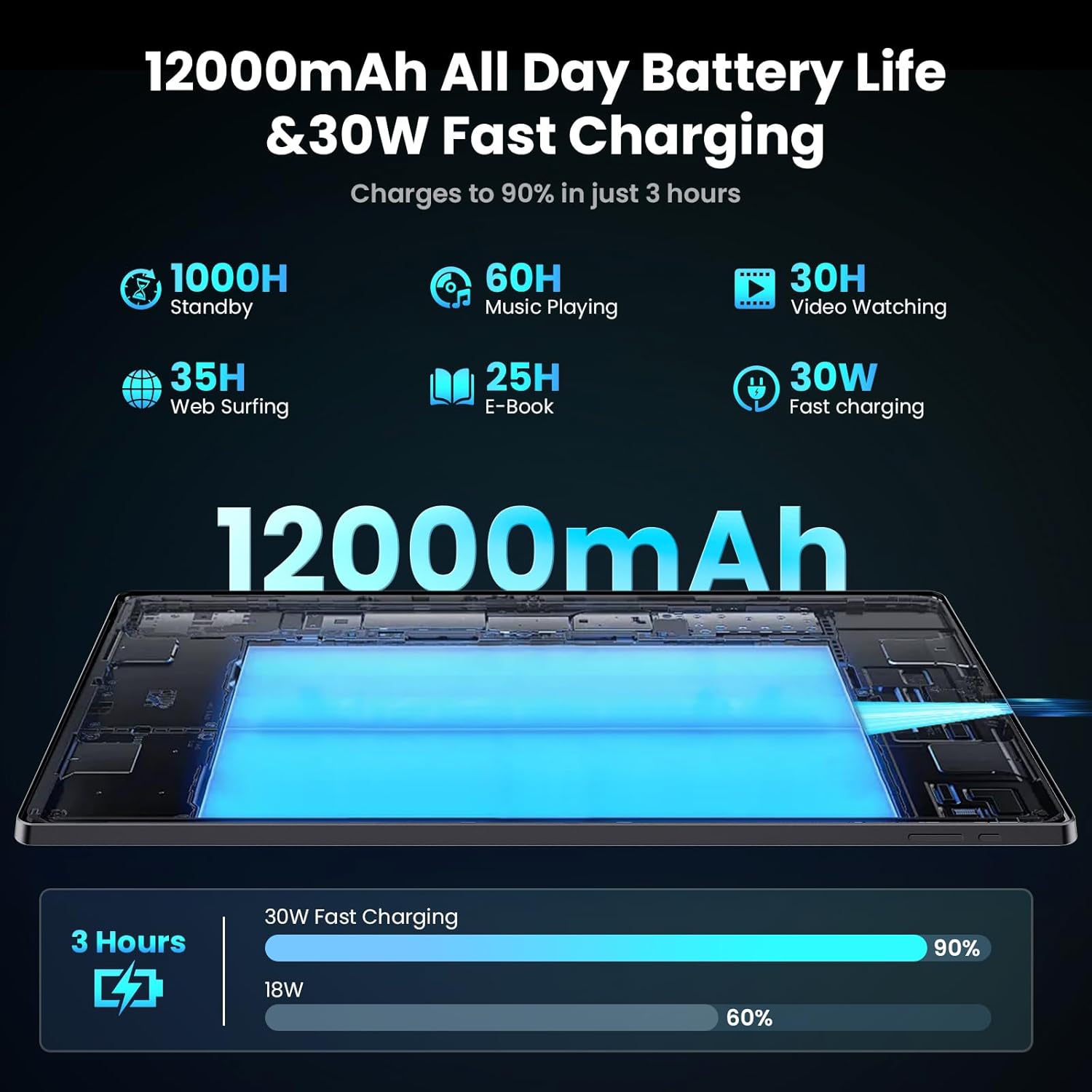
Image: Diagram illustrating the 12000mAh battery capacity and 30W fast charging feature, showing a charge to 90% in 3 hours.
2.3 전원 켜기 및 초기 구성
- MESWAO 로고가 나타날 때까지 전원 버튼을 길게 누르세요.
- 화면의 지시에 따라 언어와 지역을 선택하고 Wi-Fi 네트워크에 연결하세요.
- Google 계정으로 로그인하거나 새 계정을 만들어 Google Play 스토어와 기타 서비스에 액세스하세요.
- Complete any remaining setup steps, such as setting up a screen lock (PIN, pattern, or password) and review개인 정보 설정.
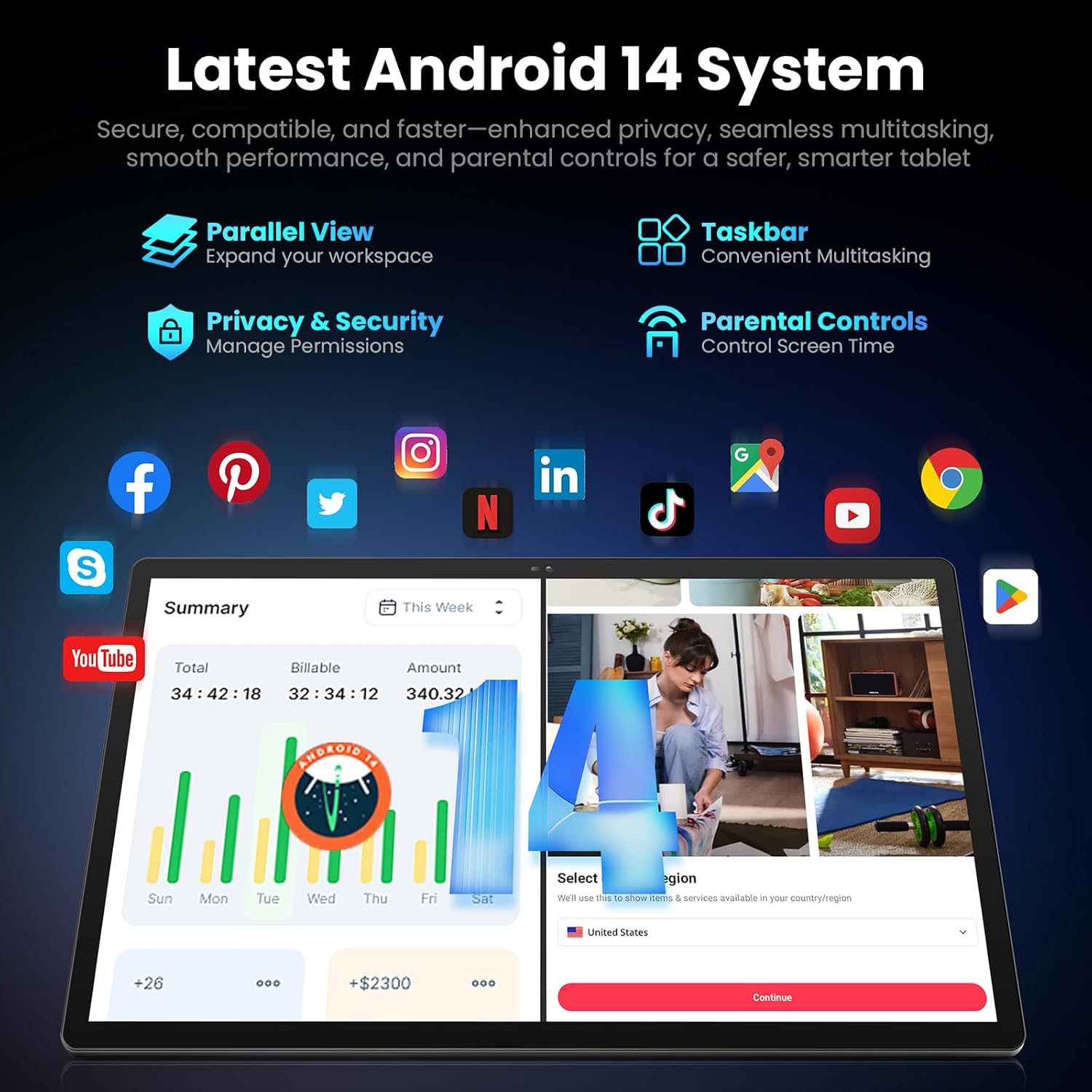
Image: Screenshot of the Android 14 system interface on the MESWAO tablet, highlighting features like Parallel View, Taskbar, Privacy & Security, and Parental Controls.
3. 사용 설명서
3.1 기본 탐색
- 터치 제스처: 탭하여 선택하고, 스와이프하여 스크롤하고, 핀치하여 확대/축소합니다.
- 홈 화면: 앱, 위젯, 알림에 액세스합니다.
- 알림 패널: 화면 상단에서 아래로 스와이프하여 view 알림 및 빠른 설정.
- 앱 서랍: 설치된 모든 애플리케이션에 접근하려면 화면 하단에서 위로 살짝 밀어주세요.
3.2 디스플레이 및 시각적 경험
The 15.6-inch Full HD (1920x1080) IPS display offers vivid colors and wide viewing angles. Adjust brightness and display settings in the Settings menu under "Display" for optimal viewing comfort. The large screen is ideal for multitasking and immersive media consumption.

Image: The MESWAO tablet displaying a high-definition image, emphasizing the 1920x1080P Full HD IPS display with eye protection features.
3.3 성능 및 스토리지
Equipped with an Octa-Core Helio G99 processor and Android 14, the tablet provides smooth performance for various applications. It includes 8GB RAM and 256GB internal storage, expandable up to 1TB via a TF (microSD) card. To insert a TF card, locate the card slot on the side of the tablet, open the tray, and carefully place the card into the designated slot before reinserting the tray.
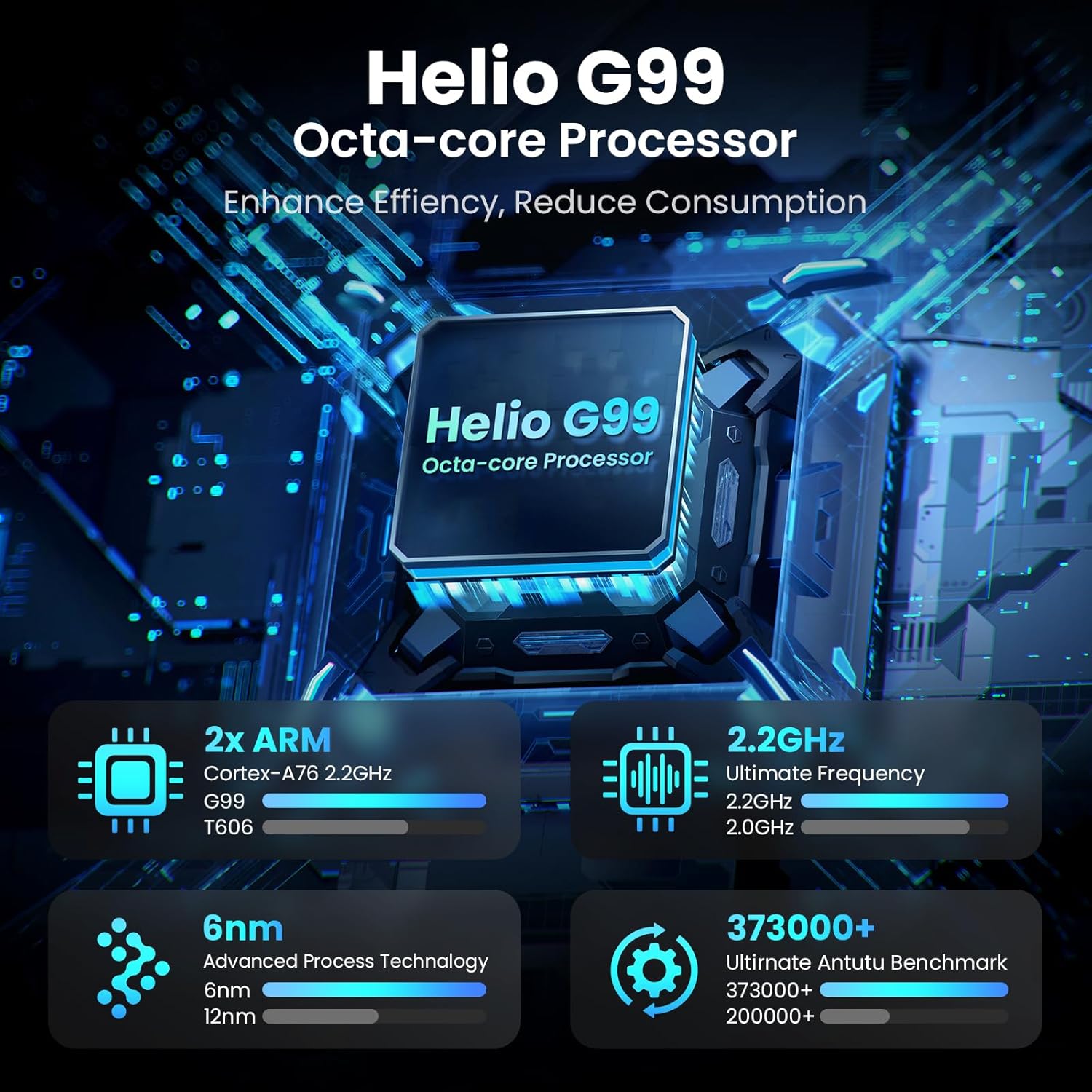
Image: Visual representation of the Helio G99 Octa-core Processor, detailing its architecture and performance metrics like 2.2GHz frequency and 6nm process technology.

Image: The MESWAO tablet screen showing multiple open applications and storage capacity details: 8GB RAM, 256GB ROM, and support for up to 1TB external storage.
3.4 카메라 사용
The tablet features a 32MP rear camera with flash and a 5MP front camera. Open the Camera application to capture photos, record videos, or engage in video calls. Ensure good lighting for best results.

Image: A visual demonstrating the MESWAO tablet's 5MP front camera and 32MP rear camera, showing a family photo being taken and a video call in progress.
3.5 연결성
The tablet supports dual-band Wi-Fi (2.4GHz & 5GHz) for stable internet connectivity. Bluetooth is also available for connecting wireless accessories. Access these settings via the Notification Panel or the main Settings app.
4. 유지관리
4.1 태블릿 청소
부드럽고 보풀이 없는 천을 사용하여 태블릿 화면과 본체를 닦으세요. 잘 지워지지 않는 얼룩은 가볍게 닦아주세요.amp물이나 화면에 안전한 세척액을 천에 적셔 사용하세요. 강한 화학 약품이나 연마성 재질은 사용하지 마세요.
4.2 소프트웨어 업데이트
태블릿에 최신 기능, 보안 패치 및 성능 향상이 적용되도록 정기적으로 시스템 업데이트를 확인하고 설치하세요. 자세한 내용은 다음 링크를 참조하세요. 설정 > 시스템 > 시스템 업데이트 업데이트를 확인하세요.
4.3 배터리 관리
- 극한의 온도는 배터리 수명을 단축시킬 수 있으므로 피하세요.
- 배터리가 자주 완전히 방전되지 않도록 하세요.
- 제공된 충전기나 인증된 호환 충전기만 사용하세요.
5. 문제 해결
5.1 태블릿 전원이 켜지지 않음
- 태블릿이 충분히 충전되었는지 확인하세요. 전원을 다시 켜기 전에 최소 30분 동안 충전기에 연결해 두세요.
- 전원 버튼을 10~15초간 길게 눌러 강제 재시작을 실행하세요.
5.2 Wi-Fi 연결 문제
- Check if Wi-Fi is enabled in the Quick Settings or Settings menu.
- Wi-Fi 라우터와 태블릿을 다시 시작하세요.
- Wi-Fi 설정에서 네트워크를 삭제하고 다시 연결하세요.
- Wi-Fi 신호 범위 내에 있는지 확인하세요.
5.3 느린 성능
- 불필요한 백그라운드 애플리케이션을 닫습니다.
- 자주 사용하는 앱의 캐시 데이터를 삭제합니다.설정 > 앱 > [앱 이름] > 저장공간 및 캐시 > 캐시 지우기).
- Ensure sufficient free storage space. Delete unused files 또는 앱.
- 태블릿을 주기적으로 다시 시작하세요.
5.4 화면 응답 없음
- 강제로 재시작하십시오(전원 버튼을 10~15초 동안 길게 누르십시오).
- 화면이 깨끗하고 습기나 이물질이 없는지 확인하세요.
6. 사양
| 특징 | 세부 사항 |
|---|---|
| 모델명 | MES-B3 |
| 디스플레이 크기 | 15.6 인치 |
| 최대 화면 해상도 | 1920 x 1080 픽셀(Full HD IPS) |
| 운영 체제 | 안드로이드 14 |
| 프로세서 | Octa-Core Helio G99 (up to 2.2 GHz) |
| 숫양 | 8GB |
| 내부 저장소(ROM) | 256GB |
| 확장 가능한 스토리지 | 최대 1TB (TF 카드) |
| 배터리 용량 | 12000mAh |
| 충전 중 | 30W 고속 충전 |
| 후방 카메라 | 플래시 포함 32MP |
| 전면 카메라 | 5MP |
| 연결성 | Dual-band Wi-Fi (2.4GHz & 5GHz), Bluetooth |
| 치수(길이x너비x높이) | 14.53 x 8.78 x 0.43 인치 |
| 품목 무게 | 3.84파운드 |
7. 보증 및 지원
7.1 보증 정보
MESWAO products are covered by a limited warranty. Please refer to the warranty card included in your product packaging for specific terms and conditions. Keep your proof of purchase for warranty claims.
7.2 고객 지원
For technical assistance, troubleshooting, or warranty inquiries, please contact MESWAO customer support. Contact information can typically be found on the official MESWAO web사이트나 보증 카드에 적혀 있습니다.
Online resources such as FAQs and support forums may also be available on the MESWAO web대지.


