1. 서론
Welcome to the FUNYET NY-03 16-inch Laptop user manual. This guide provides essential information for setting up, operating, maintaining, and troubleshooting your new laptop. Please read this manual thoroughly to ensure optimal performance and longevity of your device.
2. 안전 정보
기기 손상이나 본인 및 타인의 부상을 방지하기 위해 다음 안전 수칙을 준수해 주십시오.
- 노트북을 극한 온도, 직사광선 또는 높은 습도에 노출시키지 마십시오.
- 노트북 위에 무거운 물건을 올려놓지 마세요.
- Keep liquids away from the device. In case of spills, immediately power off and disconnect the charger.
- 노트북과 함께 제공된 정품 전원 어댑터만 사용하십시오.
- 노트북을 직접 분해하거나 수리하려고 하지 마십시오. 자격을 갖춘 서비스 담당자에게 문의하십시오.
- 과열을 방지하기 위해 적절한 환기를 확보하십시오. 통풍구를 막지 마십시오.
3. 패키지 내용
제품 패키지에 모든 품목이 들어 있는지 확인하세요.
- FUNYET NY-03 16-inch Laptop
- 전원 어댑터
- 사용 설명서 (본 문서)
4. 제품 오버view
Familiarize yourself with the physical features and components of your FUNYET NY-03 laptop.
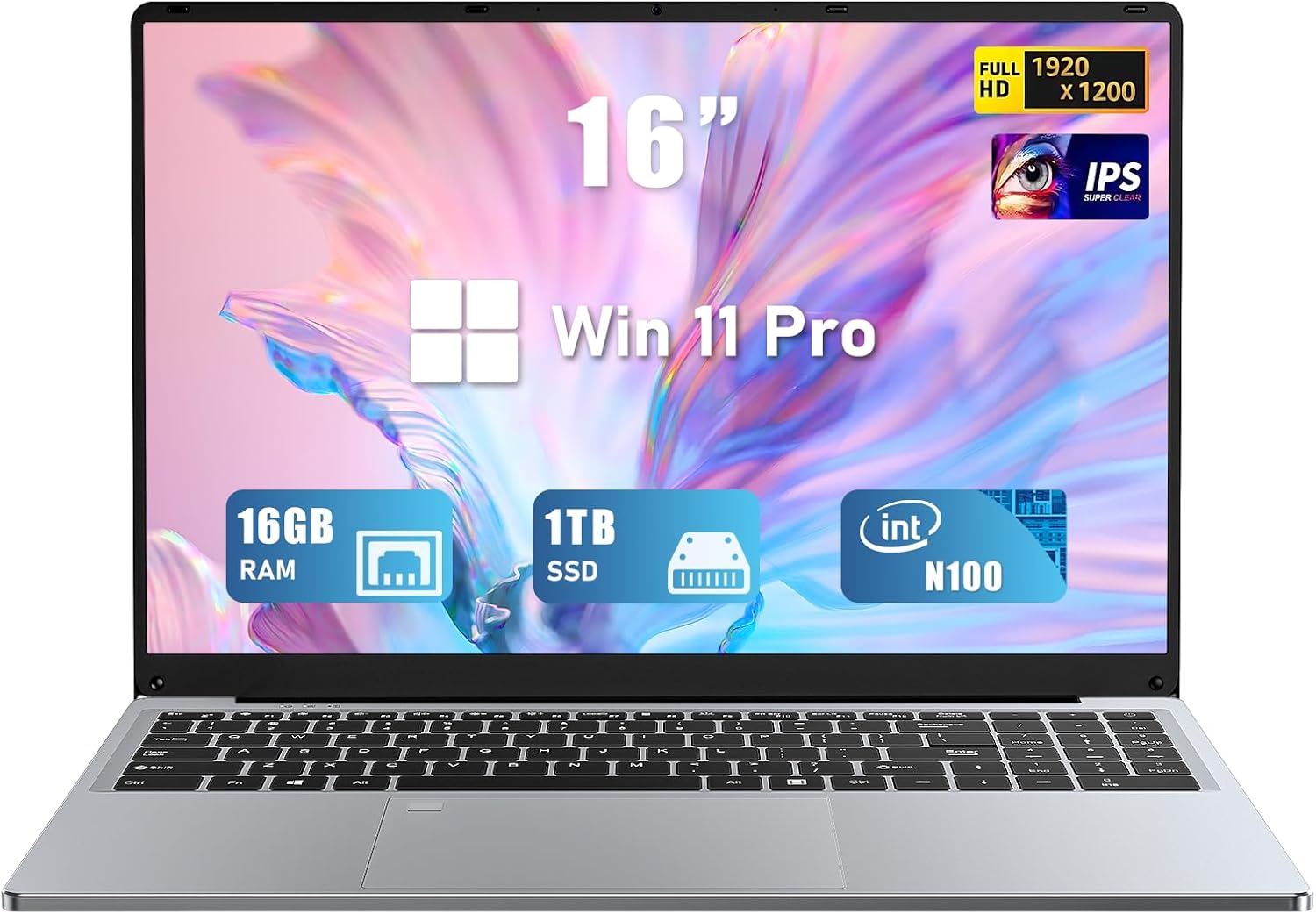
그림 4.1: 전면 view of the FUNYET NY-03 16-inch Laptop, showcasin세련된 디자인과 대형 디스플레이가 특징입니다.
4.1. 외부 구성 요소
- 16.0인치 FHD IPS 디스플레이: 선명한 영상을 위한 고해상도 화면.
- 백라이트 키보드: Full-size keyboard with adjustable backlighting for comfortable typing in various lighting conditions.
- 대형 터치패드: Responsive touchpad for precise navigation.
- 통합 Web캠: Located above the display for video calls.
- 지문 인식기: 안전하고 빠른 로그인을 위해 통합되었습니다.
4.2. 포트 및 커넥터

그림 4.2: 측면 view of the FUNYET NY-03 laptop highlighting the various input/output ports.
- USB 3.0 포트: 고속 USB 장치를 연결하는 데 사용됩니다.
- USB 2.0 포트 : 표준 USB 장치를 연결하는 데 사용됩니다.
- 미니 HDMI 포트: 외부 디스플레이에 연결합니다.
- DC 전원 입력: 전원 어댑터를 연결합니다.
- 3.5mm 오디오 잭: 헤드폰이나 외부 스피커를 연결하는 데 사용합니다.
4.3. 제품 비디오
비디오 4.1: 오버view of the FUNYET 16-inch laptop, demonstrating its design and key features. This video provides a visual guide to the laptop's physical aspects and functionality.
Video 4.2: A detailed look at the FUNYET 16-inch gaming laptop, showcasing its various components and user experience. This video highlights the laptop's build quality and interface.
5. 설정
5.1. 초기 전원 켜기
- Connect the power adapter to the DC power input port on your laptop and then to a power outlet.
- 노트북을 켜려면 키보드에 있는 전원 버튼을 누르세요.
- 화면의 지시에 따라 언어, 지역 및 네트워크 설정을 포함한 Windows 11 Pro 초기 설정을 완료하십시오.
5.2. 네트워크 연결
Wi-Fi 네트워크에 연결하려면:
- 작업 표시줄에서 Wi-Fi 아이콘을 클릭합니다.
- 목록에서 원하는 네트워크를 선택하세요.
- Enter the network password if prompted and click 연결하다.
6. 노트북 작동
6.1. 기본 작업
- 전원 켜기/끄기: 전원 버튼을 눌러 전원을 켜세요. 전원을 끄려면 시작 버튼을 클릭한 다음 전원 > 종료를 클릭하세요.
- 건반: The backlit keyboard allows for comfortable typing. Use the Fn keys (e.g., Fn + F5/F6) to adjust backlight brightness.
- 터치패드: 탐색을 위한 멀티터치 제스처를 지원합니다. 사용자 지정은 Windows 설정을 참조하세요.
- 지문 인식기: Set up your fingerprint for secure and fast login via Windows Hello in Settings > Accounts > Sign-in options.
6.2. 디스플레이 기능

Figure 6.1: The 16-inch FHD IPS display with a 1920x1200 resolution, offering a vibrant and immersive view경험.
The 16.0-inch FHD IPS display provides a resolution of 1920x1200 pixels, ensuring sharp and vibrant visuals. The micro-bezel design enhances the immersive view경험.
6.3. 성능

Figure 6.2: Visual representation of the Intel 12th Gen N100 Processor, highlighting its 4 cores and 3.4 GHz turbo frequency for efficient performance.
Powered by an Intel 12th Gen N100 processor with 4 cores and 4 threads, operating up to 3.4 GHz, the laptop delivers seamless performance for daily tasks. With 16GB of RAM and a 1TB high-speed SSD, it efficiently handles multitasking and provides amp르 스토리지.
6.4. 연결성
The laptop supports 802.11a/b/g/n/ac Wi-Fi for fast internet access and Bluetooth for connecting wireless peripherals.
6.5. 배터리 관리

Figure 6.3: Illustration of the laptop's long battery life, indicating up to 8 hours of usage on a single charge.
The laptop is equipped with a 6000mAH rechargeable battery, offering up to 8 hours of battery life. To maximize battery longevity, ensure the laptop is fully charged before first use and avoid frequent deep discharges.
6.6. Operating System: Windows 11 Pro
Your laptop comes pre-installed with Windows 11 Pro, offering enhanced security, productivity features, and a modern user interface. Explore features like Snap Layouts, Widgets, and Microsoft Teams integration for an optimized computing experience.
7. 유지관리
- 청소: 부드럽고 보풀 없는 천으로 화면과 외부를 닦으십시오. 연마성 세척제나 용제는 사용하지 마십시오.
- 소프트웨어 업데이트: 시스템 안정성과 보안을 보장하기 위해 정기적으로 Windows 업데이트를 확인하고 설치하십시오.
- 저장: 노트북을 사용하지 않을 때는 서늘하고 건조한 곳에 보관하세요.
8. 문제 해결
이 섹션에서는 노트북에서 발생할 수 있는 일반적인 문제에 대해 설명합니다.
- 노트북 전원이 켜지지 않습니다: 전원 어댑터가 제대로 연결되어 있고 배터리가 충전되어 있는지 확인하십시오. 다른 콘센트에 연결해 보십시오.
- Wi-Fi 연결 없음: Windows 설정에서 Wi-Fi가 활성화되어 있는지 확인하세요. 라우터와 노트북을 다시 시작하세요.
- 느린 성능: 불필요한 애플리케이션을 닫고, 악성코드를 확인하고, SSD에 충분한 여유 공간을 확보하세요.
- 화면 문제: Adjust display brightness. If the screen remains blank or distorted, try connecting to an external monitor via Mini HDMI to diagnose.
9. 사양
| 특징 | 사양 |
|---|---|
| 상표 | 푸니엣 |
| 모델명 | NY-03 |
| 화면 크기 | 16 인치 |
| 화면 해상도 | 1920 x 1200 픽셀(FHD IPS) |
| 프로세서 | Intel 12th Gen N100 (up to 3.4GHz) |
| 숫양 | 16GB DDR4 |
| 저장 | 1TB SSD |
| 운영 체제 | 윈도우 11 프로 |
| 그래픽 카드 | 통합(Intel UHD Graphics) |
| 무선형 | 802.11a/b/g/n/ac, 블루투스 |
| 포트 | 1x USB 3.0, 1x USB 2.0, 1x Mini HDMI, 1x DC Power Input, 1x 3.5mm Audio Jack |
| 특별 기능 | 백라이트 키보드, 지문 판독기 |
| 배터리 | 6000mAH (up to 8 hours) |
| 품목 무게 | 5.1파운드 |
| 제품 치수 | 14 x 9 x 0.8 인치 |
10. 보증 및 지원
Your FUNYET NY-03 laptop comes with a 1년 보증. For any issues or queries, please contact FUNYET customer support. They aim to reply within 24 hours.
- 고객 서비스: Enjoy worry-free usage with dedicated round-the-clock customer service.
- 연락처 정보: Refer to the contact details provided in your product packaging or on the official FUNYET web지원 사이트입니다.


