1. 서론
This manual provides essential information for setting up, operating, maintaining, and troubleshooting your GMKtec M7 Ultra Mini PC. Please read this manual thoroughly before using your device to ensure optimal performance and longevity.
The GMKtec M7 Ultra Mini PC is a compact desktop computer featuring an AMD Ryzen 7 PRO 6850U processor, designed for demanding tasks including gaming, multimedia, and professional applications. Its small form factor and robust connectivity options make it a versatile solution for various environments.
2. 상자 안에 무엇이 들어있나요?
패키지에 모든 품목이 들어 있는지 확인하세요.
- GMKtec Nucbox M7 Ultra AMD Ryzen 7 PRO 6850U Mini PC Computer
- 전원 공급 장치 및 케이블
- HDMI 케이블
- VESA 마운트 및 나사
- 사용자 설명서

Image: Retail Boxed Packaging showing the GMKtec Nucbox M7 Ultra Mini PC and its accessories.
3. 설정
3.1 초기 연결
- Connect your monitor(s) to the HDMI 2.1, DisplayPort 2.0, or USB4 ports.
- 키보드와 마우스를 사용 가능한 USB 포트에 연결하세요.
- For wired network access, connect an Ethernet cable to one of the 2.5GbE LAN ports.
- Connect the power supply to the DC IN port and then to a power outlet.
- 미니 PC 앞면에 있는 전원 버튼을 눌러 전원을 켜세요.
The system comes with Windows 11 Pro pre-installed, allowing for quick setup and immediate use.
3.2 BIOS 설정
To optimize performance, you may adjust BIOS settings. Access the BIOS by pressing the appropriate key (usually Del or F2) during startup.
- Power Mode Select: Navigate to the 'Advanced' tab and set 'Power Mode Select' to 'Performance' for maximum power output (up to 65W-70W TDP).
- UMA Frame Buffer Size: Under 'GFX Configuration', adjust the 'UMA Frame buffer Size' to 4GB or higher for improved integrated graphics performance.
Video: This video demonstrates how to access and adjust BIOS settings for power mode and UMA frame buffer size on the GMKtec M7 Ultra Mini PC, along with system diagnostics and game benchmarks.
4. 사용 설명서
4.1 성능 모드
The M7 Ultra Mini PC offers three performance modes configurable in the UEFI BIOS:
- Quiet (35W): For silent operation and reduced power consumption during light tasks.
- Balance (50W): A balanced mode for everyday computing and moderate workloads.
- Performance (65W-70W): 까다로운 애플리케이션과 게임을 위해 CPU와 GPU 성능을 극대화합니다.
4.2 연결성
The Mini PC features extensive connectivity options:
- Dual USB4 (Type-C): Supports video output, data transfer, and power delivery.
- HDMI 2.1 및 DisplayPort 2.0: For high-resolution display output, supporting up to 8K@60Hz.
- 듀얼 2.5GbE LAN: Provides high-speed wired network connections, suitable for servers or advanced networking.
- Wi-Fi 6E 및 블루투스 5.2: For fast wireless internet and peripheral connections.
- 오큘링크 포트: Enables higher bandwidth for external GPU setups (PCIe x4 speeds). Note: Oculink does not support hot-plugging; always power off before connecting/disconnecting.

Image: Rich Interface diagram of the GMKtec M7 Ultra Mini PC.
Video: This short video highlights the front and rear ports of the GMKtec Nucbox M7 Mini PC, including USB, Type-C, audio jack, Ethernet, HDMI, and DisplayPort connections.
4.3 멀티 디스플레이 지원
The Mini PC supports simultaneous quad-screen display, utilizing its Dual USB4, HDMI 2.1, and DisplayPort 2.0 outputs. This allows for flexible workstation setups and immersive gaming experiences.

Image: 8K Quad Screens Display setup with the GMKtec M7 Ultra Mini PC.
4.4 게임 성능
Equipped with an AMD Radeon 680M integrated GPU and support for FSR 3.0+ technology, the M7 Ultra is capable of handling AAA gaming and heavy computing tasks. The Oculink port further enhances gaming by allowing connection to external GPUs for higher bandwidth and better frame rates.

Image: 4K Gaming OCuLink Delivers, showing the Mini PC connected to an eGPU.
5. Maintenance & Upgrades
5.1 냉각 시스템
The M7 Ultra features a Hyper Ice Chamber 2.0 design with larger top and bottom cooling fans and a copper base. This system provides 360-degree airflow, keeping the unit cool and maintaining fan noise at approximately 35dB in Quiet mode.

Image: GMKtec UPGRADED HYPER ICE CHAMBER 2.0 diagram.
5.2 RAM and SSD Expansion
The Mini PC is designed for easy upgrades. The cover lid can be rotated counter-clockwise and removed to access the internal components.
- 숫양: Supports dual-channel DDR5 4800MHz SO-DIMM, expandable up to 64GB.
- SSD: Features dual M.2 2280 PCIe 3.0 SSD slots, supporting up to 2x PCIe 4.0 2TB SSDs for a total of 4TB storage.

Image: Easy Installation diagram for RAM and SSD upgrades.
6. 사양
| 특징 | 설명 |
|---|---|
| 상표 | GMK텍 |
| 시리즈 | M7 울트라 |
| 모델 번호 | M7 울트라 |
| 운영 체제 | 윈도우 11 프로 |
| 프로세서 | AMD Ryzen 7 PRO 6850U (8 Cores, 16 Threads, up to 4.7 GHz) |
| 그래픽 코프로세서 | AMD 라데온 680M (내장형) |
| 숫양 | 32GB DDR5 4800MHz (듀얼 채널, 최대 64GB까지 확장 가능) |
| 하드 드라이브 | 512GB PCIe 3.0 M.2 2280 SSD (Dual Slot, Max. 4TB) |
| 최대 화면 해상도 | 4096x2160 Pixels (8K@60Hz via HDMI/DP) |
| 무선형 | Wi-Fi 6E, 블루투스 5.2 |
| USB 포트 | 2x USB 4.0 (Type-C), 2x USB 3.0, 2x USB 2.0 |
| LAN 포트 | Dual Intel NIC 2.5GbE |
| 기타 포트 | HDMI 2.1, DisplayPort 2.0, Oculink (PCIe 4.0 x4), 3.5mm Audio Jack |
| 품목 무게 | 3.61파운드 |
| 치수 | 7.36 x 7.28 x 4.8 인치 |
비디오: 이 비디오는 자세한 내용을 제공합니다.view of the GMKtec M7 Ultra Mini PC's specifications, including CPU, GPU, RAM, and storage details, as well as BIOS settings and gaming benchmarks.
7. 문제 해결
7.1 일반적인 문제 및 해결 방법
- 디스플레이 없음: Ensure all display cables (HDMI, DisplayPort, USB4) are securely connected to both the Mini PC and the monitor. Verify the monitor is set to the correct input source.
- 전원 없음: 전원 어댑터가 미니 PC와 작동하는 콘센트에 올바르게 연결되어 있는지 확인하십시오. 필요한 경우 다른 콘센트를 사용해 보십시오.
- 느린 성능: Verify that the power mode in BIOS is set to 'Balance' or 'Performance'. Close unnecessary background applications. Ensure drivers are up to date.
- 네트워크 연결 문제: For wired connections, check Ethernet cable integrity and router status. For Wi-Fi, ensure the Wi-Fi 6E module is enabled and connected to the correct network.
- Oculink Device Not Detected: Power off the Mini PC completely before connecting or disconnecting any Oculink devices. Ensure the Oculink cable is securely attached.
7.2 고급 문제 해결
For persistent issues or advanced diagnostics, refer to the GMKtec support resources or consult a qualified technician.
8. 보증 및 지원
GMKtec offers comprehensive support for your Mini PC:
- 보증: A 1-year limited warranty covers defects due to design and workmanship from the date of purchase.
- 기술 지원: For assistance, you can contact the professional after-sales team via email at support@gmktec.com.
- 온라인 리소스: GMKtec 공식 웹사이트를 방문하세요. website or Amazon store for additional FAQs, driver downloads, and product information.
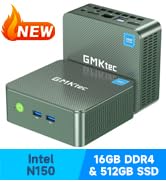
Image: Warranty & Support contact details.


