1. 제품 오버view
The TECKNET TK-KB041 is a versatile, slim wireless keyboard designed for multi-device compatibility and comfortable typing. It offers both 2.4GHz USB-A and Bluetooth connectivity, allowing seamless switching between up to three devices. Its low-profile scissor-switch keys provide a quiet and fluid typing experience, while the integrated numeric keypad enhances productivity. The keyboard features a rechargeable battery with long standby time and power-saving auto-sleep functionality.

Figure 1: TECKNET TK-KB041 Slim Wireless Keyboard.
2. 상자 안에 무엇이 들어있나요?
- Wireless Keyboard (Model TK-KB041) x 1
- USB-C 충전 케이블 x 1
- 사용 설명서 x 1
- USB-A Receiver (stored in the keyboard's back slot) x 1
3. 설정 지침
3.1 키보드 전원 켜기
- Locate the ON/OFF switch on the side of the keyboard.
- 스위치를 "ON" 위치로 밉니다.

그림 2: 키보드의 초슬림 프로file컴팩트한 디자인이 돋보입니다.
3.2 2.4GHz USB-A 수신기를 통한 연결
- Locate the USB-A receiver stored in the magnetic slot on the back of the keyboard.
- USB-A 수신기를 컴퓨터 또는 기기의 사용 가능한 USB 포트에 꽂으세요.
- 키보드가 자동으로 연결되어야 합니다.

Figure 3: Location of the USB-A receiver slot on the back of the keyboard.
3.3 블루투스를 통한 연결
- 키보드의 전원이 켜져 있는지 확인하세요.
- 를 누르고 계세요 Fn 키와 Bluetooth 채널 키 중 하나(Fn + 1, Fn + 2, 또는 Fn + 3) for 3 seconds. The corresponding Bluetooth indicator light (B1, B2, or B3) on the keyboard will start blinking, indicating it's in pairing mode.
- 사용하시는 기기(컴퓨터, 태블릿, 스마트폰)에서 블루투스 설정으로 이동하세요.
- 검색 available devices and select "TK-KB041" (or similar name) from the list.
- Follow any on-screen prompts to complete the pairing process. The indicator light on the keyboard will stop blinking and remain solid for a few seconds, then turn off, indicating a successful connection.
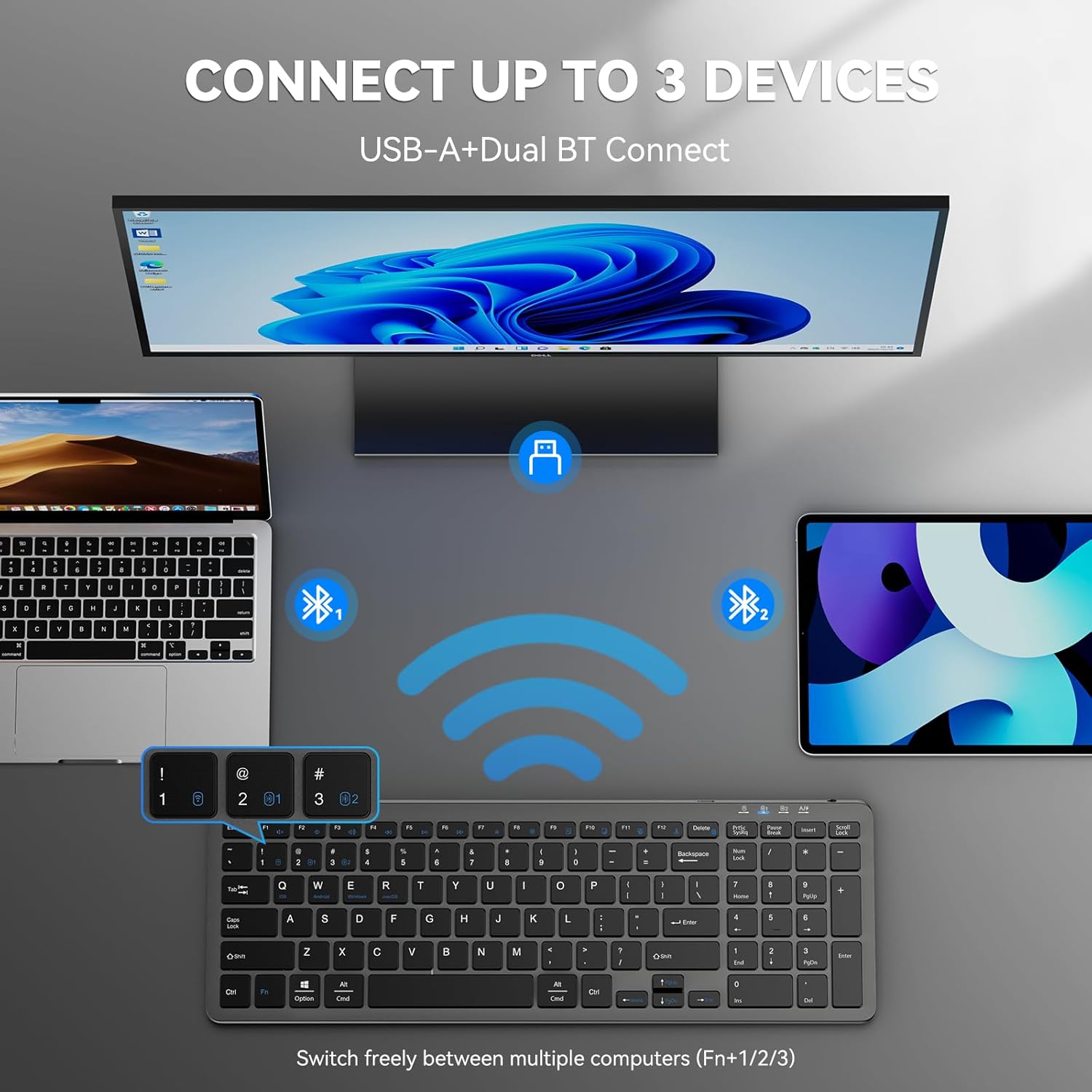
Figure 4: The keyboard connected to multiple devices via Bluetooth and USB-A.
4. 사용 설명서
4.1 연결된 장치 간 전환
The keyboard supports connecting to up to three devices via Bluetooth and one via 2.4GHz USB-A. To switch between devices:
- 블루투스 기기의 경우: 누르세요 Fn + 1, Fn + 2, 또는 Fn + 3 to switch to the corresponding Bluetooth-paired device.
- For 2.4GHz USB-A device: Press Fn + 4 to switch to the device connected via the USB-A receiver.
4.2 운영 체제 전환
The keyboard is compatible with Windows, macOS, iOS, and Android. To optimize key functions for your operating system:
- Windows의 경우: 누르세요 Fn + W
- macOS의 경우: 누르세요 Fn + E
- iOS용: 누르세요 Fn + Q
- Android의 경우: 누르세요 Fn + R

Figure 5: Keyboard layout highlighting function keys and OS switch keys.
4.3 Multimedia Function Keys (F1-F12)
The F1-F12 keys have secondary multimedia functions. To use these functions, press the Fn 원하는 F 키와 동시에 키를 누릅니다.
- F1: Home
- F2: 검색
- F3: 모두 선택
- F4: 복사
- F5: 붙여넣기
- F6: 잘라내기
- F7: 이전 트랙
- F8: 재생/일시 중지
- F9: 다음 트랙
- F10: 음소거
- F11: 볼륨 낮추기
- F12: 볼륨 높이기

Figure 6: Illustration of the multimedia function keys (F1-F12).
4.4개의 표시등
The keyboard features several indicator lights:
- B1/B2/B3: Bluetooth connection indicators. Blink during pairing, solid when connected, then turn off.
- Caps Lock : Caps Lock 키가 활성화되면 불이 켜집니다.
- Num 잠금: Num Lock이 활성화되면 불이 켜집니다.
- 충전 상태: A red light indicates charging. A green light indicates fully charged.
- 배터리 부족: The charging state indicator will blink blue when the battery is low, signaling that a recharge is needed.
5. 유지관리
5.1 키보드 충전
The keyboard has a built-in 280mAh rechargeable battery. To charge:
- Connect the provided USB-C charging cable to the USB-C port on the keyboard.
- 케이블의 다른 쪽 끝을 USB 전원(예: 컴퓨터 USB 포트, USB 벽면 어댑터)에 연결합니다.
- 충전 표시등은 충전 중에는 빨간색으로 켜지고, 완전히 충전되면 녹색으로 바뀝니다.
- A full charge takes approximately 2 hours and provides up to 200 hours of use or 90 days of standby time. The keyboard can be used while charging.

Figure 7: USB-C charging port on the keyboard.
5.2 청소
- 청소하기 전에 키보드를 끄세요.
- 부드러운 d를 사용하세요amp 키보드 표면을 닦을 천.
- 가혹한 화학물질이나 연마재의 사용은 피하세요.
- 키 사이를 청소할 때는 압축 공기나 부드러운 브러시를 사용하십시오.
5.3 절전 모드
The keyboard automatically enters sleep mode after 10 minutes of inactivity to conserve power. Press any key to wake it up.
6. 문제 해결
6.1 키보드가 연결되지 않음
- 키보드의 전원이 켜져 있는지 확인하세요.
- 배터리 수준을 확인하고, 필요한 경우 충전하세요.
- For 2.4GHz connection: Ensure the USB-A receiver is securely plugged into your device. Try a different USB port.
- 블루투스 연결:
- 기기에서 Bluetooth가 활성화되어 있는지 확인하세요.
- Put the keyboard into pairing mode (Fn + 1/2/3 for 3 seconds).
- Remove any previous "TK-KB041" pairings from your device's Bluetooth list and try pairing again.
- Ensure the keyboard is within the 33ft (10m) operating range.
6.2 키가 응답하지 않음
- Check the connection (USB-A or Bluetooth) as described above.
- 키보드 배터리가 충전되어 있는지 확인하세요.
- 기기를 재시작하고 다시 연결을 시도해 보세요.
6.3 Incorrect Key Output
- 올바른 운영 체제 모드가 선택되었는지 확인하십시오(Fn + Q/W/E/R).
- 기기의 언어 및 키보드 레이아웃 설정을 확인하세요.
7. 제품 사양
| 특징 | 세부 사항 |
|---|---|
| 모델 번호 | TK-KB041 |
| 연결 기술 | 2.4GHz USB-A, Bluetooth |
| 호환 장치 | PC, Laptop, Mac, MacBook, Tablet, Smartphone, iPhone, iPad (Windows, macOS, iOS, Android) |
| 배터리 용량 | 280mAh (충전식) |
| 충전 시간 | 약 2시간 |
| 작동 시간 | 최대 200시간 |
| 대기 시간 | 최대 90일 |
| 작동 범위 | 최대 33피트(10미터) |
| 키보드 유형 | 로우프로file 가위 스위치 |
| 제품 치수 | 14.42 x 5 x 0.46인치(36.63 x 12.7 x 1.17cm) |
| 품목 무게 | 14.1 온스(400그램) |
| 재료 | 플라스틱 |
| 색상 | 검은색 |
8. 보증 및 지원
TECKNET provides 36-Month Support for registered products. If you encounter any problems in using the product, please reach out to the TECKNET professional customer service team for assistance.
For further support and warranty registration, please visit the official TECKNET web사이트를 방문하거나 고객 서비스에 직접 문의하세요.

Figure 8: TECKNET's commitment to technology and customer support.
9. 비디오 가이드
Video 1: Official product video demonstrating the features and usage of the Tecknet Slim Rechargeable Bluetooth Wireless Keyboard.


