소개
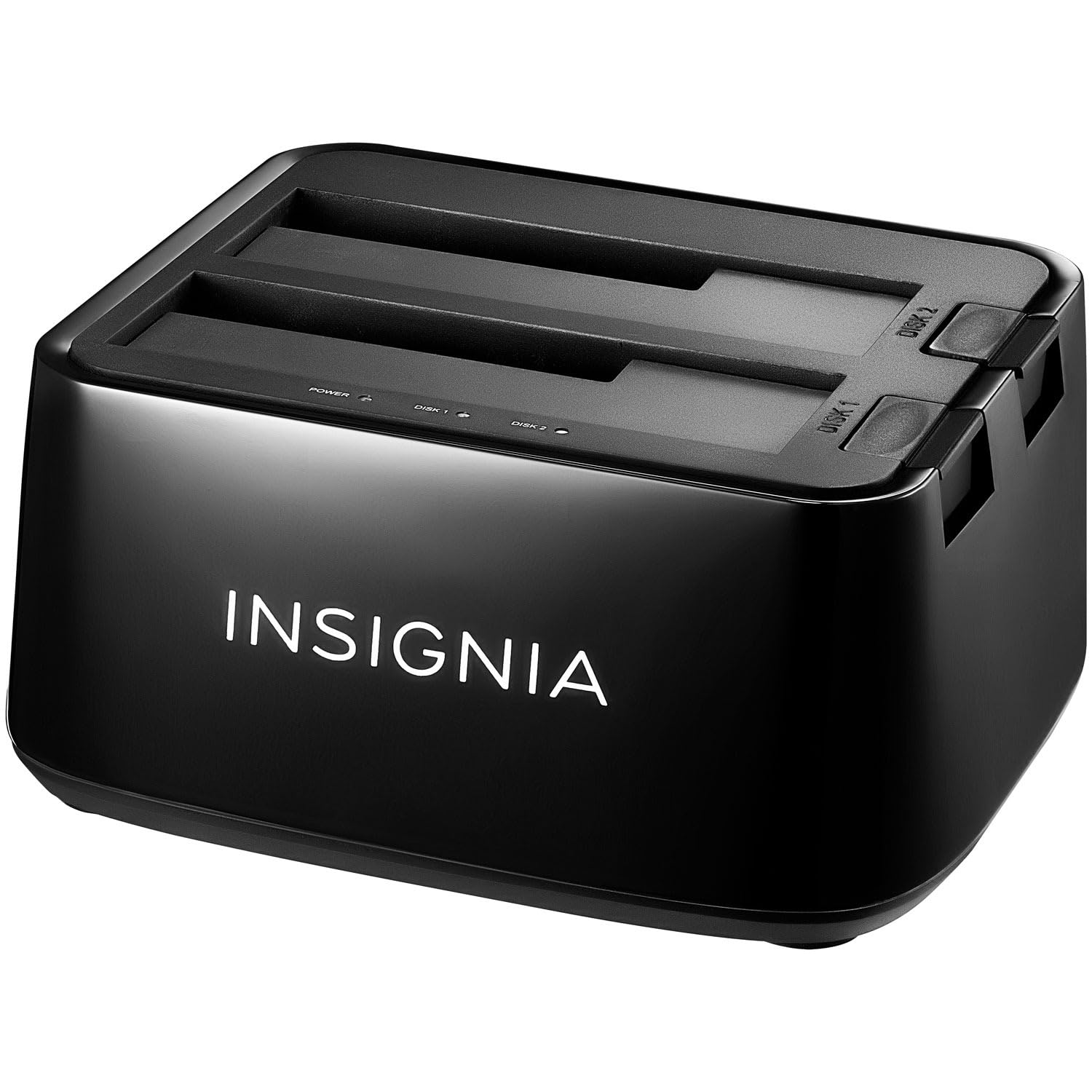
The Insignia USB Dual Hard Drive Docking Station provides a convenient and efficient solution for connecting 2.5-inch and 3.5-inch SATA hard drives (HDDs) and solid-state drives (SSDs) to your computer. This docking station supports high-speed data transfer and offers plug-and-play functionality, making it ideal for data recovery, backups, and expanding storage capacity.
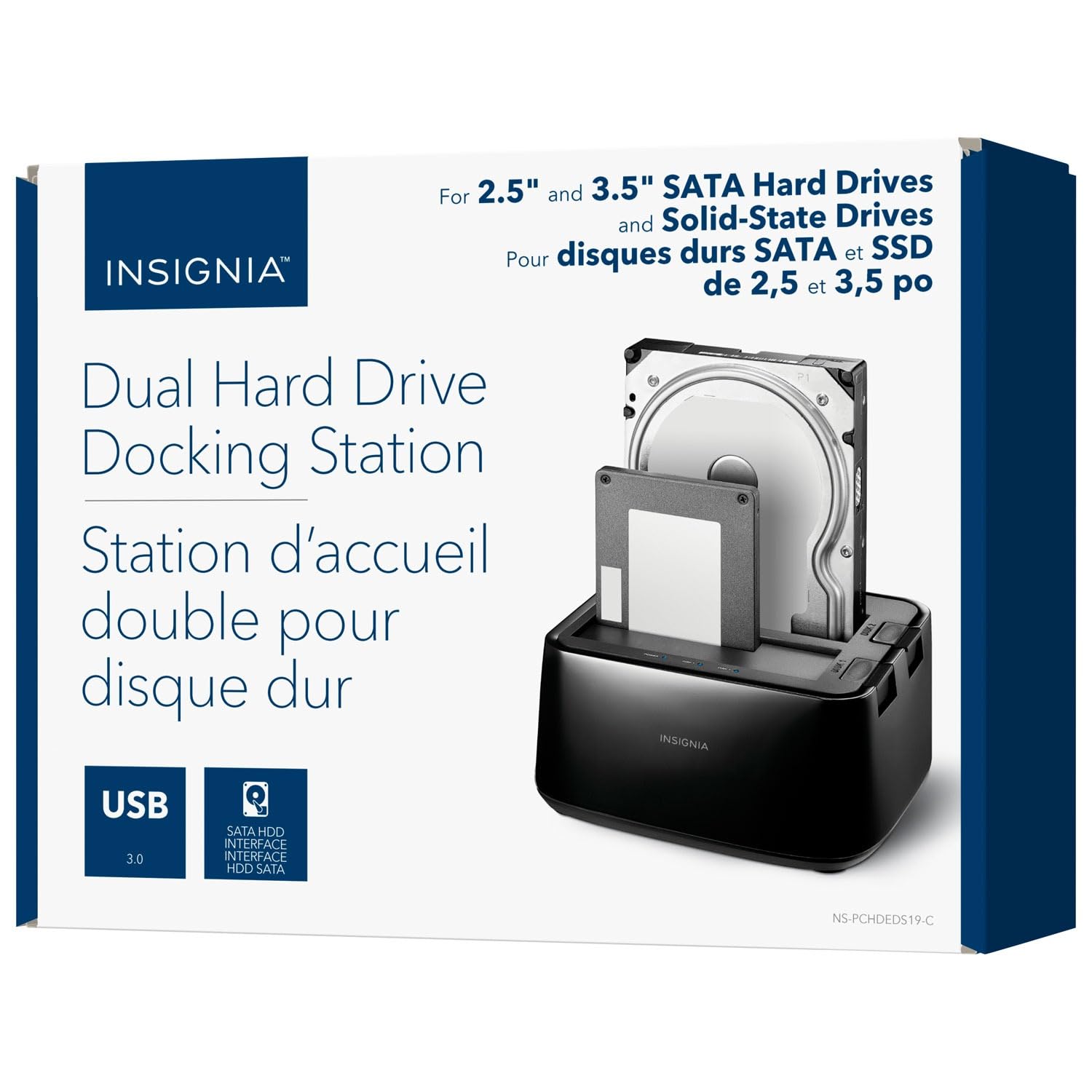
이미지: 앞면 view of the Insignia USB Dual Hard Drive Docking Station packaging, showing the product and its compatibility with 2.5" and 3.5" SATA drives.
패키지 내용
패키지에 모든 품목이 들어 있는지 확인하세요.
- Insignia USB Dual Hard Drive Docking Station
- 전원 어댑터(12V/3A)
- USB 3.0 케이블
- 빠른 설치 안내서
제품 특징
- 다양한 호환성: Supports both 2.5-inch and 3.5-inch SATA I/II/III HDDs and SSDs. Compatible with Windows 11, 10, macOS, ChromeOS, iPadOS, and Android systems.
- 고속 성능: Utilizes USB 3.0 technology for data transfer speeds up to 5 Gbps.
- 듀얼 베이 디자인: Allows simultaneous access to two hard drives.
- 간편하게 연결하고 바로 사용할 수 있는 편리함: 설치에 드라이버가 필요하지 않습니다.
- 핫스왑 가능: Drives can be inserted and removed without restarting the computer.
- LED 표시등: Provides visual feedback for power and data activity.
- 내구성 있는 구조: Crafted with robust plastic materials for long-lasting use.
설정
Follow these steps to set up your Insignia USB Dual Hard Drive Docking Station:
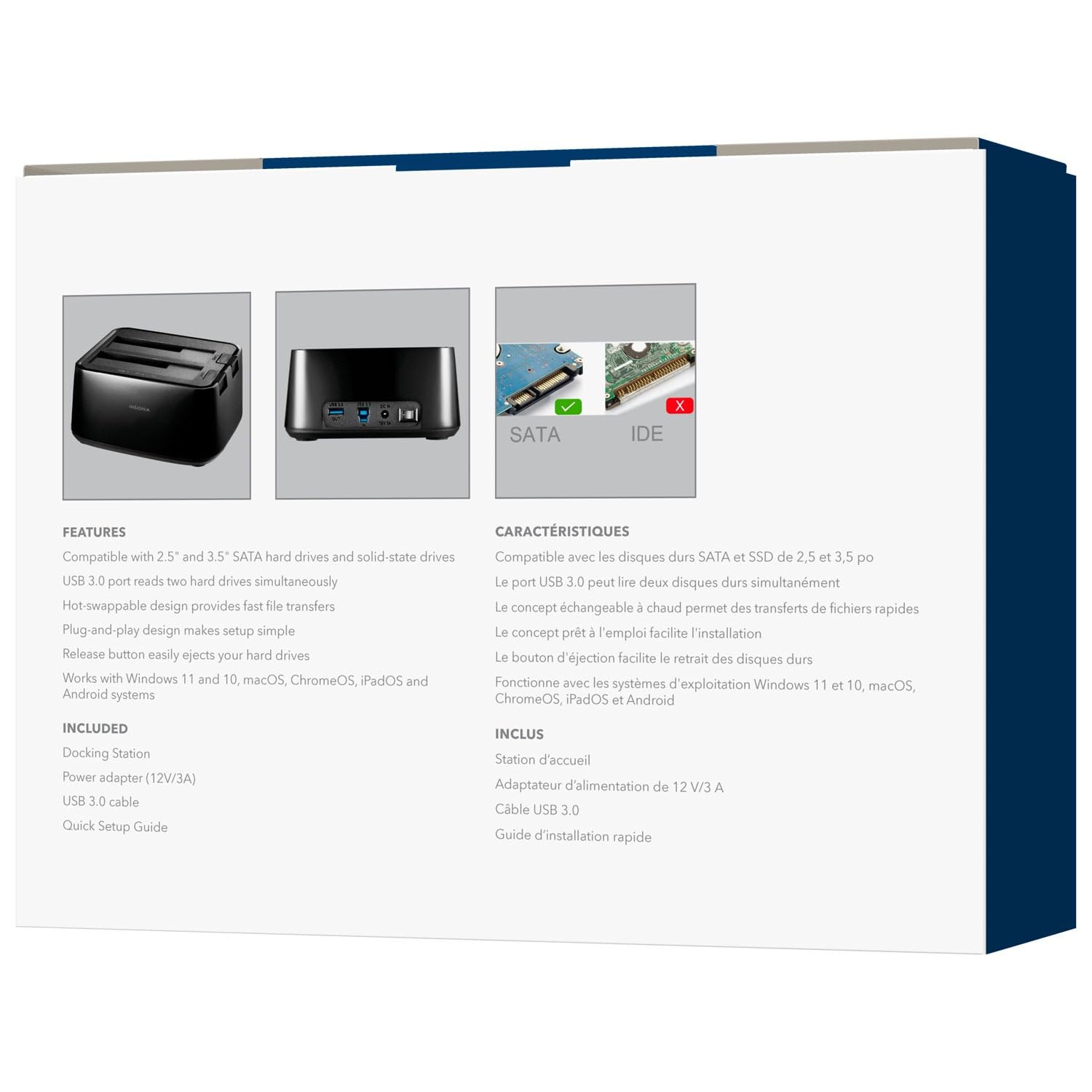
- 전원 연결: Plug the included 12V/3A power adapter into the DC IN port on the back of the docking station, then plug the adapter into a power outlet.
- 하드 드라이브 삽입: Gently slide your 2.5-inch or 3.5-inch SATA HDD/SSD into an available drive bay (Disk 1 or Disk 2) until it is firmly seated. Ensure the SATA connector on the drive aligns with the connector in the bay.
- 컴퓨터에 연결: Connect one end of the USB 3.0 cable to the USB 3.0 IN port on the docking station and the other end to an available USB port on your computer.
- 전원 켜기: Flip the power switch on the back of the docking station to the ON position. The power LED indicator will illuminate.
이미지: 후면 view of the docking station, highlighting the USB 3.0 IN/OUT ports, DC IN power port, and power switch.
이미지: 정면 상단 view of the docking station with a 2.5-inch SSD and a 3.5-inch HDD correctly inserted into their respective bays.
작동 지침
Inserting and Removing Drives
- 삽입하려면: Align the SATA connector of your HDD/SSD with the slot in the docking station bay and gently push down until the drive is securely seated.
- 제거하려면: Ensure no data transfer is active. Safely eject the drive from your operating system (e.g., "Safely Remove Hardware" on Windows, "Eject" on macOS). Then, press the release button next to the drive bay and carefully pull the drive upwards to remove it.
데이터 전송
Once connected and powered on, your operating system should automatically detect the inserted drives. They will appear as removable storage devices. You can then drag and drop files, copy, paste, or use backup software as you would with any other external storage device.
LED 표시등
- 전원 LED: Illuminates when the docking station is powered on.
- Activity LEDs (Disk 1, Disk 2): Blink when data is being accessed or transferred to/from the corresponding drive.
유지
- 청소: 도킹 스테이션 외부를 닦을 때는 부드럽고 마른 천을 사용하십시오. 액체 세척제나 용제를 사용하지 마십시오.
- 저장: 사용하지 않을 때는 도킹 스테이션을 직사광선과 극한 온도 변화를 피해 서늘하고 건조한 곳에 보관하십시오.
- 손질: 기기를 떨어뜨리거나 강한 충격을 가하지 마십시오. 내부 부품이 손상될 수 있습니다.
문제 해결
드라이브가 감지되지 않음
- 전원 어댑터가 제대로 연결되어 있고 도킹 스테이션의 전원이 켜져 있는지 확인하십시오.
- USB 케이블이 도킹 스테이션과 컴퓨터에 제대로 연결되어 있는지 확인하십시오.
- USB 케이블을 컴퓨터의 다른 USB 포트에 연결해 보세요.
- Ensure the hard drive is properly seated in the docking station bay.
- 디스크 관리(Windows) 또는 디스크 유틸리티(macOS)를 사용하여 드라이브가 인식되지만 포맷되지 않았거나 할당되지 않았는지 확인하십시오.
- Test with a different known-good hard drive to rule out a drive issue.
데이터 전송 속도가 느립니다
- Ensure you are connected to a USB 3.0 port on your computer for optimal speeds. Connecting to a USB 2.0 port will result in slower transfer rates.
- Verify the hard drive itself is capable of high speeds. Older HDDs may have slower performance.
- 작은 것을 많이 옮기지 마세요 file동시에 여러 번 시도해야 합니다. 그렇지 않으면 전체 전송 속도가 저하될 수 있습니다.
Docking Station Not Powering On
- Check that the power adapter is correctly plugged into both the docking station and a working power outlet.
- Ensure the power switch on the back of the docking station is in the ON position.
- 다른 전원 콘센트를 사용해 보세요.
명세서
| 상표 | INSIGNIA |
| 모델 | B0FWFVTZ9W |
| 하드웨어 인터페이스 | USB 3.0 |
| 호환 드라이브 유형 | 2.5" and 3.5" SATA I/II/III HDD/SSD |
| 데이터 전송 속도 | 최대 5Gbps(USB 3.0) |
| 하드웨어 플랫폼 | 만능인 |
| 재료 | 플라스틱 |
| 전원 어댑터 | 12V/3A |
보증 및 지원
For warranty information and technical support, please refer to the documentation included with your product or visit the official INSIGNIA website. You may also contact INSIGNIA customer service directly for assistance.


