소개
This manual provides detailed instructions for the setup, operation, and maintenance of your Zebronics Pixaplay 35 Android Smart LED Projector. Please read this manual thoroughly before using the product to ensure proper functionality and to prevent damage.
중요한 안전 정보
- 환기구를 막지 마십시오. 프로젝터 주변에 공기가 충분히 흐르도록 하십시오.
- 프로젝터 렌즈에 눈이 직접 닿지 않도록 주의하세요.amp 켜져있습니다.
- 장치와 함께 제공된 전원 어댑터만 사용하십시오.
- 프로젝터를 물, 습기 및 극한 온도로부터 멀리하십시오.
- 프로젝터를 직접 분해하거나 수리하려고 하지 마십시오. 모든 서비스는 자격을 갖춘 전문가에게 맡기십시오.
제품 끝view
The Zebronics Pixaplay 35 is a compact Android Smart LED Projector designed for versatile home entertainment. It features 4K UHD support, 4000 lumens brightness, and a 240° tilt mechanism for flexible projection.
패키지 내용
- Projector - 1 Unit
- 원격 제어
- Power Adapter - 1 Unit
- HDMI 케이블
- QR Code Guide - 1 Unit
- Cotton Swab Pack - 1 Unit
프로젝터 구성 요소

그림 1: 앞면 상단 view of the Zebronics Pixaplay 35 projector with its remote control.
The projector features a compact design with a lens at the front, ventilation grilles on the sides, and various ports at the rear for connectivity. The included remote control allows for easy navigation and settings adjustment.
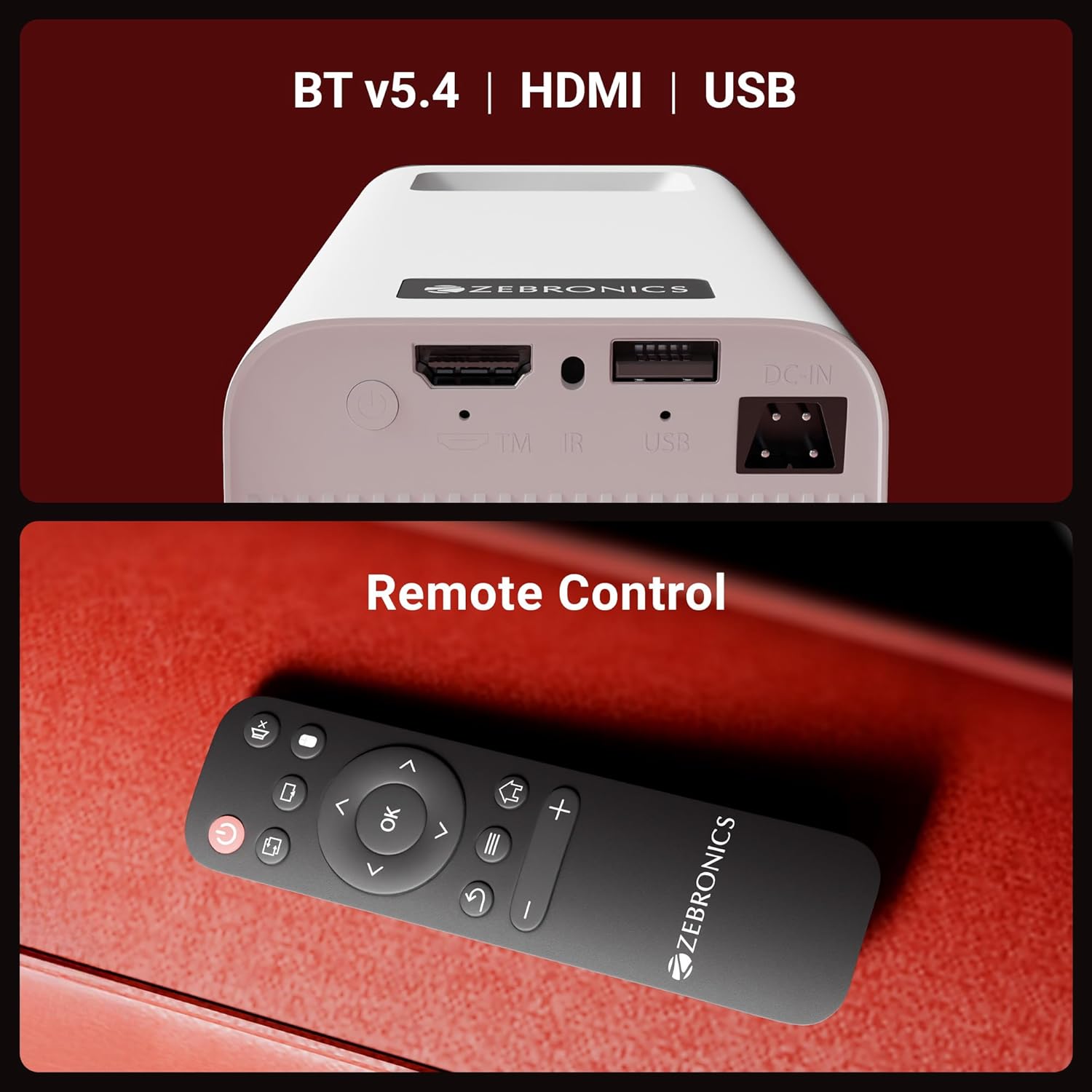
그림 2: 뒤쪽 view of the projector highlighting the connectivity ports (DC-IN, USB, HDMI) and the remote control.
The rear panel includes a DC-IN port for power, a USB port for media playback, and an HDMI port for connecting external devices. An IR receiver is also present for remote control operation.
설치 지침
1. 배치
Position the projector on a stable, flat surface. The 240° tilt mechanism allows you to adjust the projection angle for optimal viewing on a wall or screen. Ensure there are no obstructions in front of the lens or around the ventilation areas.

그림 3: The projector's 240° tilt mechanism allows for flexible positioning and projection angles.
For best results, project onto a smooth, light-colored surface. The projector can create a screen size of up to 254cm (100 inches).

그림 4: The projector can display images up to 254cm (100 inches) diagonally, creating a large view경험.
2. 전원 연결
Connect the provided power adapter to the DC-IN port on the projector and then plug it into a power outlet.
3. 초기 전원 켜기
Press the power button on the projector or the remote control to turn on the device. The projector will boot up and display the Android smart interface.
작동 지침
원격 제어
동봉된 리모컨을 사용하여 프로젝터 인터페이스를 탐색하고, 설정을 조정하고, 미디어 재생을 제어하세요. 배터리가 올바르게 삽입되었는지 확인하십시오.
초점 조정
Rotate the focus wheel located near the lens to achieve a clear and sharp image on your projection surface.
자동 키스톤 조정
The projector features automatic vertical keystone correction. This function automatically adjusts the image to be rectangular even if the projector is placed at an angle. Manual adjustment may be available in settings for fine-tuning.
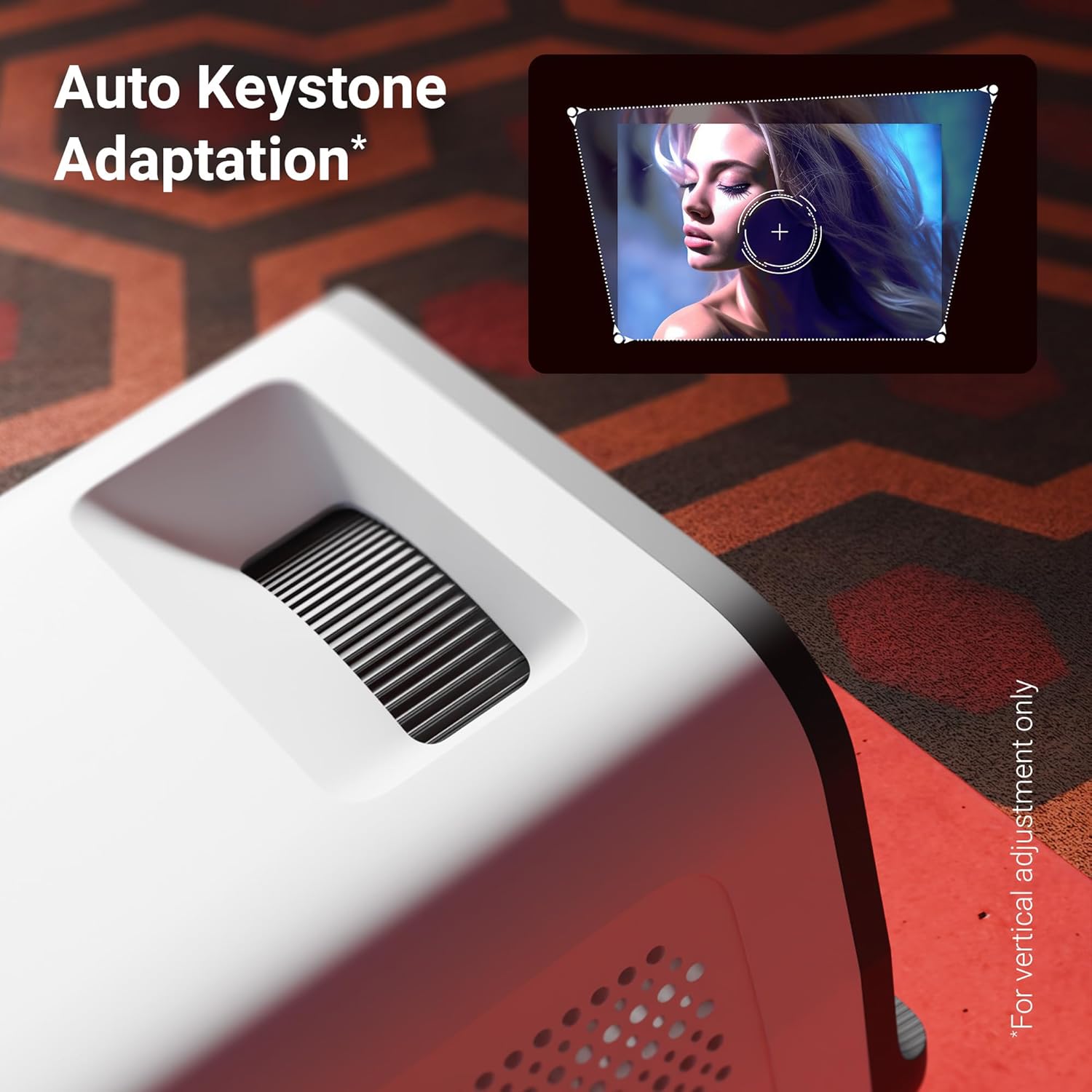
그림 5: The auto keystone adaptation feature corrects vertical image distortion automatically.
연결성
- HDMI : Connect external devices such as laptops, gaming consoles, or Blu-ray players using an HDMI cable. Select the HDMI input source from the projector's menu.
- USB: 미디어를 재생하려면 USB 포트에 USB 드라이브를 삽입하세요. files (photos, videos, music) directly from the drive.
- 블루투스 v5.4: Pair Bluetooth audio devices like speakers or headphones for enhanced sound. Access Bluetooth settings in the Android interface.
- 와이파이(2.4GHz 및 5GHz): Connect the projector to your home Wi-Fi network to access online content, streaming apps, and firmware updates.
- Miracast & iOS Screen Mirroring: Wirelessly mirror the screen of your Android or iOS smartphone/tablet to the projector. Follow the on-screen instructions for pairing.
스마트 기능 (안드로이드 OS)
The projector runs on an Android operating system, allowing you to download and use various OTT (Over-The-Top) applications like Netflix and Prime Video directly on the device. Navigate the app store to install desired applications.
주요 특징
- 4K UHD Support: Experience high-resolution content with support for 4K Ultra HD input, delivering sharp and detailed images.
- 4000 루멘 밝기 : LED lamp provides 4000 lumens, ensuring bright and clear visuals for an immersive view경험.
- Up to 254cm (100") Screen Size: Project large images suitable for home theater setups.
- 240° Tilt Mechanism: Offers flexible projection angles, reducing glare and improving view편안함을.
- Auto Keystone Adaptation: Automatically corrects vertical image distortion for a perfectly rectangular picture.
- 내장 스피커: Integrated speaker provides audio output for convenience. External audio can be connected via Bluetooth or other ports.
- 30,000-hour LED Lamp 삶: 오래가는 LED lamp ensures extended usage without frequent replacement.
- 쿼드 코어 프로세서: Enhances performance and responsiveness for smooth operation of the Android OS and applications.
- 듀얼 밴드 Wi-Fi: Supports both 2.4GHz and 5GHz Wi-Fi for stable and fast wireless connectivity.
- Miracast & iOS Screen Mirroring: Seamlessly cast content from Android and iOS devices.

그림 6: 위에view of key features including brightness, connectivity, and processing power.

그림 7: The projector includes a built-in speaker for integrated audio playback.
유지
- 렌즈 세척: Use a soft, lint-free cloth or the provided cotton swab to gently clean the projector lens. Do not use abrasive cleaners.
- 통풍: Regularly check and clean the ventilation grilles to prevent dust buildup, which can affect performance and lifespan.
- 저장: 장기간 사용하지 않을 경우 프로젝터를 서늘하고 건조한 곳에 보관하고 먼지와 직사광선을 피하세요.
문제 해결
| 문제 | 가능한 원인 | 해결책 |
|---|---|---|
| 이미지가 표시되지 않음 | 전원이 연결되지 않았습니다. 입력 소스가 잘못되었습니다. 렌즈 캡이 씌워져 있습니다. | Ensure power is connected and unit is on. Select correct HDMI/USB input. Remove lens cap. |
| 이미지가 흐릿함 | 초점이 조정되지 않았습니다. 프로젝터가 스크린에서 너무 멀거나 가깝습니다. | 초점 조절 휠을 조정하십시오. 최적의 거리를 위해 프로젝터 위치를 조정하십시오. |
| 소리가 나지 않습니다 | 볼륨이 너무 낮음; 음소거됨; 외부 오디오 장치가 연결/페어링되지 않았습니다. | 볼륨을 높이세요. 음소거를 해제하세요. 블루투스 연결 또는 외부 오디오 케이블을 확인하세요. |
| 리모컨이 작동하지 않습니다 | Batteries low/incorrectly inserted; Obstruction between remote and projector. | Replace batteries. Ensure clear line of sight to IR receiver. |
| Wi-Fi 연결 문제 | 잘못된 비밀번호; 라우터와의 거리가 너무 멀음; 네트워크 간섭. | Verify Wi-Fi password. Move projector closer to router. Try connecting to 2.4GHz or 5GHz band. |
명세서
| 상표 | 제 브로 닉스 |
| 모델 | Zeb-Pixa Play 35 |
| 디스플레이 기술 | 주도의 |
| 디스플레이 유형 | 4K UHD Support |
| 네이티브 해상도 | 1280 x 720 픽셀 |
| 이미지 밝기 | 4000루멘 |
| 이미지 명암비 | 1000시 1분 |
| 종횡비 | 16시 10분 |
| 연결 기술 | Bluetooth v5.4, HDMI, USB, Dual-band Wi-Fi (2.4GHz & 5GHz) |
| 호환 장치 | Laptops, Smartphones, Tablets, Gaming Consoles, Blu-ray Players, Media Streaming Devices |
| 제품 치수 | 10.5 x 8.8 x 16.5cm |
| 품목 무게 | 355g |
| 장착 유형 | 탁상 마운트 |
보증 및 지원
The Zebronics Pixaplay 35 Projector comes with a 1년 보증 from the date of purchase. For warranty claims, technical support, or service inquiries, please contact Zebronics customer service. Refer to the QR Code Guide included in your package for contact details or visit the official Zebronics web대지.
제조업체: Zebronics India Private Limited


