소개
This manual provides comprehensive instructions for the setup, operation, maintenance, and troubleshooting of your Nulea RT07 Wireless Ergonomic Trackball Keyboard. Designed for optimal comfort and efficiency, this keyboard features a split ergonomic layout, integrated trackball, and versatile dual-mode connectivity.
설치 가이드
1. 언박싱 및 초기 검사
Carefully remove the keyboard from its packaging. Ensure all components, including the keyboard, USB-C charging cable, and 2.4G USB receiver, are present and undamaged.

Image: The Nulea RT07 Wireless Ergonomic Trackball Keyboard, showcasing its split design, integrated wrist rest, and red trackball.
2. 키보드 충전
The keyboard is equipped with a built-in rechargeable battery. Connect the provided USB-C cable to the charging port located on the top edge of the keyboard. Plug the other end into a USB power source (e.g., computer USB port, wall adapter). A full charge typically takes approximately 2 hours and provides extended usage time.

Image: Close-up of the Nulea RT07 keyboard showing the USB-C charging port on its top edge, with a charging cable connected.
3. 전원 켜기 / 끄기
Locate the power switch on the back of the keyboard. Slide the switch to the "ON" position to power on the device. Slide it to "OFF" when not in use to conserve battery life.
4. 기기에 연결하기
The Nulea RT07 supports dual-mode connectivity: Bluetooth and 2.4G USB wireless.
- 2.4G USB Wireless Connection:
- Locate the 2.4G USB receiver stored magnetically in the back of the keyboard.
- USB 수신기를 컴퓨터의 사용 가능한 USB 포트에 연결합니다.
- 누르다 Fn + 4 on the keyboard. The mode indicator light will illuminate, indicating the keyboard has switched to 2.4G wireless mode.
- 키보드가 자동으로 기기에 연결됩니다.
- Bluetooth Connection (Up to 3 Devices):
- 누르다 Fn + 1, Fn + 2, 또는 Fn + 3 블루투스 채널을 선택하려면.
- 선택한 항목을 길게 누르세요 Fn + (1/2/3) key for 3 seconds to enter pairing mode. The Bluetooth indicator will flash green while searching for available Bluetooth devices.
- On your device (computer, laptop, tablet), go to Bluetooth settings and select "Nulea RT07" from the list of available devices to pair.
- 페어링이 완료되면 표시등이 더 이상 깜박이지 않습니다.

Image: The Nulea RT07 keyboard wirelessly connected to multiple devices (laptop, desktop, tablet) via Bluetooth and 2.4G, illustrating its multi-device switching capability.
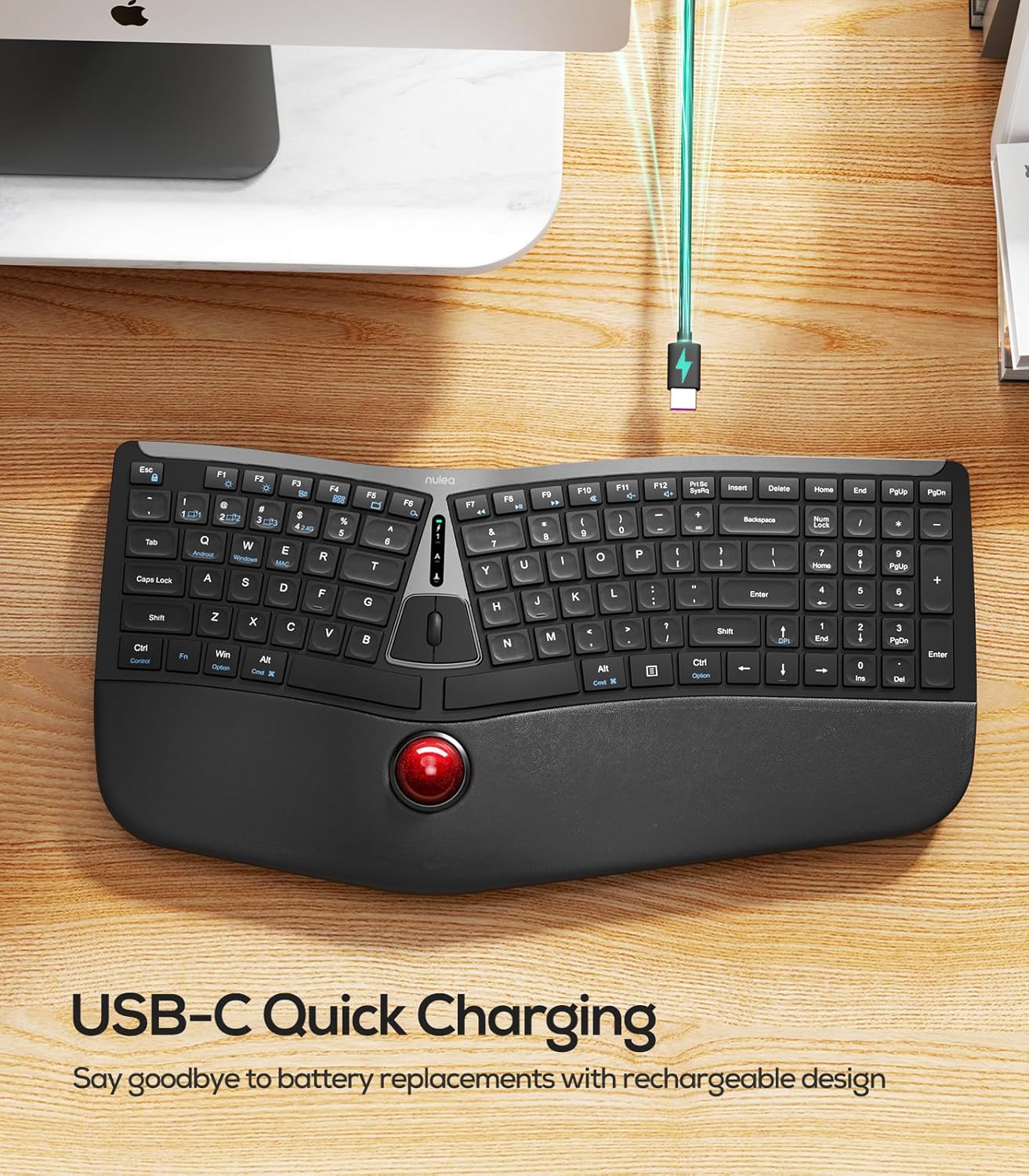
Image: A diagram illustrating the multiple connection options for the Nulea RT07 keyboard, including Bluetooth channels 1, 2, 3 and 2.4G wireless connection.
작동 지침
1. Ergonomic Design and Typing Posture
The Nulea RT07 features an ergonomic split layout designed to reduce forearm muscle twisting and promote a natural typing posture. The integrated wrist rest provides support, keeping your wrists in a comfortable position during extended use.

Image: A person typing on the Nulea RT07 ergonomic keyboard, demonstrating the natural and comfortable typing posture facilitated by its split layout and wrist rest.
2. Trackball Functionality
The integrated trackball allows you to control the cursor without moving your hand from the wrist rest, reducing fatigue and boosting productivity. Use your thumb to control the trackball for precise navigation.
- 트랙볼: Control cursor movement with your thumb.
- Left/Right Mouse Buttons: Located above the trackball.
- Middle Mouse Button/Scroll Wheel: 문서를 스크롤하거나 web 페이지.
- DPI 조정: 누르다 Fn + 위쪽 화살표 to cycle through DPI settings (200, 400, 800, 1200) for customized cursor speed.

Image: Close-up of the Nulea RT07 keyboard's trackball, showing the thumb controlling it, along with a diagram illustrating DPI adjustment settings.
3. Scissor-Switch Keys
The keyboard features scissor-switch keys, offering exceptional stability, rapid rebound, and even pressure for a smooth and responsive typing experience.
4. 백라이트
The keyboard includes LED backlighting for improved visibility in various lighting conditions. Use the dedicated backlight control keys to adjust brightness or turn the backlighting on/off.
5. 운영 체제 호환성
The Nulea RT07 is compatible with both Mac and Windows operating systems. Dedicated keys for "Win/Alt" and "Alt/Cmd" are provided for seamless switching between environments.
유지
1. 키보드 청소
- 부드럽고 털이 없는 천을 살짝 사용하세요.ampened with water or a mild cleaning solution to wipe down the keycaps and surfaces.
- Avoid excessive moisture and harsh chemicals.
- For the trackball, it can be popped out by pushing from the bottom for cleaning. Use a soft cloth to clean the trackball and its housing.
문제 해결
1. 키보드가 응답하지 않음
- 키보드의 전원이 켜져 있는지 확인하세요.
- 배터리 수준을 확인하고 필요한 경우 충전하세요.
- For 2.4G connection, ensure the USB receiver is securely plugged into your device and the keyboard is in 2.4G mode (Fn + 4).
- For Bluetooth connection, ensure the keyboard is in the correct Bluetooth channel (Fn + 1/2/3) and successfully paired with your device. Try re-pairing if necessary.
- Try connecting the keyboard to a different USB port or device to rule out port-specific issues.
2. 지연 또는 연결 끊김
- Ensure the keyboard is within the effective range of your device (typically up to 10 meters for wireless connections).
- 다른 무선 장치의 간섭을 최소화하세요.
- 키보드가 완전히 충전되었는지 확인하세요.
3. Trackball Not Functioning Correctly
- Clean the trackball and its housing as described in the Maintenance section.
- Adjust the DPI settings (Fn + 위쪽 화살표) to see if it resolves the issue.
명세서
| 상표 | 눌레아 |
| 모델 | RT07 |
| 연결 기술 | 2.4G, 블루투스 |
| 키보드 설명 | Membrane, Ergonomic Split Design with Trackball |
| 호환 장치 | Laptop, PC, Tablet (Mac/Windows compatible) |
| 특징 | Ergonomic, Integrated Trackball, USB-C Rechargeable, Backlit |
| 품목 무게 | 2.79파운드 |
| 패키지 크기 | 17.91 x 9.8 x 2.05 인치 |
| 배터리 | 9V 배터리 1개 필요(포함) |
보증 및 지원
For warranty information and customer support, please refer to the documentation included with your product or visit the official Nulea web대지. 보증 청구를 위해 구매 영수증을 보관하십시오.
공식 제품 영상
Nulea Wireless Ergonomic Trackball Keyboard Review
비디오: 자세한 내용view of the Nulea Wireless Ergonomic Trackball Keyboard, highlighting its features and benefits for users.
Review of Nulea Ergonomic Trackball Keyboard
비디오: 오버view of the Nulea Ergonomic Trackball Keyboard, demonstrating its ergonomic design and integrated trackball for comfortable use.


