1. 서론
This manual provides detailed instructions for the installation and operation of the ANYFAR Decoder Adapter (Model RM-MZDU01). This device enables USB Wired CarPlay and Android Auto functionality in compatible Mazda vehicles, enhancing your in-car infotainment experience while retaining original vehicle controls.
2. 제품 오버view
The ANYFAR Decoder Adapter integrates seamlessly with your Mazda's existing infotainment system. Key features include:
- USB Wired CarPlay & Android Auto: Access navigation, music, calls, messaging, and voice assistants directly from your car's display by connecting your smartphone via USB.
- 차량용 하이파이 오디오: Digital audio transmission ensures high-quality, uninterrupted sound without signal interference, preserving your car's original audio fidelity.
- 차량의 원래 제어 장치를 유지하십시오: Continue to use your vehicle's touchscreen, voice control, physical buttons, and control knobs after installation.
- 스마트 음성 비서: Utilize voice commands for navigation, music playback, calls, and other functions.

Figure 2.1: The ANYFAR Decoder Adapter unit, featuring USB and AUX ports for connectivity.

그림 2.2: 이상view of the Smart CarPlay Module for Mazda, highlighting features like Bluetooth, CarPlay, Android Auto, Voice Control, Live Map, and support for original knob controls.
3. 호환성
This decoder adapter is compatible with specific Mazda models and model years. Please verify your vehicle's compatibility before installation.
| 자동차 모델 | 화면 인치 | 모델 연도 |
|---|---|---|
| MX-5 | 없음 | 2016-2020 |
| CX-3 | 없음 | 2016-2019 |
| CX-5 | 없음 | 2015-2020 |
| CX-9 | 없음 | 2016-2020 |
| 마쓰다 2 | 없음 | 2016-2019 |
| 마쓰다 3 | 없음 | 2014-2018 |
| 마쓰다 6 | 없음 | 2016-2020 |
| FIAT 124 | 없음 | 2017-2021 |
Note: The "Screen inch" column was not specified in the source data for individual models, hence "N/A" is used. If you are unsure about your system's compatibility, please contact customer support.

Figure 3.1: Compatibility chart for Mazda vehicles.
4. 패키지 내용
아래 나열된 모든 품목이 패키지에 포함되어 있는지 확인하세요.
- ANYFAR Decoder Adapter Unit (RM-MZDU01)
- USB 케이블(x2)
- Sponge Tape (x2)
- Product Manuals (Documentation)
- Tie Wraps (x10)

Figure 4.1: Contents included in the ANYFAR Decoder Adapter package.
5. 설정 및 설치
Installation involves replacing the existing USB hub unit in your Mazda. This process requires careful handling of vehicle trim and wiring. It is recommended to consult online video tutorials specific to your Mazda model for detailed trim removal instructions.
5.1 사전 설치 단계
- Ensure your vehicle's infotainment system is running version 70 or newer.
- Gather necessary tools, including trim removal tools and screwdrivers.
- Watch relevant YouTube videos for your specific Mazda model to understand trim removal and wire routing.
5.2 설치 절차
- Remove Old USB Hub Unit: Carefully remove the vehicle's trim panels to access the existing USB hub unit. Disconnect the gray/green and gray/blue cables from the old USB hub unit and the CMU (Connectivity Master Unit).
- Remove Old Gray USB Cable: Disconnect and remove the old gray USB cable.
- Prepare New Cables: Straighten out the new cables provided in the package. Wrap any disconnected automobile cable harness connectors with the sponge tape (100 x 30 mm) to prevent noise and rattling. If there are two automotive wiring harness connectors, apply the same procedure to both.
- Install New USB Hub Unit: Connect the new USB hub unit (RM-MZDU01) to the CMU using the provided cables. Ensure the gray/green and gray/blue cables are securely connected.
- 케이블 경로: Feed the cables through to the center console, leaving enough slack on both ends for future access. Any remaining slack can be hidden in the panel beside the glove box.
- Transfer SD Card: Do not forget to transfer your SD card from the old hub to the new one.
- Secure Leftover Cables: There may be a leftover cable that remains installed but disconnected on both ends. Secure this cable and add padding to prevent rattling.
- 트림을 다시 조립하세요: 모든 트림 패널을 조심스럽게 다시 조립하십시오.

Figure 5.1: Wiring diagram for the installation of the ANYFAR Decoder Adapter.
6. 사용 설명서
6.1 USB Wired CarPlay and Android Auto
After installation, connect your iPhone or Android smartphone to the USB port of the new hub unit using a compatible USB cable. The system will automatically switch to CarPlay or Android Auto mode.
- 항해: Use Google Maps, Apple Maps, or Waze for real-time navigation, traffic conditions, and updated speed limits.
- 음악 및 미디어: Play music, podcasts, and audiobooks from your preferred apps.
- 통화 및 메시지: Make and receive calls, and send/receive messages using voice commands or the car's controls.
- 앱 접근: Access other compatible applications displayed on your car's screen.

Figure 6.1: Apple CarPlay interface examples on the Mazda display.
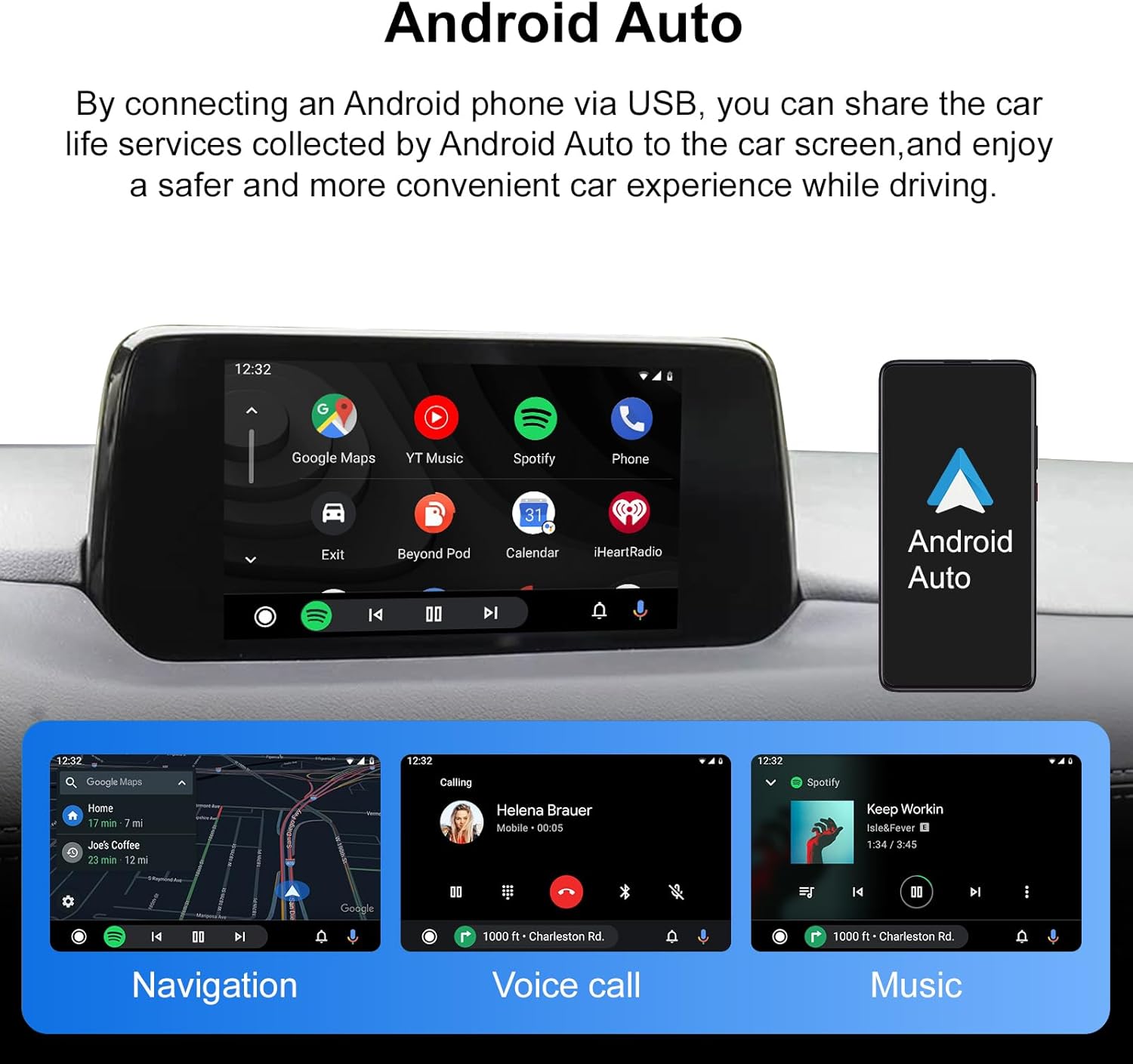
Figure 6.2: Android Auto interface examples on the Mazda display.
6.2 차량의 원래 제어 장치 유지
The adapter ensures full functionality of your vehicle's original control mechanisms:
- Knob Controls: Use the central control knob to navigate menus and select options within CarPlay or Android Auto.
- 스티어링 휠 버튼: Control audio playback, volume, and answer/end calls using your steering wheel buttons.
- 음성 지원: Activate your phone's voice assistant (Siri for CarPlay, Google Assistant for Android Auto) using the dedicated voice control button or a "Hey Google" command.
- 터치스크린: The original touchscreen functionality is retained for direct interaction with the display.
To return to the original Mazda infotainment system settings, access the dedicated Mazda app within CarPlay or Android Auto.
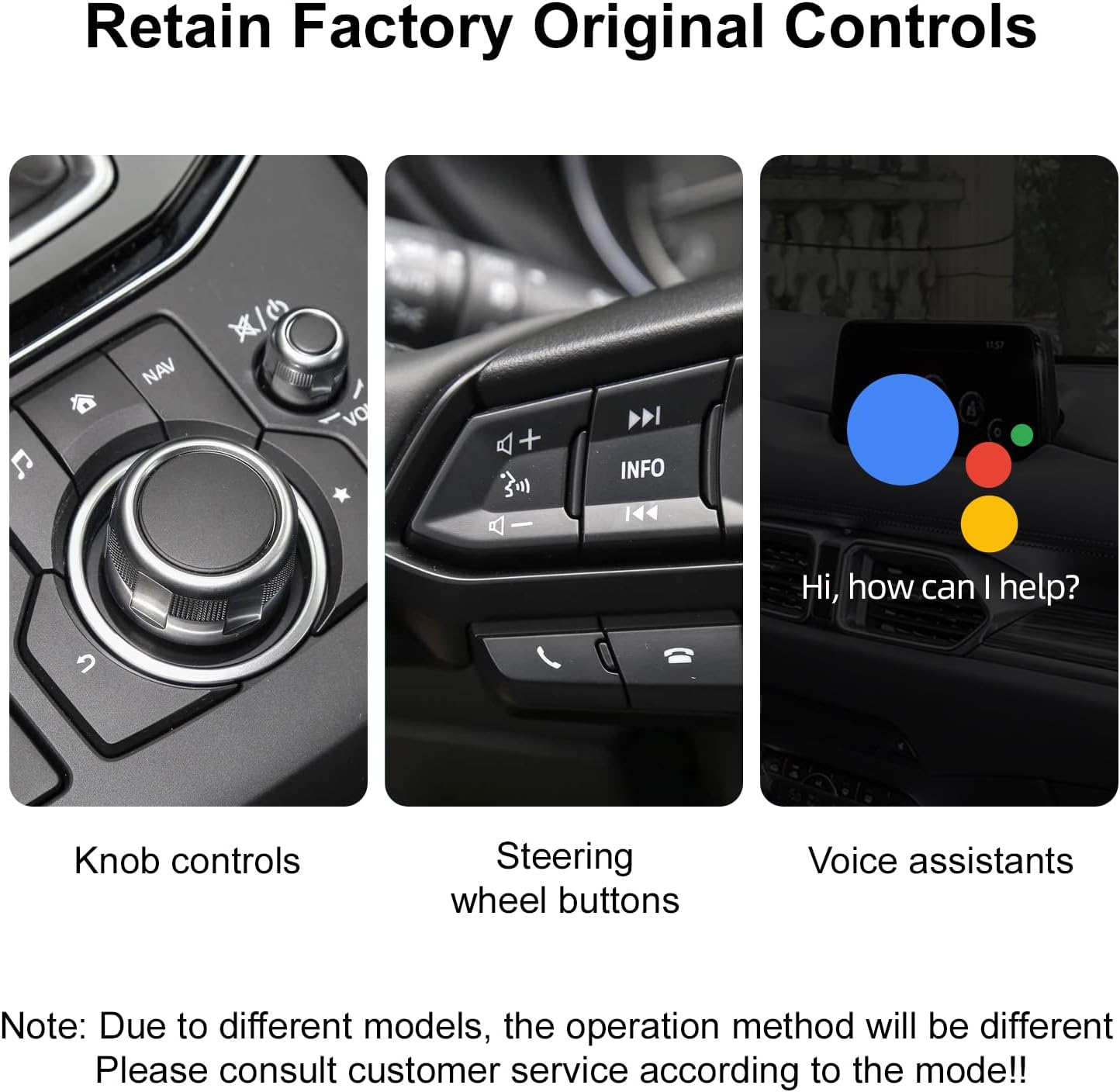
그림 6.3: 예amples of retained factory controls: knob, steering wheel buttons, and voice assistant.

그림 6.4: 스마트 음성 비서 인터페이스.
7. 문제 해결
- Screen Lock-up: If the screen becomes unresponsive, disconnect the USB cable from your phone and then reconnect it. This often resolves temporary display issues.
- Music Auto-Play/Incorrect Audio Source: Some phones or apps may automatically start playing music upon connection, or resume from an unexpected audio source. This behavior can vary by phone and app settings. Manually select your desired audio source or app if this occurs.
- Voice Assistant Volume: Adjusting the volume of the voice assistant relative to media playback may not be directly controllable through the adapter. Adjust overall system volume as needed.
- "Ghost Touch" Problem: If your car experiences the "ghost touch" issue (unintended screen inputs), consider disconnecting the touch panel from the display during installation. All functions can still be accessed via the control knob.
- Control Knob Lock-out: Excessive or rapid use of the control knob while driving may temporarily lock it out as a safety measure. Wait a few seconds for it to reset.
8. 사양
| 특징 | 세부 사항 |
|---|---|
| 모델 번호 | RM-MZDU01 |
| 상표 | 어디서나 |
| 호환 장치 | Smartphone (for CarPlay/Android Auto) |
| 커넥터 유형 | Micro USB (for adapter connection) |
| 색상 | 검은색 |
| 포트 수 | 1 (USB for phone connection, plus AUX) |
| 패키지 크기 | 2.76 x 1.14 x 1.1 인치 |
| 품목 무게 | 12.7 온스 |
| 제조업체 | 후이저우 리듬 테크놀로지 유한회사 |
| 첫 번째 이용 가능 날짜 | 11년 2025월 XNUMX일 |
9. 보증 및 지원
ANYFAR provides a 12-month product update period, indicating ongoing support and potential software enhancements for your device. For technical assistance, troubleshooting, or warranty claims, please contact ANYFAR customer support through their official channels or the retailer where the product was purchased.
추가 정보 및 지원이 필요하시면 다음 웹사이트를 방문하세요. 아마존에서 ANYFAR 스토어를 만나보세요.


