1. 서론
Thank you for choosing the Tongtion Wireless Display Dongle Adapter. This device provides a seamless and portable solution for mirroring content from your smartphone, PC, or tablet to a larger display such as a TV, monitor, or projector. Featuring 1080p HDMI streaming, 5GHz WiFi, and support for AirPlay and Miracast, it offers a plug-and-play experience for various applications including business presentations, home entertainment, and multimedia education.
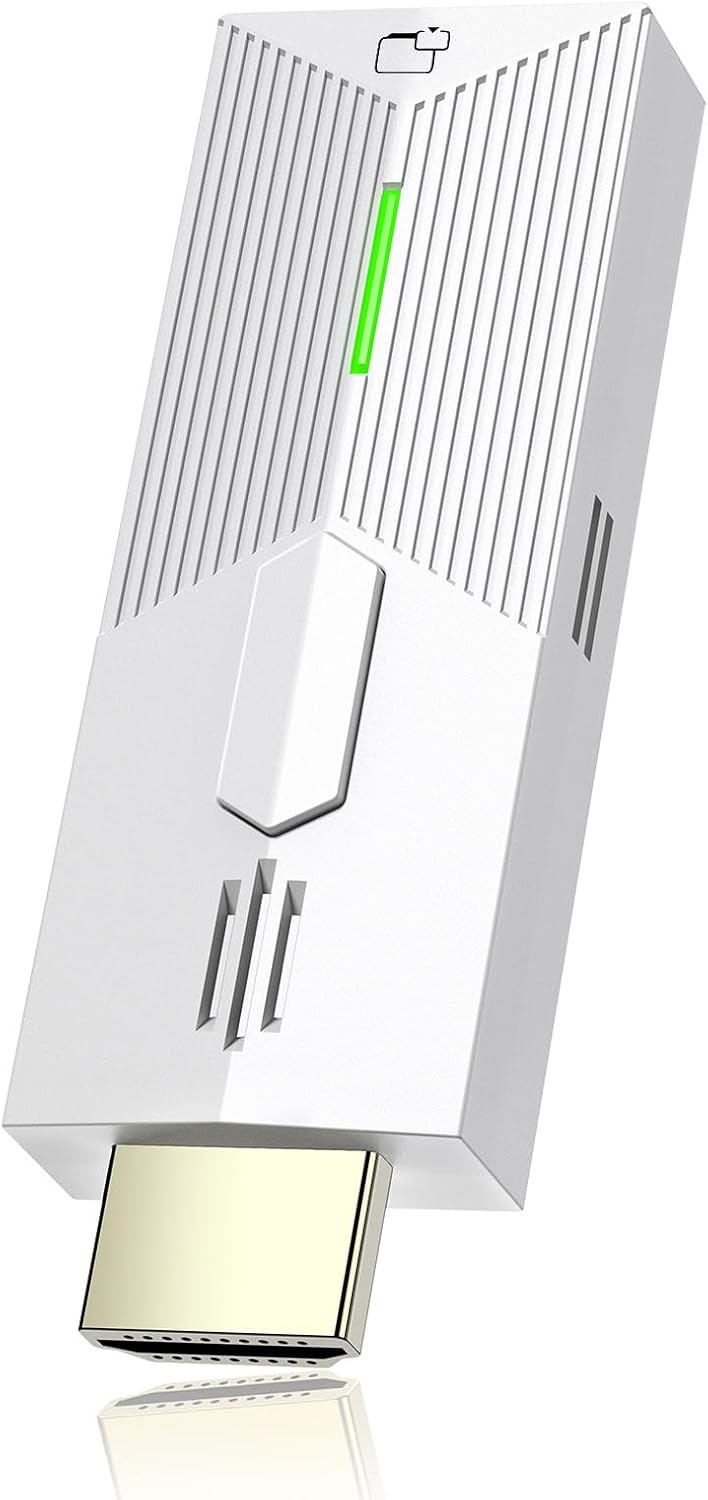
Image: The Tongtion Wireless Display Dongle Adapter, a compact white device with an HDMI connector and status indicator.
2. 패키지 내용
패키지에 모든 품목이 들어 있는지 확인하세요.
- Tongtion Wireless HDMI Display Dongle Adapter
- USB Power Cable (often integrated or separate for power)
- 사용 설명서 (본 문서)
3. 제품 오버view
The Tongtion Wireless Display Dongle Adapter is designed for ease of use and stable performance. Below are the key components and their functions:
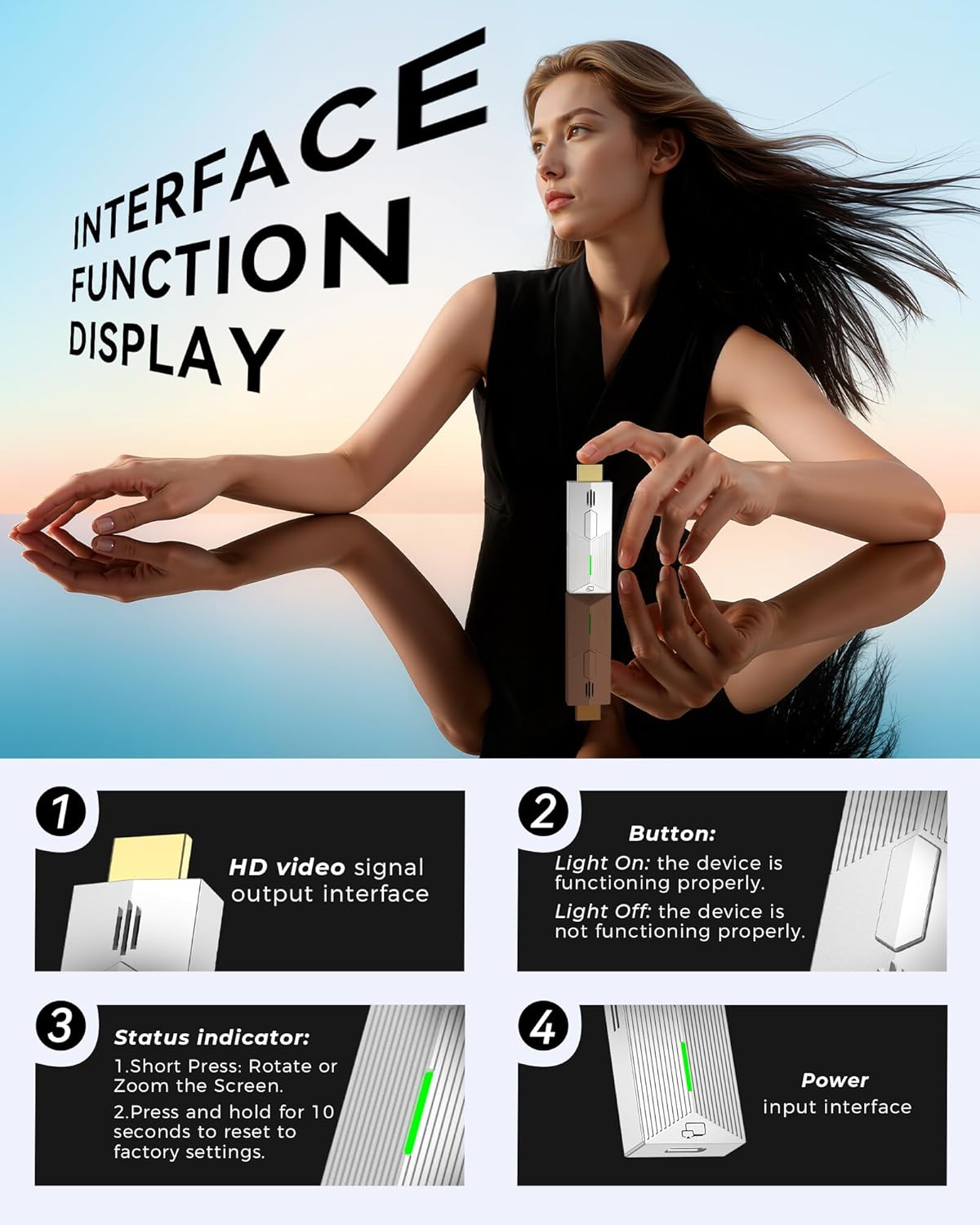
이미지: 상세 view of the dongle's interface, highlighting the HDMI output, button, status indicator, and power input.
- HD Video Signal Output Interface: This is the HDMI connector that plugs into your TV, monitor, or projector.
- 단추:
- Short Press: Rotates or zooms the screen.
- Press and hold for 10 seconds: Resets the device to factory settings.
- 상태 표시기:
- Light On: The device is functioning properly.
- Light Off: The device is not functioning properly.
- 전원 입력 인터페이스: Connects to the USB power cable for device operation.
The device supports 5G stable transmission for low latency and a smooth viewing experience. It is compatible with a wide range of devices and operating systems, including iOS, Android, Windows, and macOS.

Image: Diagram showing compatibility with various devices including iPhone, Android, Tablet, Laptop, TV, Monitor, and Projector, along with supported operating systems and protocols like WiFi, AirPlay, DLNA, Miracast, Windows, iOS, Android, and macOS.
4. 설정 가이드
Follow these steps to set up your Tongtion Wireless Display Dongle Adapter:
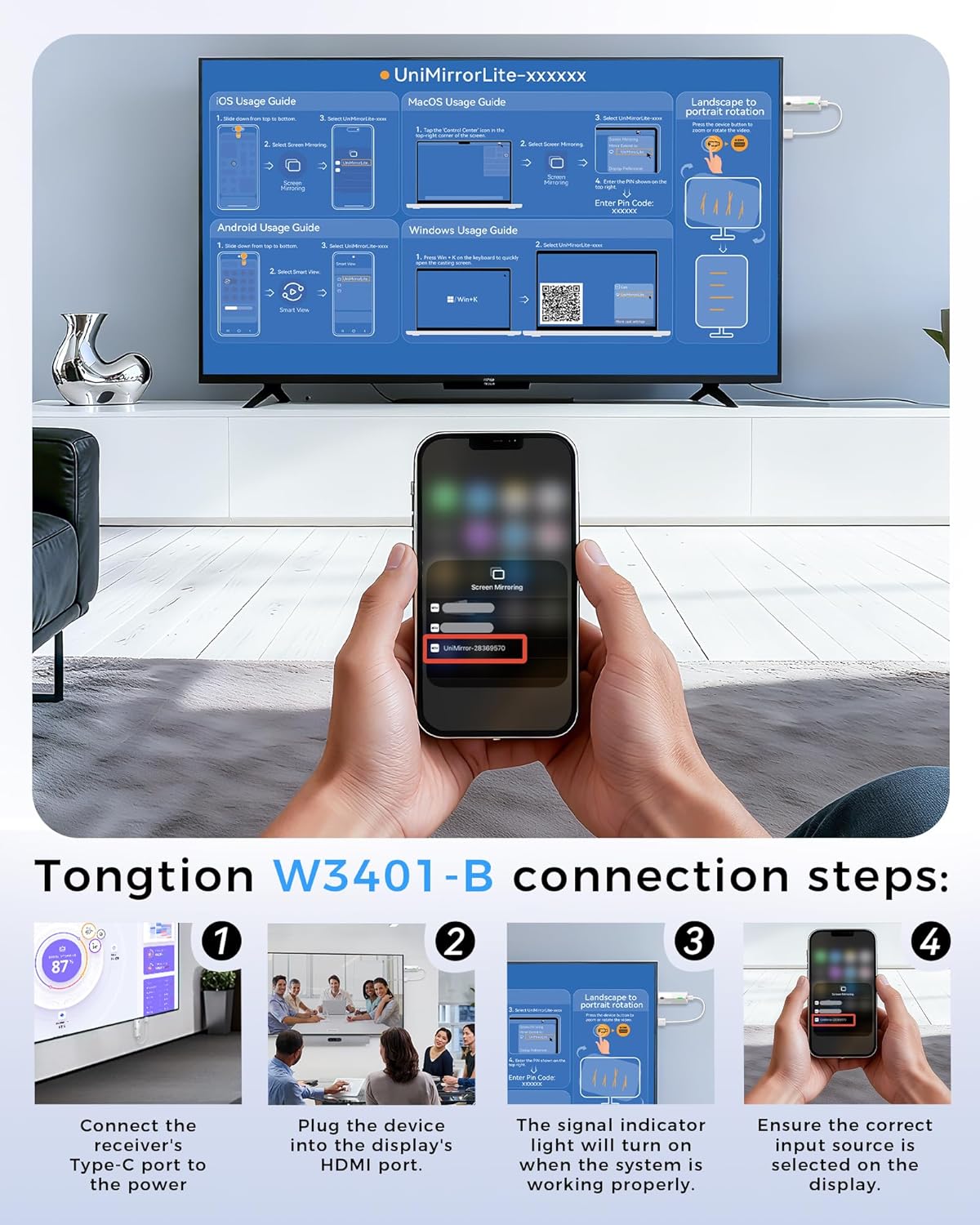
Image: Visual guide demonstrating the four connection steps for the Tongtion Wireless Display Dongle.
- 전원 연결: Connect the receiver's Type-C port (or USB power input) to a power source using the provided USB cable. This can be a USB port on your TV or a separate USB power adapter (5V/2A recommended).
- Plug into Display: Plug the device into an available HDMI port on your TV, monitor, or projector.
- 확인 표시기: Ensure the signal indicator light on the dongle turns on, indicating the system is working properly.
- 입력 선택: On your display device (TV/monitor/projector), use its remote control to select the correct HDMI input source that the dongle is connected to.
Once connected, your display should show a setup screen with instructions for connecting your source device (smartphone, PC, etc.). The specific network name (SSID) and PIN will be displayed on your screen.
5. 사용 설명서
The Tongtion Wireless Display Dongle supports various wireless protocols for screen mirroring. No dedicated app is required for most devices.

Image: Comprehensive usage guides for connecting iOS, macOS, Android, and Windows devices, including steps for screen mirroring and screen rotation.
5.1. iOS Usage Guide (AirPlay)
- Slide down from the top-right corner of your iPhone/iPad screen to open Control Center.
- Tap the "Screen Mirroring" icon.
- Select "UniMirrorLite-xxxxxx" (the name displayed on your TV screen) from the list of available devices.
- 이제 iOS 기기의 화면이 디스플레이에 미러링됩니다.
5.2. macOS Usage Guide (AirPlay)
- Click the "Control Center" icon in the top-right corner of your macOS screen.
- Select "Screen Mirroring".
- Choose "UniMirrorLite-xxxxxx" (the name displayed on your TV screen) from the list.
- If prompted, enter the PIN code displayed on your TV screen.
5.3. Android Usage Guide (Miracast/Smart View)
- Slide down from the top of your Android screen to open the Quick Settings panel.
- Tap the "Smart View" (or "Cast", "Wireless Display", "Screen Mirroring") icon.
- Select "UniMirrorLite-xxxxxx" (the name displayed on your TV screen) from the list of available devices.
- 이제 안드로이드 기기의 화면이 디스플레이에 미러링됩니다.
5.4. Windows Usage Guide
- 를 누르세요 Windows 키 + K on your keyboard to quickly open the "Connect" sidebar.
- Select "UniMirrorLite-xxxxxx" (the name displayed on your TV screen) from the list of available wireless displays.
- Your Windows screen will now be mirrored or extended to the display.
5.5. Screen Rotation and Zoom
The Wireless HDMI Display Adapter supports mirror mode and off-screen mode. By clicking the button in the middle of the dongle, you can easily zoom in and out of the screen or rotate the display to enhance the view경험.

Image: A laptop displaying content on its screen while simultaneously extending the display to a large TV via the wireless dongle, illustrating the extended mode functionality.
6. 유지관리
To ensure the longevity and optimal performance of your Tongtion Wireless Display Dongle Adapter, please follow these maintenance guidelines:
- 청소: 부드럽고 마른 천을 사용하여 기기를 닦으세요. 액체 세척제나 에어로졸은 사용하지 마세요.
- 저장: 본 기기는 직사광선과 극한의 온도를 피해 시원하고 건조한 곳에 보관하세요.
- 손질: 기기를 조심스럽게 다루십시오. 떨어뜨리거나 강한 충격을 주지 마십시오.
- 힘: Always use the recommended power adapter (5V/2A) to prevent damage.
7. 문제 해결
If you encounter issues with your Tongtion Wireless Display Dongle Adapter, refer to the following common problems and solutions:
| 문제 | 가능한 원인 / 해결책 |
|---|---|
| TV/모니터에 아무것도 표시되지 않습니다. |
|
| Unstable connection or lag. |
|
| Cannot mirror certain apps (e.g., Netflix, Amazon Prime Video). | This dongle does not support certain paid applications that employ "HDCP" video copyright protection. These include, but are not limited to, Netflix, Amazon Prime Videos, Hulu, Comcast TV, Xfinity, Vudu, Sky Go, and BT Sport. This is a limitation due to copyright protection, not a device malfunction. |
| Device not found during screen mirroring. |
|
8. 사양
| 특징 | 세부 사항 |
|---|---|
| 상표 | 통션 |
| 모델 번호 | TGN-W3401-B-YK-001 |
| 연결 기술 | HDMI, 5GHz WiFi |
| 커넥터 유형 | HDMI |
| 해결 | 1080p Full HD Output (supports 4K decoding) |
| 지원되는 프로토콜 | AirPlay, DLNA, Miracast, Cast |
| 지원되는 OS | iOS, 안드로이드, 윈도우, macOS |
| 품목 무게 | 2.39 온스 |
| 제품 치수 | 5.8 x 3.7 x 1 인치 |
9. 보증 및 지원
Tongtion products are designed for reliability and performance. For warranty information and technical support, please refer to the official Tongtion web사이트 또는 고객 서비스 팀에 문의하십시오.
- 온라인 지원: 방문하세요 Tongtion Store on Amazon 제품 정보 및 FAQ를 확인하세요.
- 연락하다: For further assistance, please reach out to Tongtion customer support through the contact methods provided on our official channels.


