1. 서론
Welcome to the user manual for your NIMO N152S 15.6-inch Laptop. This guide provides essential information on setting up, operating, maintaining, and troubleshooting your new device. Please read this manual thoroughly to ensure optimal performance and longevity of your laptop.
2. 제품 오버view
2.1 주요 특징
- 강력한 성능: Equipped with an AMD Ryzen 5 3500U processor and integrated Radeon graphics for smooth multitasking and efficient performance.
- 몰입형 풀 HD 디스플레이: A 15.6-inch Full HD (1920x1080) IPS display with a 180° wide hinge for vibrant visuals and wide view각도를 나타냅니다.
- 얇고 가벼운 디자인: Crafted with a sleek metal top cover, weighing under 3.7 lbs and measuring just 19.2 mm thin.
- 향상된 연결성: Features 2 USB-A, 2 USB-C (full function PD/DP/Data), HDMI, MicroSD, and a 3.5mm audio jack.
- 확장 가능한 메모리 및 저장 장치: Supports up to 32GB DDR4 RAM and M.2 PCIe 3.0 x4 SSD for future-proof upgrades.
- Smart Security & Comfort: Includes a fingerprint reader on the touchpad, a backlit keyboard for low-light use, and dual microphones.
2.2 구성 요소 식별
Familiarize yourself with the various components of your NIMO N152S laptop as illustrated below.

그림 2.1: 전면 view of the NIMO N152S laptop, showcasing its sleek design and key features like Windows 11, 32GB RAM, 1TB SSD, Full HD display, AMD Ryzen 5, Type-C PD Charger, Backlit Keyboard, and Fingerprint Reader.

Figure 2.2: Illustration of the AMD Ryzen 5 processor, detailing its specifications including 4 Cores, 8 Threads, 15W Power Consumption, and 3.7 GHz Turbo Boost, indicating its capability for daily tasks and light gaming.

Figure 2.3: The NIMO laptop screen showcasing a vivid Full HD (1920x1080) IPS display, highlighting features like bright view and eye protection, with an 85% screen-to-body ratio.

그림 2.4: 상세 view of the NIMO laptop's expanded connectivity options, labeling ports such as Type-C (Charge Only), USB 3.0, HDMI, Type-C (Full Function), Charge LED, Micro SD Reader, USB 2.0, USB 3.0, Headphone Combo, and Kensington Lock.
3. 초기 설정
3.1 노트북 충전
Before first use, fully charge your NIMO laptop. Connect the provided 65W Type-C PD charger to the USB-C charging port on the laptop and then to a power outlet. The charge LED indicator will illuminate to confirm charging.

Figure 3.1: The 65W Type-C PD Charger, designed for universal compatibility with laptops, tablets, and smartphones, simplifying your charging needs compared to multiple chargers.
3.2 처음으로 전원 켜기
- 노트북 덮개를 엽니다.
- 키보드에 있는 전원 버튼을 누르세요.
- 화면의 지시에 따라 언어 선택, 네트워크 연결, 사용자 계정 생성 등 Windows 11 초기 설정을 완료합니다.
4. NIMO 노트북 사용법
4.1 전원 켜기/끄기 및 절전 모드
- 전원 켜기: 전원 버튼을 누르세요.
- 종료: 시작 버튼을 클릭한 다음 전원 > 시스템 종료를 클릭합니다.
- 수면 모드 : 뚜껑을 닫거나 시작 버튼을 클릭한 다음 전원 > 절전을 클릭합니다.
4.2 키보드 및 터치패드 사용
Your NIMO laptop features a full-sized keyboard with a numeric keypad and a responsive touchpad.
- 백라이트 키보드: 누르다 FN + F10 (또는 백라이트 아이콘이 있는 키를) 눌러 키보드 백라이트를 켜거나 끄거나 밝기를 조절할 수 있습니다.
- 터치패드: 탐색을 위한 멀티터치 제스처를 지원합니다. 사용자 지정은 Windows 설정을 참조하세요.
- 숫자 키패드: Use the dedicated numeric keypad for efficient data entry.

Figure 4.1: The NIMO laptop keyboard, emphasizing its backlit keys, integrated touchpad, fingerprint reader, and numeric keypad, designed for comfortable typing in various lighting conditions.
4.3 지문 판독기
The integrated fingerprint reader on the touchpad provides quick and secure access to your laptop.
- Windows 설정 > 계정 > 로그인 옵션으로 이동하세요.
- Windows Hello 지문 인증을 설정하세요.
- 화면 안내에 따라 지문을 등록하세요.
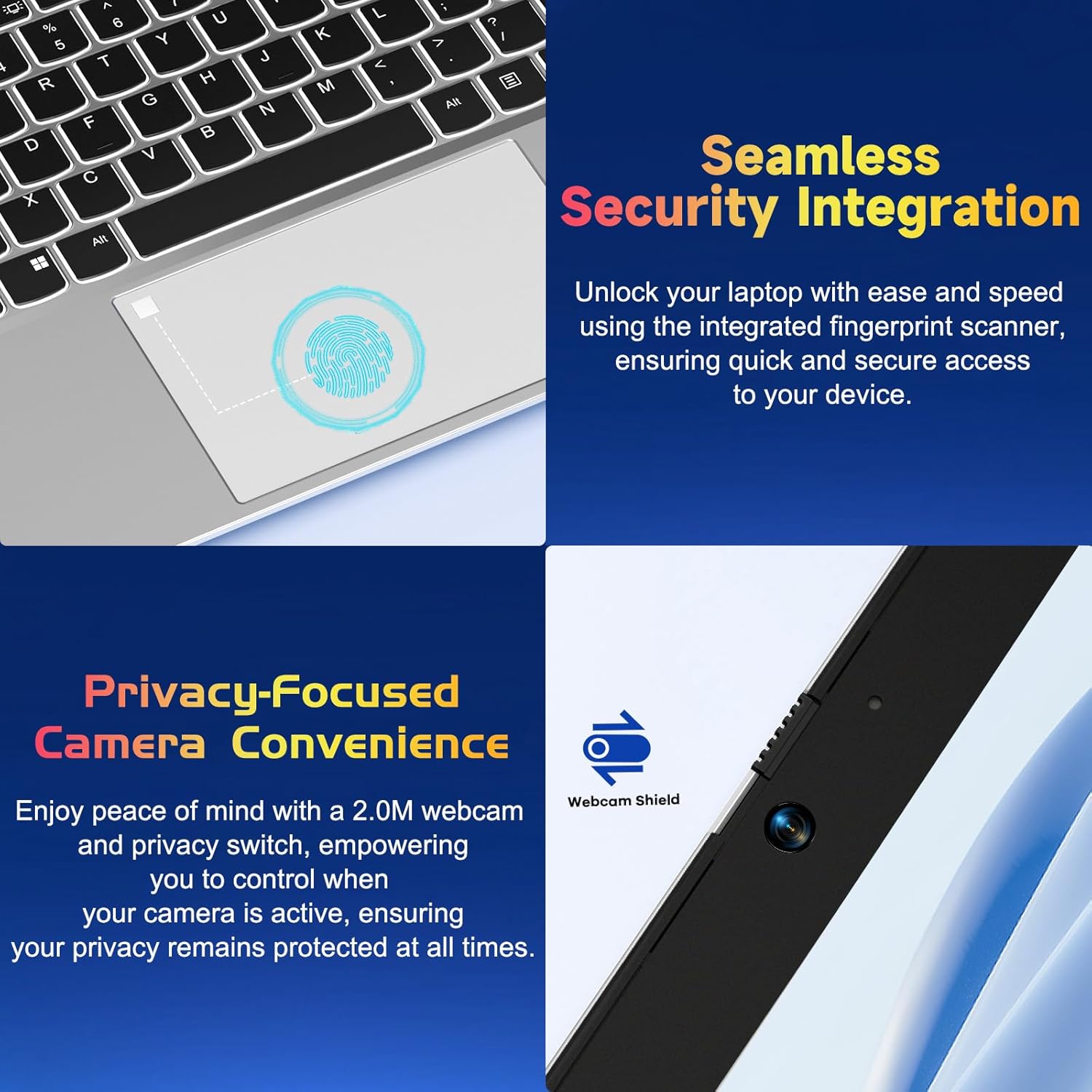
그림 4.2: 클로즈업 view of the NIMO laptop's touchpad, highlighting the integrated fingerprint scanner for seamless security integration, alongside the privacy-focused webcam with a physical shield.
4.4 주변기기 연결하기
노트북에는 외부 장치를 연결할 수 있는 다양한 포트가 있습니다.
- USB-A 포트: 마우스, 키보드, 외장 드라이브 등 표준 USB 장치를 연결하는 데 사용됩니다.
- USB-C 포트: Two full-function USB-C ports support Power Delivery (PD), DisplayPort (DP), and data transfer. One is dedicated for charging.
- HDMI 포트 : 외부 모니터 또는 프로젝터에 연결하세요.
- MicroSD 카드 리더기: 추가 저장 공간 또는 데이터 전송을 위해 MicroSD 카드를 삽입하세요.
- 3.5mm 오디오 잭: 헤드폰이나 외부 스피커용.
4.5 Webcam Privacy
이 노트북에는 2.0MP 카메라가 포함되어 있습니다. webcam with a physical privacy shield. Slide the shield to cover the camera lens when not in use to ensure your privacy.
5. 유지관리 및 관리
- 청소: 부드럽고 털이 없는 천을 살짝 사용하세요.amp디스플레이와 외부를 청소할 때는 물이나 화면 세척제를 사용하십시오. 강한 화학 약품은 사용하지 마십시오.
- 소프트웨어 업데이트: 최적의 성능과 보안을 유지하려면 Windows 운영 체제와 드라이버를 정기적으로 업데이트하십시오.
- 배터리 관리 : 배터리 수명을 연장하려면 극한 온도 변화를 피하고 가능하면 배터리 충전량을 20%에서 80% 사이로 유지하십시오.
- 저장: 노트북은 직사광선과 극한의 온도를 피해 서늘하고 건조한 곳에 보관하세요.
6. 문제 해결
이 섹션에서는 NIMO 노트북 사용 중 발생할 수 있는 일반적인 문제에 대해 설명합니다.
| 문제 | 가능한 해결책 |
|---|---|
| 노트북의 전원이 켜지지 않습니다. | Ensure the laptop is charged. Connect the charger and wait a few minutes before attempting to power on again. If unresponsive, perform a hard reset by holding the power button for 15 seconds. |
| 화면이 비어 있거나 깜빡입니다. | Try adjusting the screen brightness (Fn + F5/F6). If connected to an external monitor, ensure the cable is secure. Restart the laptop. |
| 키보드 백라이트가 작동하지 않습니다. | Press Fn + F10 (or the key with the backlight icon) to cycle through backlight settings. Ensure the function keys are enabled. |
| 지문 인식기가 인식되지 않았습니다. | Ensure your finger is clean and dry. Re-register your fingerprint in Windows Hello settings if the issue persists. |
| Wi-Fi 연결 문제. | Check if Wi-Fi is enabled (Fn + F12 or Windows settings). Restart your router and laptop. Update Wi-Fi drivers if necessary. |
| 노트북이 느리게 작동합니다. | 불필요한 애플리케이션을 종료하세요. 작업 관리자에서 리소스를 많이 사용하는 프로세스를 확인하세요. Windows와 드라이버가 최신 버전인지 확인하세요. 디스크 정리 도구를 실행하는 것도 고려해 보세요. |
7. 기술 사양
| 특징 | 사양 |
|---|---|
| 상표 | 니모 |
| 모델명 | NIMO N152S |
| 품목 모델 번호 | 니모 N152 |
| 화면 크기 | 15.6 인치 |
| 최대 화면 해상도 | 1920x1080픽셀(풀 HD) |
| 프로세서 | AMD 라이젠 5 3500U(3.7GHz) |
| 숫양 | 32GB DDR4(3200MHz) |
| 하드 드라이브 | 1024GB SSD(솔리드 스테이트 드라이브) |
| 그래픽 코프로세서 | AMD 통합 그래픽 |
| 운영 체제 | 윈도우 11 |
| 무선형 | 802.11abg |
| USB 2.0 포트 수 | 1 |
| 평균 배터리 수명 | 5시간 |
| 품목 무게 | 3.8파운드 |
| 제품 치수 | 14.07 x 8.98 x 0.76 인치 |
| 색상 | 클래식 실버 |
| 뒤쪽 Web캠 해상도 | 2 MP |
| 전원 | 배터리 구동 |
| 배터리 | 1 리튬 폴리머 배터리 필요(포함) |
8. 보증 및 고객 지원
8.1 보증 정보
Your NIMO N152S laptop comes with a comprehensive warranty:
- 90일 무료 반품 정책: You may return your NIMO laptop for any reason within 90 days of purchase.
- 2년 보증: All NIMO products are covered by a 2-year warranty for after-sales support.

Figure 8.1: NIMO's commitment to customer satisfaction, featuring a 90-day free return policy and a 2-year warranty for reliable support.
8.2 고객 지원
For any product-related questions, technical assistance, or warranty claims, please contact our U.S.-based support team:
- NIMO 공식 웹사이트를 방문하세요. web지원 자료 및 연락 방법을 안내하는 사이트입니다.
- 자세한 연락처 정보는 구매 서류를 참조하십시오.
Our team is dedicated to providing professional and high-quality customer service to resolve any issues you may encounter.


