1. 서론
This manual provides essential information for the safe and efficient use of your Fujitsu FMVF75K1BA FMV Desktop F 23.8-inch PC. Please read this manual thoroughly before operating the device and retain it for future reference. This desktop PC is designed for general computing tasks, featuring a 23.8-inch Full HD display, an Intel Core i7 processor, 16GB of RAM, and a 512GB storage drive, running Windows 11 Home.
2. 안전 정보
제품 손상을 방지하고 사용자의 안전을 확보하기 위해 다음 안전 예방 조치를 준수하세요.
- 전원 공급 장치: 제품에 포함된 전원 어댑터만 사용하십시오. 전원 콘센트가 제대로 접지되었는지 확인하십시오.
- 통풍: Do not block ventilation openings. Maintain adequate space around the PC for proper airflow to prevent overheating.
- 환경: Avoid exposing the PC to extreme temperatures, humidity, dust, or direct sunlight. Operate in a stable, dry environment.
- 액체 및 이물질: Keep liquids and foreign objects away from the PC. If liquid enters the device, immediately disconnect power and contact support.
- 서비스: PC를 직접 수리하려고 하지 마십시오. 모든 수리는 자격을 갖춘 서비스 담당자에게 맡기십시오.
- 청소: 청소하기 전에 전원 코드를 분리하세요. 부드럽고 마른 천을 사용하세요. 액체 또는 에어로졸 세척제는 사용하지 마세요.
3. 패키지 내용
패키지에 모든 품목이 들어 있는지 확인하세요.
- Fujitsu FMVF75K1BA FMV Desktop F 23.8-inch PC
- 전원 어댑터 및 전원 코드
- 건반
- 생쥐
- 빠른 시작 가이드(포함된 경우)
- 보증 카드(포함된 경우)
4. 제품 오버view
The Fujitsu FMVF75K1BA is an all-in-one desktop PC featuring a 23.8-inch display. Key components include the integrated display, CPU, memory, storage, and various input/output ports.
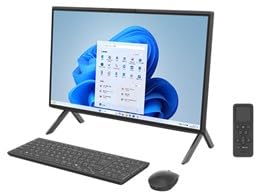
그림 4.1: 전면 view of the Fujitsu FMVF75K1BA FMV Desktop F PC. This image shows the integrated display and the sleek design of the all-in-one unit.
4.1 전면 패널
- 표시하다: 23.8인치 풀 HD(1920x1080) 화면.
- 전원 버튼: Located typically on the bottom right or side of the display bezel.
- Web캠: Integrated at the top center of the display.
4.2 Rear/Side Panels
- USB 포트: For connecting peripherals like keyboard, mouse, external drives.
- HDMI 포트 : For connecting an external monitor or TV.
- LAN 포트: 유선 네트워크 연결용.
- 오디오 잭: For headphones, microphone, or external speakers.
- 전원 입력: 전원 어댑터를 연결합니다.
5. 설정
초기 설정을 위해 다음 단계를 따르세요.
- 풀다: PC와 모든 액세서리를 포장에서 조심스럽게 꺼내세요.
- 위치: Place the PC on a stable, flat surface with adequate ventilation space around it.
- 키보드와 마우스 연결: Plug the USB keyboard and mouse into the available USB ports on the PC.
- 전원 연결: Connect the power adapter to the power input port on the PC, then plug the power cord into a grounded electrical outlet.
- 전원 켜기: 전원 버튼을 눌러 PC를 켭니다.
- 초기 Windows 설정: 화면의 지시에 따라 언어, 지역, 네트워크 연결 및 사용자 계정 생성 등 Windows 11 Home 초기 설정을 완료하십시오.
6. 사용 설명서
6.1 켜기/끄기
- 켜려면: 전원 버튼을 누르세요.
- 종료하려면: 시작 버튼을 클릭한 다음 전원을 클릭하고 "시스템 종료"를 선택합니다.
- 재시작하기 위해: 시작 버튼을 클릭한 다음 전원을 클릭하고 "다시 시작"을 선택합니다.
- 잠들다: 시작 버튼을 클릭한 다음 전원을 클릭하고 "절전"을 선택합니다.
6.2 네트워크 연결
- 유선 연결: Connect an Ethernet cable from your router/modem to the LAN port on the PC.
- 무선 연결(Wi-Fi):
- 작업 표시줄에서 Wi-Fi 아이콘을 클릭합니다.
- 목록에서 원하는 Wi-Fi 네트워크를 선택하세요.
- 메시지가 나타나면 네트워크 보안 키(비밀번호)를 입력하세요.
- Click "Connect". The PC supports IEEE802.11ax (Wi-Fi 6E) for high-speed wireless connectivity.
6.3 Using Microsoft Office + 365
Your PC comes with Microsoft Office + 365. Follow the on-screen instructions upon first launch of any Office application (e.g., Word, Excel) to activate your subscription. An internet connection and a Microsoft account are typically required for activation.
7. 유지관리
7.1 청소
- 화면: 전자제품 전용으로 제작된 부드럽고 보풀 없는 천을 사용하세요. 잘 지워지지 않는 얼룩은 가볍게 두드려 닦아주세요.ampen the cloth with water or a screen cleaner. Do not spray cleaner directly onto the screen.
- 섀시 : Wipe the exterior surfaces with a soft, dry cloth. Avoid abrasive materials or harsh chemicals.
- 통풍: Periodically check and gently clean the ventilation openings to prevent dust buildup, which can impede airflow.
7.2 소프트웨어 업데이트
최적의 성능과 보안을 유지하려면 Windows 운영 체제와 드라이버를 정기적으로 업데이트하십시오. Windows 업데이트는 일반적으로 자동으로 처리하지만, 수동으로 확인하려면 다음 단계를 따르십시오. 설정 > Windows 업데이트.
7.3 데이터 백업
데이터 손실을 방지하기 위해 중요한 데이터를 외장 드라이브나 클라우드 저장소에 정기적으로 백업하는 것이 좋습니다.
8. 문제 해결
| 문제 | 가능한 원인 | 해결책 |
|---|---|---|
| PC 전원이 켜지지 않습니다. | Power cable loose, power outlet issue, power adapter fault. | 전원 연결 상태를 모두 확인하십시오. 다른 콘센트에 꽂아 보십시오. 전원 어댑터가 제대로 작동하는지 확인하십시오. |
| 화면에 아무것도 표시되지 않습니다. | PC is off, display brightness too low, external monitor not connected (if applicable). | Ensure PC is on. Adjust display brightness. If using an external monitor, check its power and cable connection. |
| Wi-Fi에 연결할 수 없습니다. | Incorrect password, Wi-Fi adapter off, router issue, out of range. | Verify Wi-Fi password. Check if Wi-Fi is enabled in Windows settings. Restart your router. Move closer to the router. |
| PC is running slow. | Too many programs open, low disk space, malware, outdated drivers. | Close unnecessary applications. Free up disk space. Run a virus scan. Update Windows and drivers. |
9. 사양
| 모델명 | FMVF75K1BA |
| 상표 | 후지쯔 |
| 표시하다 | 23.8인치, 1920x1080 해상도 |
| 프로세서 | 인텔 코어 i7 |
| 숫양 | 16GB |
| 저장 | 512GB |
| 운영 체제 | 윈도우 11 홈 |
| 무선랜 | IEEE802.11ax (Wi-Fi 6E compatible)/ac/a/b/g/n |
| 포트 | USB, HDMI, LAN, Audio Jacks (specific number and type may vary) |
10. 보증 및 지원
Your Fujitsu FMVF75K1BA PC is covered by a manufacturer's warranty. Please refer to the warranty card included in your package for specific terms and conditions, including the warranty period and coverage details.
For technical support, service, or warranty claims, please contact Fujitsu customer support through their official website or the contact information provided in your warranty documentation. Have your model number (FMVF75K1BA) and serial number ready when contacting support.
온라인 지원: Visit the official Fujitsu support website for drivers, FAQs, and further assistance.


