1. 서론
This manual provides essential information for the proper setup, operation, and maintenance of your NIMO 15.6 inch Laptop Computer. Please read this manual thoroughly before using your device to ensure optimal performance and longevity. Keep this manual for future reference.
2. 제품 오버view
2.1. 노트북 구성 요소
The NIMO 15.6 inch Laptop features a Full HD display, a backlit keyboard, and an integrated fingerprint reader for secure access. It is powered by an AMD Ryzen 5 3500U processor and runs on Windows 11.

그림 2.1: 전면 view of the NIMO 15.6 inch Laptop, showcasin디스플레이와 키보드 레이아웃을 살펴보세요.
2.2. 포트 및 커넥터
Your NIMO laptop is equipped with various ports for comprehensive connectivity, allowing you to connect peripherals and external devices.

Figure 2.2: Expanded Connectivity Options. This image illustrates the location and type of ports available on the laptop, including Type-C (Charge Only), USB 3.0, HDMI, Type-C (Full Function), Charge LED, Micro SD Reader, USB 2.0, USB 3.0, Headphone Combo, and Kensington Lock.
- Type-C (Charge Only): 전원 입력용.
- USB 3.0: 고속 데이터 전송을 위해.
- HDMI : 외부 디스플레이에 연결합니다.
- Type-C(전체 기능): Supports Power Delivery (PD), DisplayPort (DP), and data transfer.
- 충전 LED: 충전 상태를 나타냅니다.
- 마이크로 SD 카드 리더기: 마이크로 SD 카드 읽기용입니다.
- USB 2.0: 표준 USB 장치용.
- USB 3.0: 고속 데이터 전송을 위해.
- Headphone Combo: 오디오 출력 및 마이크 입력용입니다.
- 켄싱턴 잠금 장치: 물리적 보안을 위해서입니다.
3. 설정
3.1. 초기 충전
Before first use, connect the laptop to a power outlet using the provided 65W PD Type-C charger. The Charge LED indicator will illuminate. Allow the battery to charge fully.

Figure 3.1: Type-C 65W PD Charger. This image highlights the versatility of the 65W Power Delivery charger, capable of charging the laptop, tablets, and smartphones, reducing cable clutter.
3.2. 전원 켜기
Open the laptop lid. Press the power button located on the keyboard deck. The laptop will boot up, and you will be guided through the Windows 11 initial setup process.
3.3. 윈도우 11 설치
Follow the on-screen instructions to configure your Windows 11 operating system. This includes selecting your region, language, connecting to a Wi-Fi network, and setting up your user account.
4. 사용 설명서
4.1. 키보드 및 입력
The laptop features a backlit keyboard for comfortable typing in various lighting conditions, a responsive touchpad, and a numeric keypad for data entry.

Figure 4.1: Effortless Typing in Any Environment. This image demonstrates the backlit keyboard, touchpad, fingerprint reader, and numeric keypad, enhancing user experience and productivity.
- 백라이트 키보드: 를 누르세요 Fn key and the appropriate function key (usually F3 or F4, indicated by a keyboard icon) to adjust the backlight brightness or turn it on/off.
- 터치패드: Use the touchpad for navigation. Supports multi-touch gestures for scrolling, zooming, and other functions.
- 숫자 키패드: Provides dedicated number keys for efficient data entry.
4.2. 지문인식
The integrated fingerprint reader allows for secure and quick login. Set up your fingerprint in Windows Settings under 'Sign-in options'.
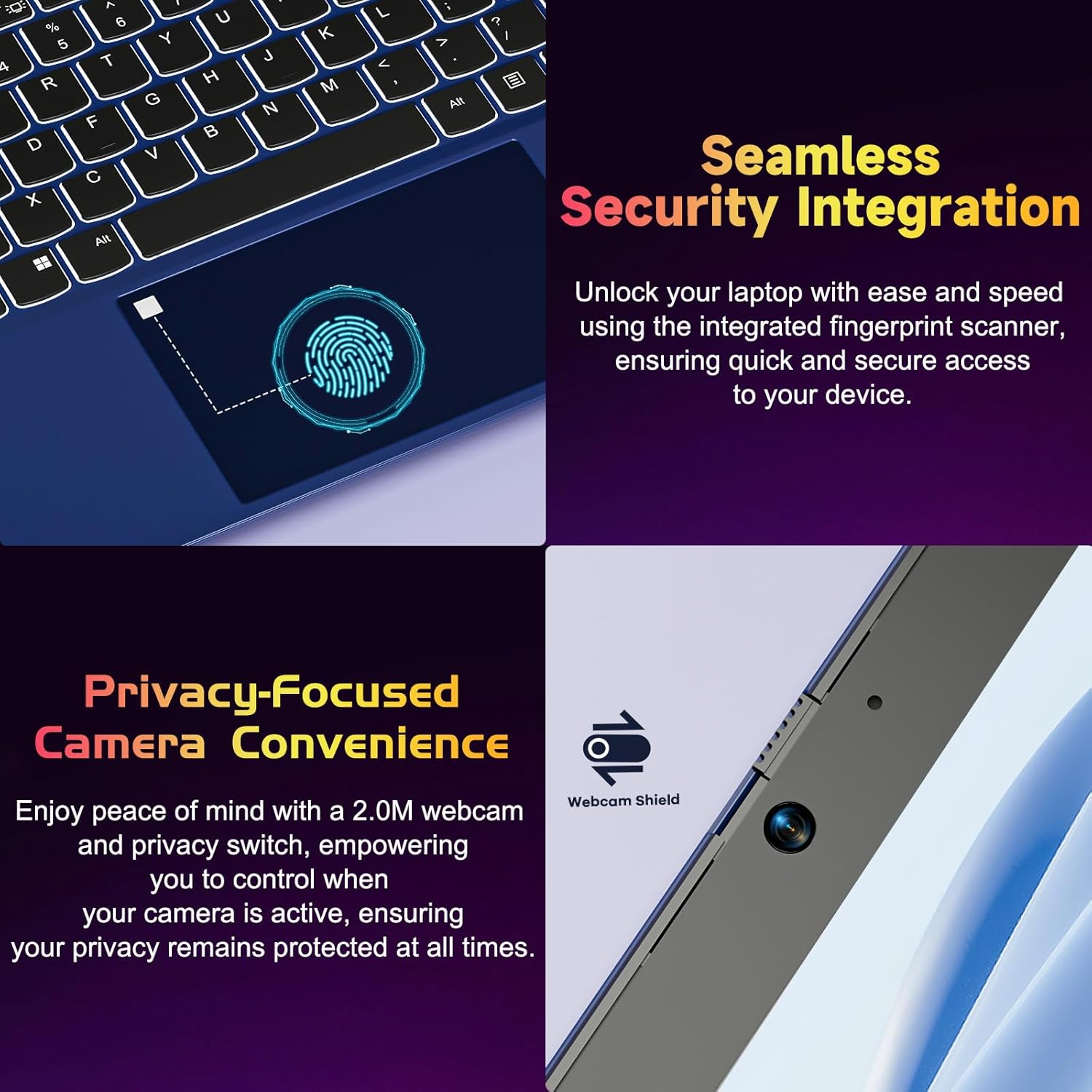
Figure 4.2: Seamless Security Integration and Privacy-Focused Camera. This image highlights the fingerprint scanner for quick and secure access, and the 2.0MP webcam with a physical privacy switch for enhanced user privacy.
4.3. 디스플레이 기능
The 15.6 inch Full HD (1920 x 1080 Pixel) IPS display offers vivid visuals and a wide viewing angle. The 180° lay-flat hinge allows for flexible screen positioning, ideal for sharing content.

Figure 4.3: Vivid Full HD Display. This image emphasizes the laptop's 15.6-inch Full HD (1920x1080) IPS display, offering bright visuals and eye protection.

Figure 4.4: 180° Lay-Flat Hinge. This image illustrates the laptop's ability to lay flat, expanding usage scenarios and facilitating content sharing.
4.4. Webcam Privacy
이 노트북에는 2.0MP 카메라가 포함되어 있습니다. webcam with a physical privacy switch (Webcam Shield). Slide the switch to cover the camera lens when not in use to ensure your privacy.
5. 유지관리
- 청소: 부드럽고 보풀이 없는 천을 사용하여 화면과 외부를 닦으세요. 잘 지워지지 않는 얼룩은 가볍게 닦아주세요.amp천에 물이나 화면 세척제를 묻혀 닦으세요. 강한 화학 물질은 피하세요.
- 배터리 관리 : 배터리 수명을 연장하려면 배터리를 자주 완전히 방전시키지 마십시오. 장기간 사용하지 않을 경우 노트북을 서늘하고 건조한 곳에 보관하십시오.
- 소프트웨어 업데이트: 최적의 성능과 보안을 유지하려면 Windows 운영 체제와 드라이버를 정기적으로 업데이트하십시오.
- 스토리지 확장: The laptop supports dual DDR4 SO-DIMM slots and M.2 NVMe SSD for memory and storage expansion. Consult a qualified technician for upgrades.
6. 문제 해결
6.1. 전원 문제
- 노트북이 켜지지 않습니다: 노트북이 충전되어 있는지 확인하십시오. 충전기를 연결하고 몇 분 정도 기다린 후 다시 전원을 켜보세요.
- 배터리가 충전되지 않음: Verify the charger is properly connected to both the laptop and the power outlet. Try a different outlet.
6.2. 디스플레이 문제
- 화면이 비어 있습니다. Check if the laptop is powered on. Try adjusting screen brightness using the function keys. If an external monitor is connected, ensure it is properly configured.
6.3. 성능 문제
- 노트북이 느립니다: Close unnecessary applications. Check for background processes consuming high resources. Ensure sufficient free storage space. Consider performing a system scan for malware.
6.4. 연결 문제
- Wi-Fi가 연결되지 않음: Wi-Fi가 활성화되어 있는지 확인하세요. 라우터와 노트북을 다시 시작하세요. Windows에서 네트워크 설정을 확인하세요.
7. 사양
| 특징 | 세부 사항 |
|---|---|
| 상표 | 니모 |
| 모델명 | NIMO N152R |
| 화면 크기 | 15.6 인치 |
| 화면 해상도 | 1920x1080픽셀(풀 HD) |
| 프로세서 | AMD Ryzen 5 3500U(3.7GHz, 4코어, 8스레드) |
| 숫양 | 8GB DDR4 (업그레이드 가능) |
| 메모리 속도 | 3200MHz |
| 하드 드라이브 | 256 GB SSD (Upgradable M.2 NVMe) |
| 그래픽 코프로세서 | AMD Integrated graphics (Vega) |
| 운영 체제 | 윈도우 11 |
| 무선형 | 802.11abg |
| USB 포트 | 1x USB 2.0, 2x USB 3.0, 2x USB-C (1x Charge Only, 1x Full Function) |
| HDMI 포트 | 예 |
| 마이크로 SD 리더 | 예 |
| 평균 배터리 수명 | 5시간 |
| 품목 무게 | 3.8파운드(1.72kg) |
| 제품 치수 | 14.07 x 8.98 x 0.76 인치 |
| 색상 | 장미 |
| 뒤쪽 Web캠 해상도 | 2 MP |
8. 보증 및 지원
Your NIMO laptop comes with a 2-year warranty, covering manufacturing defects and hardware malfunctions under normal use. Additionally, a 90-day free return policy is provided.

Figure 8.1: After-Sales Support. This image outlines the 2-year warranty, 90-day return policy, and professional customer service available for NIMO products.
8.1. 지원팀에 문의
For technical assistance, warranty claims, or product-related questions, please contact the NIMO U.S.-based support team. Contact information can typically be found on the official NIMO web사이트 또는 제품 포장.
9. 안전 정보
기기 손상이나 부상을 방지하려면 다음 안전 수칙을 준수하십시오.
- 노트북을 극한 온도, 직사광선 또는 높은 습도에 노출시키지 마십시오.
- 노트북 위에 무거운 물건을 올려놓지 마세요.
- Use only the provided charger or a compatible 65W PD Type-C charger.
- 노트북을 직접 분해하거나 수리하려고 하지 마십시오. 자격을 갖춘 서비스 담당자에게 문의하십시오.
- 감전이나 손상을 방지하기 위해 노트북에 액체가 닿지 않도록 하십시오.
- 노트북 과열을 방지하기 위해 사용 시 적절한 환기를 유지하십시오.


