1. 서론
This manual provides essential information for the safe and efficient use of your LG 34U530A-W UltraWide WFHD IPS Computer Monitor. Please read this manual thoroughly before operating the product and retain it for future reference.
The LG 34U530A-W monitor features a 34-inch 21:9 UltraWide Full HD (2560 x 1080) IPS display, offering a wide viewing experience. Key features include a 100Hz refresh rate, VESA DisplayHDR 400, up to sRGB 99% color coverage, and versatile connectivity options including HDMI, DisplayPort, and USB Type-C. It also integrates Waves MaxxAudio speakers and includes features like Reader Mode and the LG Switch App for enhanced productivity and comfort.
2. 안전 정보
Observe the following safety precautions to prevent hazards or damage to the product.
- 모니터를 열원 근처나 직사광선에 노출시키지 마세요.
- 모니터 주변의 환기가 적절하게 이루어지도록 하세요.
- 모니터와 함께 제공된 전원 코드와 어댑터만 사용하세요.
- Do not attempt to disassemble or modify the monitor.
- 감전이나 화재를 방지하기 위해 모니터에 액체가 닿지 않도록 하십시오.
- Unplug the monitor from the wall outlet during lightning storms or when unused for long periods.
3. 상자 안에 무엇이 들어있나요?
Verify that all components are included in your product package:
- 모니터 유닛
- 전원 케이블
- HDMI 케이블
- 스탠드베이스
- 스탠드 넥
- 사용 설명서 (본 문서)
4. 설정
4.1 스탠드 조립
- 긁힘을 방지하려면 모니터 화면을 부드럽고 깨끗한 표면에 뒤집어서 놓으세요.
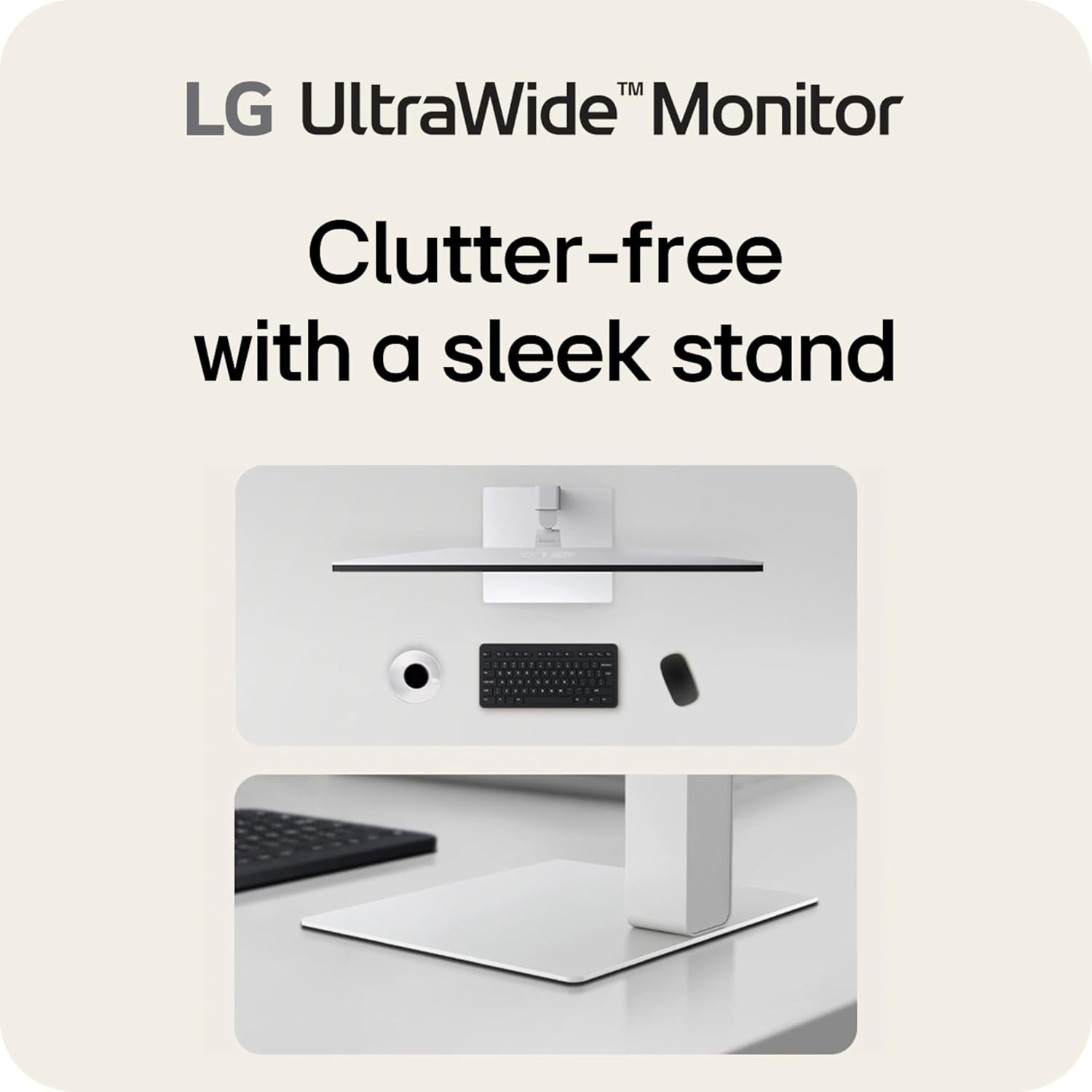
- 스탠드 넥을 모니터 뒷면에 딸깍 소리가 날 때까지 부착합니다.
- 제공된 나사를 사용하여 스탠드 받침대를 스탠드 목에 고정합니다.
- 모니터를 조심스럽게 들어 올려 안정적이고 평평한 표면에 놓으세요.
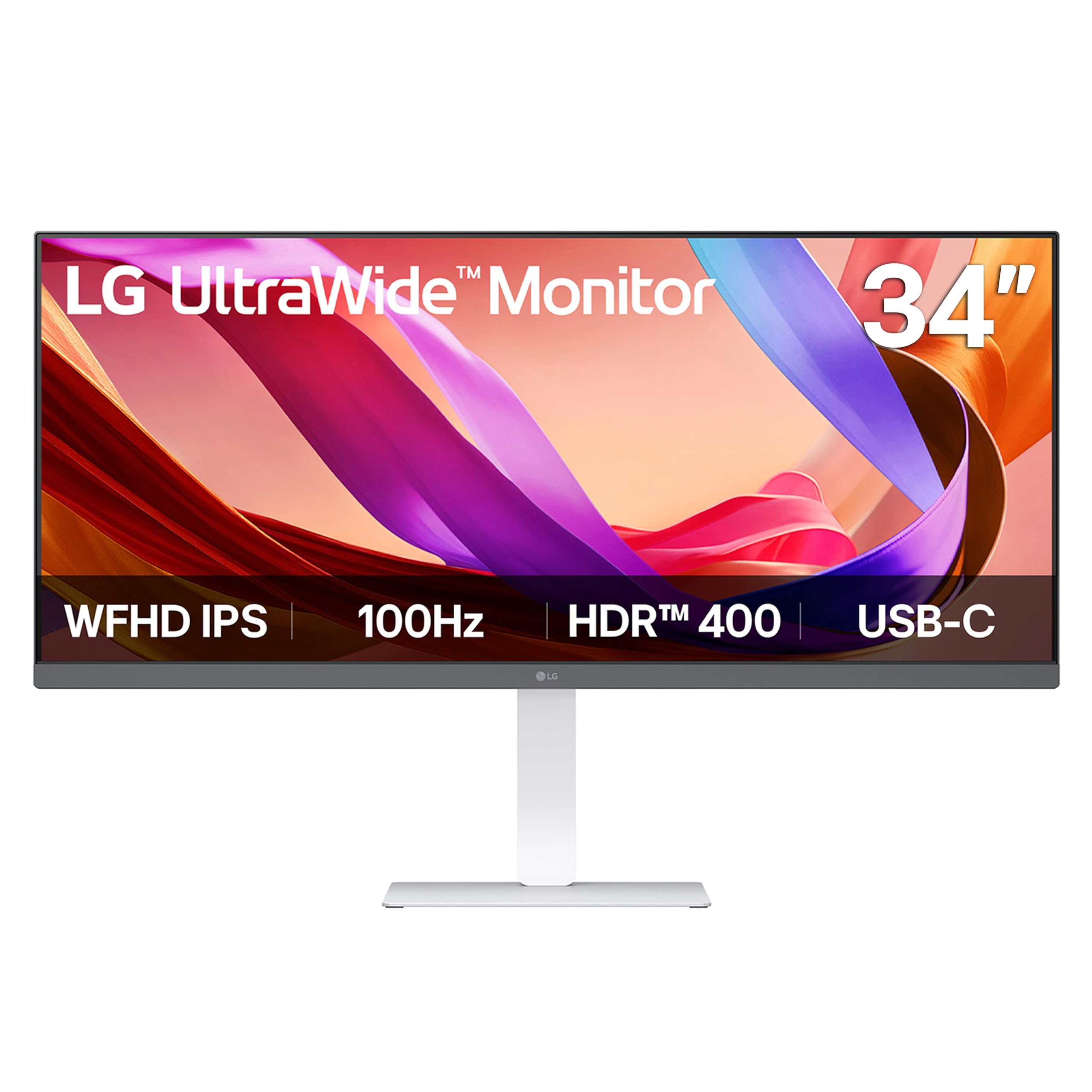
이미지: 앞면 view of the LG 34U530A-W monitor with its stand assembled.
4.2 모니터 연결
다음 방법 중 하나를 사용하여 모니터를 컴퓨터에 연결합니다.
- HDMI 연결: Use the supplied HDMI cable to connect the HDMI port on the monitor to the HDMI port on your computer.
- 디스플레이포트 연결: Use a DisplayPort cable (not supplied) to connect the DisplayPort on the monitor to the DisplayPort on your computer.
- USB Type-C 연결: Use a USB Type-C cable (not supplied) to connect the USB Type-C port on the monitor to the USB Type-C port on your computer. This connection supports both display output and data transfer.
이미지: 후면 view of the LG 34U530A-W monitor showing the various input ports including HDMI, DisplayPort, and USB Type-C.
4.3 전원 켜기
- 전원 케이블을 모니터에 연결한 다음 벽면 콘센트에 연결하세요.
- 모니터 하단 중앙에 있는 전원 버튼을 눌러 모니터를 켜세요.
5. 모니터 작동하기
5.1 화면 디스플레이(OSD) 컨트롤
The OSD menu allows you to adjust various settings of the monitor. Access the OSD menu by pressing the joystick button located on the bottom center of the monitor.
- Move the joystick up/down/left/right to navigate through the menu options.
- 조이스틱을 눌러 옵션을 선택하거나 설정을 확인하세요.
5.2 디스플레이 설정 조정
OSD 메뉴에서 다음과 같은 설정을 수정할 수 있습니다.
- 명도: 화면의 전체 밝기를 조절하세요.
- 차이: Control the difference between the brightest and darkest areas of the screen.
- 색상: Fine-tune color temperature, gamma, and individual RGB values. The monitor supports up to sRGB 99% color coverage for accurate color reproduction.
Video: Demonstrates the LG UltraWide Monitor's sRGB 99% color feature, highlighting vivid and accurate color display.
5.3 Using Productivity Features
- LG 스위치 앱: This software allows you to effortlessly split the screen into up to 6 sections, customize display layouts, and manage multiple windows for efficient multitasking. Software installation is required; visit LG.com 다운로드하려면.
- 리더 모드: Adjusts the display to warmer tones and optimized brightness, reducing blue light emission for comfortable reading during extended sessions.
Video: Illustrates the 21:9 UltraWide screen of the LG monitor, showcasing its expanded workspace for multitasking.
5.4 오디오 설정
The monitor includes built-in stereo speakers with Waves MaxxAudio. You can adjust the volume and other audio settings through the OSD menu.
6. 유지관리
6.1 모니터 청소
- 청소하기 전에는 항상 모니터의 플러그를 뽑으세요.
- 부드럽고 털이 없는 천을 살짝 사용하세요.ampened with water or a mild, non-abrasive cleaner specifically designed for screens.
- 세척제를 화면에 직접 뿌리지 마세요.
- 화면에 흠집이 생기지 않도록 부드럽게 닦아주세요.
7. 문제 해결
모니터에 문제가 발생하면 다음의 일반적인 문제와 해결 방법을 참조하세요.
| 문제 | 가능한 원인 | 해결책 |
|---|---|---|
| 전원이 없습니다 | 전원 케이블이 연결되지 않았거나 전원 콘센트가 고장났습니다. | 전원 케이블이 제대로 연결되어 있는지 확인하세요. 다른 기기로 콘센트를 테스트해 보세요. |
| 화면에 이미지가 없습니다. | 비디오 케이블이 연결되지 않았거나 잘못된 입력이 선택되었습니다. | 비디오 케이블 연결을 확인하세요. OSD 메뉴에서 올바른 입력 소스를 선택하세요. |
| 이미지가 흐릿하거나 왜곡됩니다. | 해상도 또는 화면 주사율이 올바르지 않습니다. | Set the display resolution to 2560 x 1080. Ensure the refresh rate is set to 100Hz. |
| 스피커에서 소리가 나지 않음 | Volume too low or muted, or audio cable not connected (if using external audio source). | Adjust volume via OSD or computer settings. Check audio cable connections. |
8. 사양
| 특징 | 사양 |
|---|---|
| 모델 번호 | 34U530A-W.AUS |
| 화면 크기 | 34 인치 |
| 패널 유형 | IPS |
| 해결 | 2560 x 1080 (WFHD) |
| 종횡비 | 21시 9분 |
| 새로 고침 빈도 | 100Hz |
| HDR 지원 | VESA 디스플레이HDR 400 |
| 색상 영역 | sRGB 99% (Typical) |
| 연결성 | HDMI, 디스플레이포트, USB 타입-C |
| 내장 스피커 | Yes (with Waves MaxxAudio) |
| 스탠드 조정 | 높이, 기울기, 회전 |
| 치수(길이x너비x높이) | 32.1 x 9.1 x 21 인치 |
| 무게 | 19.4파운드 |
9. 보증 및 지원
보증 정보는 제품과 함께 제공된 보증 카드를 참조하거나 공식 LG 웹사이트를 방문하세요. web사이트. 기술 지원, 제품 등록 또는 서비스 문의는 다음 사이트를 방문하세요. LG 지원 또는 LG 고객 서비스에 직접 문의하세요.