1. 안전 정보
Read all instructions carefully before using the device. Keep this manual for future reference. Follow all warnings and instructions marked on the product.
- 모니터를 불안정한 카트, 스탠드 또는 테이블 위에 올려놓지 마십시오.
- 환기구를 막지 마십시오.
- 물 근처에서 사용하지 마십시오.
- 전원 코드 위에 무거운 물건을 올려 놓지 마십시오.
- 제조업체에서 제공한 전원 어댑터만 사용하세요.
- 번개가 칠 때나 장기간 사용하지 않을 때는 모니터의 플러그를 뽑아 두세요.
- 모든 서비스는 자격을 갖춘 서비스 담당자에게 의뢰하세요.
2. 상자 안에 무엇이 들어있나요?
설치를 진행하기 전에 모든 구성 요소가 있는지 확인하세요.
- 감시 장치
- 전원 케이블
- HDMI 2.1 케이블
- DisplayPort 케이블
3. 설정
3.1 스탠드 조립
모니터 스탠드는 도구 없이 조립할 수 있도록 설계되었습니다. 다음 단계를 따르십시오.
- 스탠드 받침대를 스탠드 목에 부착합니다.
- Secure the monitor panel to the assembled stand.

3.2 연결 케이블
Connect the necessary cables to the monitor and your computer/console.
- 힘: 전원 케이블을 모니터와 전원 콘센트에 연결합니다.
- 비디오 입력 : Use the provided HDMI 2.1 cable or DisplayPort cable to connect the monitor to your graphics card or console.
- USB 허브: Connect a USB upstream cable from your PC to the monitor to enable the integrated USB hub.
- 오디오: Connect headphones to the 4-pole headphone jack for audio output.

4. 운영
4.1 전원 켜기/끄기
Press the joystick button located on the bottom of the monitor to power it on or off.
4.2 화면 디스플레이(OSD) 메뉴 탐색
Use the joystick button to navigate the OSD menu. Push the joystick in to select, and move it up/down/left/right to browse options.
- 게임 조정: Configure game-specific settings like Game Mode, Adaptive-Sync, Black Stabilizer, Response Time, and Crosshair.
- 그림 조정: 밝기, 대비, 선명도, 감마, 색온도를 조정합니다.
- 소리: 오디오 설정을 제어하세요.
- 입력: Select the input source (HDMI 1, HDMI 2, DisplayPort).
- 일반적인: Access general monitor settings.

4.3 듀얼 모드 기능
The monitor supports a unique Dual Mode, allowing you to switch between high-resolution and high-refresh-rate settings:
- 4K UHD (3840 x 2160) at 180Hz: Ideal for graphically intensive games and detailed content.
- Full HD (1920 x 1080) at 360Hz: Optimized for competitive gaming where ultra-responsive gameplay is critical.
Switch between modes using the dedicated hotkey or through the OSD menu.
5. 주요 특징
- 27-inch 4K UHD IPS Display: Delivers crisp 3840 x 2160 resolution with wide view각도와 정확한 색상.
- 듀얼 모드: Seamlessly switch between 4K UHD at 180Hz and Full HD at 360Hz for optimized gaming experiences.
- 1ms(GtG) 응답 시간: Minimizes motion blur and ghosting for sharp, clear visuals during fast-paced action.
- NVIDIA G-SYNC 호환 및 AMD FreeSync Premium 지원: Ensures tear-free and stutter-free gameplay by synchronizing the monitor's refresh rate with your GPU's frame rate.
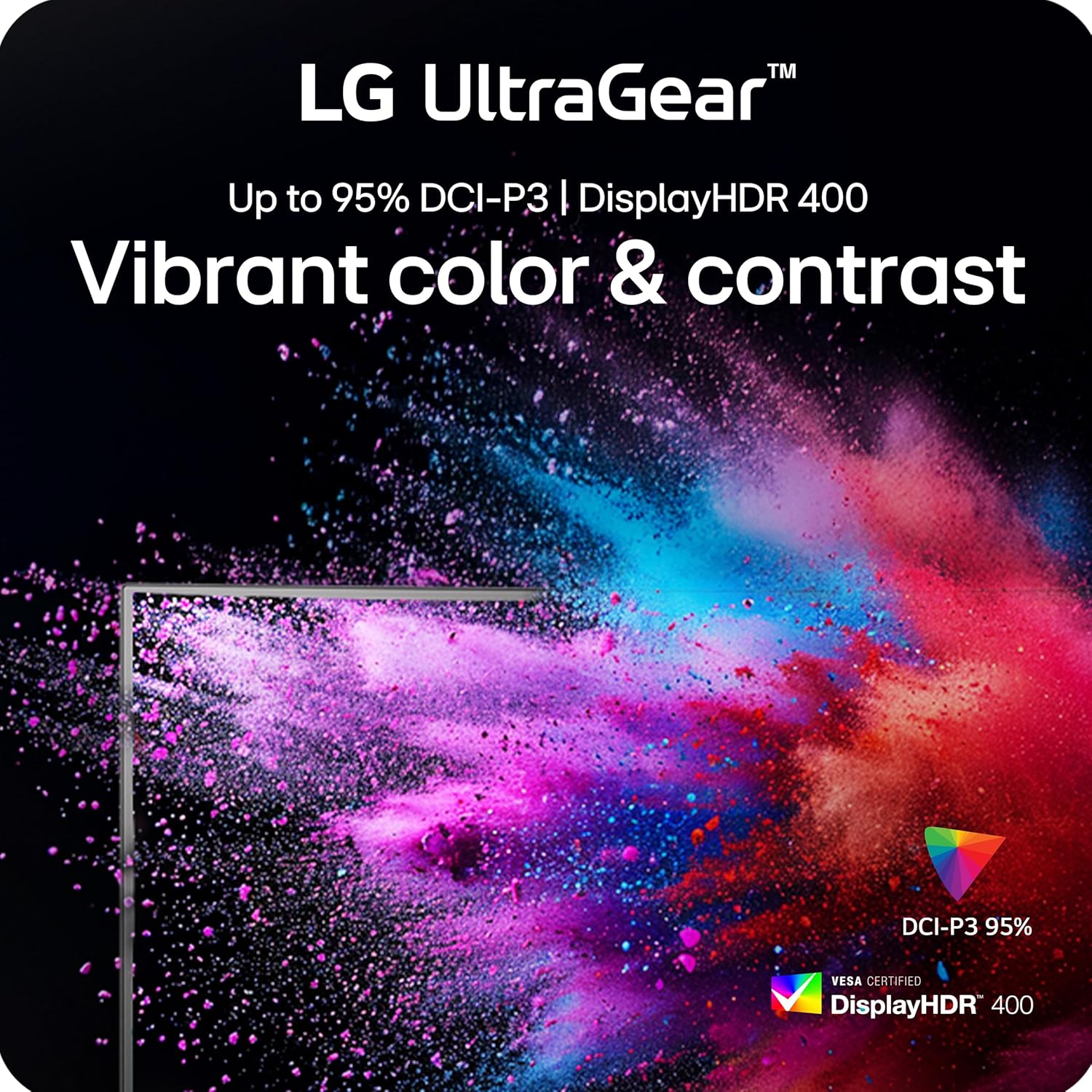
- VESA 디스플레이HDR 400: Provides enhanced contrast and vibrant colors for a more immersive visual experience.
- 동적 액션 동기화(DAS): Reduces input lag for real-time action and quick responses.
- 블랙 안정제 : Enhances visibility in dark scenes, allowing you to spot enemies more easily.
- 크로스헤어 기능: Provides an on-screen crosshair for improved aiming precision in first-person shooter games.
- 4-Pole Headphone Jack & DTS HP:X: Offers immersive 3D audio and combines stereo audio with mic input for clear communication.
- 인체공학적 스탠드: Features adjustable height, tilt, swivel, and pivot for personalized view편안함을.




5.1 공식 제품 영상
LG UltraGear Gaming Monitors Feature - FreeSync Premium
Video: This video from LG Electronics explains the benefits of AMD FreeSync Premium technology in LG UltraGear gaming monitors, demonstrating how it eliminates screen tearing and stuttering for smoother gameplay.
LG UltraGear Gaming Monitors Feature - DisplayHDR 400
Video: This video from LG Electronics highlights the VESA DisplayHDR 400 feature in LG UltraGear gaming monitors, showcasing how it enhances contrast and color vibrancy for a more dynamic visual experience.
LG UltraGear - Gaming UI
Video: This video from LG Electronics demonstrates the Gaming UI features of LG UltraGear monitors, including Crosshair, Black Stabilizer, and Dynamic Action Sync, designed to enhance gameplay.
6. 유지관리
6.1 모니터 청소
- 청소하기 전에는 항상 모니터의 플러그를 뽑으세요.
- 부드럽고 보풀이 없는 천을 살짝 사용하십시오. damp물이나 부드럽고 연마성이 없는 세척제로 세척하세요.
- 세척제를 화면에 직접 뿌리지 마세요.
- 알코올, 암모니아 또는 연마성 세척제는 화면 표면을 손상시킬 수 있으므로 사용을 피하십시오.
6.2 보관
- 모니터는 직사광선과 극한의 온도를 피해 서늘하고 건조한 곳에 보관하세요.
- If storing for an extended period, use the original packaging to protect the monitor from dust and physical damage.
7. 문제 해결
| 문제 | 가능한 원인 | 해결책 |
|---|---|---|
| 전원이 없습니다 | 전원 케이블이 연결되지 않았거나 전원 콘센트에 문제가 있습니다. | 전원 케이블이 모니터와 작동하는 전원 콘센트에 제대로 연결되어 있는지 확인하십시오. 전원 어댑터를 점검하십시오. |
| 화면에 이미지가 없습니다. | 잘못된 입력 소스를 선택했거나 비디오 케이블이 연결되지 않았습니다. | Select the correct input source via the OSD menu. Verify the HDMI or DisplayPort cable is securely connected to both the monitor and the source device. |
| 화면 깜빡임이나 찢어짐 | Adaptive Sync (G-Sync/FreeSync) is not enabled or incompatible settings. | Ensure NVIDIA G-SYNC or AMD FreeSync Premium is enabled in both the monitor's OSD settings and your graphics card control panel. Update graphics drivers. |
| Blurry text or image | Incorrect resolution or sharpness settings. | Set the display resolution to its native 3840 x 2160. Adjust the sharpness setting in the OSD menu (recommended between 50-75). |
| 오디오 없음 | Headphones not connected or audio settings incorrect. | Ensure headphones are properly connected to the 4-pole jack. Check audio output settings on your computer/console and the monitor's OSD. |
8. 사양
| 특징 | 세부 사항 |
|---|---|
| 화면 크기 | 27 인치 |
| 패널 유형 | IPS |
| 네이티브 해상도 | 3840 x 2160(4K UHD) |
| Max Refresh Rate (UHD) | 180Hz |
| Max Refresh Rate (FHD) | 360Hz |
| 응답 시간 | 1ms(GtG) |
| 적응형 동기화 | NVIDIA G-SYNC 호환, AMD FreeSync Premium |
| HDR 지원 | VESA 디스플레이HDR 400 |
| 색상 영역 | 최대 95% DCI-P3 |
| 연결성 | 2x HDMI 2.1, 1x DisplayPort 1.4, USB Upstream, 2x USB Downstream, 4-pole Headphone Jack |
| 인간 공학 | 높이, 기울기, 회전, 피벗 조절 가능 |
| 치수(길이x너비x높이) | 8.7 x 24.2 x 21 인치 |
| 무게 | 16.3파운드 |
9. 보증 및 지원
자세한 보증 정보 및 기술 지원은 LG 공식 웹사이트를 참조하십시오. web사이트 또는 LG 고객 서비스에 문의하세요.
- 온라인 지원: 방문하세요 LG 공식 Web대지 for product registration, manuals, software downloads, and FAQs.
- 고객 서비스: Contact LG customer support for assistance with product issues or inquiries.
Additional protection plans may be available for purchase. Please check with your retailer for options.