1. 서론
This manual provides essential information for the safe and efficient operation of your TOPTRO Quadra Projector. Please read it thoroughly before using the device and retain it for future reference. The TOPTRO Quadra Projector offers a native 1080p resolution with true 4K HDR10/HLG support, running on a Linux OS with pre-installed streaming applications.
2. 패키지 내용
패키지에 모든 품목이 들어 있는지 확인하세요.
- TOPTRO Quadra Projector
- 원격 제어
- 전원 케이블
- 사용 설명서 (본 문서)
3. 설정
3.1 배치
Place the projector on a stable, flat surface or mount it to the ceiling. Ensure adequate ventilation around the device. For optimal viewing, position the projector to achieve the desired screen size. The projector supports a maximum projection size of 300 inches.

Image: Optimal projection distances for various screen sizes.
3.2 전원 연결
프로젝터의 전원 입력 단자에 전원 케이블을 연결한 다음, 적절한 콘센트에 꽂으십시오.
3.3 외부 장치 연결
The TOPTRO Quadra Projector features multiple connectivity options:
- HDMI : Connect laptops, Blu-ray players, gaming consoles (e.g., PS4), or TV sticks using the dual HDMI ports. One port supports HDMI ARC for enhanced audio return.
- USB: 미디어 재생을 위해 USB 드라이브를 삽입하세요.
- 3.5mm 오디오 출력: 외부 스피커 또는 헤드폰을 연결하세요.
- 블루투스 5.2 : 블루투스 스피커 또는 헤드폰과 페어링하여 무선 오디오를 즐기세요.
- Dual Band WiFi (2.4GHz + 5GHz): 온라인 스트리밍 및 업데이트를 위해 홈 네트워크에 연결하세요.
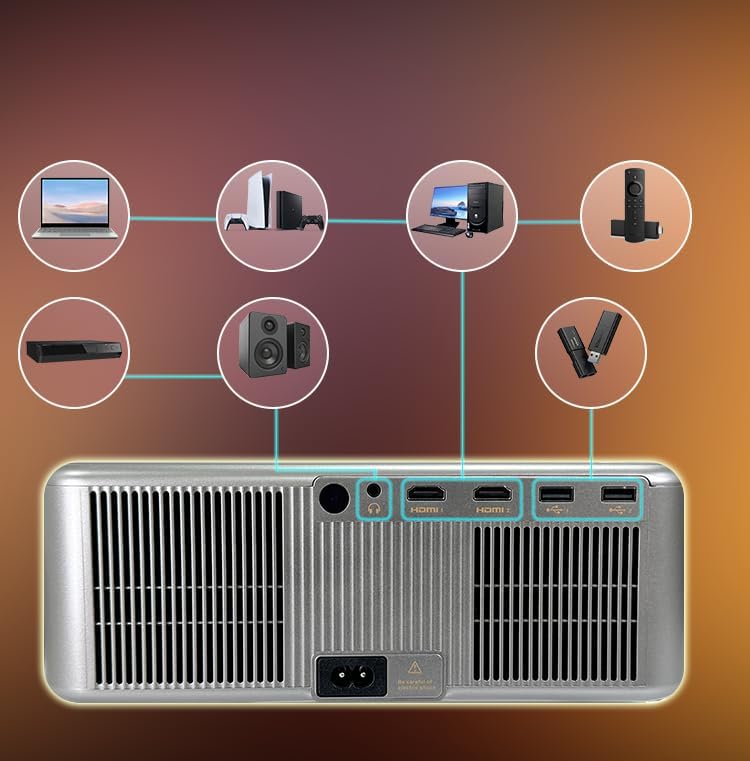
이미지: 후면 패널 연결 포트.
3.4 초기 전원 켜기 및 자동 조정
Press the power button on the projector or remote control to turn on the device. The projector features fully automatic adjustments:
- 자동 초점 : 프로젝터가 이미지 선명도를 자동으로 조절합니다.
- 자동 키스톤 보정: 투영 각도를 보정하기 위해 이미지가 자동으로 정사각형으로 조정됩니다.
- 자동 장애물 회피: The projection area will adjust to avoid objects in the path.
- 자동 화면 맞춤: The image will automatically fit within the boundaries of your projection surface.

Image: Automatic image adjustment features.
4. 사용 설명서
4.1 Navigating the Linux OS
The TOPTRO Quadra Projector runs on a Linux operating system. Use the provided remote control to navigate the user interface. The home screen provides access to pre-installed applications and settings.

Image: Projector displaying the Linux OS interface with streaming apps.
4.2 스트리밍 애플리케이션
The projector comes with pre-installed and certified applications such as Netflix, YouTube, and Prime Video. Access these directly from the home screen for 4K content streaming.

Image: Remote control with quick access buttons for streaming services.
4.3 무선 화면 미러링
The projector supports Miracast for wireless screen mirroring from Android and iOS devices. Refer to your device's instructions for initiating screen mirroring and select the projector from the available devices.
4.4 이미지 및 사운드 설정
Access the settings menu to adjust image parameters such as brightness, contrast, and color. The projector supports HDR10/HLG for enhanced dynamic range. Audio settings allow for volume control and selection of output devices (internal speakers, Bluetooth, 3.5mm jack, HDMI ARC).
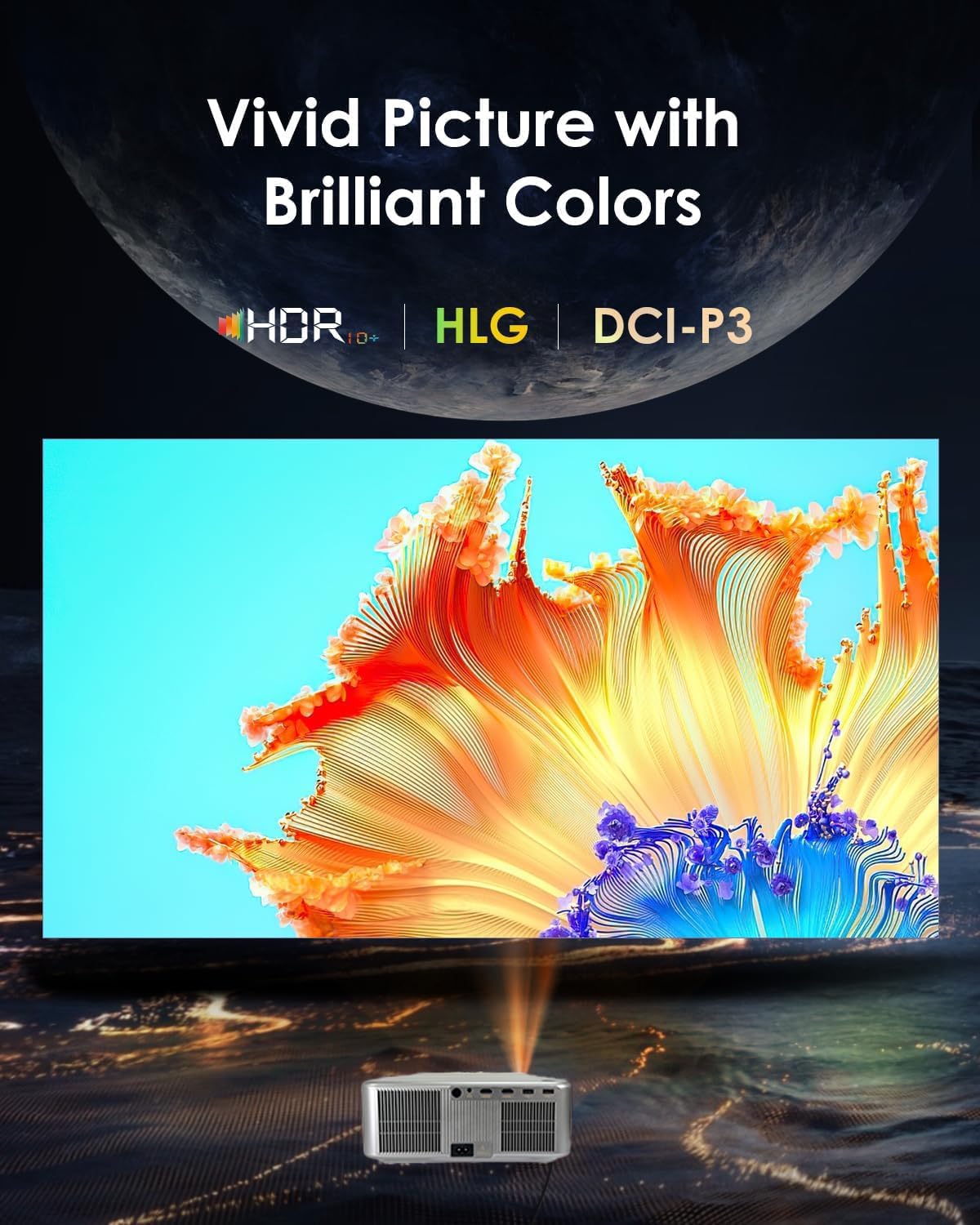
Image: Displaying vivid picture quality with HDR10+, HLG, and DCI-P3 color support.
5. 유지관리
5.1 렌즈 청소
Gently wipe the projector lens with a soft, lint-free cloth specifically designed for optical surfaces. Avoid using abrasive cleaners or excessive force.
5.2 환풍구 청소
Regularly clean the air vents to prevent dust buildup, which can affect performance and lead to overheating. Use a soft brush or compressed air to clear the vents.
5.3리터amp 삶
프로젝터 lamp has an estimated life of 50,000 hours. No user replacement is typically required during the product's lifespan under normal usage conditions.
6. 문제 해결
6.1 사진 없음
- 프로젝터의 전원이 켜져 있고 전원 케이블이 제대로 연결되어 있는지 확인하세요.
- Check the input source. Verify that the correct HDMI or other input is selected.
- Confirm that the connected device (laptop, media player) is powered on and outputting a signal.
- 케이블 연결 부분이 느슨하거나 손상되었는지 확인하세요.
6.2 소리가 나지 않습니다
- Adjust the volume on the projector and the connected source device.
- 외부 스피커나 헤드폰을 사용하는 경우 제대로 연결되어 있는지 확인하십시오.
- If using Bluetooth, confirm the projector is paired with the correct audio device.
- Check audio settings in the projector's menu to ensure the correct audio output is selected.
6.3 이미지가 흐릿하거나 왜곡됨
- Allow the projector's auto-focus feature to complete its adjustment.
- Ensure the projector is placed perpendicular to the screen for best results, allowing auto-keystone to function optimally.
- Check for any physical obstructions in front of the lens.
6.4 연결 문제 (Wi-Fi/블루투스)
- For WiFi, ensure the projector is within range of your router and the password is entered correctly. Try restarting your router.
- 블루투스를 사용할 경우, 연결하려는 기기가 페어링 모드이고 블루투스 범위 내에 있는지 확인하십시오.
7. 사양
| 상표 | 탑트로 |
| 모델 | Quadra Certified (X6) |
| 디스플레이 기술 | 액정표시장치 |
| 네이티브 해상도 | 1920 x 1080(1080p) |
| 지원되는 해상도 | 최대 3840 x 2160(4K) |
| 이미지 밝기 | 30000 루멘 (2500 ANSI 루멘) |
| 이미지 명암비 | 10000시 1분 |
| 종횡비 | 16시 9분 |
| 새로 고침 빈도 | 60Hz |
| 특별 기능 | 4K HDR 10/HLG, Net - Flix Certified Linux OS, 2GB RAM, 32GB ROM, Auto Focus & Keystone, Auto Obstacle Avoidance, Auto Screen Fit, 15W Speakers, HDMI ARC, Dual HDMI, Dual 5G & 2.4G WiFi 6, Bluetooth 5.2, WiFi Display, Electronic Focus & 6D Electronic correction, AI Image Tech (Color Correction, Noise Reduction, Edge Enhancement), MEMC Motion Compensation, Dolby Audio. |
| 하드웨어 인터페이스 | 3.5mm Audio, Bluetooth 5, Ethernet, HDMI, USB |
| 호환 장치 | Laptop, Speaker, Television, Gaming Consoles, TV Sticks |
| Lamp 삶 | 50,000시간 |
| 제품 치수 | 28 x 13 x 30cm |
| 품목 무게 | 3kg |

이미지: 이상view of advanced features and specifications.
8. 보증 정보
The TOPTRO Quadra Projector comes with a 1년 보증 provided by TOPTRO from the date of purchase. For detailed warranty terms and conditions, please visit the official TOPTRO web대지.
9. 지원
For technical assistance, customer service, or warranty claims, please contact TOPTRO support:
- Web대지: toptro.in
- 이메일: support@toptro.in or sreeprojectors@gmail.com
- 왓츠앱: 8341888860


