1. 서론
This manual provides essential information for the safe and effective operation of your ZENTALITY Mini Projector A10 PLUS. Please read this manual thoroughly before using the product and retain it for future reference.
제품 끝view
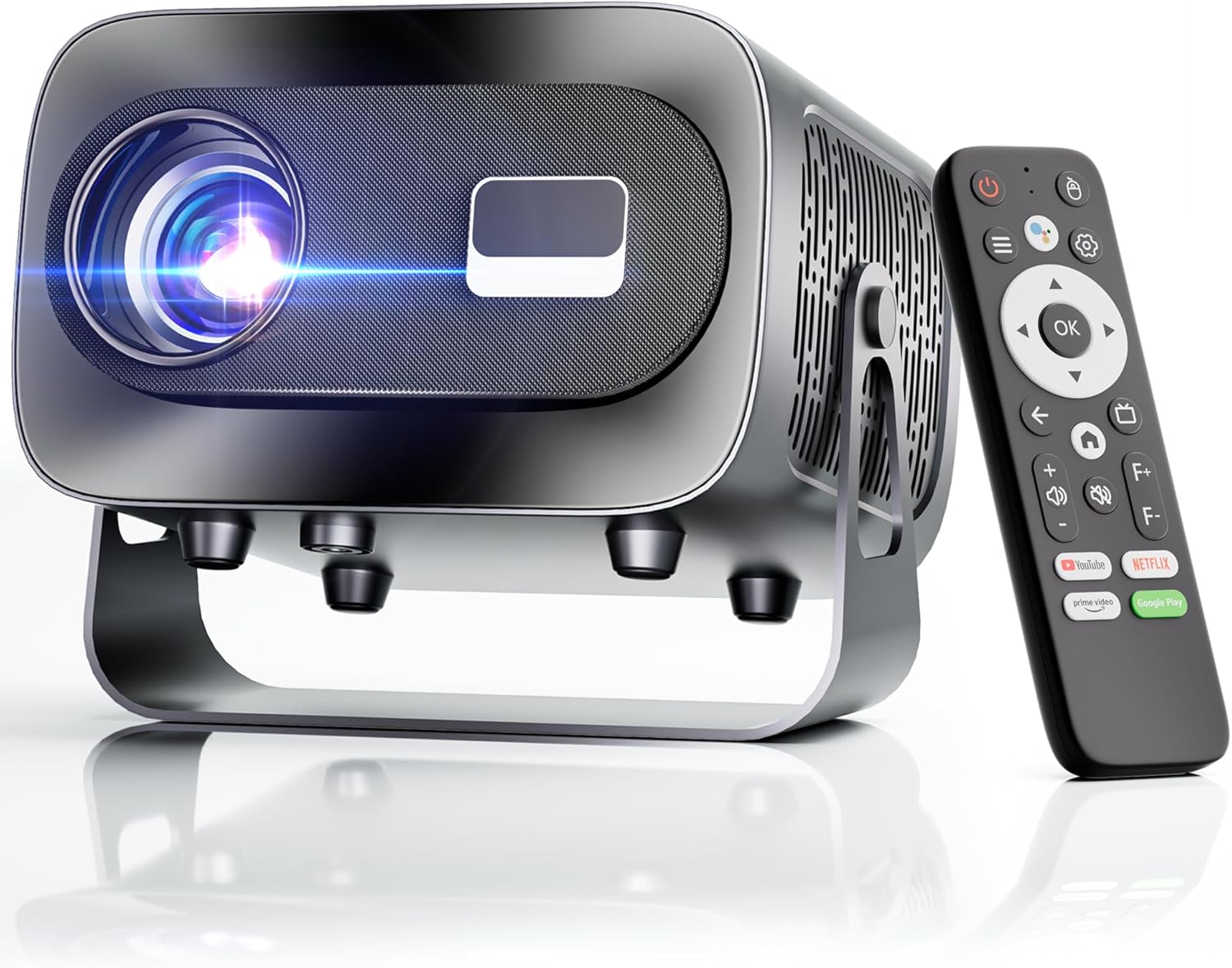
The ZENTALITY Mini Projector A10 PLUS is a smart projector featuring Android 13, designed for versatile home and outdoor entertainment. It supports 4K and 1080P HD content, offers electric focus, auto vertical keystone correction, and includes dual-band WiFi 6 and Bluetooth 5.1 connectivity. Its compact design and multiple input options make it suitable for various applications.
상자 안에 무엇이 들어있나요?
- ZENTALITY Mini Projector A10 PLUS
- HDMI 케이블
- 전원 어댑터
- 원격 제어
- 사용 설명서 (본 문서)
2. 안전 정보
프로젝터 손상을 방지하고 사용자의 안전을 확보하기 위해 다음 안전 수칙을 준수해 주십시오.
- 통풍구를 막지 마십시오. 프로젝터의 과열을 방지하기 위해 적절한 공기 흐름을 확보하십시오.
- 프로젝터 렌즈에서 나오는 빛에 직접 노출되지 않도록 하십시오. 밝은 빛은 눈의 피로나 손상을 유발할 수 있습니다.
- Use only the provided power adapter. Using an incompatible adapter may cause fire, electric shock, or damage.
- Keep the projector away from water or other liquids. Do not operate in damp 환경.
- 프로젝터를 직접 분해하거나 수리하려고 하지 마십시오. 모든 서비스는 자격을 갖춘 전문가에게 맡기십시오.
- 프로젝터가 넘어지지 않도록 안정적이고 평평한 표면에 놓으십시오.
- 어린이의 손이 닿지 않는 곳에 보관하세요.
3. 제품 구성 요소 및 포트
프로젝터의 외형적 특징과 연결 옵션을 숙지하십시오.

사용 가능한 포트:
- USB(x2): For connecting USB drives, external storage, or other USB-compatible devices.
- HDMI : For connecting devices such as laptops, gaming consoles, or TV sticks.
- 오디오 출력(3.5mm 잭): 외부 스피커나 헤드폰을 연결하는 데 사용합니다.
- 전원 입력: 전원 어댑터를 연결합니다.
4. 초기 설정
4.1 전원 연결
- 전원 어댑터를 프로젝터의 전원 입력 포트에 연결합니다.
- 전원 어댑터를 벽면 콘센트에 꽂으세요.
- 프로젝터나 리모컨의 전원 버튼을 눌러 전원을 켜세요.
4.2 원격 제어 페어링
Important: The remote control must be paired via Bluetooth before it can operate smoothly within 1-3 meters.
- 프로젝터의 전원이 켜져 있는지 확인하세요.
- Navigate to the projector's Bluetooth settings (usually found in the 'Settings' menu).
- Select 'Pair new device' or similar option.
- On the remote control, press and hold the designated pairing button (refer to the remote's specific instructions if available, often a combination of 'OK' and 'Volume Down' or a dedicated Bluetooth button).
- Once the remote appears in the projector's Bluetooth device list, select it to complete pairing.

4.3 배치 및 화면 조정
The projector offers automatic and electric adjustments for optimal image clarity and alignment.
- 전기 초점: The projector features electric focus for instant clarity. Use the 'F+' and 'F-' buttons on the remote control to fine-tune the image sharpness.
- 자동 수직 키스톤 보정: The projector automatically corrects vertical image distortion up to ±15°. This ensures a rectangular image even if the projector is not perfectly perpendicular to the screen.
- 줌 기능 : Adjust the image size from 50% to 100% without moving the projector. This is useful for fitting the projection to your screen size.


5. 사용 설명서
5.1 Android 13 Interface and App Access
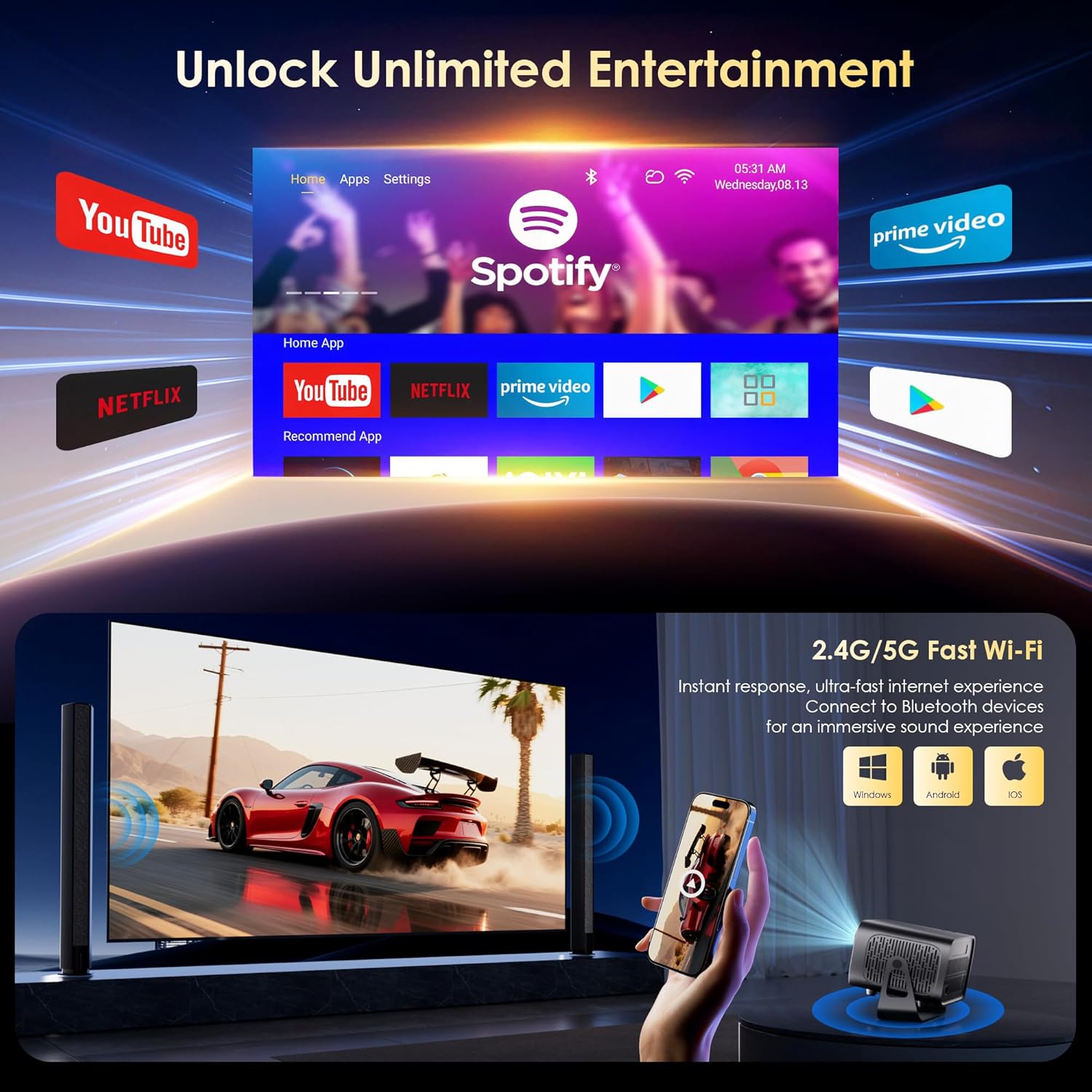
The projector runs on Android 13, providing access to a wide range of streaming applications.
- Upon startup, the home screen will display pre-installed applications like Netflix, Prime Video, and YouTube.
- Navigate using the remote control's directional pad and 'OK' button.
- Access the built-in app store (e.g., Google Play Store) to download additional applications.
- Use the voice assistant feature on the remote control for quick app launching or content search.

5.2 WiFi 연결
The projector supports dual-band 5G/2.4G WiFi 6 for stable internet access and screen mirroring.
- 홈 화면에서 '설정'으로 이동하세요.
- '네트워크 및 인터넷'을 선택하세요.
- Wi-Fi를 켜고 목록에서 원하는 네트워크를 선택하세요.
- 메시지가 표시되면 비밀번호를 입력하고 연결하세요.
Note: WiFi is required for the first setup or online apps. If you prefer not to connect to WiFi, you can use the projector offline by connecting external devices via the included HDMI cable or the USB port.

5.3 블루투스 연결
The projector features Bluetooth 5.1 for audio streaming.
- 홈 화면에서 '설정'으로 이동하세요.
- '연결된 기기' 또는 '블루투스'를 선택하세요.
- Bluetooth를 켜고 사용 가능한 기기를 검색하세요.
- Select your Bluetooth speaker, headphones, or soundbar from the list to pair.
Note: Bluetooth supports audio output only, not video transmission.
5.4 외부 장치 연결
The projector supports various external devices via its HDMI and USB ports.
- HDMI : Connect your laptop, gaming console, or TV stick using an HDMI cable. The projector will automatically detect the input or you may need to select the HDMI source from the input menu.
- USB: 미디어를 재생하려면 USB 드라이브를 삽입하세요. files directly. The projector's media player will typically launch automatically or can be accessed from the home screen.
5.5 투영 모드
The projector can be used in various orientations:
- Desktop Projection: Place the projector on a flat surface in front of the screen.
- 천장 돌출부: Mount the projector upside down on the ceiling. Adjust the projection settings in the menu to flip the image.
- 삼각대 장착: Use the 1/4'' screw hole at the bottom to mount the projector on a tripod for flexible positioning.

6. 유지관리
6.1 청소
- 렌즈: 안경 렌즈 전용으로 제작된 부드럽고 보풀 없는 천을 사용하십시오. 연마성 세척제나 천은 사용하지 마십시오.
- 외부: 프로젝터 외부는 부드럽고 마른 천으로 닦으세요. 찌든 때는 가볍게amp 천으로 닦은 후 마른 천으로 마무리하면 됩니다.
- 환기구: Periodically check and gently clean the ventilation openings to ensure they are free from dust and debris. Use a soft brush or compressed air.
6.2 냉각 시스템
The projector features an advanced dual-fan cooling system designed for low noise and efficient heat dissipation. To ensure its longevity and stable performance:
- Always ensure the projector has adequate space around its ventilation openings.
- Avoid placing the projector on soft surfaces (e.g., blankets, carpets) that might block airflow.
- Operating the projector in extremely hot or humid environments may affect its performance and lifespan.
7. 문제 해결
프로젝터에 문제가 발생하면 다음의 일반적인 문제와 해결 방법을 참조하세요.
| 문제 | 가능한 원인 | 해결책 |
|---|---|---|
| No power/Projector won't turn on | 전원 케이블이 연결되지 않았습니다. 전원 콘센트에 결함이 있습니다. | 전원 케이블 연결 상태를 확인하세요. 다른 콘센트에 연결해 보세요. |
| No image/Blank screen | Incorrect input source; Device not connected properly | Select correct input source (HDMI, USB); Reconnect external device |
| 이미지가 흐릿하거나 초점이 맞지 않음 | 초점이 조정되지 않았습니다. | Use the 'F+' and 'F-' buttons on the remote for electric focus adjustment |
| Image distorted/Trapezoid shape | Keystone not corrected | The projector has auto vertical keystone correction. Ensure it's on or manually adjust if needed. |
| 리모컨이 작동하지 않습니다 | Not paired via Bluetooth; Low battery | Pair the remote control via Bluetooth (Section 4.2); Replace remote batteries |
| 소리가 나지 않습니다 | 볼륨이 너무 작습니다; 오디오 출력이 잘못되었습니다; 블루투스가 연결되지 않았습니다 | Increase volume; Check audio output settings; Ensure Bluetooth speaker is paired |
| WiFi 연결 문제 | 잘못된 비밀번호; 라우터 문제; 범위 이탈 | Verify WiFi password; Restart router; Move projector closer to router |
8. 사양
Detailed technical specifications for the ZENTALITY Mini Projector A10 PLUS:
- 상표: 젠탈리티
- 모델 번호: A10 플러스
- 품목 무게: 3.1파운드
- 제품 크기: 7.4 x 6.22 x 4.8 인치
- 운영 체제: 안드로이드 13
- 디스플레이 해상도: 1920 x 1080 (네이티브 1080P 풀 HD)
- 4K 지원: 예
- 명도: 350 ANSI 루멘스
- 대비율: 10,000시 1분
- 연결 기술 : 3.5mm Jack, Bluetooth 5.1, HDMI, USB (x2), Wi-Fi 6 (2.4G/5G)
- 특별 기능: Built-In Media Player, Built-In Speaker, Electric Focus, Portable, Wi-Fi Ready, Auto Vertical Keystone Correction
- 추천 용도: 비즈니스, 교육, 게임, 홈 시네마
- Lamp 수명: 최대 100,000시간

9. 보증 및 지원
ZENTALITY is committed to providing quality products and customer satisfaction.
- 품질 보증: 360일 품질 보증.
- 보고: 180일 무료 반품.
- 기술 지원: 평생 기술 지원.
- 고객 서비스: 24/7 Fast Customer Service.
For support inquiries, please refer to the contact information provided on the ZENTALITY official web사이트 또는 구매 플랫폼.