1. 서론
This manual provides essential information for the safe and efficient operation of your Sceptre E345W-QU120D 34-inch Ultrawide Monitor. Please read this manual thoroughly before using the product and retain it for future reference. This monitor features a 34-inch 3440x1440 display, up to 115Hz refresh rate, 103% sRGB color gamut, and multiple connectivity options including DisplayPort and HDMI, along with built-in speakers.
2. 안전 정보
Observe the following safety precautions to ensure proper operation and prevent damage to the monitor or injury to yourself.
- 모니터를 불안정한 카트, 스탠드 또는 테이블 위에 올려놓지 마십시오.
- 화재나 감전 위험을 방지하기 위해 모니터를 비나 습기에 노출시키지 마십시오.
- 모니터를 열지 마세요asing. 내부에는 사용자가 직접 수리할 수 있는 부품이 없습니다. 모든 수리는 자격을 갖춘 서비스 담당자에게 맡기십시오.
- 적절한 환기를 유지하세요. 환기구를 막지 마세요.
- 모니터와 함께 제공된 전원 코드와 어댑터만 사용하세요.
- 장시간 모니터를 사용하지 않을 경우에는 콘센트에서 전원 플러그를 뽑아 두세요.
3. 패키지 내용
포장을 풀 때 모든 품목이 들어 있고 상태가 양호한지 확인하세요.
- Sceptre E345W-QU120D Ultrawide Monitor
- 모니터 스탠드(베이스 및 넥)
- 전원 어댑터 및 전원 코드
- DisplayPort 케이블
- Screwdriver (for stand assembly)
- 사용 설명서 (본 문서)
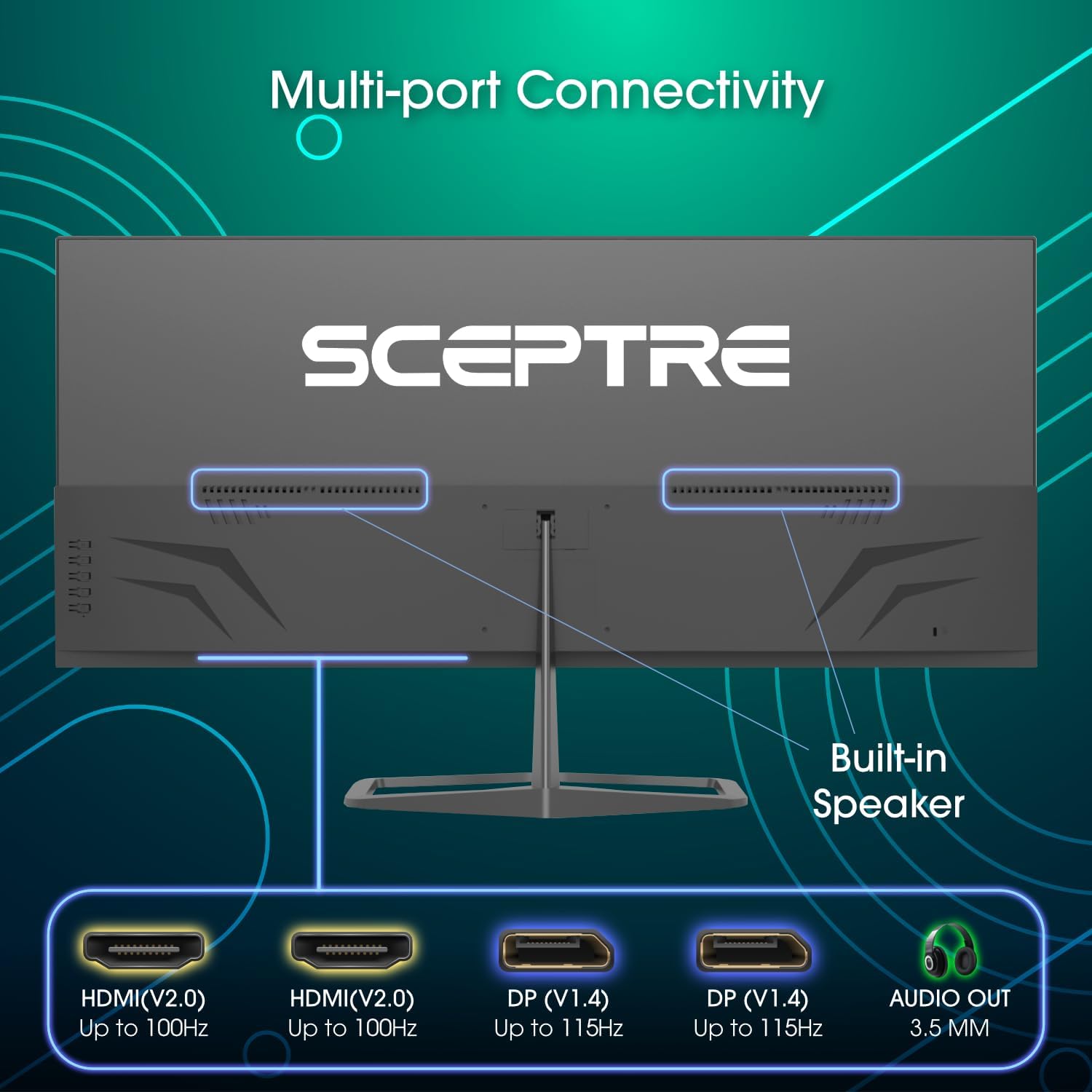
Image: Diagram illustrating the multi-port connectivity options on the Sceptre E345W-QU120D monitor, including HDMI, DisplayPort, and Audio Out. This image helps identify the various ports available on the monitor.
4. 설정
4.1 스탠드 조립
- 긁힘을 방지하려면 모니터를 부드럽고 깨끗한 표면에 뒤집어서 조심스럽게 놓으세요.
- 제공된 나사를 사용하여 스탠드 넥을 모니터에 부착합니다.
- Connect the stand base to the neck, securing it with the remaining screws. Use the included screwdriver for assembly.
- Ensure all screws are tightened securely before placing the monitor upright.
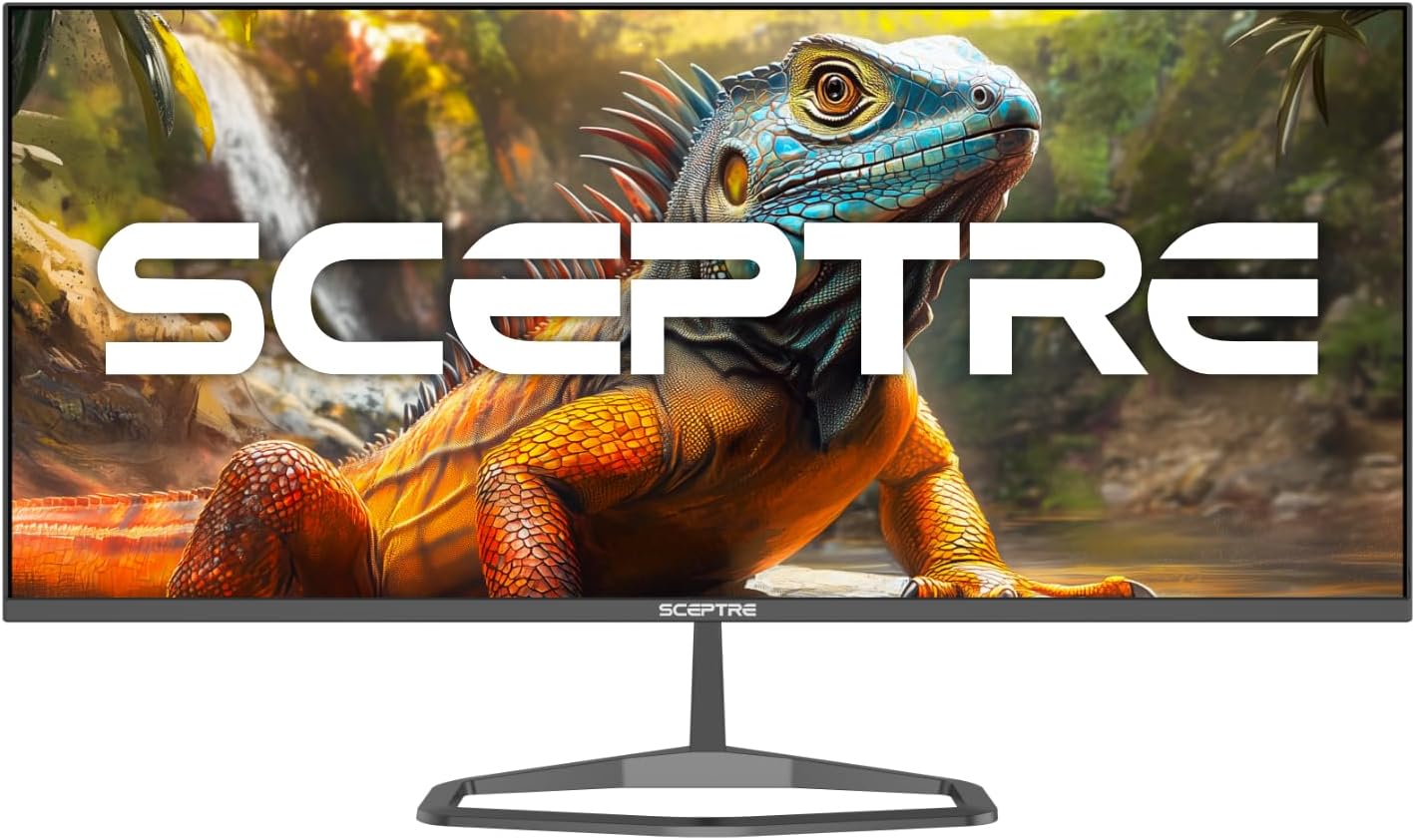
Image: The Sceptre E345W-QU120D Ultrawide Monitor displayed from the front, including its stable desktop stand. This image provides a visual reference for the assembled monitor.
4.2 컴퓨터에 연결하기
- 모니터와 컴퓨터 전원이 모두 꺼져 있는지 확인하십시오.
- Connect one end of the DisplayPort cable (included) or an HDMI cable (not included) to the corresponding port on your computer's graphics card.
- Connect the other end of the cable to an available DisplayPort or HDMI input on the monitor. The monitor supports two DisplayPort (v1.4) inputs for up to 115Hz refresh rate and two HDMI (v2.0) inputs for up to 100Hz refresh rate.
- For audio output, you can use the 3.5mm Audio Out jack on the monitor to connect external speakers or headphones.
- 전원 어댑터를 모니터의 전원 입력 단자에 연결한 다음, 전원 코드를 벽면 콘센트에 꽂습니다.
이미지: 후면 view of the Sceptre E345W-QU120D Ultrawide Monitor, highlighting the input ports and VESA mount area. This image assists in locating the various connection points.
5. 모니터 작동하기
5.1 전원 켜기/끄기
Press the power button, typically located on the back or bottom right side of the monitor, to turn the monitor on or off. The power indicator light will illuminate when the monitor is on.
5.2 온스크린 디스플레이(OSD) 메뉴
OSD 메뉴를 통해 다양한 모니터 설정을 조정할 수 있습니다. 메뉴를 탐색하려면 제어 버튼(일반적으로 모니터 뒷면이나 하단에 있음)을 사용하세요.
- 입력 소스: Select between DisplayPort 1, DisplayPort 2, HDMI 1, or HDMI 2.
- 사진 설정: 밝기, 대비, 선명도, 색온도를 조정합니다.
- 색상 설정: Fine-tune color balance and gamma. The monitor features 103% sRGB color gamut for accurate color reproduction.
- 오디오 설정: Adjust volume for the built-in speakers or connected audio devices.
- OSD 설정: OSD 언어, 투명도 및 시간 제한을 구성합니다.
- 고급 설정: Enable or disable features like AMD FreeSync and Blue-Light Shift.

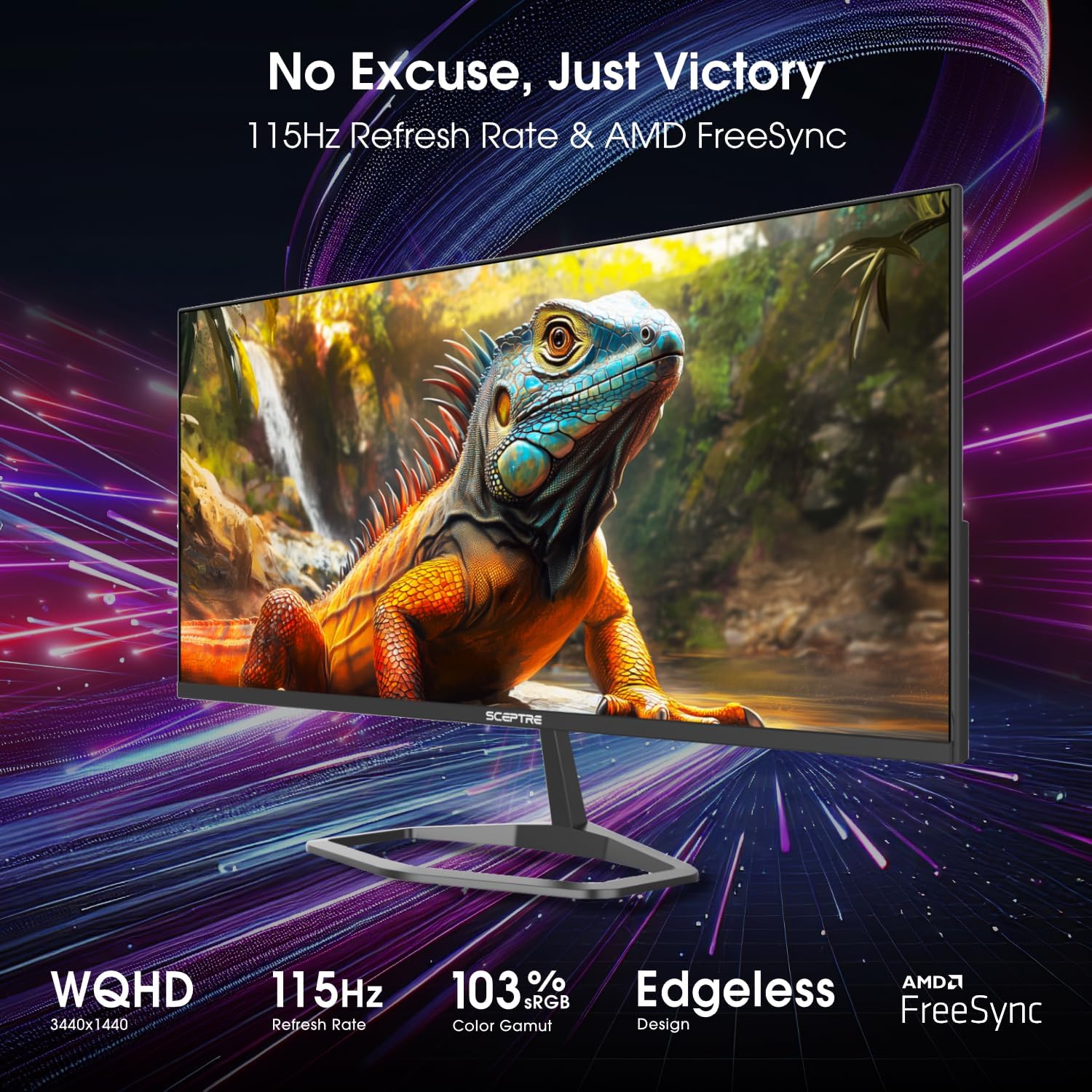
이미지: 앞면 view of the Sceptre E345W-QU120D 34-inch Ultrawide Monitor, showcasing its edgeless design and wide display. This image provides a general view of the monitor during operation.
5.3 주요 특징
- 높은 재생률: Up to 115Hz via DisplayPort and 100Hz via HDMI for smoother visuals.
- AMD FreeSync: Synchronizes the monitor's refresh rate with your graphics card's frame rate to eliminate screen tearing and stuttering. Enable this feature in the OSD menu and your graphics card settings.
- Blue-Light Shift: Reduces harmful blue light emissions to alleviate eye strain during prolonged use. This can be adjusted or enabled/disabled via the OSD menu.
- 통합 스피커: 외부 스피커 없이 오디오 출력을 제공합니다.
6. 유지관리
6.1 모니터 청소
- 청소하기 전에는 항상 모니터의 플러그를 전원 콘센트에서 뽑으세요.
- 부드럽고 보풀이 없는 천을 살짝 사용하십시오. damp물이나 비연마성 화면 세척제로 세척하세요.
- 스크린이나 구멍에 세척제를 직접 분사하지 마십시오.
- 화면을 부드럽게 닦아 먼지와 얼룩을 제거하세요.
- 모니터 c의 경우asing, 부드럽고 마른 천을 사용하세요.
6.2 일반 관리
- 모니터나 케이블 위에 무거운 물건을 올려놓지 마세요.
- 모니터를 직사광선, 열원, 과도한 먼지로부터 멀리 두세요.
- Ensure adequate space around the monitor for proper ventilation.
7. 문제 해결
모니터에 문제가 발생하면 다음 문제 해결 가이드를 참조하십시오.
| 문제 | 가능한 원인 | 해결책 |
|---|---|---|
| 전원이 없습니다 | 전원 케이블이 연결되지 않았습니다. 전원 콘센트가 작동하지 않습니다. 모니터 전원 버튼이 꺼져 있습니다. | 전원 케이블이 모니터와 콘센트에 제대로 연결되어 있는지 확인하십시오. 다른 기기를 사용하여 콘센트가 제대로 작동하는지 확인하십시오. 모니터 전원 버튼을 누르십시오. |
| 신호 없음 | 비디오 케이블이 연결되지 않았습니다. 잘못된 입력 소스가 선택되었습니다. 컴퓨터에서 신호가 출력되지 않습니다. | Check video cable connections (DisplayPort/HDMI) to both monitor and computer. Select correct input source via OSD menu. Restart computer. |
| 이미지가 깜빡이거나 왜곡됨 | Loose video cable; Incorrect resolution/refresh rate; Graphics card driver issues. | Secure video cable. Adjust resolution and refresh rate in computer display settings. Update graphics card drivers. |
| 내장 스피커에서 소리가 나지 않습니다. | 볼륨이 너무 작습니다. 음소거되었습니다. 컴퓨터에서 잘못된 오디오 출력 장치가 선택되었습니다. | Increase monitor volume via OSD. Check computer's audio settings to ensure monitor is selected as output device. |
| HDMI ports feel hot | Potential overheating; Cable issue. | Ensure proper ventilation around ports. Try a different HDMI cable. If problem persists, contact support. |
8. 사양
| 특징 | 세부 사항 |
|---|---|
| 모델 번호 | E345W-QU120D |
| 화면 크기 | 34 인치 |
| 해결 | 3440x1440(WQHD) |
| Max Refresh Rate (DisplayPort) | 115Hz |
| Max Refresh Rate (HDMI) | 100Hz |
| 종횡비 | 21시 9분 |
| 색상 영역 | 103% sRGB |
| 연결성 | 2x HDMI (v2.0), 2x DisplayPort (v1.4), 1x Audio Out (3.5mm) |
| 내장 스피커 | 예 |
| VESA 마운트 호환 | 예 |
| 품목 무게 | 9.7파운드(약 4.4kg) |
| 제품 크기(LxWxH) | 32 x 9 x 21인치(약 81.3 x 22.9 x 53.3cm) |
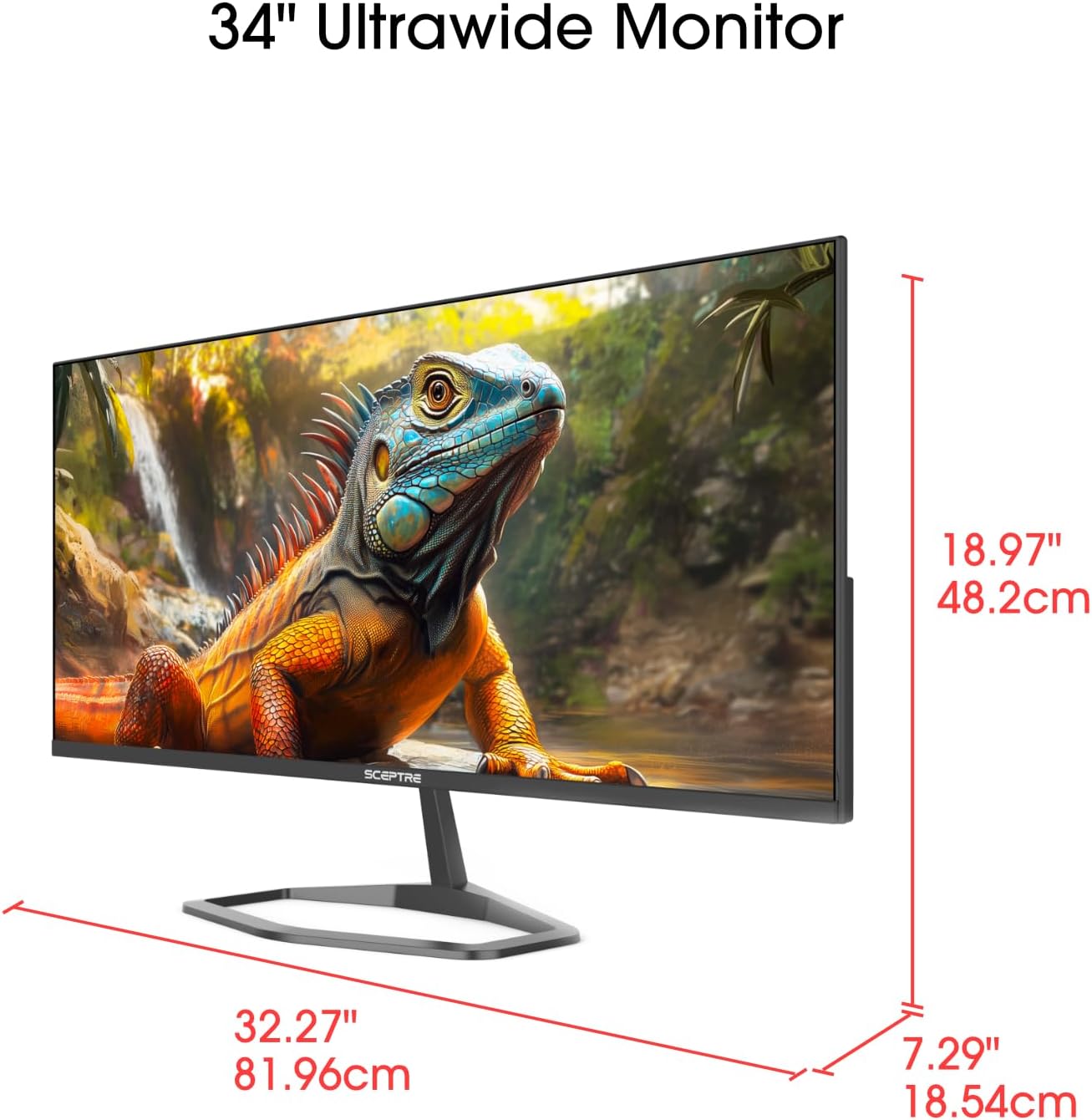
Image: This image displays the physical dimensions (height, width, and depth) of the Sceptre E345W-QU120D 34-inch Ultrawide Monitor, providing precise measurements for placement and setup.
9. 보증 정보
Sceptre products are covered by a limited warranty. For detailed warranty terms, conditions, and registration information, please refer to the official Sceptre web사이트 또는 제품에 포함된 보증서를 확인하세요. 보증 청구를 위해 구매 증빙 자료를 보관하세요.
10. 고객 지원
If you require further assistance or have questions not covered in this manual, please contact Sceptre customer support.
- 온라인 지원: Visit the official Sceptre webFAQ, 드라이버 다운로드 및 지원 자료를 제공하는 사이트입니다.
- 연락처 정보: Refer to the Sceptre web최신 연락처 정보(전화번호, 이메일)는 웹사이트 또는 제품 포장에서 확인하실 수 있습니다.
- Sceptre Store: 또한 방문할 수 있습니다 Sceptre Store on Amazon 제품 정보 및 액세서리에 대한 정보는 여기에서 확인하세요.


