소개
This manual provides essential information for setting up, operating, maintaining, and troubleshooting your Microsoft Surface Pro 7+ Tablet PC. Please read this guide thoroughly to ensure optimal performance and longevity of your device.
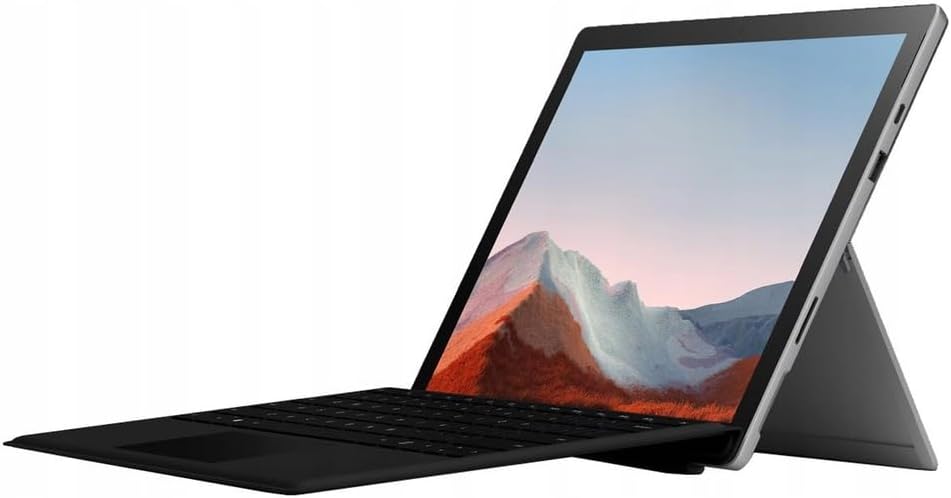
Image: The Microsoft Surface Pro 7+ in tablet mode with an attached keyboard, showcasin다재다능한 디자인이 특징입니다.
The Microsoft Surface Pro 7+ is a versatile 2-in-1 device, functioning as both a powerful tablet and a laptop. It features a 12.3-inch PixelSense touchscreen display with a resolution of 2736 x 1824 pixels, powered by an Intel Core i7-1165G7 processor. This model comes with 16GB RAM and a 512GB Solid State Drive, running on Windows 11 Pro.
설정
1. 언박싱 및 초기 검사
모든 구성품을 포장에서 조심스럽게 꺼내세요. 다음 품목이 모두 있는지 확인하세요.
- Microsoft Surface Pro 7+ Tablet PC
- 전원 어댑터/케이블
계속하기 전에 장치에 눈에 보이는 손상이 있는지 검사하세요.

Image: The Microsoft Surface Pro 7+ tablet shown alongside its detachable keyboard, illustrating the two main components.
2. 전원에 연결
Connect the power adapter to the Surface Connect port on your device and then plug the adapter into a wall outlet. The battery indicator will illuminate to show that the device is charging.
3. 초기 부팅 및 Windows 설정
Press the power button located on the top edge of the device to turn it on. Follow the on-screen prompts to complete the Windows 11 Pro setup, including language selection, network connection, and user account creation.
4. Attaching the Type Cover (Keyboard)
Align the magnetic connector of the Surface Type Cover with the bottom edge of the Surface Pro 7+. The magnets will snap the keyboard into place. You can adjust the angle of the keyboard for comfortable typing.

Image: The Microsoft Surface Pro 7+ with its keyboard attached, set up on a wooden surface, demonstrating its portability and usability in various environments.
운영
1. 기본 탐색
- 터치스크린: 손동작을 사용하여 탐색, 확대/축소 및 스크롤을 하세요.
- Type Cover: Utilize the keyboard for typing and the integrated trackpad for cursor control.
- 서피스 펜(선택 사항): If you have a Surface Pen, it can be used for writing, drawing, and precise interaction with the screen.
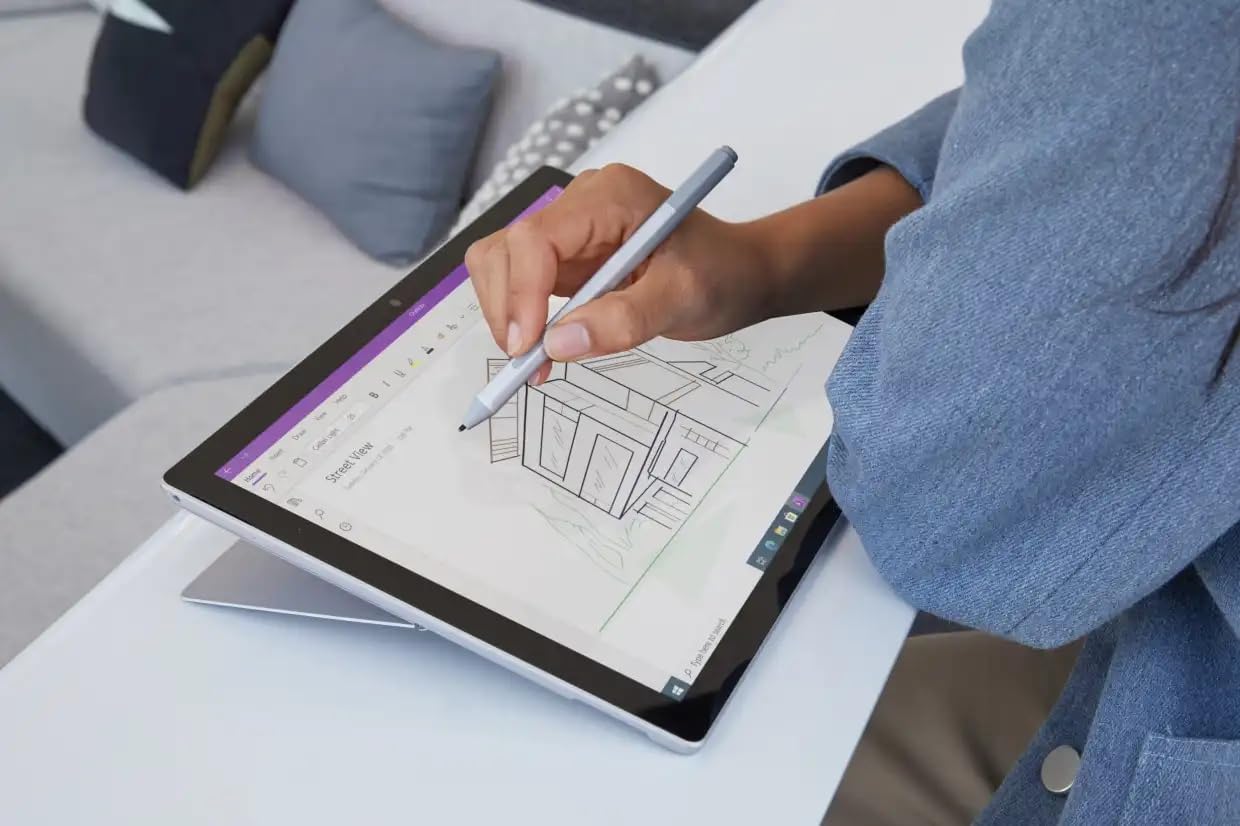
Image: A user interacting with the Microsoft Surface Pro 7+ using a Surface Pen, highlighting its capabilities for creative and precise tasks.
2. 포트 및 연결성
Your Surface Pro 7+ includes various ports for connecting peripherals:
- USB-C 포트: For data transfer, video output, and charging compatible devices.
- USB-A 포트: For connecting standard USB devices like flash drives or mice.
- 3.5mm 헤드폰 잭: 헤드폰이나 외부 스피커로 오디오를 출력합니다.
- 표면 연결 포트: For power and connecting Surface Dock accessories.
- Micro SDXC Card Reader: 저장공간 확장이나 전송을 위해 file메모리 카드에서.

이미지: 사이드 프로file view of the Microsoft Surface Pro 7+, clearly showing the various input/output ports available for connectivity.
무선 연결 : The device supports Wi-Fi 6 (802.11ax) for high-speed internet access and Bluetooth 5.0 for connecting wireless accessories.
3. 윈도우 11 프로 기능
Leverage the advanced features of Windows 11 Pro, including enhanced security, powerful management tools, and improved productivity with features like Snap Layouts and virtual desktops. Regular updates will ensure your system remains secure and up-to-date.
유지
1. 기기 청소
- 화면: 부드럽고 털이 없는 천을 살짝 사용하세요.amp물이나 화면 세척제로 닦으세요. 강한 화학 물질은 피하세요.
- 몸: 부드럽고 마른 천으로 외부를 닦습니다.
- 포트: 먼지와 이물질이 포트에 닿지 않도록 하십시오. 필요한 경우 압축 공기를 사용하되, 부드럽게 사용하십시오.
2. 소프트웨어 업데이트
Ensure your Surface Pro 7+ is always up-to-date by regularly checking for Windows updates. Go to 설정 > Windows 업데이트 to check for and install available updates. This helps maintain security and performance.
3. 배터리 관리
배터리 수명을 극대화하려면:
- 극한의 온도를 피하세요.
- 배터리를 지속적으로 0%까지 방전시키거나 장시간 100% 상태로 유지하지 마십시오.
- Use the provided official power adapter.
문제 해결
일반적인 문제 및 솔루션
- 장치 전원이 켜지지 않음:
Ensure the device is charged. Connect the power adapter and wait a few minutes before attempting to power on again. If unresponsive, perform a force restart by holding the power button for 30 seconds.
- 디스플레이 문제:
If the screen is blank or flickering, try restarting the device. Check display settings in Windows. Ensure drivers are updated.
- Wi-Fi/블루투스 연결 문제:
Toggle Wi-Fi/Bluetooth off and on. Restart your router. Check device drivers in Device Manager.
- 느린 성능:
불필요한 애플리케이션을 종료하세요. 백그라운드 프로세스를 확인하세요. 충분한 저장 공간이 확보되었는지 확인하세요. 디스크 정리를 실행하세요.
보다 자세한 문제 해결 방법은 Microsoft Surface 공식 지원 페이지를 참조하십시오. web대지.
명세서
| 특징 | 세부 사항 |
|---|---|
| 상표 | 마이크로소프트 |
| 모델 | 서피스 프로 7+ |
| CPU | Intel Core i7-1165G7 Processor (3.4GHz up to 4.6GHz) |
| 메모리(RAM) | 16GB |
| 저장 | 512GB 솔리드 스테이트 드라이브(SSD) |
| 제도법 | 인텔 아이리스 플러스 그래픽 |
| 운영 체제 | 윈도우 11 프로 64비트 |
| 표시하다 | 12.3-inch Full HD (2736 x 1824) 2K PixelSense Touchscreen |
| 와이파이 | 802.11ax(와이파이 6) |
| 블루투스 | BT5.0 |
| 포트 | 1 x USB-C, 1 x USB-A, 1 x Surface Connect port, 1 x 3.5 mm headphone jack, 1 x Micro SDXC card reader |
| 치수 | 20.1 x 29.2 x 0.85cm(7.9 x 11.5 x 0.33인치) |
| 무게 | 0.77kg(1.7파운드) |
보증 및 지원
This Microsoft Surface Pro 7+ comes with a 90-day warranty. For warranty claims or technical support, please contact the vendor or refer to the official Microsoft support resources.
For additional assistance, visit the official Microsoft Surface support web대지: support.microsoft.com/surface