1. 서론
Welcome to the TABWEE K10 Kids Tablet! This 10.1-inch Wi-Fi tablet is designed to provide a safe and engaging learning and entertainment experience for children. Featuring Android 15 Go Edition, Google Kids Space, robust parental controls via Google Family Link, and a durable EVA protective case, the K10 is built for young users.
This manual will guide you through the tablet's features, setup process, operation, maintenance, and troubleshooting to ensure a smooth and enjoyable experience.
상자 안에 무엇이 들어있나요?
Upon opening your TABWEE K10 Kids Tablet package, you should find the following items:
- TABWEE K10 Kids Tablet (with pre-installed EVA protective case)
- 터치 펜
- USB Type-C 케이블
- 전원 어댑터
- 사용 설명서 (본 문서)
- AR Zoo Cards (for interactive learning)
Video: Unboxing the TABWEE K10 Kids Tablet, showing the tablet, protective case, and accessories.
2. 안전 정보
Please read the following safety guidelines carefully to ensure safe and proper use of your TABWEE K10 Kids Tablet:
- 성인 감독: Always supervise young children while they are using the tablet.
- 충전 중: Use only the provided power adapter and USB Type-C cable for charging. Do not use damaged chargers or cables. Ensure the tablet is charged in a well-ventilated area.
- 물과 습기: Keep the tablet away from water, liquids, and excessive humidity.
- 온도: 태블릿을 극한의 온도(더위나 추위)에 노출시키지 마세요.
- 물리적 손상: While the EVA case provides protection, avoid dropping the tablet from significant heights or applying excessive force.
- 화면 시간: Encourage breaks during extended use to prevent eye strain. Utilize parental controls to manage screen time.
- 청력 보호: When using headphones, ensure the volume is set to a safe level to protect hearing.
- 청소: Use a soft, dry cloth to clean the tablet. Do not use harsh chemicals.
3. 시작하기(설정)
3.1 초기 충전
Before first use, fully charge the tablet using the included USB Type-C cable and power adapter. The battery indicator on the screen will show charging progress.
3.2 전원 켜기/끄기
- 전원을 켜려면: Press and hold the Power button (located on the side) for a few seconds until the TABWEE logo appears.
- 전원을 끄려면: Press and hold the Power button until a menu appears on the screen. Select "Power Off" and confirm.
- 재시작하기 위해: From the power menu, select "Restart."
3.3 초기 설정 마법사
태블릿을 처음 켜면 초기 설정 과정을 안내해 줍니다.
- 언어 선택: 선호하는 언어를 선택하십시오.
- Wi-Fi 연결: 와이파이 네트워크를 선택하고 비밀번호를 입력하여 인터넷에 연결하세요.
- 구글 계정: Sign in with an existing Google account or create a new one. This is necessary for accessing Google services like Kids Space and Play Store.
- 날짜 및 시간: 올바른 날짜와 시간을 설정하세요.
- Google Kids Space Setup: Follow the on-screen prompts to set up Google Kids Space for your child. This will provide age-appropriate content and a child-friendly interface.
- Google Family Link Setup: Install the Google Family Link app on your own smartphone and follow the instructions to link your child's tablet. This enables parental control features.
4. 제품 오버view (구성 요소 및 제어 장치)
Familiarize yourself with the physical components and controls of your TABWEE K10 Kids Tablet:

Image: The TABWEE K10 tablet showing its various ports, buttons, and cameras.
- 전원 버튼: 태블릿을 켜거나 끄거나 절전 모드로 전환합니다.
- 볼륨 버튼: 오디오 볼륨을 조절합니다.
- USB 타입-C 포트: 충전 및 데이터 전송용입니다.
- 3.5mm 오디오 잭: 헤드폰 연결 용.
- MicroSD 카드 슬롯: 저장 용량을 최대 2TB까지 확장할 수 있습니다.
- 전면 카메라(2MP): 영상 통화와 셀카를 위해.
- 후면 카메라(5MP): 사진과 비디오를 촬영하기 위해.
- 스피커: 오디오 출력을 제공합니다.
- 마이크로폰: 음성 입력용.
- EVA Protective Case: Provides drop protection and includes a built-in stand/handle.
5. 사용 설명서
5.1 기본 탐색
The TABWEE K10 uses a touchscreen interface. Use your finger or the included touch pen for navigation:
- 수도꼭지: 항목을 선택하거나 앱을 엽니다.
- 강타: 페이지나 메뉴를 스크롤하세요.
- 꼬집기: 이미지 확대/축소 및 web 페이지.
5.2 구글 키즈 스페이스
Google Kids Space offers a curated library of apps, books, and videos designed for children. It categorizes content into "Play," "Read," "Watch," and "Make" to encourage exploration and learning.
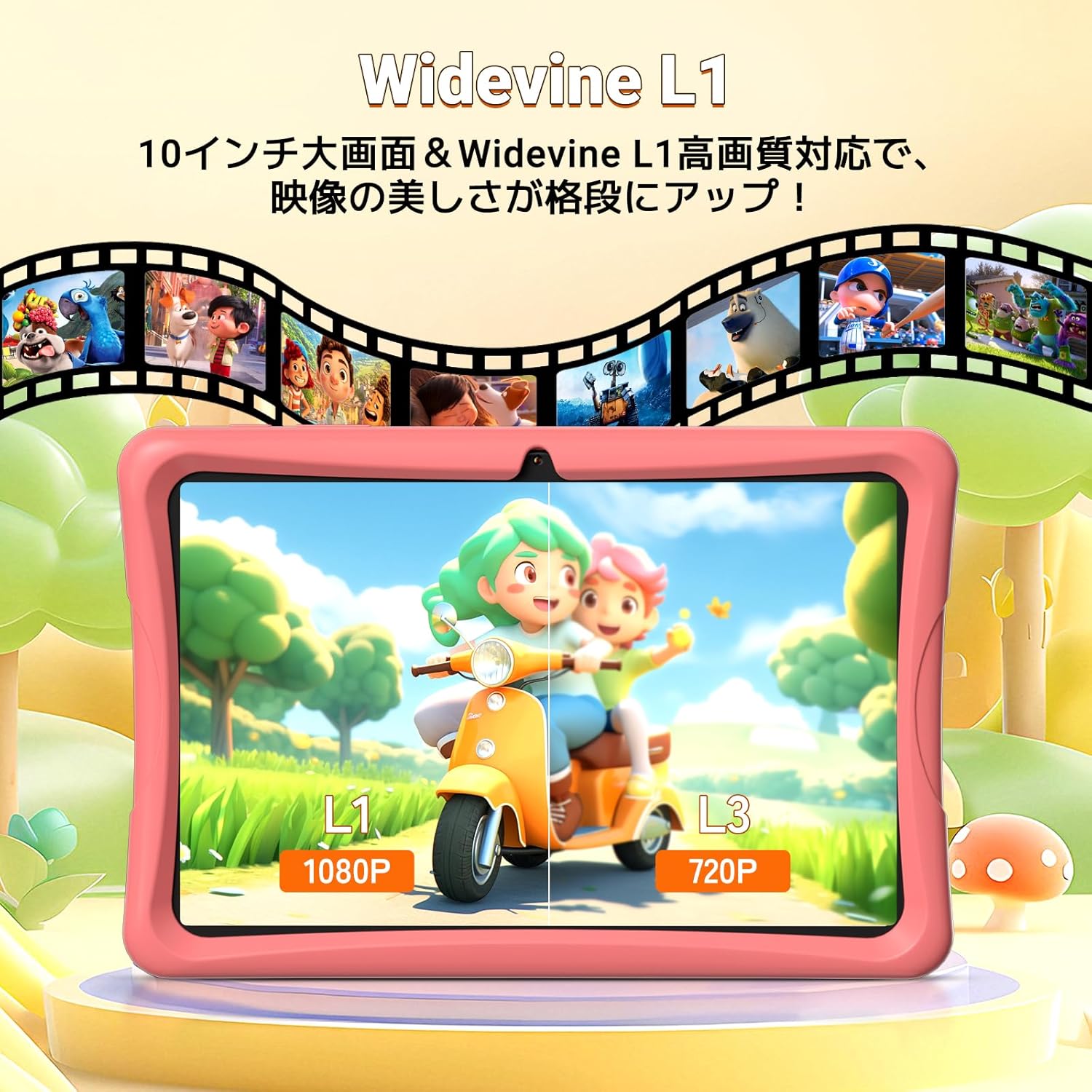
Image: The tablet screen showing the Google Kids Space interface with various app categories.
To access Kids Space, tap its icon on the home screen. Parents can manage the content available through Google Family Link.
Video: Demonstrating the variety of educational apps and content available within Google Kids Space.
5.3 YouTube Kids
The tablet supports YouTube Kids, offering a safer video experience for children. You can adjust filter settings based on your child's age and preferences.

Image: The tablet screen displaying the YouTube Kids application.
5.4 Parental Controls (Google Family Link)
Google Family Link allows you to manage your child's tablet usage remotely from your smartphone. Key features include:
- 화면 시간 관리: Set daily usage limits in 15-minute increments.
- 앱 제한 사항: Block or allow specific apps.
- 콘텐츠 필터링: Ensure age-appropriate content is displayed.
- 원격 모니터링: View your child's activity and screen time.
Video: Demonstration of Google Family Link features for managing app usage and screen time on the tablet.
5.5 Using the Touch Pen
The included touch pen allows for precise interaction with the tablet, making drawing, writing, and educational games more engaging. Simply use the pen as you would your finger on the screen.

Image: A child interacting with the tablet using the dedicated touch pen.
5.6 디스플레이 모드
The tablet offers various display modes to enhance comfort and reduce eye strain:
- 야간 모드: 편안함을 위해 청색광 방출을 줄입니다. view저조도 조건에서 촬영 중입니다.
- 다크 모드: Changes the interface to a darker color scheme, which can reduce eye fatigue.
- 리더 모드: Optimizes the display for reading, often by adjusting colors to mimic paper.

Image: The tablet screen demonstrating Night Mode, Dark Mode, and Reader Mode.
5.7 AR Zoo App
The tablet comes with an AR Zoo app that uses augmented reality technology. Use the included AR Zoo cards with the tablet's camera to bring animals to life on the screen, providing an interactive learning experience.
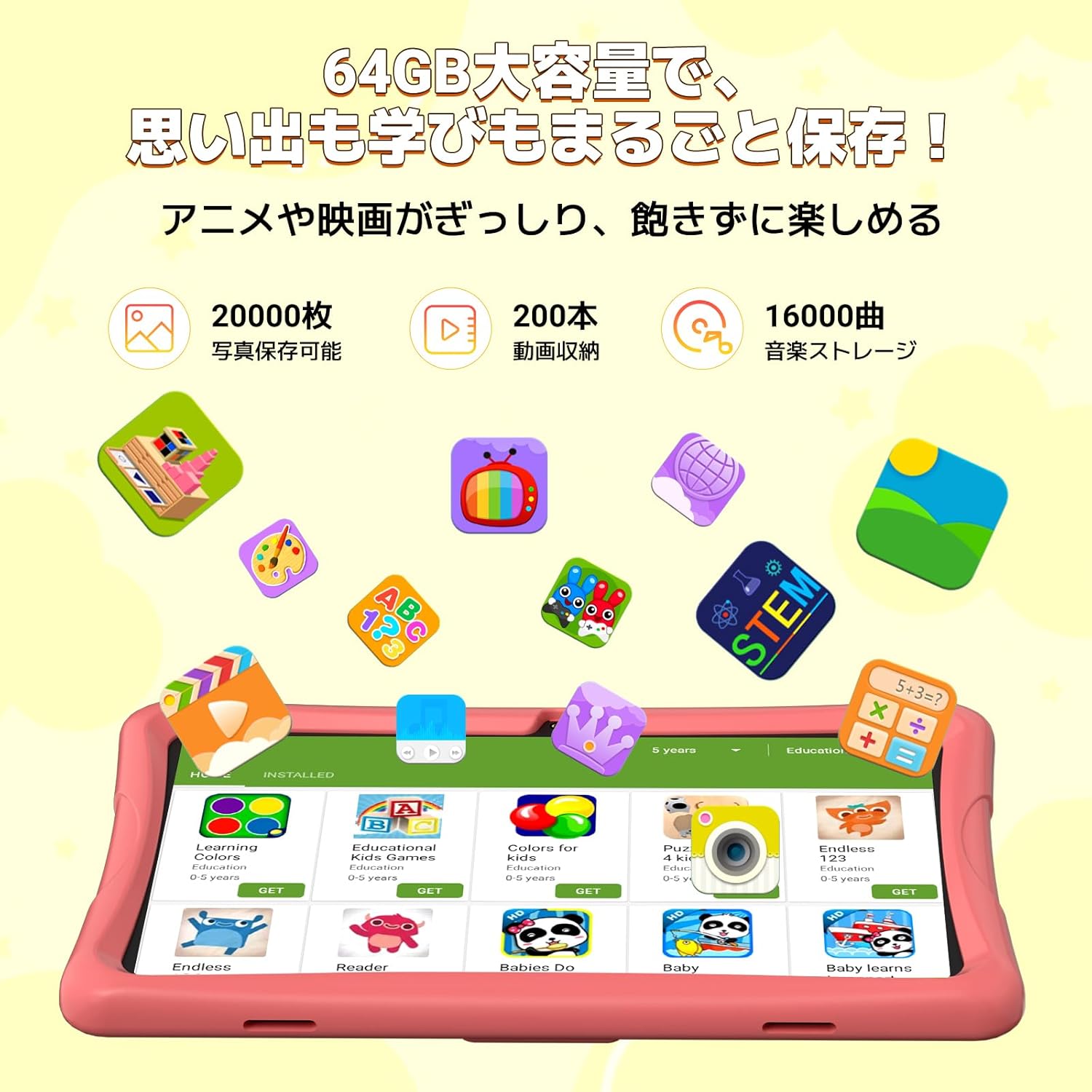
Image: The tablet displaying an augmented reality animal from the AR Zoo app, with physical cards nearby.
5.8 스토리지 관리
The tablet has 64GB of internal storage, which can be expanded up to 2TB using a microSD card (sold separately). To insert a microSD card, locate the card slot on the side of the tablet and gently push the card in until it clicks into place.
5.9 카메라 사용
The tablet is equipped with a 2MP front camera and a 5MP rear camera. Open the Camera app to take photos or record videos. The intuitive interface makes it easy for children to capture their moments.
6. 유지관리
- 청소: Use a soft, lint-free cloth to wipe the screen and body of the tablet. For stubborn smudges, slightly damp천에 물을 묻혀 닦으세요. 연마성 세제나 용제는 사용하지 마세요.
- 배터리 관리 : To prolong battery life, avoid fully discharging the tablet frequently. Charge the tablet when the battery level is low. Store the tablet in a cool, dry place when not in use for extended periods.
- 소프트웨어 업데이트: Periodically check for system updates in the tablet's settings. Keeping the software updated ensures optimal performance and security.
- EVA 케이스: The EVA case can be cleaned with mild soap and water if it gets dirty. Ensure it is completely dry before reattaching it to the tablet.
7. 문제 해결
If you encounter any issues with your TABWEE K10 Kids Tablet, please refer to the following common solutions:
| 문제 | 해결책 |
|---|---|
| 태블릿의 전원이 켜지지 않습니다. | Ensure the tablet is fully charged. Connect the charger and wait a few minutes before attempting to power on again. |
| Wi-Fi 연결 문제. | Check if your Wi-Fi router is working correctly. Go to Settings > Network & internet > Wi-Fi, forget the network, and reconnect. Restart the tablet and router. |
| 앱이 충돌하거나 정지됩니다. | Close the problematic app and reopen it. Clear the app's cache (Settings > Apps > [App Name] > Storage & cache > Clear cache). Restart the tablet. |
| 성능이 느립니다. | Close unnecessary background apps. Clear app caches. Ensure there is sufficient free storage space. Restart the tablet. |
| 자녀 보호 기능이 예상대로 작동하지 않습니다. | Ensure both the tablet and your smartphone have the latest Google Family Link app versions. Check the settings within the Family Link app on your smartphone. |
| Touch pen not responding. | Ensure the screen is clean. Try restarting the tablet. |
위 단계를 시도한 후에도 문제가 지속되면 고객 지원팀에 문의하여 추가 지원을 받으십시오.
8. 사양
| 특징 | 세부 사항 |
|---|---|
| 모델명 | TABWEE K10 |
| 운영 체제 | 안드로이드 15 Go 에디션 |
| 표시하다 | 10.1-inch HD IPS (1280x800 pixels) |
| 프로세서 | RK3562 Quad-Core (Cortex-A55, max 2.0GHz) |
| 그래픽 카드 | 말리-G52 |
| 숫양 | 12GB(물리적 4GB + 가상 8GB) |
| 내부 저장소 | 64GB 롬 |
| 확장 가능한 스토리지 | Up to 2TB via microSD card (not included) |
| 배터리 | 5000mAh 리튬 이온 |
| 전면 카메라 | 2MP |
| 후방 카메라 | 5MP |
| 연결성 | Wi-Fi (802.11ac), 블루투스 |
| 치수 | 32.79 x 20 x 3.9cm |
| 무게 | 1.02kg |
| 인증 | TELEC, GMS |
9. 보증 및 지원
Your TABWEE K10 Kids Tablet comes with a 24개월 보증 구매일로부터 적용됩니다. 이 보증은 제조상의 결함을 보장하며 안심하고 사용하실 수 있도록 해줍니다.
For any questions, technical support, or warranty claims, please contact TABWEE customer service. Our support team is available 24 hours a day via email in both Japanese and English.
지원팀에 문의하는 방법:
- 아마존을 통해: Go to your Amazon account, navigate to "Order History," select the relevant order, and click "Contact Seller."
- From the Product Page: On the product page, below the "Add to Cart" button, click on the store name. Then, in the upper right corner, click "Ask a Question" to send an email.
We aim to respond to all inquiries as quickly as possible, excluding holidays.

Image: A customer support representative assisting with inquiries.


