1. 서론
This manual provides essential information for setting up, operating, and maintaining your NIMO 15.6-inch FHD Laptop Nimo N155. Please read this manual thoroughly before using your device to ensure proper function and longevity.

Figure 1: NIMO 15.6-inch FHD Laptop Nimo N155 Overview
The NIMO N155 laptop is equipped with an AMD Ryzen 7 6800H processor, 32GB DDR5 RAM, and a 1TB PCIe 4.0 SSD, designed for efficient performance in various computing tasks. It features a 15.6-inch Full HD IPS anti-glare display, a backlit keyboard, and an integrated fingerprint sensor for enhanced security and user experience.
2. 상자 안에 무엇이 들어있나요?
패키지에 모든 품목이 들어 있는지 확인하세요.
- 니모 N155 노트북 1대
- Type-C 100W PD 고속 충전기 1개
- 1 x 사용자 매뉴얼(이 문서)
- Windows 11 Home Operating System (pre-installed)
3. 초기 설정
3.1. Charging the Laptop
Before first use, connect the laptop to the power adapter and charge it fully. The Type-C 100W PD Fast Charger provides rapid charging capabilities.
- Connect the Type-C charger to a power outlet.
- Plug the Type-C connector into one of the Type-C ports on your laptop.
- The charge LED indicator will illuminate, indicating that the laptop is charging.

Figure 2: Connecting the Type-C 100W PD Fast Charger
3.2. 전원 켜기
Press the power button located on the keyboard to turn on the laptop. Follow the on-screen instructions to complete the initial Windows 11 setup, including language selection, network connection, and user account creation.
4. Laptop Components and Ports
Familiarize yourself with the various components and ports of your NIMO N155 laptop.

그림 3: 노트북 포트 및 커넥터
4.1. 좌측 포트
- USB 2.0 포트 : 구형 USB 장치 연결용입니다.
- USB 3.0 포트 : 고속 USB 장치를 연결하는 데 사용됩니다.
- 마이크로 SD 카드 슬롯: For reading and writing to Micro SD cards.
- 헤드폰 잭: 헤드폰이나 외부 스피커를 연결하는 데 사용합니다.
- 켄싱턴 잠금 슬롯: 호환되는 잠금 장치를 사용하여 노트북을 안전하게 보호하세요.
4.2. 오른쪽 포트
- 충전 LED: 충전 상태를 나타냅니다.
- Type-C (PD/Charging) Port: Primarily for power delivery and charging.
- C형(다기능) 포트: 데이터 전송 및 화면 출력을 지원합니다.
- USB 3.0 포트(x2): 고속 USB 장치를 연결하는 데 사용됩니다.
- HDMI 포트 : 외부 디스플레이나 프로젝터에 연결합니다.
4.3. 내부 구성 요소
- 프로세서: AMD Ryzen 7 6800H (8 Cores, 16 Threads, up to 4.7 GHz).
- 제도법: Integrated AMD Radeon 680M GPU.
- 숫양: 32GB DDR5 (upgradeable).
- 저장: 1TB PCIe 4.0 SSD (upgradeable).
- 표시하다: 15.6-inch FHD (1920x1080) IPS Anti-Glare Display.
- Web캠: 2.0 MP with privacy shield.
- 무선 전화: 802.11a/b/g/n/ac (Wi-Fi 5) and Bluetooth 5.2.

그림 4: AMD 라이젠 7 6800H 프로세서 세부 정보

Figure 5: High-Speed RAM and PCIe SSD
5. 노트북 작동
5.1. 디스플레이
The 15.6-inch Full HD IPS display offers a resolution of 1920x1080 pixels. Adjust brightness and display settings through Windows settings (Right-click on desktop > Display settings).
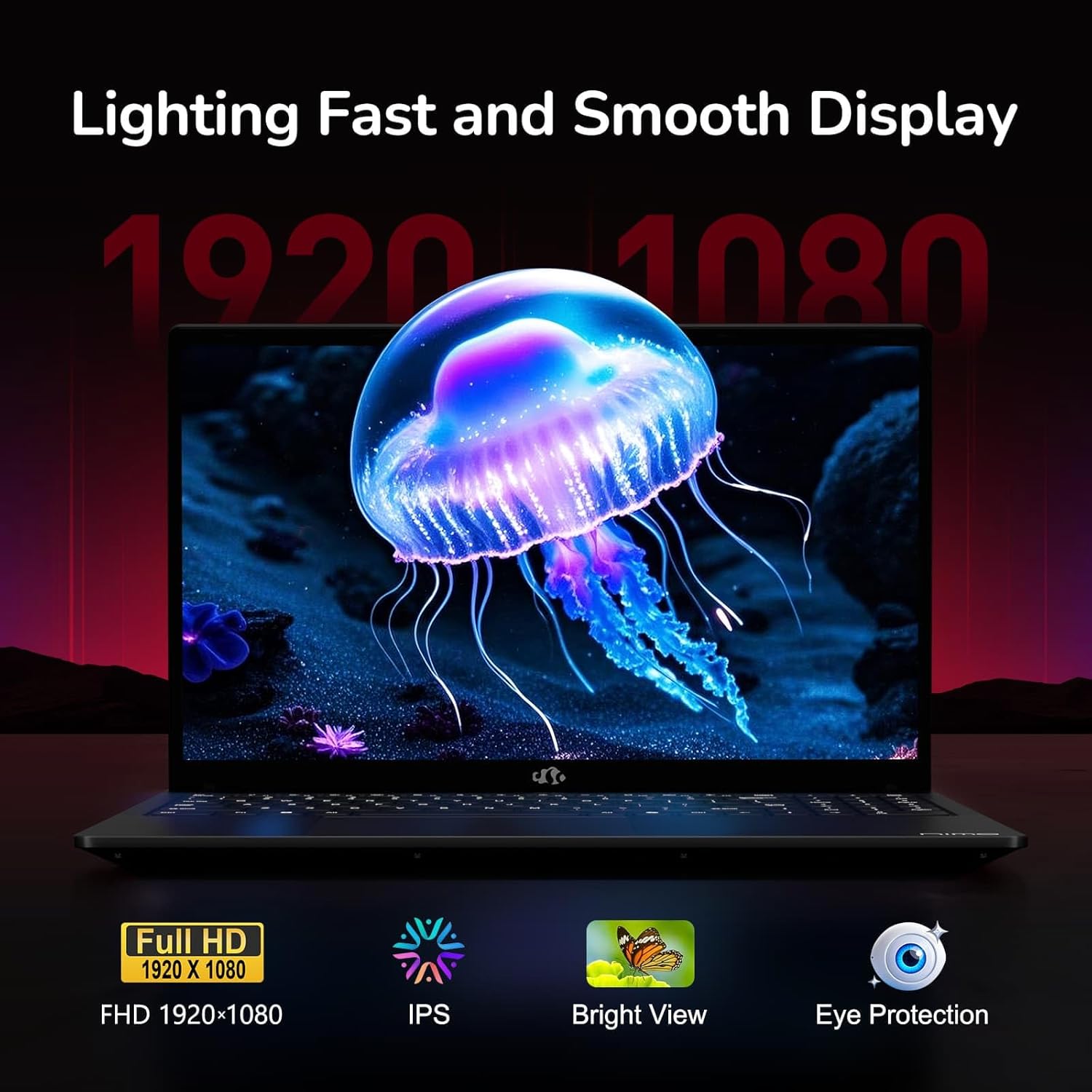
Figure 6: Laptop Display Features
5.2. 키보드 및 터치패드
The laptop features a backlit keyboard and a responsive touchpad with multi-touch gesture support. The integrated fingerprint sensor is located on the touchpad for secure login.
- 백라이트 키보드: 누르다 Fn + Fx (where Fx is the backlight key, typically F3 or F4) to adjust keyboard backlight brightness.
- 지문 센서 : Enroll your fingerprints via Windows Settings > Accounts > Sign-in options for quick and secure access.
- Webcam Privacy Shield: Slide the physical cover over the webcam for privacy when not in use.

Figure 7: Keyboard and Input Features

Figure 8: Seamless Security Integration (Fingerprint and Webcam Shield)
5.3. 전원 관리
The laptop is equipped with a 4700mAh (53.58Wh) Lithium Polymer battery. Battery life can vary based on usage. To optimize battery life, adjust power settings in Windows and close unnecessary applications.

그림 9: 배터리 사양
6. 유지관리 및 관리
6.1. 청소
- 부드럽고 보푸라기가 없는 천을 사용하여 화면과 외부를 청소하세요.
- 완고한 자국의 경우, damp천에 물이나 화면 세척제를 묻혀 닦으세요. 강한 화학 물질은 피하세요.
- 청소하기 전에 노트북의 전원이 꺼져 있고 플러그가 뽑혀 있는지 확인하세요.
6.2. 보관 및 취급
- 노트북은 직사광선과 극한의 온도를 피해 서늘하고 건조한 곳에 보관하세요.
- 노트북 위에 무거운 물건을 올려놓지 마세요.
- 노트북을 액체에 노출시키지 마십시오.
6.3. 업그레이드
The NIMO N155 laptop supports detachable RAM and SSD, allowing for user upgrades. Refer to the official NIMO support website or contact customer service for detailed upgrade instructions to avoid voiding your warranty.
7. 문제 해결
이 섹션에서는 NIMO N155 노트북 사용 중 발생할 수 있는 일반적인 문제에 대해 설명합니다.
| 문제 | 가능한 해결책 |
|---|---|
| 노트북의 전원이 켜지지 않습니다. | 충전기가 제대로 연결되어 있는지, 배터리 충전량이 충분한지 확인하십시오. 다른 콘센트를 사용해 보세요. |
| 화면이 비어 있습니다. | Check if the laptop is powered on. Adjust screen brightness. Connect to an external monitor to check if the issue is with the laptop's display. |
| Wi-Fi 연결 문제. | Windows 설정에서 Wi-Fi가 활성화되어 있는지 확인하세요. 라우터와 노트북을 다시 시작하세요. Wi-Fi 드라이버를 업데이트하세요. |
| 키보드 백라이트가 작동하지 않습니다. | Press the Fn key combined with the appropriate function key (e.g., F3 or F4) to toggle or adjust the backlight. |
| 지문 센서가 작동하지 않습니다. | Ensure your finger is clean and dry. Re-enroll your fingerprints in Windows settings. Update fingerprint sensor drivers. |
If you encounter issues not listed here or require further assistance, please contact NIMO customer support.
8. 기술 사양
| 특징 | 사양 |
|---|---|
| 모델명 | 니모 N155 |
| 표시하다 | 15.6-inch FHD (1920x1080) IPS Anti-Glare |
| 프로세서 | AMD 라이젠 7 6800H (8코어, 16스레드, 최대 4.7GHz) |
| 제도법 | AMD Radeon 680M 내장 그래픽 |
| 숫양 | 32GB DDR5 4800 MHz (Dual-channel, upgradeable) |
| 저장 | 1TB PCIe 4.0 SSD (upgradeable) |
| 운영 체제 | 윈도우 11 홈 |
| 무선 연결 | Wi-Fi 5(802.11a/b/g/n/ac), 블루투스 5.2 |
| 포트 | 1x USB 2.0, 3x USB 3.0, 2x Type-C (1x PD, 1x Multifunction), 1x HDMI, 1x Micro SD, 1x Headphone Jack, 1x Kensington Lock |
| Web캠 | 2.0 MP (with privacy shield) |
| 배터리 | 4700mAh / 53.58Wh Lithium Polymer |
| 전원 어댑터 | 타입C 100W PD 고속 충전기 |
| 치수(길이x너비x높이) | 14.07 x 8.98 x 0.76인치(357.4 x 228 x 19.2mm) |
| 무게 | 3.8파운드(1.7kg) |
| 특별 기능 | 백라이트 키보드, 지문 인식기, HD 오디오, 숫자 키패드 |
9. 보증 및 지원
9.1. 제조업체 보증
NIMO N155 노트북에는 다음이 포함됩니다. 2년 제조사 보증. 본 보증은 정상적인 사용 환경에서 발생하는 재료 및 제조상의 결함에 적용됩니다. 보증 청구를 위해 구매 증빙 서류를 보관해 주십시오.
9.2. 반품 정책
NIMO는 다음과 같은 것을 제공합니다. 90일 이내 번거로움 없는 반품 정책 from the date of purchase. For details on eligibility and the return process, please refer to your purchase documentation or contact customer support.
9.3. 고객 지원
For technical assistance, warranty claims, or any other inquiries, please visit the official NIMO support website or contact their customer service team. Contact information can typically be found on the NIMO brand store page or included documentation.
NIMO Brand Store: Visit NIMO Store on Amazon


