1. 서론
Welcome to the user manual for your new Vibox I-530 Gaming PC. This system is designed for casual gaming and general productivity, offering a balanced performance with its AMD Ryzen 3 3200G processor and integrated Radeon Vega 8 graphics. This manual provides essential information for setting up, operating, maintaining, and troubleshooting your computer.
상자 안에 무엇이 들어있나요?
- Vibox I-530 Gaming PC Tower (VTX-8 Black)
- 전원 케이블
- 300 Mbps Wi-Fi Adapter
- 문서(이 매뉴얼)
- RGB Lighting (integrated into the PC case)

Figure 1: The Vibox I-530 Gaming PC tower, showcasin투명한 측면 패널과 생동감 넘치는 RGB 팬이 특징입니다.
2. 설정 가이드
Follow these steps to set up your Vibox I-530 Gaming PC for the first time.
2.1 언박싱 및 배치
- PC를 포장에서 조심스럽게 꺼내세요.
- Place the PC tower on a stable, flat surface with adequate ventilation. Ensure there is enough space around the vents for proper airflow.
- Remove any protective films or packaging materials from the PC case.

Figure 2: Diagram illustrating the dimensions of the Vibox I-530 PC case, highlighting its tempered glass design and overall size (37.5cm height, 29.5cm depth, 22cm width, 8cm stand height).
2.2 주변기기 연결하기
모니터, 키보드, 마우스 및 기타 주변 장치를 PC 뒷면의 해당 포트에 연결하십시오.
- 감시 장치: Connect your monitor using an HDMI or DisplayPort cable to the corresponding port on the motherboard (not a dedicated graphics card, as this model uses integrated graphics).
- 키보드 및 마우스: Plug your keyboard and mouse into any available USB ports.
- Wi-Fi Adapter: Insert the provided 300 Mbps Wi-Fi adapter into an available USB port.
- 힘: Connect the power cable to the PC's power supply unit (PSU) and then to a wall outlet.
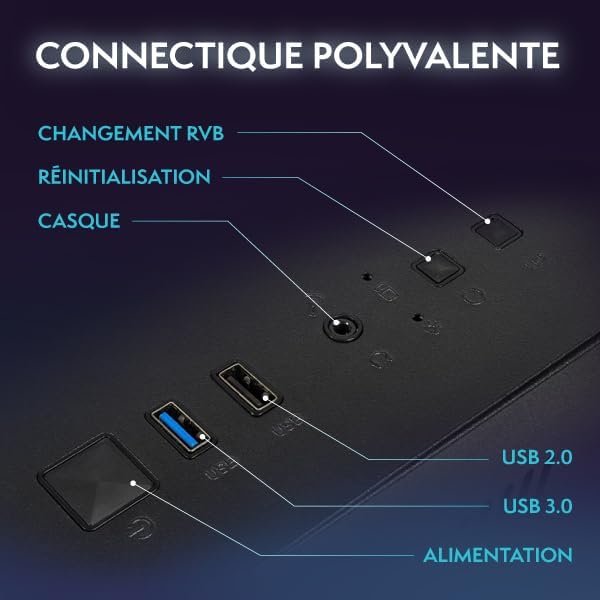
Figure 3: Close-up of the PC's front panel connectivity, showing the power button, RGB change button, reset button, headphone jack, USB 2.0 ports, and USB 3.0 ports.
2.3 초기 전원 켜기
- PC 전면의 전원 버튼을 누르세요.
- The system will boot into Windows 11. Follow the on-screen instructions to complete the initial Windows setup, including language, region, and user account creation.
- Once Windows is set up, ensure your Wi-Fi adapter is recognized and connect to your wireless network.
3. 사용 설명서
This section covers basic operation and tips for using your Vibox I-530 PC.
3.1 전원 켜기/끄기
- 전원을 켜려면: PC 전면의 전원 버튼을 누르세요.
- 종료하려면: Windows에서 시작 버튼을 클릭한 다음 전원 > 종료를 선택하십시오. 전원 버튼을 길게 눌러 PC를 끄는 것은 데이터 손실이나 시스템 손상을 초래할 수 있으므로 피하십시오.
- 재시작하기 위해: 시작 버튼을 클릭한 다음 전원 > 다시 시작을 선택합니다.
3.2 Windows 11 Overview
Your PC comes pre-installed with Windows 11 Home, offering a modern interface and enhanced features for gaming and productivity.
- Faster Load Times: Benefit from DirectStorage for quicker game loading.
- 향상된 그래픽: AutoHDR provides improved visuals for supported games.
- Xbox Game Pass Integration: Seamless access to Xbox Game Pass.
- Optimized CPU Performance: Experience better performance for your processor.

Figure 4: Key features of Windows 11 Home, highlighting benefits for gamers such as faster loading, AutoHDR, and Xbox Game Pass integration.
3.3 RGB 조명 제어
Your Vibox I-530 PC features customizable RGB lighting for its fans. You can change the colors and modes directly from the PC case.
- Locate the RGB change button on the front panel of your PC (refer to Figure 3).
- Press this button to cycle through various colors and lighting effects.
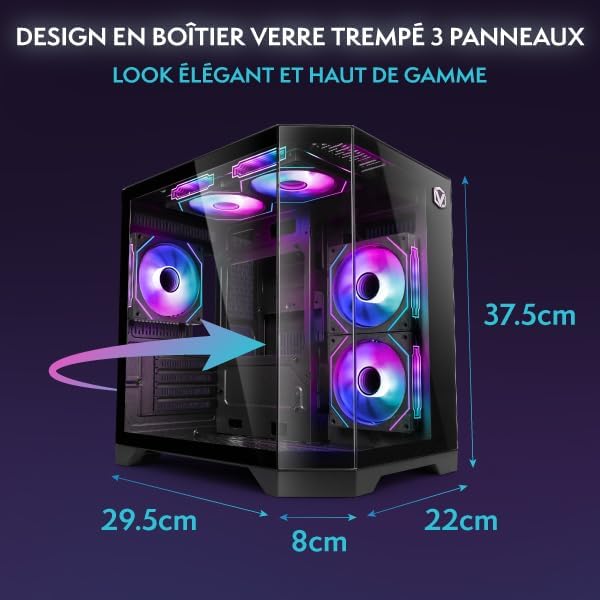
Figure 5: Hex RGB Infinity 120mm fans, illustrating the customizable colors and RGB modes available for personalization.
3.4 게임 및 성능
The AMD Ryzen 3 3200G with Radeon Vega 8 integrated graphics is suitable for indie games and less graphically demanding titles. For optimal performance:
- Keep your graphics drivers updated.
- Close unnecessary background applications while gaming.
- Adjust in-game graphics settings to match your system's capabilities for a smooth experience.

그림 6: 내부 view of the Vibox I-530 PC, showing the motherboard, CPU cooler, and RGB fans, illustrating the component layout.
4. 유지관리
정기적인 유지 관리는 PC의 수명과 최적의 성능을 보장하는 데 도움이 됩니다.
4.1 청소
- 외부: 부드러운 d를 사용하세요amp 케이스 외부를 닦을 천을 사용하세요. 강한 화학 약품은 사용하지 마세요.
- 먼지: Periodically use compressed air to clean dust from the internal components, especially the fans and heatsinks. Ensure the PC is powered off and unplugged before cleaning.
- 공기 흐름: Ensure the PC's vents are not obstructed to maintain proper airflow and prevent overheating.

Figure 7: Diagram illustrating the inverted airflow design for new generation cooling in the Vibox I-530 PC, showing air intake and exhaust paths.
4.2 소프트웨어 업데이트
- Windows 업데이트: Regularly check for and install Windows updates to ensure security and performance improvements. Go to Settings > Windows Update.
- 드라이버 업데이트 : Keep your AMD graphics drivers and other component drivers updated. You can usually find these on the AMD website or through the device manager.
4.3 스토리지 관리
- SSD 상태: While SSDs do not require defragmentation, ensure you don't fill them to full capacity, as this can impact performance.
- 디스크 정리: Windows에 내장된 디스크 정리 도구를 사용하여 임시 파일을 제거하세요. files를 사용하여 공간을 확보하세요.
5. 문제 해결
This section addresses common issues you might encounter with your Vibox I-530 PC.
5.1 전원 없음
- 전원 케이블이 PC와 벽면 콘센트에 모두 단단히 연결되어 있는지 확인하세요.
- Check if the power switch on the back of the PSU (Power Supply Unit) is in the 'On' position.
- 다른 콘센트나 전원 케이블을 사용해 보세요.
5.2 모니터에 디스플레이가 표시되지 않음
- Verify that the monitor is powered on and the video cable (HDMI/DisplayPort) is securely connected to both the PC's motherboard video output and the monitor.
- 모니터가 올바른 입력 소스로 설정되어 있는지 확인하세요.
- If possible, test with another monitor or cable.
5.3 Wi-Fi 연결 문제
- Ensure the USB Wi-Fi adapter is properly inserted into a USB port.
- Check Windows network settings to confirm Wi-Fi is enabled and you are attempting to connect to the correct network.
- 라우터와 모뎀을 다시 시작하세요.
- Update the Wi-Fi adapter drivers.
5.4 시스템 성능이 느립니다
- 작업 관리자(Ctrl+Shift+Esc)를 열어 CPU, RAM 또는 디스크 리소스를 과도하게 사용하는 애플리케이션이 있는지 확인하십시오.
- Windows와 드라이버가 최신 상태인지 확인하세요.
- Perform a disk cleanup and check for malware.
- PC의 통풍이 잘 되는지, 과열되지 않는지 확인하십시오.
6. 사양
Detailed technical specifications for the Vibox I-530 Gaming PC.
| 특징 | 세부 사항 |
|---|---|
| 상표 | 비박스 |
| 모델 번호 | 이-530 |
| 시리즈 | VTX-8 |
| 색상 | VTX-8 Black |
| 치수(길이 x 너비 x 높이) | 35 x 28 x 38cm |
| 무게 | 10.6kg |
| 프로세서 제조업체 | (주)에스디에이치디(주) |
| 프로세서 유형 | 라이젠 3 3200G |
| 프로세서 속도 | 3.6GHz (최대 4.0GHz 부스트) |
| 프로세서 소켓 | 소켓 AM4 |
| 프로세서 코어 수 | 4 |
| RAM 용량 | 16GB (XNUMX기가바이트) |
| RAM 기술 | DDR4 |
| RAM Speed | 3200MHz |
| Max Supported RAM | 128GB (XNUMX기가바이트) |
| 저장 유형 | SSD(솔리드 스테이트 드라이브) |
| 저장 용량 | 480GB (XNUMX기가바이트) |
| 그래픽 코프로세서 | AMD 라데온 베가 8 |
| 그래픽 카드 브랜드 | (주)에스디에이치디(주) |
| 그래픽 카드 설명 | 통합 |
| Graphics Memory Type | 공유 |
| 연결 유형 | 와이파이(802.11n) |
| USB 2.0 포트 | 3 |
| USB 3.0 포트 | 3 |
| HDMI 포트 | 1 |
| 광학 드라이브 유형 | 없음 |
| 운영 체제 | 윈도우 11 홈 |
| 특정 제품 용도 | Image Editing, Video Editing, Video Games |
7. 보증 및 지원
For warranty information and technical support, please refer to the documentation provided with your purchase or contact Vibox customer service directly.
You can visit the official Vibox website or the seller's page on Amazon for further assistance:
- Vibox Gaming Store: Visit Vibox Store on Amazon
- 판매자 지원: For issues related to your purchase, contact "Vibox Gaming" directly through your Amazon order history.


