소개
This manual provides essential information for setting up, operating, maintaining, and troubleshooting your HP 15-fd series laptop. Please read this guide thoroughly to ensure optimal performance and longevity of your device.
The HP 15-fd laptop is equipped with a 13th Gen Intel Core i3-1315U processor, 15.6-inch HD touchscreen display, 8GB DDR4 RAM, and a 512GB SSD, running on Windows 11 Pro. It is designed for productivity and includes various connectivity options and accessories.
1. 설정
1.1 포장 풀기 및 초기 검사
포장에서 모든 구성품을 조심스럽게 꺼내십시오. 포장 목록에 기재된 모든 품목이 있는지, 손상되지 않았는지 확인하십시오. 누락되거나 손상된 품목이 있는 경우 즉시 판매점에 문의하십시오.
1.2 전원 연결
- AC 어댑터를 노트북의 전원 커넥터에 연결합니다.
- AC 어댑터를 접지된 전기 콘센트에 꽂으세요.
- 처음 사용하기 전에 배터리를 최소 30분 동안 또는 배터리 표시등이 완충을 나타낼 때까지 충전하십시오.
1.3 Initial Power On and Windows 11 Pro Setup
- 노트북을 켜려면 키보드 데크에 있는 전원 버튼을 누르세요.
- 화면의 지시에 따라 Windows 11 Pro 설치 과정을 완료하세요. 여기에는 지역 및 언어 선택, Wi-Fi 네트워크 연결, 사용자 계정 생성 등이 포함됩니다.
- Ensure you have an active internet connection for Windows updates and software activation.
1.4 포함 된 액세서리
Your laptop package includes the following accessories to enhance your experience:
- 5-in-1 도킹 스테이션: Provides additional ports including HDMI video output, USB 3.0, USB Type-C/PD, and RJ45 Ethernet.
- HDMI 케이블 : 외부 디스플레이에 연결합니다.
- 128GB Portable SSD: For additional storage and data transfer.
- Lifetime Office: Pre-installed or provided with activation instructions for Microsoft Office suite.

Figure 1: Included accessories, including the 5-in-1 docking station, HDMI cable, 128GB portable SSD, Windows 11 Pro, and Lifetime Office.
2. 노트북 작동
2.1 전원 켜기/끄기 및 절전 모드
- 전원 켜기: 전원 버튼을 누르세요.
- 종료: 시작 버튼을 클릭한 다음 전원 > 시스템 종료를 클릭합니다.
- 수면 모드 : 뚜껑을 닫거나 시작 버튼을 클릭한 다음 전원 > 절전을 클릭합니다.
2.2 터치스크린 사용
Your HP 15-fd laptop features a responsive 15.6-inch multi-touch display. You can interact with the system using various touch gestures:
- 수도꼭지: 마우스 클릭과 동일합니다.
- 두 번 탭: Opens applications or selects items.
- 핀치 투 줌: 확대/축소하려면 두 손가락을 사용하세요.
- 강타: Navigate through content or switch between applications.
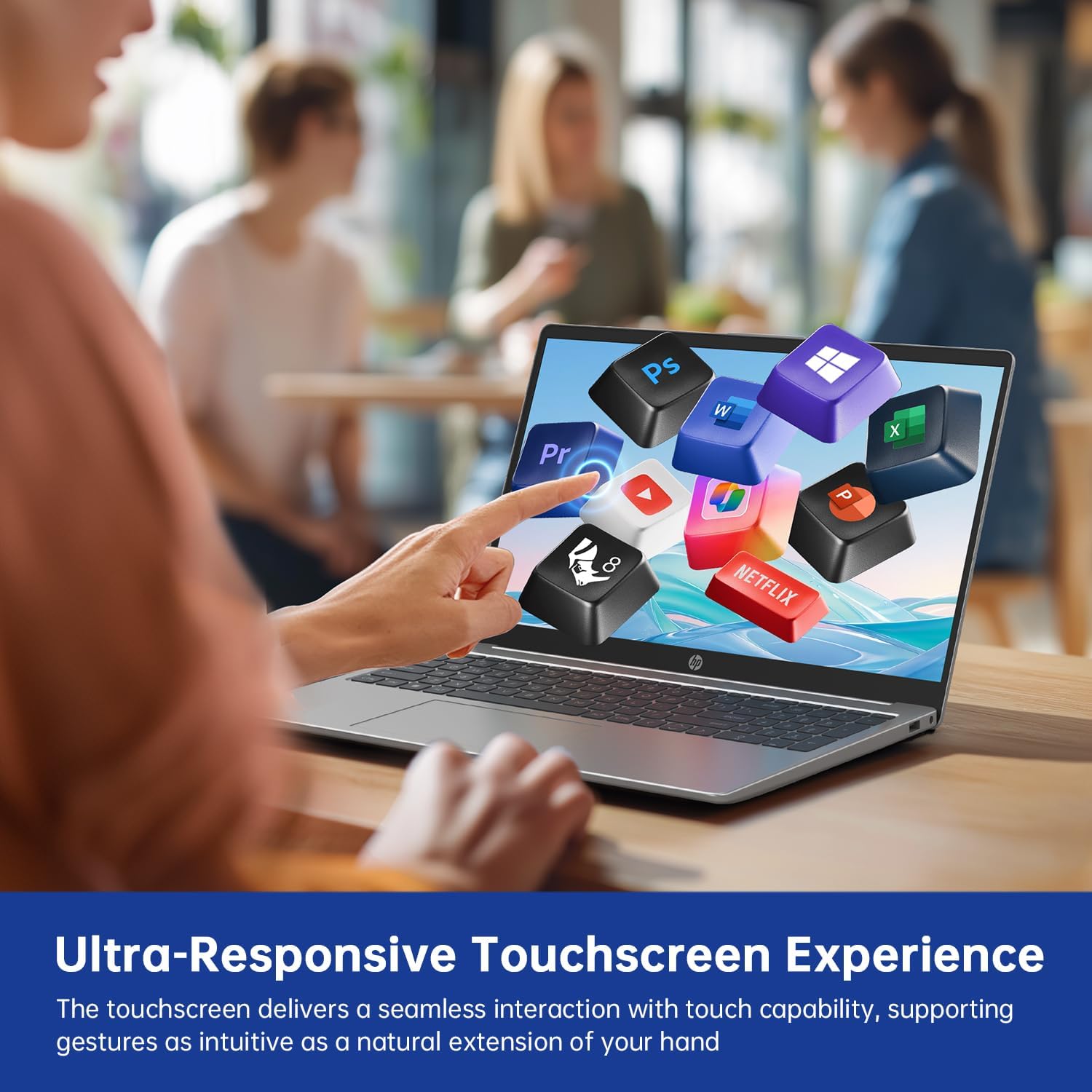
Figure 2: Demonstrating the ultra-responsive touchscreen experience with various application icons.
2.3 키보드 및 숫자 키패드
The full-size keyboard includes a dedicated numeric keypad for efficient data entry. Function keys (F1-F12) provide quick access to system controls when pressed in combination with the Fn key.
2.4 포트 및 연결
이 노트북은 외부 장치를 연결할 수 있는 다양한 포트를 제공합니다.
- USB-A 3.0 포트(2개): 마우스, 키보드, 외장 드라이브 등 USB 장치를 연결하는 데 사용됩니다.
- USB-C 3.0 포트(1개): Versatile port for data transfer, charging, or connecting compatible peripherals.
- HDMI 포트(1개): 외부 모니터나 프로젝터에 연결합니다.
- 3.5mm 오디오 잭(1개): 헤드폰이나 외부 스피커용.
- DC-in Port (x1): For connecting the AC adapter to charge the laptop.
Wireless connectivity includes 와이파이 6E for high-speed internet access and 블루투스 5.0 for connecting wireless accessories.

그림 3: 이상view of multiple available ports on the HP 15-fd laptop.
2.5 Camera Privacy Switch
Your laptop features a 720p HD webcam with a built-in privacy switch. To ensure your privacy, slide the physical switch to cover the camera lens when not in use. Slide it back to uncover the lens when you need to use the camera for video calls or other applications.

Figure 4: The camera privacy switch provides control over webcam access.
2.6 AI Copilot Functionality
The integrated AI Copilot assists in automating tasks, generating insights, and streamlining workflows. It learns from your actions to provide smarter suggestions, enhancing productivity for tasks such as coding, writing, or data analysis.
3. 유지관리
3.1 노트북 청소
- 화면: 부드럽고 보풀이 없는 천을 살짝 사용하십시오. damp물이나 화면 세척제로 닦아주세요. 화면에 직접 액체를 분사하지 마세요.
- 키보드 및 섀시: 부드럽고 마른 천을 사용하세요. 잘 지워지지 않는 오염의 경우, 약간amp 순한 비누 용액을 묻힌 천을 사용하여 액체가 구멍으로 들어가지 않도록 하세요.
- 포트: 압축 공기를 사용하여 포트에서 먼지를 조심스럽게 제거하세요.
3.2 배터리 관리
- 배터리를 자주 완전히 방전시키지 마세요.
- 장시간 사용하지 않을 경우 노트북을 서늘하고 건조한 곳에 보관하세요.
- 노트북을 극한의 온도에 노출시키지 마십시오.
3.3 소프트웨어 업데이트
Regularly check for and install updates for Windows 11 Pro and HP drivers to ensure optimal performance, security, and compatibility. You can typically find these updates through Windows Update settings and the HP Support Assistant application.
4. 문제 해결
This section addresses common issues you might encounter with your HP 15-fd laptop.
4.1 전원 문제
- 노트북이 켜지지 않습니다: Ensure the AC adapter is securely connected to both the laptop and a working power outlet. Check if the battery is charged. Try a different power outlet.
- 배터리가 충전되지 않음: Verify the AC adapter is functioning correctly. Check the power cable for damage.
4.2 디스플레이 문제
- Screen is blank or dark: Ensure the laptop is powered on. Adjust screen brightness using function keys. Connect an external monitor via HDMI to check if the issue is with the laptop's display.
- 터치스크린이 반응하지 않음: 노트북을 다시 시작하세요. 디스플레이 드라이버가 최신 상태인지 확인하세요.
4.3 연결 문제
- Wi-Fi가 연결되지 않음: Check if Wi-Fi is enabled in Windows settings. Restart your router and laptop. Ensure correct Wi-Fi password is entered.
- Bluetooth 장치가 페어링되지 않음: Ensure Bluetooth is enabled on both devices. Place devices close to each other. Check device compatibility.
4.4 일반적인 성능 문제
- 느린 성능: Close unnecessary applications. Check for malware. Ensure sufficient free space on the SSD. Update drivers and Windows.
- System freezes or crashes: Perform a system restart. Check for recent software installations that might be causing conflicts.
If you are unable to resolve an issue using these steps, please refer to the Support section for further assistance.
5. 사양

Figure 5: Key display and physical dimensions of the HP 15-fd laptop.
| 특징 | 사양 |
|---|---|
| 모델명 | 15-fd |
| 프로세서 | 13세대 인텔 코어 i3-1315U (최대 4.5GHz) |
| 제도법 | Intel UHD 그래픽(통합) |
| 표시하다 | 15.6인치 HD(1366 x 768) 터치스크린 |
| 숫양 | 8GB DDR4 |
| 저장 | 512GB SSD |
| 운영 체제 | 윈도우 11 프로 |
| 무선 연결 | Wi-Fi 6E, 블루투스 5.0 |
| 포트 | 2x USB-A 3.0, 1x USB-C 3.0, 1x HDMI, 1x 3.5mm Audio Jack, 1x DC-in |
| 치수(길이x너비x높이) | 14.17 x 9.29 x 0.73 인치 |
| 무게 | 약 3.52파운드(1.6kg) |
| 색상 | 천연은 |
| 특별 기능 | Numeric Keypad, Fingerprint Reader, HD Audio, Camera Privacy Switch |
6. 보증 정보
Your HP 15-fd laptop comes with a 12개월 보증 구매일로부터 보증이 적용됩니다. 본 보증은 정상적인 사용 중 제조상의 결함 및 하드웨어 고장에 적용됩니다. 보증 청구를 위해 구매 증빙 자료를 보관해 주십시오.
The warranty does not cover damage caused by misuse, accidents, unauthorized modifications, or external factors. For detailed warranty terms and conditions, please refer to the documentation included with your product or visit the official HP support web대지.
7. 지원
For technical assistance, troubleshooting beyond this manual, or warranty service, please contact HP Customer Support.
- 온라인 지원: 공식 HP 지원을 방문하세요 web드라이버, 매뉴얼, 문제 해결 가이드를 제공하는 사이트입니다.
- 전화 지원: Refer to the contact information provided in your product packaging or on the HP Support web귀하의 지역에 대한 사이트.
When contacting support, please have your laptop's serial number and model number (15-fd) ready. This information can usually be found on a label on the bottom of your laptop.