소개
This user manual provides comprehensive instructions for setting up, operating, maintaining, and troubleshooting your NIMO 15.6" FHD Business Laptop. Please read this manual carefully before using your device to ensure optimal performance and longevity. Keep this manual for future reference.
상자 안에 무엇이 들어있나요?
패키지에 모든 품목이 들어 있는지 확인하세요.
- 니모 N156 노트북 1대
- Type-C 100W PD 고속 충전기 1개
- 1 x 사용자 매뉴얼(이 문서)
- 윈도우 11 홈 (사전 설치됨)
- 2년 보증, 90일 반품 안내
제품 끝view
Familiarize yourself with the key components of your NIMO laptop.

그림 1: 앞쪽 view of the NIMO 15.6 inch FHD Business Laptop, showcasing its full HD IPS display, Intel Core i5 processor, fingerprint reader, Type-C PD charger port, and backlit keyboard.

그림 2: Close-up of the NIMO laptop's backlit full keyboard, highlighting the integrated webcam shield, fingerprint sensor, and numeric keypad for enhanced productivity and security.

그림 3: Diagram illustrating the multiple ports on the NIMO laptop, including Micro SD slot, USB 2.0, USB 3.0, Headphone Jack, Kensington lock, Type-C (multifunction), Type-C (PD Charger Only), HDMI, and Charge LED.
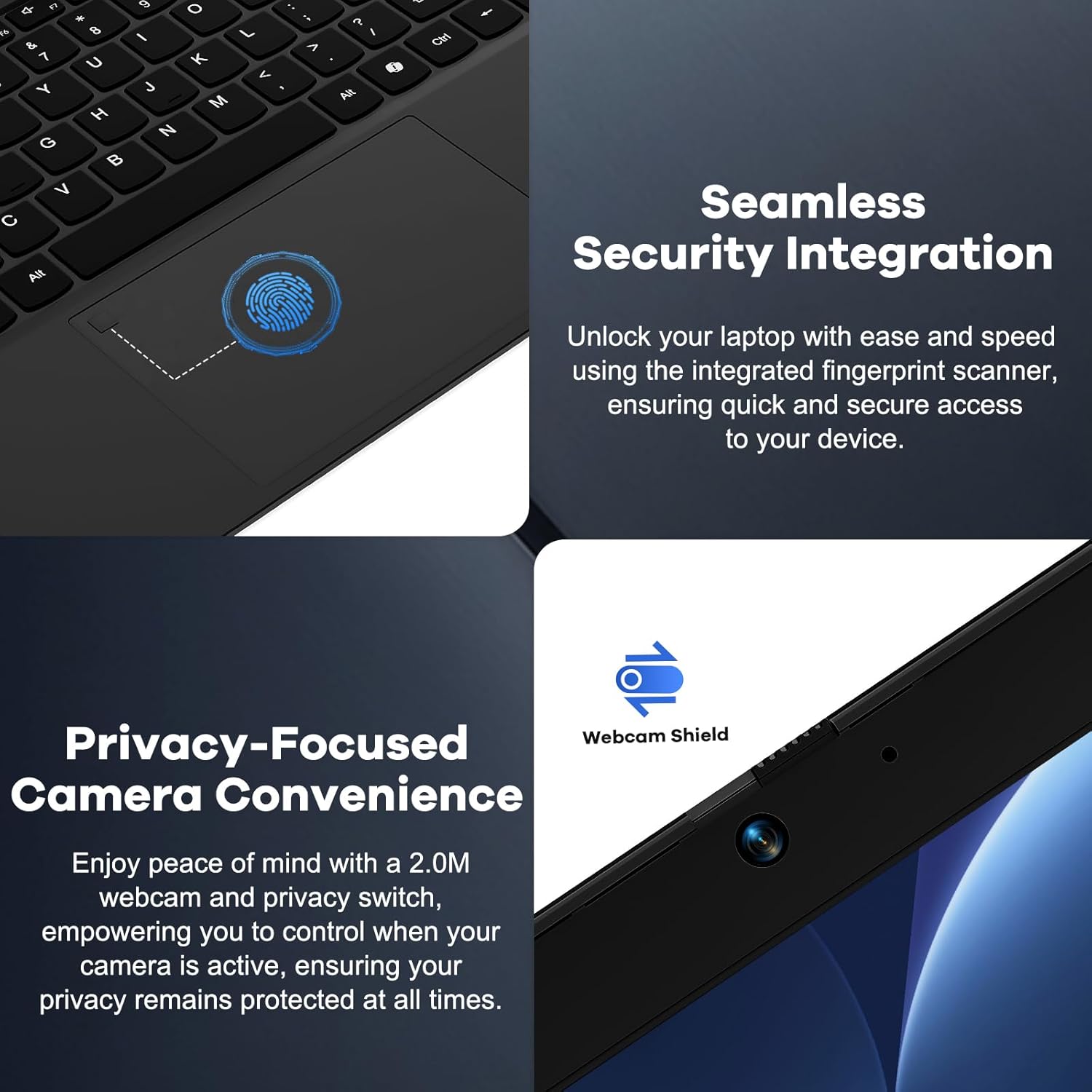
그림 4: Details on the seamless security integration with the fingerprint sensor for quick login and the privacy-focused camera convenience with a built-in webcam shield.

그림 5: The compact 100W GaN Type-C PD Fast Charger included with the NIMO laptop, capable of charging to 50% in 15 minutes and compatible with various devices.
설정
1. 초기 전원 켜기
- 풀다: 노트북과 모든 액세서리를 포장에서 조심스럽게 꺼내세요.
- 전원 연결: Plug the 100W GaN Type-C PD Fast Charger into a power outlet and connect the USB-C cable to the laptop's Type-C charging port. The Charge LED will illuminate.
- 첫 번째 부팅: Open the laptop lid. The system may power on automatically or you may need to press the power button (located on the top right of the keyboard).
- Windows 설치 : 화면의 안내에 따라 Windows 11 Home 설치 과정을 완료하세요. 여기에는 지역 및 언어 선택, Wi-Fi 네트워크 연결, 사용자 계정 생성이 포함됩니다.
2. 주변기기 연결하기
Your NIMO laptop offers various ports for connecting external devices:
- USB 장치: Connect USB flash drives, external hard drives, mice, or keyboards to the USB 2.0 or USB 3.0 ports.
- 외부 디스플레이: HDMI 포트를 사용하여 외부 모니터 또는 프로젝터를 연결하십시오.
- 오디오: Plug headphones or external speakers into the 3.5mm Headphone Jack.
- 메모리 카드: Insert a Micro SD card into the Micro SD slot for additional storage.
작동 지침
1. 기본 동작
- 전원 켜기/끄기: Press the power button to turn the laptop on. To shut down, click the Start button in Windows, then Power > Shut down.
- 수면 모드 : 뚜껑을 닫거나 시작 버튼을 클릭한 다음 전원 > 절전을 클릭하여 노트북을 절전 모드로 전환합니다.
- 지문 로그인: Utilize the integrated fingerprint sensor for quick and secure login to Windows. Register your fingerprints through Windows Settings > Accounts > Sign-in options.
- 백라이트 키보드: The keyboard features backlighting for low-light conditions. Use the dedicated function key (Fn + F key combination, typically F3 or F4) to toggle or adjust the backlight brightness.
- Web카메라 개인 정보 보호: The laptop includes a physical webcam shield. Slide the switch next to the web개인 정보 보호를 위해 카메라 렌즈를 가리거나 드러낼 수 있습니다.
2. Windows 11 Features
Your laptop comes with Windows 11 Home pre-installed. Explore its features for enhanced productivity and entertainment:
- 스냅 레이아웃: Easily organize open windows on your screen.
- 위젯 : 개인 맞춤 정보를 한눈에 확인하세요.
- 마이크로소프트 스토어: 애플리케이션을 다운로드하고 설치하세요.
- 보안: Windows Defender provides built-in antivirus and firewall protection.
유지
- 청소: 부드럽고 보풀 없는 천으로 화면과 본체를 닦으세요. 잘 지워지지 않는 얼룩은 살짝 두드려 닦아내세요.amp천에 물이나 화면 세척액을 묻혀 닦아주세요. 강한 화학 물질은 피하세요.
- 배터리 관리 : 배터리 수명을 연장하려면 배터리를 자주 완전히 방전시키지 마십시오. 가능하면 배터리 충전량을 20%에서 80% 사이로 유지하는 것이 좋습니다. 장기간 사용하지 않을 경우 노트북을 서늘하고 건조한 곳에 보관하십시오.
- 소프트웨어 업데이트: 시스템 안정성과 보안을 유지하려면 Windows 업데이트 및 드라이버 업데이트를 정기적으로 확인하고 설치하십시오. Windows 설정 > Windows 업데이트로 이동하세요.
- 스토리지 관리: 주기적으로 불필요한 것들을 정리하세요 files and applications to free up storage space and improve performance.
문제 해결
| 문제 | 가능한 원인 | 해결책 |
|---|---|---|
| 노트북의 전원이 켜지지 않습니다. | 배터리 또는 전원 어댑터 문제. | 충전기가 제대로 연결되어 있고 전원 콘센트가 작동하는지 확인하세요. 노트북을 최소 30분 동안 충전한 후 다시 전원을 켜보세요. |
| 디스플레이가 비어 있거나 깜빡입니다. | Incorrect display settings or driver issue. | 외부 모니터를 연결하여 노트북 디스플레이에 문제가 있는지 확인해 보세요. 그래픽 드라이버를 업데이트하고 노트북을 재시작하세요. |
| Wi-Fi 연결 문제. | Incorrect network settings or driver issue. | Ensure Wi-Fi is enabled. Restart your router and laptop. Update Wi-Fi drivers. Forget and reconnect to the network. |
| 키보드 백라이트가 작동하지 않습니다. | Backlight feature is off or driver issue. | Press the Fn + F key combination (e.g., F3 or F4) to toggle the backlight. Check keyboard settings in Windows. |
문제가 지속될 경우, 보증 및 지원 섹션을 참조하여 도움을 받으십시오.
명세서
| 특징 | 세부 사항 |
|---|---|
| 상표 | 니모 |
| 모델명 | 니모 N156 |
| 화면 크기 | 15.6 인치 |
| 화면 해상도 | 1920 x 1080 픽셀(FHD IPS) |
| 프로세서 | Intel Core i5-12450H(8코어, 최대 4.4GHz) |
| 숫양 | 8GB DDR4 (업그레이드 가능) |
| 하드 드라이브 | 256GB PCIe SSD (업그레이드 가능) |
| 그래픽 코프로세서 | 통합 인텔 그래픽 |
| 운영 체제 | 윈도우 11 홈 |
| 무선형 | 802.11a/b/g/n/ac (WiFi 6) |
| 블루투스 | BT5.2 |
| 포트 | 1x USB 2.0, 3x USB 3.0, Type-C (PD Charger Only), Type-C (Multifunction), HDMI, Headphone Jack, Micro SD Slot |
| 전원 어댑터 | 100W GaN Type-C PD Fast Charger |
| 평균 배터리 수명 | 5 Hours (54Wh Smart Battery for up to 9 Hours Standby) |
| 품목 무게 | 3.8파운드 |
| 제품 치수 | 14.07 x 8.98 x 0.76 인치 |
| 특별 기능 | 백라이트 키보드, 지문 인식기, HD 오디오, 메모리 카드 슬롯, 숫자 키패드 Web캠 쉴드 |
보증 및 지원
NIMO stands behind the quality of its products. Your NIMO laptop comes with the following:
- 2년 보증: A 2-Year Warranty from NIMO Direct Inc. covers manufacturing defects and hardware failures.
- 90일 이내 번거로움 없는 반품: 안심하고 구매하실 수 있도록 90일 반품 정책을 제공합니다.
- 24/7 Dedicated Support: For any issues or inquiries, dedicated support is available to provide instant resolution.
For warranty claims or technical assistance, please contact NIMO customer support through the contact information provided on the official NIMO web사이트 또는 구매 문서.
동영상: 오버view of the NIMO laptop, highlighting its features, performance, and the comprehensive 90-day return policy and 2-year warranty, demonstrating NIMO's commitment to customer satisfaction.


