1. 서론
This manual provides essential information for the setup, operation, maintenance, and troubleshooting of your KOOSMILE N150 8-inch 2-in-1 Mini Laptop. Please read this manual thoroughly before using the device to ensure proper functionality and to prevent damage.
2. 패키지 내용
패키지에 모든 품목이 들어 있는지 확인하세요.
- KOOSMILE N150 8-inch 2-in-1 Mini Laptop x1
- PD Adapter x1
- Active Stylus x1
- HDMI 케이블 x1
- HUB x1
- 사용 설명서 x1
- Data Cables x2
3. 제품 오버view
Familiarize yourself with the components and ports of your mini laptop.
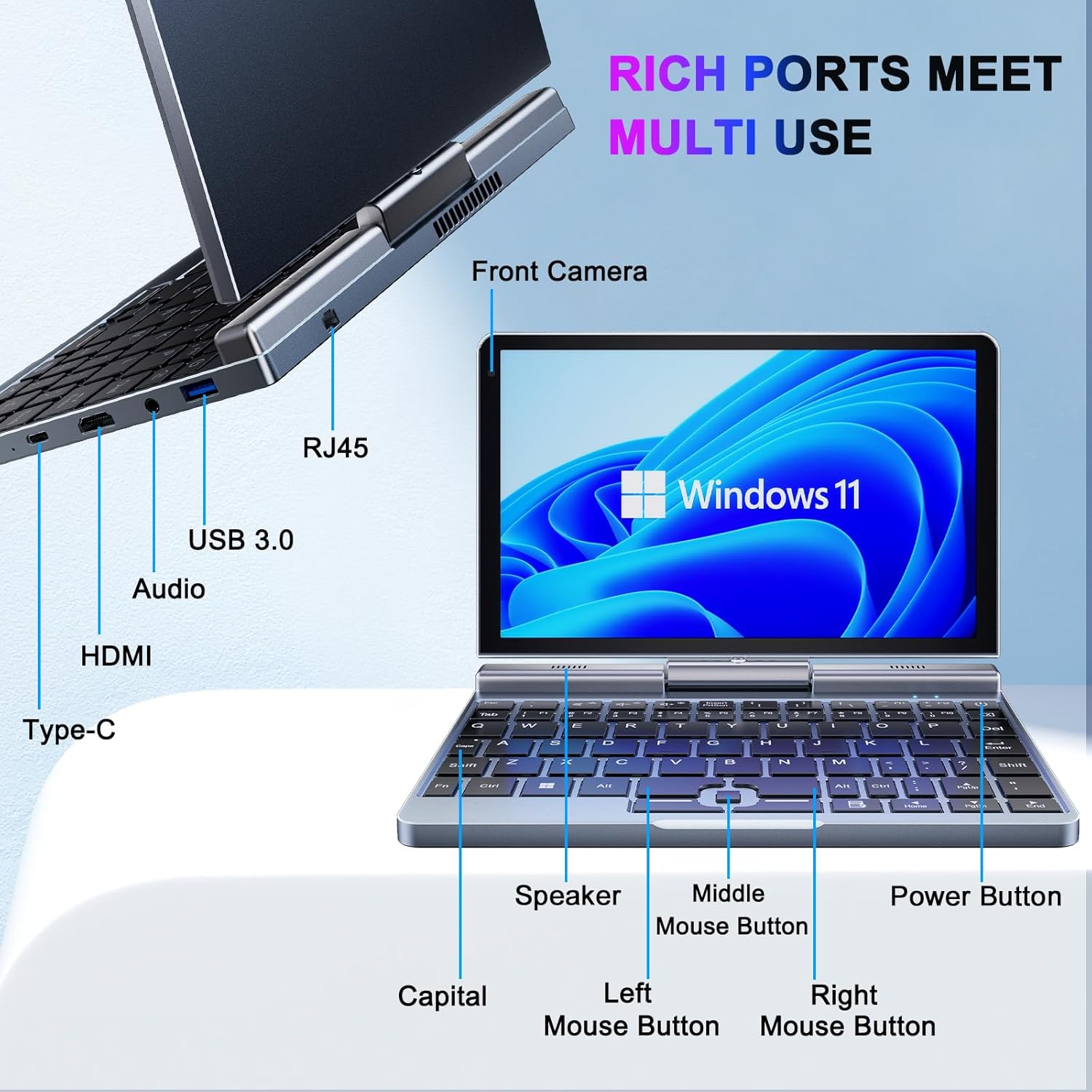
이미지 3.1: KOOSMILE N150 Mini Laptop with labeled ports and buttons. Key components include the Front Camera, RJ45 port, USB 3.0 port, Audio jack, HDMI port, Type-C port, Speaker, Middle Mouse Button, Left Mouse Button, Right Mouse Button, Capital indicator, and Power Button.
3.1 주요 특징
- 프로세서: Intel N150 (4 cores/4 threads, up to 3.6GHz)
- 운영 체제: 윈도우 11 프로
- 표시하다: 8-inch HD Touch Screen (1280x800 pixels)
- 메모리: 12GB LPDDR5 RAM (4800MHz)
- 저장: 512GB or 1TB M.2 SSD (expandable up to 2TB)
- 연결성: Wi-Fi 6 (802.11ax), Bluetooth 5.2, Gigabit Ethernet (via RJ45)
- 포트: USB 3.0, USB Type-C, HDMI, Headphone Jack
- 카메라: 2MP 전면 카메라
- 설계: 180° Rotating Screen, 2-in-1 Convertible (Laptop/Tablet mode), CNC-machined full-metal body
- 무게: 약 0.78kg(1.72파운드)
4. 설정
4.1 초기 충전
- Connect the provided PD Adapter to the USB Type-C port on the laptop.
- 어댑터를 전원 콘센트에 꽂으세요.
- Allow the device to charge fully before first use. A full charge is indicated by the charging LED changing color or turning off.
- 메모: Use only the provided PD adapter or a compatible Type-C charger with sufficient voltage (e.g., a laptop or Steamdeck charger) to ensure proper charging. Standard phone USB blocks may not provide enough power.
4.2 첫 번째 부팅 및 Windows 설치
- Press and hold the Power Button (refer to Image 3.1) until the screen illuminates.
- Follow the on-screen instructions to complete the Windows 11 Pro setup process. This typically includes selecting your region, language, connecting to a Wi-Fi network, and creating a user account.
5. 사용 설명서
5.1 전원 켜기/끄기 및 절전 모드
- 전원 켜기: 전원 버튼을 누르세요.
- 수면 모드 : Briefly press the Power Button while the device is on. Press again to wake.
- 종료: Click the Windows Start button, then Power, and select "Shut down."
- 다시 시작: Click the Windows Start button, then Power, and select "Restart."
5.2 2-in-1 기능 활용하기
The laptop features a 180° rotating screen, allowing it to transform into various modes.
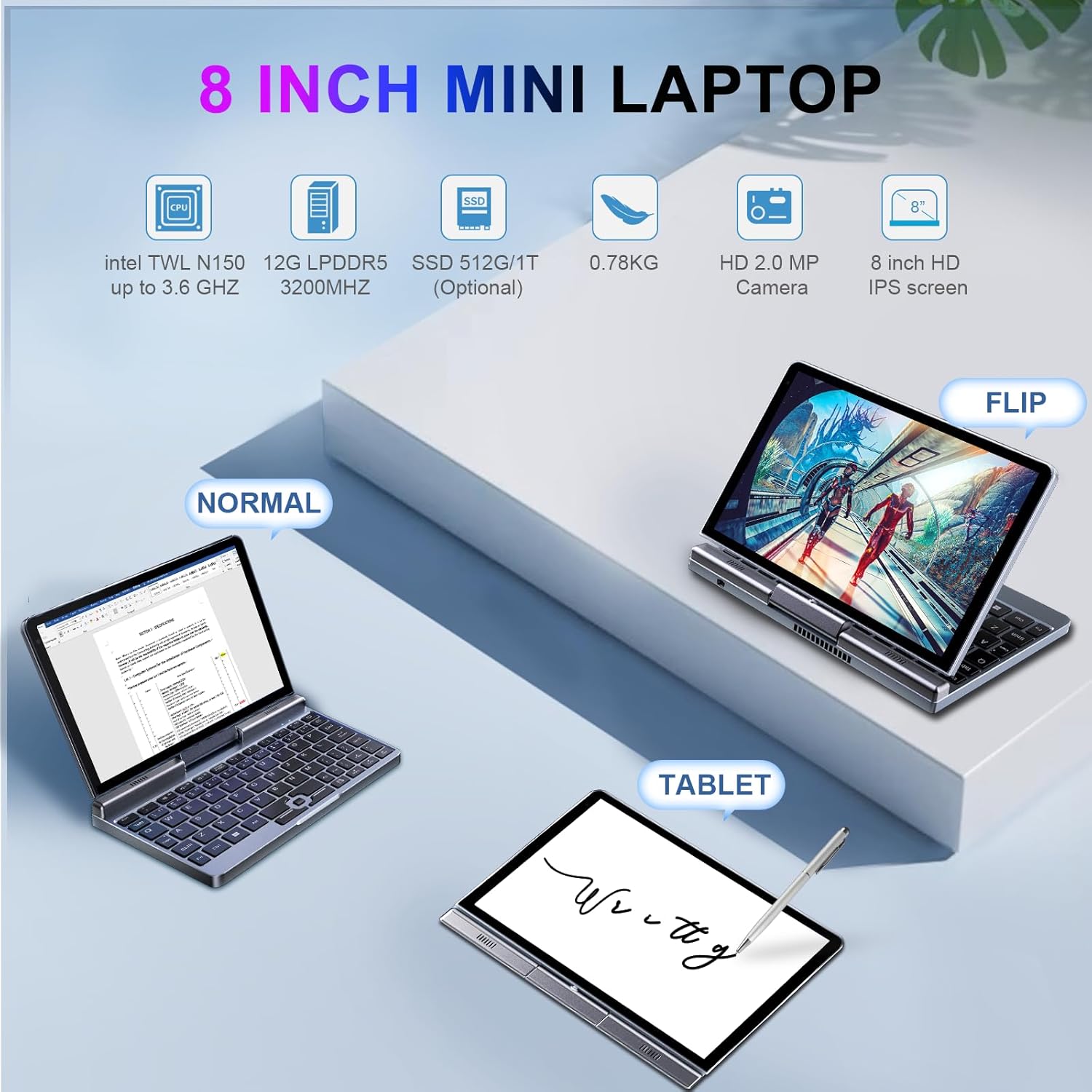
이미지 5.1: Demonstrates the KOOSMILE N150 Mini Laptop in its three primary modes: Normal (traditional laptop), Flip (tent mode), and Tablet (screen folded back). This highlights the device's versatility for different usage scenarios.
- 노트북 모드: Standard configuration for typing with the physical keyboard.
- Tent Mode (Flip): Rotate the screen 180 degrees and stand the device in a tent shape for media consumption or presentations.
- 태블릿 모드: Fold the screen completely back against the base for a full touchscreen experience. The physical keyboard will automatically disable in this mode.
5.3 Touch Screen and Stylus Usage
- The 8-inch HD screen supports multi-touch gestures.
- Use the included Active Stylus for precise input, drawing, or note-taking, especially in Tablet mode.
5.4 외부 디스플레이 연결
The laptop supports external displays via HDMI and USB Type-C (DisplayPort out).

이미지 5.2: The KOOSMILE N150 Mini Laptop connected to an external monitor, demonstrating its capability for multi-screen display and enhanced productivity. The image shows the laptop displaying a document while the external monitor shows a larger view of the same document.

이미지 5.3: The KOOSMILE N150 Mini Laptop configured as a micro desktop, connected to two external monitors, a keyboard, and a mouse. This setup illustrates its potential for multi-tasking and extended workspace.
- Connect an HDMI cable from the laptop's HDMI port to your external display.
- Alternatively, use a USB Type-C to DisplayPort cable or adapter for compatible monitors.
- 누르다 윈도우 키 + P to open the Project menu and select your desired display mode (e.g., Duplicate, Extend, Second screen only).
5.5 네트워크 연결
- 와이파이: Access Wi-Fi settings via the Windows taskbar icon to connect to available wireless networks.
- 블루투스: Enable Bluetooth in Windows settings to pair with Bluetooth devices like headphones or keyboards.
- 이더넷: 유선 네트워크 연결을 위해 이더넷 케이블을 RJ45 포트에 연결하십시오.
6. 유지관리
6.1 청소
- 부드럽고 보푸라기가 없는 천을 사용하여 화면과 외부를 청소하세요.
- 완고한 자국의 경우 가볍게 damp천에 물이나 화면 세척액을 묻혀 닦아주세요. 강한 화학 물질은 피하세요.
- 청소하기 전에 장치의 전원이 꺼져 있고 플러그가 뽑혀 있는지 확인하십시오.
6.2 배터리 관리
- 배터리 수명을 연장하려면 극한의 온도를 피하세요.
- 배터리가 자주 완전히 방전되지 않도록 하세요.
- If storing the device for an extended period, charge it to approximately 50-70%.
6.3 소프트웨어 업데이트
- 최적의 성능과 보안을 유지하려면 정기적으로 Windows 업데이트를 확인하고 설치하세요. 다음 링크로 이동하세요. 설정 > Windows 업데이트.
7. 문제 해결
| 문제 | 가능한 해결책 |
|---|---|
| 장치의 전원이 켜지지 않습니다. |
|
| 배터리가 충전되지 않습니다. |
|
| Wi-Fi 연결 문제. |
|
| Touchscreen or stylus not responding. |
|
| Device runs hot during use. |
|
8. 사양
| 특징 | 세부 사항 |
|---|---|
| 모델 | P8 (N150) |
| 프로세서 | Intel N150 (4 cores/4 threads, up to 3.6GHz) |
| 제도법 | Intel UHD 그래픽(통합) |
| 운영 체제 | 윈도우 11 프로 |
| 표시하다 | 8-inch HD Touch Screen, 1280 x 800 pixels |
| 숫양 | 12GB LPDDR5(4800MHz) |
| 저장 | 512GB or 1TB M.2 SSD (Expandable up to 2TB) |
| 무선 연결 | Wi-Fi 6(802.11ax), 블루투스 5.2 |
| 포트 | 1x USB 3.0, 1x USB Type-C (DisplayPort out), 1x HDMI, 1x Headphone Jack, 1x RJ45 (Ethernet) |
| 카메라 | 2MP 전면 카메라 |
| 배터리 | 36.5 WH Lithium Polymer |
| 치수(길이x너비x높이) | 7.87 x 5.51 x 0.79 인치 |
| 무게 | 1.72파운드(0.78kg) |
| 색상 | 회색 |
9. 보증 및 지원
KOOSMILE provides a 1-year warranty for this product. For technical support, warranty claims, or any inquiries, please contact KOOSMILE customer support. Contact details can typically be found on the KOOSMILE official web사이트나 구매 플랫폼을 통해서도 구매하실 수 있습니다.
온라인 리소스 및 FAQ도 다음에서 사용할 수 있습니다. KOOSMILE Store.


