1. 서론
This manual provides essential information for setting up, operating, maintaining, and troubleshooting your MINIX NR774 Mini PC. Please read this guide thoroughly before using the device to ensure proper functionality and longevity.

이미지 1.1: 앞면 view of the MINIX NR774 Mini PC, showcasin컴팩트한 디자인과 접근하기 쉬운 전면 포트가 특징입니다.
2. 패키지 내용
아래 나열된 모든 품목이 패키지에 포함되어 있는지 확인하세요.
- 1 x MINIX NGC NR774 Mini PC
- VESA 마운트 1개 (나사 포함)
- 1 x Power Adapter with US/EU/UK Plug
- 1 x 사용자 매뉴얼(이 문서)
3. 제품 오버view
The MINIX NR774 Mini PC is a compact desktop computer designed for various applications, from home office tasks to gaming and multimedia. It features a robust AMD Ryzen 7 8745HS processor, 32GB DDR5 RAM, and a 1TB PCIe 4.0 SSD, running on Windows 11 Pro.
3.1. 포트 레이아웃
Familiarize yourself with the available ports for connecting peripherals and network devices.

Image 3.1: Detailed diagram illustrating the front and rear port configurations of the MINIX NR774 Mini PC.
- 전면 포트: Power Button, USB-A 3.2 Gen2 (x2), USB-C 4.0/PD 3.0 (x2), 3.5mm Audio Input/Output Combo Jack, Reset Hole.
- 후면 포트: DC IN Port, USB-A 2.0 (x2), HDMI, DP (DisplayPort), 2.5G RJ-45 Ethernet Port (x2).
4. 설정 가이드
Follow these steps for initial setup of your Mini PC.
4.1. 주변기기 연결하기
- 디스플레이 연결: Use an HDMI or DisplayPort cable to connect your monitor to the corresponding port on the rear of the Mini PC. For 8K resolution, ensure your monitor and cable support 8K@60Hz and connect via a single USB-C 4.0 port.
- 키보드와 마우스 연결: Plug your USB keyboard and mouse into any available USB-A ports.
- 전원 연결: Connect the power adapter to the DC IN port on the rear of the Mini PC, then plug the adapter into a power outlet.
4.2. 전원 켜기
Press the power button located on the front of the Mini PC. The device will boot up, and the operating system will begin loading.
4.3. Windows 11 Pro 초기 설정
Upon first boot, you will be guided through the Windows 11 Pro setup process. Follow the on-screen instructions to configure language, region, network, and user accounts.
4.4. 다중 디스플레이 구성
The MINIX NR774 supports up to four displays simultaneously via HDMI, DisplayPort, and two USB-C 4.0 ports. To configure multiple displays:
- Connect additional monitors to the available video output ports.
- Once connected, right-click on the desktop and select 'Display settings' (Windows).
- From the display settings, you can arrange your monitors, set their resolution, and choose display modes (e.g., Extend, Duplicate).
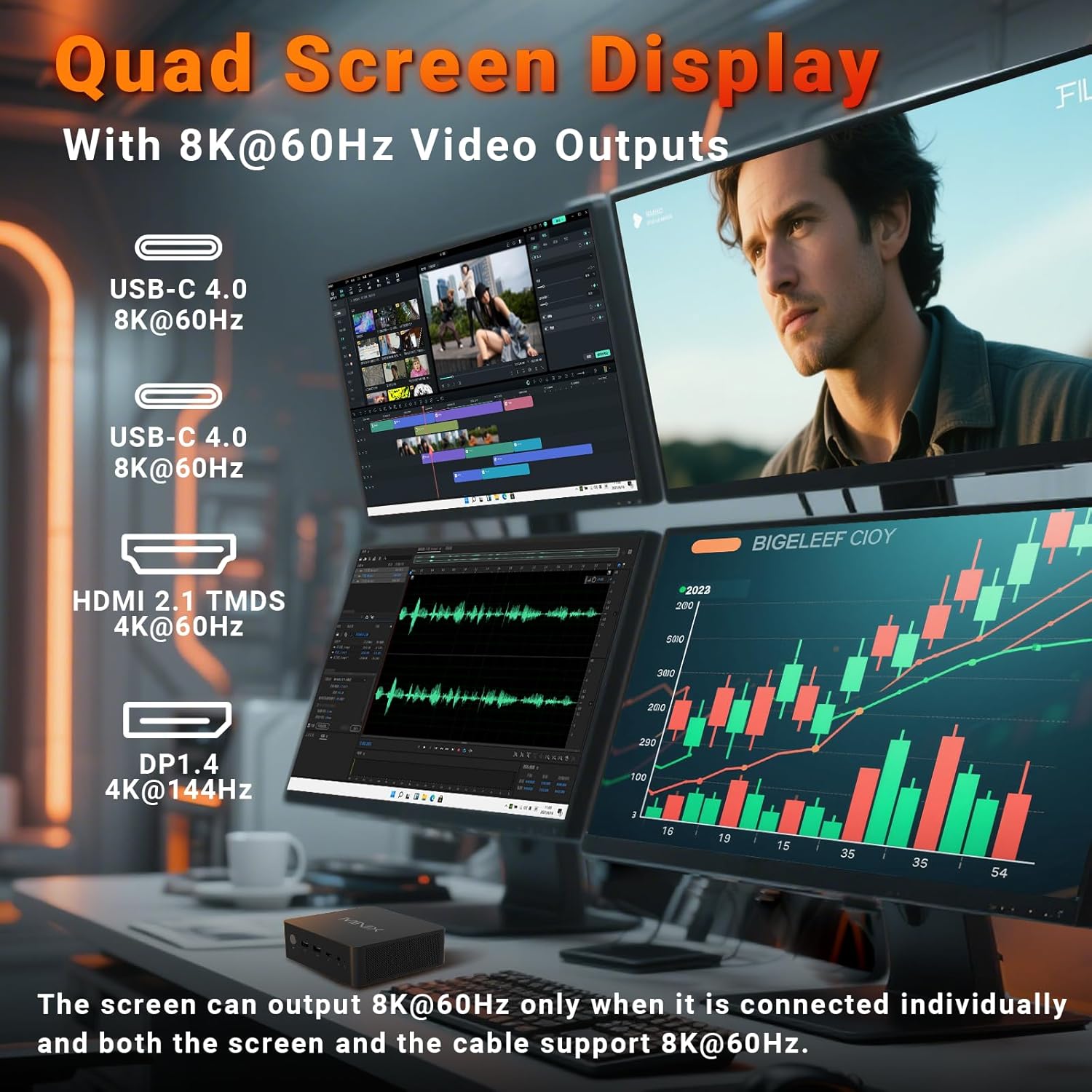
Image 4.1: The Mini PC supporting a quad-display setup, demonstrating its capability for enhanced productivity and immersive view경험을 쌓습니다.
5. 사용 설명서
5.1. 기본 동작
The MINIX NR774 functions as a standard Windows 11 Pro desktop computer. Utilize the connected keyboard and mouse for navigation and interaction with the operating system and applications.
5.2. 네트워크 연결성
- 와이파이 6E: For wireless internet access, connect to your Wi-Fi network through Windows settings. The device supports 2.4GHz, 5GHz, and 6GHz bands for high-speed wireless communication.
- 듀얼 2.5G LAN: For wired network connections, plug Ethernet cables into the two 2.5G RJ-45 ports on the rear. This provides stable and high-speed multi-gigabit networking.
- 블루투스 5.2 : Pair Bluetooth devices such as headphones, speakers, or game controllers through Windows Bluetooth settings.

이미지 5.1: 후면 view of the Mini PC highlighting the dual 2.5G Ethernet ports, alongside other connectivity options.
5.3. USB4.0 기능
The two USB-C 4.0 ports on the front support data transfer speeds up to 40Gbps and can be used for external GPUs, high-speed storage, or additional display output (up to 8K@60Hz).
5.4. 다양한 응용 분야
The MINIX NR774 is suitable for various uses, including:
- 사무직: Efficiently handle productivity applications and multitasking.
- 홈시어터: Enjoy high-resolution streaming and media playback.
- 비디오 편집: Process and render video content with its powerful processor and amp기억.
- 노름: Capable of running many games, especially at 1080p or 720p resolutions with appropriate settings.

Image 5.2: A user engaged in gaming, demonstrating the Mini PC's capability for entertainment.
6. 유지관리
Regular maintenance helps ensure the optimal performance and longevity of your Mini PC.
6.1. 일반 관리
- 기기를 깨끗하고 건조한 환경에 두고 직사광선과 극한의 온도를 피하세요.
- Avoid blocking the ventilation holes to ensure proper airflow.
- 부드럽고 마른 천으로 외부를 닦으세요. 액체 세제는 사용하지 마세요.
6.2. Storage and Memory Upgrades
The Mini PC supports upgrades for both RAM and SSD. It features two M.2 slots for storage and two DDR5 memory slots.
- 숫양: The device comes with 32GB DDR5 memory and can be upgraded up to 256GB (not included). For optimal performance, especially in gaming, ensure dual-channel memory configuration.
- SSD: A 1TB PCIe 4.0 SSD is pre-installed. Storage can be expanded up to 8TB (not included) using additional M.2 PCIe 4.0 SSDs.
기기 손상이나 보증 무효화를 방지하려면 하드웨어 업그레이드는 자격을 갖춘 기술자에게 문의하십시오.

이미지 6.1: 내부 view of the Mini PC, illustrating the dual DDR5 RAM slots and M.2 PCIe 4.0 SSD slots for potential upgrades.
6.3. 냉각 시스템
The Mini PC incorporates an advanced dual-fan cooling system with a heatsink to maintain optimal operating temperatures and minimize noise.

이미지 6.2: 도표 표시asing the active cooling design of the Mini PC, featuring dual fans for efficient heat dissipation.
7. 문제 해결
If you encounter issues with your MINIX NR774 Mini PC, refer to the following common solutions:
- 디스플레이 없음:
- 모니터 전원이 켜져 있고 올바른 입력 소스가 선택되었는지 확인하십시오.
- Check that video cables (HDMI, DisplayPort, USB-C) are securely connected to both the Mini PC and the monitor.
- 다른 비디오 케이블이나 모니터를 사용해 장비 고장 여부를 확인해 보세요.
- 전원 없음:
- Verify the power adapter is correctly plugged into the Mini PC and a working power outlet.
- 전원 버튼을 확실하게 눌렀는지 확인하세요.
- 네트워크 연결 문제:
- For Wi-Fi, check if the Wi-Fi adapter is enabled in Windows settings and ensure you are connected to the correct network.
- For wired LAN, ensure Ethernet cables are properly connected and your router/modem is functioning.
- 라우터/모뎀과 미니 PC를 재시작하세요.
- Windows Not Loading/Operating System Issues:
- If Windows fails to load, try restarting the device.
- If issues persist, consider using Windows recovery options (accessible during boot by pressing F8 or Shift + Restart).
- 모든 드라이버가 최신 상태인지 확인하세요.
- 과열:
- Ensure the Mini PC's ventilation holes are clear and not obstructed.
- 환기가 잘 되는 곳에서 장치를 작동하십시오.
If these steps do not resolve the issue, please contact MINIX customer support.
8. 사양
Detailed technical specifications for the MINIX NR774 Mini PC.
| 특징 | 사양 |
|---|---|
| 상표 | MINIX |
| 모델 번호 | NGC NR774 |
| 운영 체제 | 윈도우 11 프로 |
| 프로세서 | AMD 라이젠 7 8745HS (8코어/16스레드, 최대 4.9GHz) |
| 그래픽 코프로세서 | AMD 라데온 780M (내장형) |
| 숫양 | 32GB DDR5(최대 256GB까지 확장 가능) |
| 하드 드라이브 | 1TB PCIe 4.0 SSD (Expandable up to 8TB) |
| 최대 화면 해상도 | 7680x4320(8K) |
| 무선형 | WiFi 6E(802.11ax), 블루투스 5.2 |
| 이더넷 | 듀얼 2.5G LAN |
| USB 포트 | 2x USB-A 3.0, 2x USB-A 2.0, 2x USB-C 4.0 |
| 비디오 출력 | HDMI, DisplayPort, 2x USB-C 4.0 (Quad Display Support) |
| 품목 무게 | 1.62파운드 |
| 제품 치수 | 5.45 x 5.17 x 2.05 인치 |
9. 보증 정보
MINIX products typically come with a standard manufacturer's warranty. For specific details regarding the warranty period and terms for your MINIX NR774 Mini PC, please refer to the warranty card included in your product packaging or visit the official MINIX web사이트. 보증 청구를 위해 구매 증빙 자료를 보관하세요.
10. 고객 지원
For technical assistance, troubleshooting, or any inquiries regarding your MINIX NR774 Mini PC, please use the following contact methods:
- 온라인 지원: Log in to your Amazon account, navigate to 'Your Orders', and select 'Ask Product Question' for the MINIX NR774.
- 공식적인 Web대지: Visit the official MINIX website for offline maintenance services and additional support resources.


