1. 서론
This manual provides essential information for setting up, operating, maintaining, and troubleshooting your Roku Smart TV 2025 – 24-Inch Select Series 720p HD TV. Please read these instructions carefully before using your television.
The Roku Select Series HD TV offers a streamlined entertainment experience. It features bright HD picture quality, auto speech clarity, and a night mode. Access free live television directly from the home screen and utilize the voice remote for content discovery across various applications. This television is suitable for various rooms including bedrooms, living rooms, kitchens, or children's rooms.
2. 상자 안에 무엇이 들어있나요?
모든 구성품이 포장에 들어 있는지 확인하세요.
- Roku Select Series 24" HD TV
- 스탠드와 나사
- 배터리가 포함된 Roku 음성 리모컨
- 빠른 시작 가이드
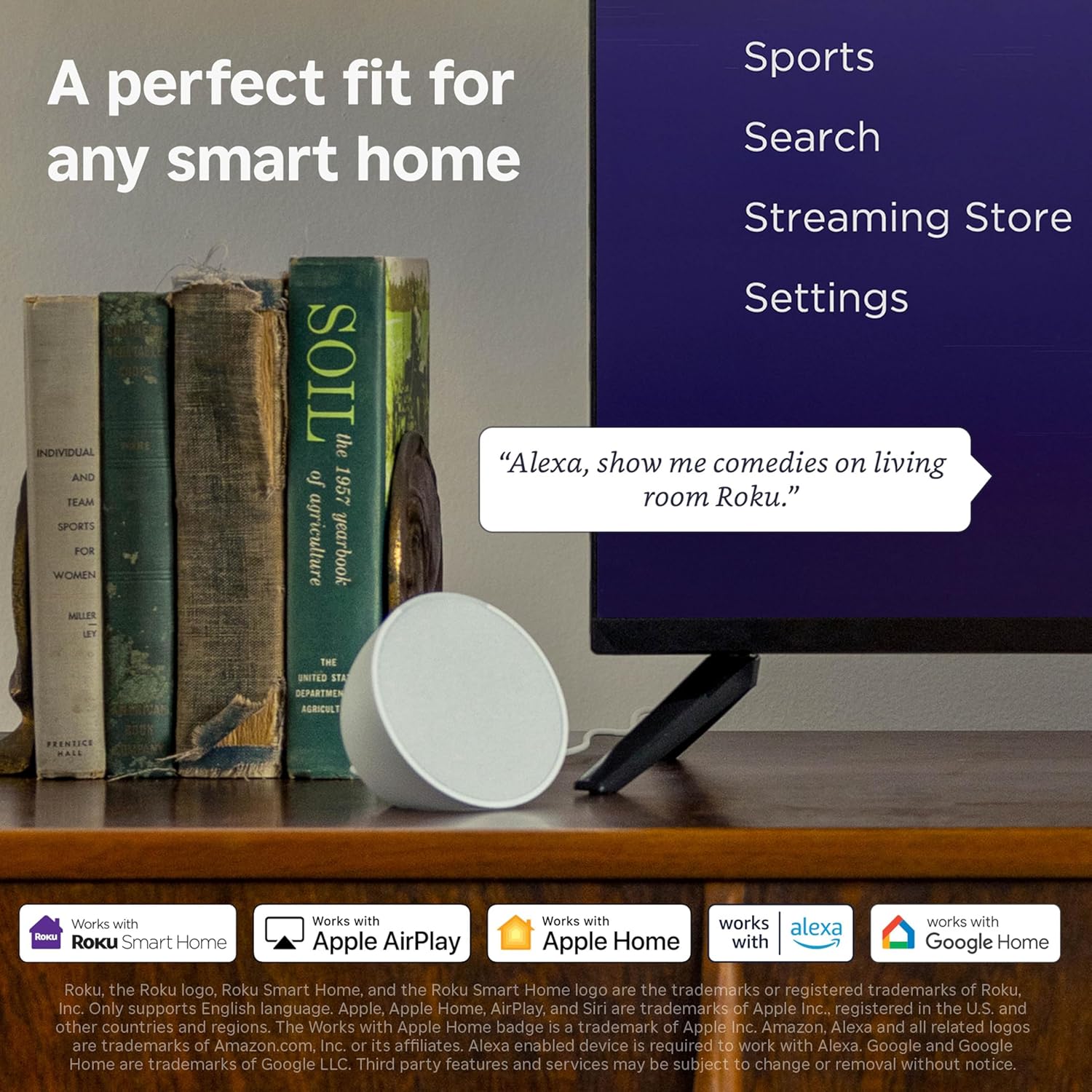
Image: The Roku Select Series TV box contents, showing the television, remote, and stand components.
3. 설정
3.1 TV 스탠드 부착
- 긁힘을 방지하려면 TV 화면을 부드럽고 깨끗한 표면에 조심스럽게 놓으세요.
- 각 스탠드를 TV 바닥의 해당 나사 구멍에 맞춥니다.
- 제공된 나사를 사용하여 스탠드를 고정하세요. 나사가 단단히 조여졌는지 확인하세요.
3.2 주변기기 연결하기
Your Roku TV includes multiple ports for connecting external devices:
- HDMI 포트: Connect devices such as cable boxes, gaming consoles, or Blu-ray players. The HDMI 1 (ARC) port supports Audio Return Channel for simplified audio connections.
- USB 포트: For media playback from a USB drive or powering compatible devices.
- 안테나/케이블 입력: 지상파 방송 수신용 안테나 또는 케이블 TV 연결 단자를 연결하세요.
- 광학 오디오 출력: 사운드바 또는 오디오 리시버에 연결합니다.
- AV 입력: 복합 비디오 및 스테레오 오디오 케이블을 사용하여 오래된 장치를 연결하는 데 사용됩니다.

Image: Close-up of the back of the Roku TV, highlighting the HDMI, USB, optical, and AV input ports.
3.3 초기 전원 켜기 및 네트워크 연결
- 전원 케이블을 TV에 꽂은 다음 벽면 콘센트에 꽂습니다.
- Insert the included AAA batteries into the voice remote.
- 리모컨의 전원 버튼을 눌러 TV를 켜세요.
- 화면의 지시에 따라 언어를 선택하고, Wi-Fi 네트워크에 연결하고, Roku 계정을 활성화하세요.
4. Roku TV 작동 방법
4.1 음성 리모컨 사용
The Roku Voice Remote simplifies navigation and content search. It features dedicated buttons for popular streaming services and voice control capabilities.
- 음성 버튼: Press and hold to speak commands for searching content, launching apps, or controlling playback.
- 탐색 패드: Use the directional arrows and OK button to move through menus and select items.
- 앱 바로가기: Dedicated buttons provide quick access to services like Netflix, Disney+, and Prime Video.
- 볼륨 컨트롤: Adjust TV volume directly from the remote.
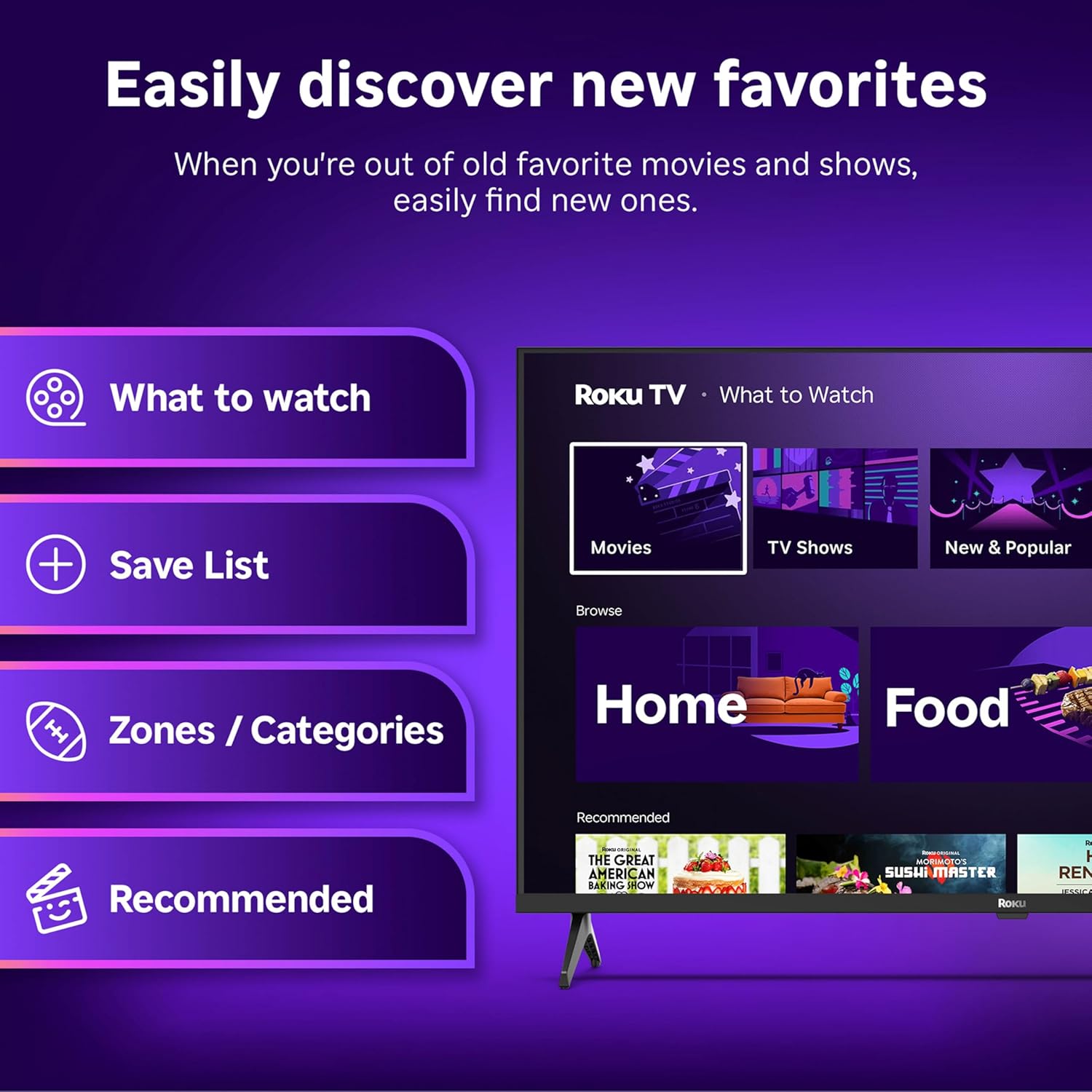
Image: The Roku Voice Remote, showing its layout and key functions.
4.2 Streaming and App Navigation
The Roku TV home screen provides quick access to all your streaming channels and inputs. You can customize the order of your apps for personalized access.
- 홈 화면: Displays your installed apps, recommended content, and TV inputs.
- 스트리밍 스토어: 새로운 스트리밍 채널을 찾아보고 추가하세요.
- 라이브 TV: Access free live television channels directly from the home screen.
- 찾다: Use the search function or voice remote to find movies, shows, actors, or directors across various services.

Image: The Roku TV user interface, showing the home screen with app tiles and menu options.
4.3 화면 및 사운드 설정
Your Roku TV features Smart Picture technology to optimize viewing and offers enhanced audio features.
- Smart Picture: Automatically adjusts picture settings based on the content being viewed (e.g., movie, sports, vivid, standard).
- 음질 선명도: Designed for clear speech and louder sound.
- 블루투스 헤드폰 모드: Connect your wireless headphones for private listening.

Image: A vibrant nature scene displayed on the Roku TV, demonstrating the clear picture quality.
4.4 스마트 홈 통합
The Roku TV integrates with various smart home ecosystems for convenient voice control and content sharing.
- 음성 제어: Compatible with Roku Voice, Siri, Alexa, and Google Assistant for hands-free operation.
- Apple AirPlay: Effortlessly share videos, photos, and music from your Apple devices to your TV.

Image: A Roku TV screen with a smart speaker nearby, illustrating voice control integration with smart home systems.
5. 유지관리
5.1 TV 청소
- 청소하기 전에는 항상 TV의 플러그를 뽑아 두세요.
- 부드럽고 보푸라기가 없는 천을 사용하여 화면과 캐비닛을 가볍게 닦으세요.
- 완고한 자국의 경우 가볍게 damp물이나 순하고 마모성이 없는 화면 세척제를 천에 적셔 사용하세요. 세척제를 화면에 직접 뿌리지 마세요.
- 강한 화학 물질, 연마 패드 또는 용제의 사용을 피하세요.
5.2 소프트웨어 업데이트
Your Roku TV receives automatic software updates to provide new features and improve performance. Ensure your TV is connected to the internet to receive these updates.
6. 문제 해결
If you encounter issues with your Roku TV, try the following basic troubleshooting steps:
- 전원 없음: 전원 케이블이 TV와 정상적으로 작동하는 콘센트에 모두 단단히 꽂혀 있는지 확인하세요. 다른 콘센트에 연결해 보세요.
- 화면/소리 없음: 올바른 입력 소스가 선택되었는지 확인하십시오. 모든 케이블 연결(HDMI, AV 등)이 제대로 되어 있는지 확인하십시오.
- 원격 응답 없음: 리모컨의 배터리를 교체하세요. 리모컨과 TV 사이에 장애물이 없는지 확인하세요.
- 네트워크 연결 문제: Restart your Wi-Fi router. Go to the TV's network settings to reconnect to your Wi-Fi.
- 앱이 로드되지 않습니다: Try restarting the app. If the issue persists, remove the app and reinstall it from the Streaming Store.
- 공장 초기화 : As a last resort, a factory reset can resolve many software issues. This will erase all personal settings and installed apps. Access this option through the TV's Settings menu.
7. 사양
| 특징 | 사양 |
|---|---|
| 상표 | 로쿠 |
| 모델 번호 | 24R2D5 |
| 화면 크기 | 24 인치 |
| 디스플레이 기술 | 주도의 |
| 해결 | 720p |
| 새로 고침 빈도 | 60Hz |
| 종횡비 | 16시 9분 |
| 연결 기술 | 블루투스, Wi-Fi |
| 특별 기능 | Bluetooth Headphone Mode, Dolby Audio, Voice Remote |
| 품목 무게 | 5.7 파운드 |
| 제품 치수 | 7 x 21.1 x 14.3 인치 |
| 필요한 배터리 | AAA 배터리 2개(리모컨용) |
8. 보증 및 지원
For warranty information and technical support, please refer to the documentation included with your product or visit the official Roku support web대지. 보증 청구를 위해 구매 영수증을 보관하십시오.
Roku offers various support resources, including online FAQs, troubleshooting guides, and customer service contact options.


