1. 서론
Thank you for choosing the Phomemo M832 Bluetooth Inkless Portable Printer. This device offers convenient, high-quality thermal printing without the need for ink cartridges, making it ideal for various applications from business to personal use. Its compact design and wireless connectivity ensure ease of use anywhere.

Image 1.1: The Phomemo M832 portable printer, shown with thermal paper and its dedicated carrying case.
주요 특징:
- 잉크 없는 열전사 인쇄: Eliminates the need for ink or toner, reducing operational costs and mess.
- 무선 연결 : Bluetooth for seamless connection with smartphones and tablets.
- 다양한 크기의 용지 지원: Compatible with 8.5'' x 11'' (A4), 4.33'', 3.14'', and 2.08'' wide thermal paper.
- 휴대성 있는 디자인: Compact and lightweight, with a built-in rechargeable battery for on-the-go use.
- Dedicated Carrying Case: Provides protection and easy transport for the printer.

이미지 1.2: 오버view highlighting the Phomemo M832's key features, including portability, Bluetooth connectivity, 300dpi resolution, support for multiple devices, and compatibility with five different paper sizes.
2. 설정 가이드
2.1 패키지 내용
시작하기 전에 모든 준비물이 있는지 확인하십시오.
- Phomemo M832 Portable Printer
- USB 충전 케이블
- 감열지 롤 (스타터)
- 운반 케이스
- 사용 설명서 (본 문서)
2.2 프린터 충전
Connect the printer to a power source using the provided USB cable. The indicator light will show charging status. A full charge is recommended before first use.
2.3 감열지 넣기
- 프린터 윗덮개를 조심스럽게 여세요.
- Insert the thermal paper roll with the printing side facing up. Ensure the roll is aligned correctly within the paper compartment.
- Close the top cover firmly until it clicks into place. A small amount of paper should protrude from the output slot.
2.4 앱 다운로드 및 블루투스 연결
To print wirelessly from your mobile device, follow these steps:
- 앱 다운로드: 검색 and download the official 'Phomemo' app from your device's app store (iOS App Store or Android Google Play Store). No registration is required.
- 프린터 전원 켜기: Press and hold the power button on the M832 printer until the indicator light illuminates.
- 블루투스 활성화: 스마트폰이나 태블릿에서 Bluetooth가 활성화되어 있는지 확인하세요.
- 앱에서 연결하세요: Open the 'Phomemo' app. Tap the 'Printer' icon (or similar connection symbol) within the app to search for available devices. Select 'M832' from the list to establish a Bluetooth connection.

Image 2.1: The Phomemo M832 printer demonstrating its versatile connectivity options, including Bluetooth for mobile devices (iOS, Android, Tablets) and USB for computers (Mac OS, Windows, Chromebook, Linux).
2.5 USB Connection for Laptops/PCs
For printing from a laptop or PC, connect the printer using the USB cable. Drivers may be required and can typically be found on the official Phomemo web대지.
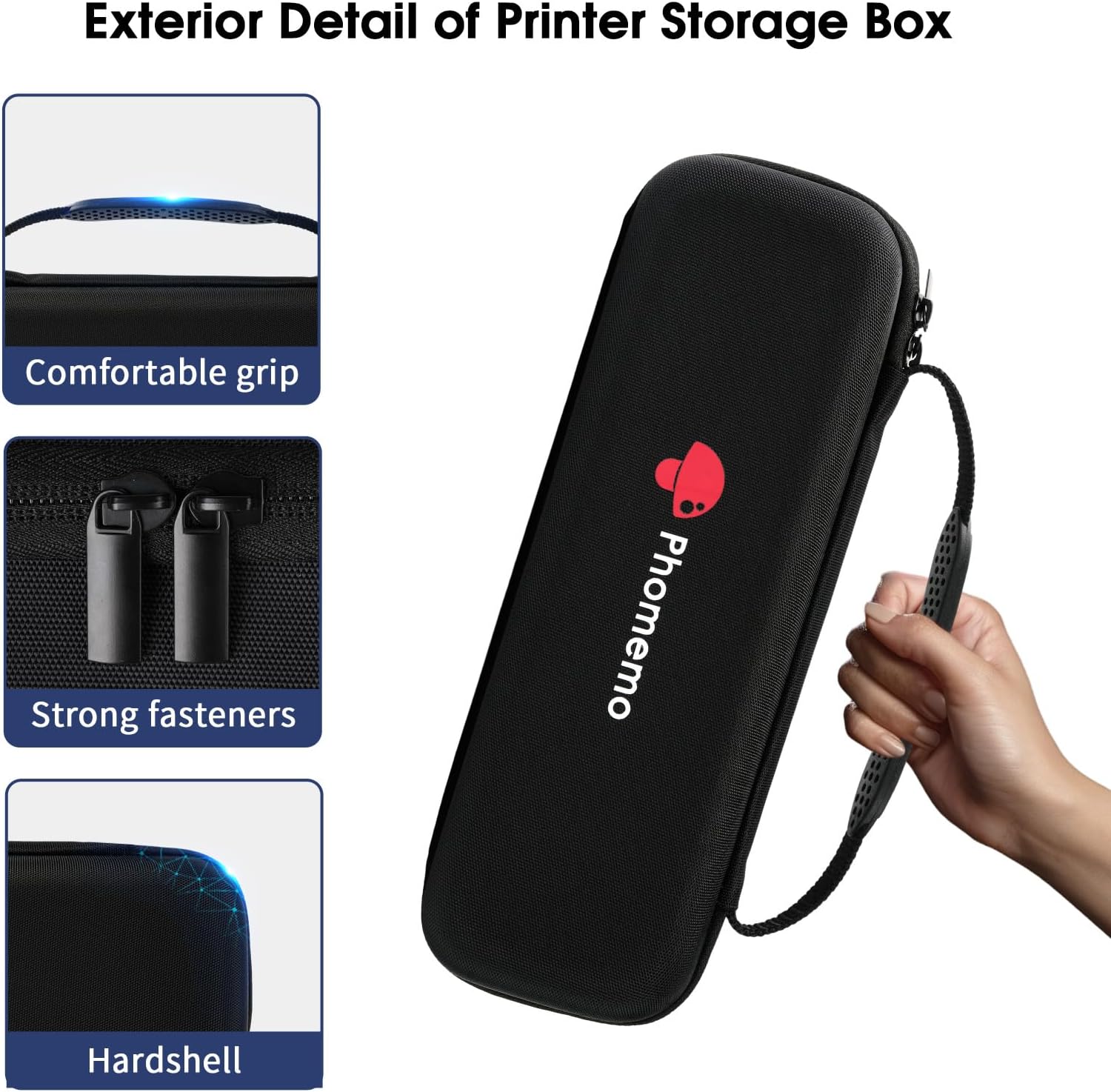
Image 2.2: The Phomemo M832 printer in use, showing both USB connection for laptops and Bluetooth connection for mobile devices, highlighting its adaptability for various printing scenarios.
3. 사용 설명서
3.1 Basic Printing from the App
- Ensure your M832 printer is connected via Bluetooth to the Phomemo app.
- Within the app, select the document or image you wish to print.
- Choose the appropriate paper size and any other print settings (e.g., density, rotation).
- 인쇄를 시작하려면 '인쇄' 버튼을 누르세요.

Image 3.1: The Phomemo M832 printer in operation, dispensing a printed document that includes various charts and textual information.

이미지 3.2: 또 다른 view of the Phomemo M832 printer producing a document, showcasing its ability to print detailed infographic elements and text.
3.2 지원되는 용지 종류 및 크기
The Phomemo M832 printer is designed for use with Phomemo thermal paper. It supports various widths to accommodate different printing needs:
- 8.5'' x 11'' (A4)
- 4.33'' wide
- 3.14'' wide
- 2.08'' wide
Always use high-quality thermal paper to ensure optimal print results and to prolong the life of your printer.
4. 유지관리
4.1 프린트 헤드 청소
To maintain print quality, periodically clean the print head. Ensure the printer is turned off and cooled down before cleaning.
- 프린터 덮개를 엽니다.
- 면봉으로 프린트 헤드를 부드럽게 닦아주세요.amp이소프로필 알코올로 소독함.
- 프린트 헤드가 완전히 마를 때까지 기다린 후 덮개를 닫고 다시 사용하십시오.
4.2 배터리 관리
- 배터리를 자주 완전히 방전시키지 마세요.
- 배터리 수명 유지를 위해 사용하지 않을 때에도 정기적으로 프린터를 충전하십시오.
- 장기간 사용하지 않을 때는 프린터를 서늘하고 건조한 곳에 보관하십시오.
4.3 Printer and Case Storage
Store the printer and its carrying case in a clean, dry environment away from direct sunlight and extreme temperatures. The included carrying case is designed to protect your printer during travel and storage.
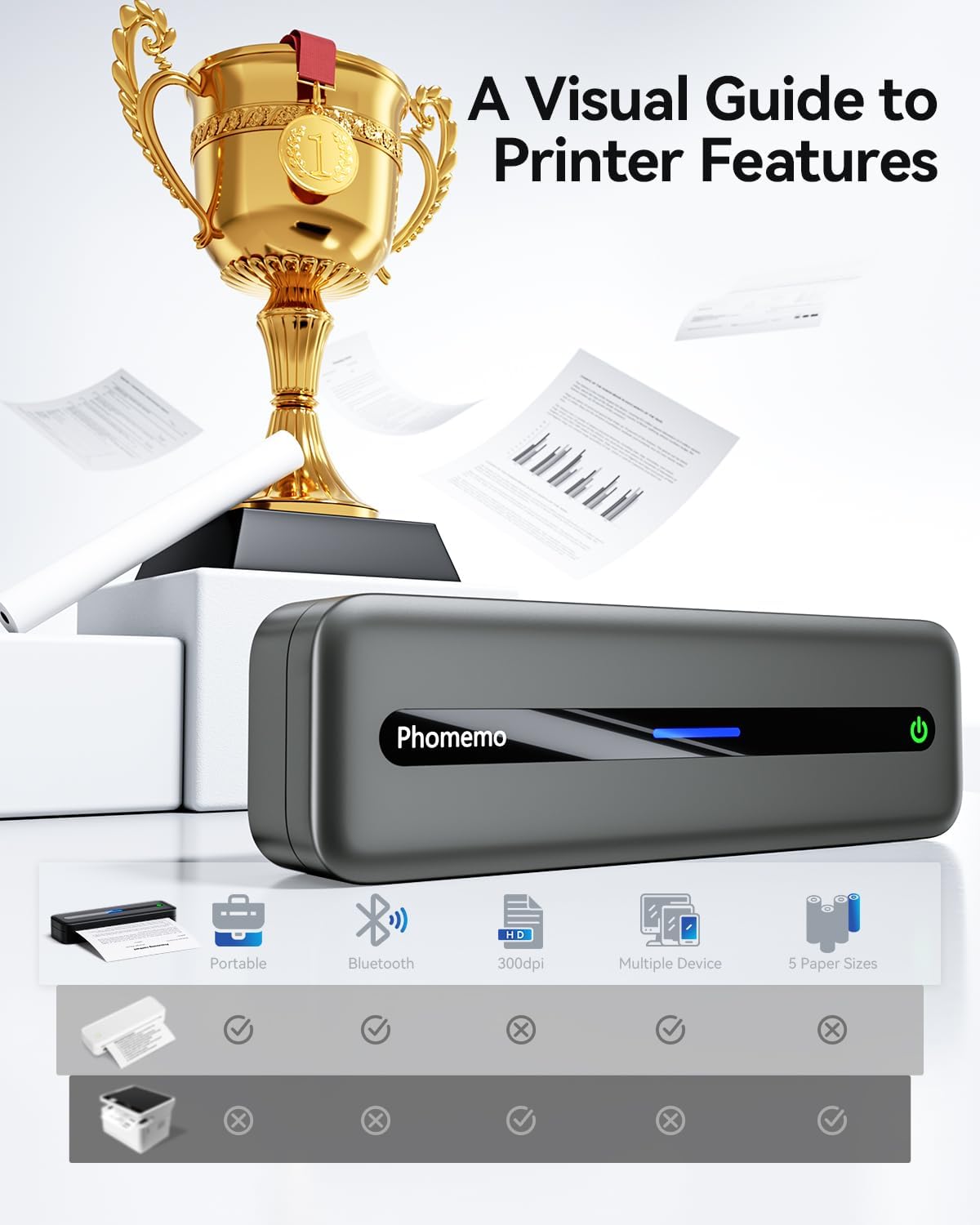
Image 4.1: The protective carrying case for the Phomemo M832 printer, designed for secure transport and storage.

Image 4.2: Close-up details of the Phomemo M832 carrying case, highlighting its comfortable grip, durable fasteners, and hardshell construction for enhanced protection.

Image 4.3: The Phomemo M832 carrying case with its dimensions (270mm/10.63in length, 90mm/3.54in width), emphasizing its portable size and integrated hand strap.
5. 문제 해결
5.1 프린터 전원이 켜지지 않음
- Ensure the printer is fully charged. Connect it to a power source and wait for the charging indicator.
- 전원 버튼을 몇 초간 길게 누르세요.
5.2 블루투스로 연결할 수 없습니다
- 모바일 기기에서 Bluetooth가 활성화되어 있는지 확인하세요.
- Ensure the printer is powered on and within range.
- 프린터와 모바일 기기를 다시 시작하세요.
- Forget the device in your phone's Bluetooth settings and try pairing again through the Phomemo app.
5.3 인쇄 품질 불량 또는 빈 페이지
- Check if the thermal paper is loaded correctly with the printing side facing up.
- 정품 포메모 감열지를 사용하고 있는지 확인하십시오.
- 유지관리 섹션에 설명된 대로 프린트 헤드를 청소하세요.
- Adjust print density settings within the Phomemo app.
5.4 프린터가 응답하지 않음
- 프린터 전원을 껐다가 다시 켜서 소프트 리셋을 수행하십시오.
- If unresponsive, allow the battery to fully discharge and then recharge it.
6. 사양
| 모델 | M832 |
| 인쇄 기술 | Thermal Printing (Inkless) |
| 연결성 | 블루투스, USB |
| 지원되는 용지 크기 | 8.5'' x 11'' (A4), 4.33'', 3.14'', 2.08'' wide |
| 배터리 | Built-in Rechargeable (2600 mAh) |
| ASIN | B0F8R1Q37Y |
| 첫 번째 이용 가능 날짜 | 5년 2025월 XNUMX일 |
7. 보증 및 지원
The Phomemo M832 printer comes with a standard manufacturer's warranty. For detailed warranty information, product support, or technical assistance, please visit the official Phomemo website or contact their customer service directly. Please have your product model (M832) and ASIN (B0F8R1Q37Y) ready when contacting support.


