1. 서론
The STC My Home Q30 WiFi Range Extender is designed to expand and strengthen your existing Wi-Fi network, eliminating dead zones and providing stable, high-speed internet coverage throughout your home or office. This dual-band booster supports both 2.4GHz and 5GHz frequencies, offering speeds up to 1200 Mbps for seamless streaming, gaming, and browsing.
1.1 패키지 내용
- STC My Home Q30 WiFi Range Extender
- Power Adapter (Integrated)
- 빠른 시작 가이드
2. 제품 오버view
Familiarize yourself with the STC My Home Q30 extender's components and indicators.

이미지 2.1: 앞면 view of the STC My Home Q30 WiFi Range Extender. The device is white with a black central panel featuring the 'stc' logo.

이미지 2.2: 정면 클로즈업 view of the STC Q30 extender, highlighting the indicator lights and WPS button area.
이미지 2.3: 뒤 view of the STC Q30 extender, showing the ventilation and power plug area.
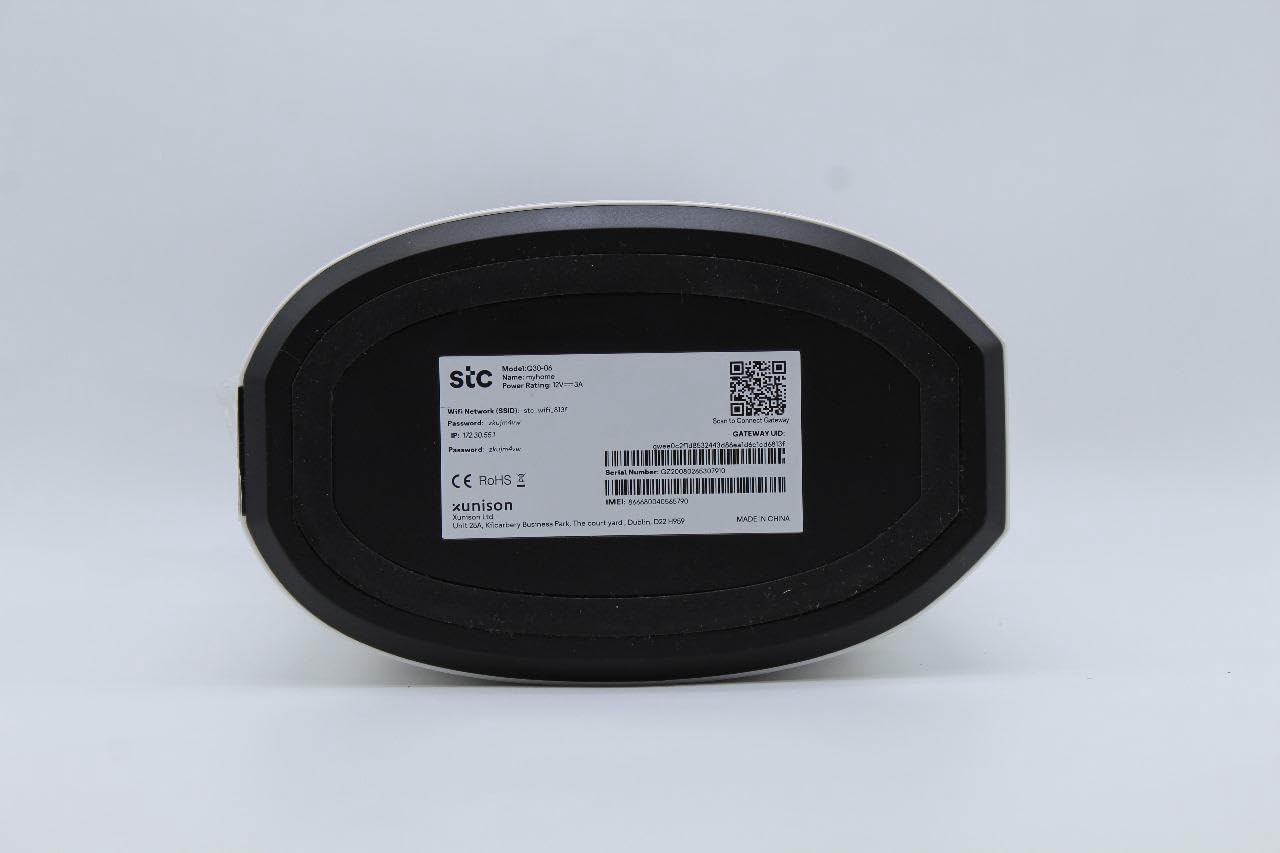
Image 2.4: Bottom label of the STC Q30 extender, displaying model information, serial number, default login details, and a QR code for quick access or setup.
2.1개의 표시등
- 전원 LED: 전원 상태를 나타냅니다.
- 와이파이 LED: Indicates Wi-Fi signal status and activity.
- 신호 강도 LED: Shows the strength of the signal received from the main router.
2.2 버튼 및 포트
- WPS 버튼: For quick and easy setup with WPS-enabled routers.
- 재설정 버튼: Used to restore the extender to factory default settings (typically a small pinhole button).
- 이더넷 포트 : For connecting wired devices or for initial setup.
3. 설정 지침
The STC My Home Q30 offers two primary methods for setup: WPS (Wi-Fi Protected Setup) and Web 인터페이스.
3.1 WPS Setup (Recommended for Quick Setup)
- Plug the Q30 extender into an electrical outlet near your main Wi-Fi router. Wait for the Power LED to turn solid.
- 메인 Wi-Fi 라우터의 WPS 버튼을 누르세요.
- Within two minutes, press the WPS button on the STC My Home Q30 extender.
- Wait for the Wi-Fi LED on the extender to turn solid, indicating a successful connection.
- Relocate the extender to a suitable location between your router and the Wi-Fi dead zone. Ensure the Signal Strength LED indicates a good connection (e.g., green or blue).
3.2 Web 인터페이스 설정
- Plug the Q30 extender into an electrical outlet near your main Wi-Fi router. Wait for the Power LED to turn solid.
- Connect your computer or mobile device to the extender's default Wi-Fi network (e.g., "STC_Extender" or similar, usually found on the product label). No password is required initially.
- 열기 web 브라우저에 접속하여 기본 IP 주소 또는 도메인 이름(예:
192.168.1.1orstcextender.net) provided on the product label or quick start guide. - Log in using the default username and password (e.g.,
admin/adminor as specified on the label). - Follow the on-screen instructions of the setup wizard to select your main Wi-Fi network and enter its password.
- Configure the extender's Wi-Fi network name (SSID) and password. You can choose to keep the same as your main network or create a new one.
- 설정을 완료하세요. 확장기가 다시 시작됩니다.
- Relocate the extender to an optimal position and connect your devices to the extended network.
4. 사용 설명서
Once set up, the STC My Home Q30 operates automatically. Here are some operational guidelines:
- 최적의 배치: Place the extender roughly halfway between your main router and the area with weak Wi-Fi signal. The Signal Strength LED should indicate a strong connection to the router.
- 연결 장치: Devices will automatically connect to the strongest available Wi-Fi signal. If you created a new SSID for the extender, connect to that network.
- 이더넷 포트 사용법: The Ethernet port can be used to connect a wired device (e.g., smart TV, gaming console, PC) to the extended network, providing a stable wired connection.
5. 유지관리
Regular maintenance ensures optimal performance and longevity of your STC My Home Q30 extender.
- 펌웨어 업데이트: Periodically check the STC support website for firmware updates. Updating firmware can improve performance, add features, and fix bugs. Access the web interface to perform updates.
- 청소: Gently wipe the device with a dry, soft cloth. Do not use liquid cleaners or abrasive materials. Ensure ventilation holes are clear of dust.
- 다시 시작: 연결 문제가 발생하는 경우, 확장기의 전원 플러그를 콘센트에서 10초 동안 뽑았다가 다시 꽂아보세요.
- 공장 초기화 : If the extender is not functioning correctly or you forget the login credentials, perform a factory reset by pressing and holding the Reset button for 5-10 seconds with a paperclip until the LEDs flash. Note that this will erase all custom settings.
6. 문제 해결
다음은 흔히 발생하는 문제와 그 해결책입니다.
- 전원 없음:
- 연장선이 작동하는 콘센트에 제대로 꽂혀 있는지 확인하십시오.
- Check if the Power LED is illuminated.
- 설치 후 인터넷에 접속할 수 없음:
- 메인 라우터에 인터넷 연결이 활성화되어 있는지 확인하십시오.
- Check the Signal Strength LED on the extender. If it's red or off, the extender is too far from the router or the connection is poor. Relocate the extender closer to the router.
- 설정 과정에서 메인 공유기의 Wi-Fi 비밀번호를 올바르게 입력했는지 확인하십시오.
- Try restarting both the router and the extender.
- Slow Speed on Extended Network:
- Relocate the extender to an optimal position where the Signal Strength LED indicates a strong connection (e.g., green or blue). Avoid placing it near large metal objects or other interference sources.
- 메인 라우터가 충분한 속도를 제공하는지 확인하십시오.
- Check for firmware updates for the extender.
- 접근할 수 없습니다 Web 관리 페이지:
- 기기가 익스텐더의 Wi-Fi 네트워크에 연결되어 있는지 확인하세요.
- Verify the IP address or domain name entered in the browser.
- 브라우저 캐시를 지우거나 다른 브라우저를 사용해 보세요.
- Perform a factory reset if you have forgotten the login credentials.
7. 사양
| 모델 번호 | Q30 |
| 상표 | STC (Generic) |
| 데이터 전송 속도 | 최대 1200Mbps |
| Band Frequency Supported | 2.4GHz, 5GHz (듀얼 밴드) |
| 호환 장치 | WiFi-enabled devices |
| 색상 | 하얀색 |
| 품목 무게 | 1.33 킬로그램 |
| 패키지 크기 | 34.8 x 18 x 14.8cm |
8. 보증 및 지원
For warranty information and technical support, please refer to the documentation included with your purchase or contact your retailer. STC provides reliable network expertise, and support channels are typically available through the point of purchase or the official STC web대지.
보증 청구를 위해 구매 영수증을 보관하세요.


