1. 서론
This manual provides detailed instructions for the ATTACK SHARK X68PRO HE Mechanical Wireless Gaming Keyboard and the ATTACK SHARK X3 Wireless Gaming Mouse Combo. Please read this manual carefully before using the products to ensure proper functionality and to maximize your gaming experience.
2. 제품 오버view
2.1 ATTACK SHARK X68PRO HE Keyboard
The X68PRO HE is a 60% layout mechanical gaming keyboard featuring Hall Effect magnetic switches, an 8000Hz polling rate, and multi-mode connectivity. It is designed for high-performance gaming with adjustable actuation and rapid trigger capabilities.

Image: ATTACK SHARK X68PRO HE Keyboard. This image displays the keyboard's overall design, highlighting its BT/2.4G/Wired 3 modes connection, magnetic switches, 0.01mm RT accuracy, DKS support, full RGB backlit, PBT keycaps, MAC/WIN compatibility, and web driver. Dimensions are shown as 12.80 inches length, 4.645 inches width, 1.57 inches height, and a weight of 0.78 KG.
주요 특징:
- 8000Hz 폴링 속도: Ensures ultra-low 0.125ms latency in wired mode for instant keystroke registration.
- 홀 효과 자기 스위치: Self-developed switches with adjustable actuation from 0.1mm to 3.4mm, offering 0.01mm sensitivity.
- 빠른 트리거: Eliminates debounce delay, allowing keys to reset instantly for faster, more precise movements.
- Dual-Action Key Function: Assign two different actions to a single key based on pressure.
- 컴팩트한 60% 레이아웃: Space-saving design with an aircraft-grade anodized aluminum frame.
- 연결성: Supports Bluetooth, 2.4GHz wireless, and wired (USB-C) connections.
- RGB 백라이트: Full RGB with multiple lighting effects.
- PBT 키캡: Durable, side-engraved PBT keycaps.
- Web 운전사: Customizable settings via a dedicated web 운전사.

Image: Keyboard highlighting 8000Hz Polling Rate. This image emphasizes the keyboard's lightning-fast response with an 8000Hz polling rate in wired mode and ultra-low 0.125ms latency.

Image: Linear Magnetic Switch. This image provides a close-up of the linear magnetic switch, detailing its specifications: Total Travel 3.8±0.3mm, Operation Force 40±5gf, Initial Magnetic Flux 95±15GS, Bottom Magnetic Flux 580±50GS, and a Lifespan of 100 Million clicks.

Image: Gasket Structure. This diagram illustrates the internal gasket structure of the keyboard, showing components such as side engraving PBT keycaps, thick rubber top case, ATTACK SHARK magnetic switch, aluminum alloy plate, PORON foam, PCB positioning board, custom silicone mold, and thick rubber bottom case.
2.2 ATTACK SHARK X3 Mouse
The X3 is an ultra-lightweight wireless gaming mouse equipped with a Pixart PAW3395 optical sensor and Kailh GM8.0 switches. It offers tri-mode connectivity and high DPI settings for precise control.

Image: ATTACK SHARK X3 Mouse. This image presents the X3 mouse in red, along with its USB receiver, highlighting its ultra-lightweight design, tri-mode connectivity, PixArt PAW 3395 sensor, up to 26000 DPI, and Kailh GM 8.0 switches.
주요 특징:
- Pixart PAW3395 Sensor: Flagship optical sensor with 6-level adjustable DPI (800/1600/2400/3200/5000/26000), 650 IPS tracking speed, 1000Hz response speed, and 50G acceleration.
- Kailh GM8.0 Switches: High-end micro switches with an 80 million click lifespan, providing crisp clicks and fast rebound.
- TTC 인코더: Scroll wheel encoder for precise positioning.
- 초경량 디자인: Weighs approximately 49g for effortless action.
- 3중 모드 연결: Supports 2.4GHz wireless, Bluetooth 5.0, and wired (USB-C) connections.

Image: Kailh GM 8.0 Switches & TTC Encoder. This image shows a cutaway view of the mouse, highlighting the Kailh GM 8.0 switches with an 80 million click lifespan and the TTC encoder for well-defined scroll steps, designed to eliminate unintended double clicks.

Image: Ultra-Light Design. This image illustrates the lightweight nature of the X3 mouse, stating it weighs only 49±4g (1.72oz).
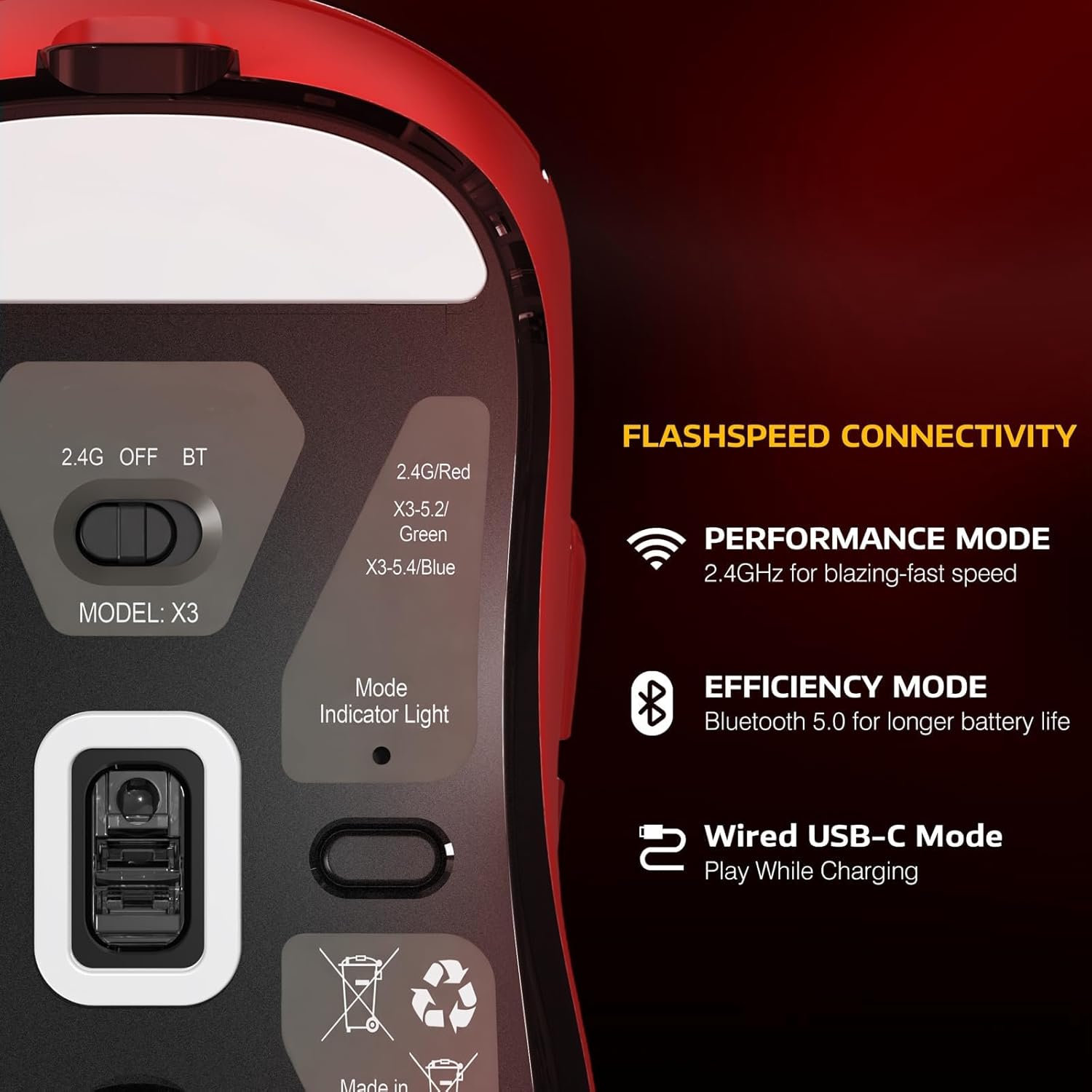
Image: Flashspeed Connectivity. This image shows the bottom of the X3 mouse, detailing its connectivity options: a switch for 2.4G, OFF, and BT modes, and a mode indicator light. It also describes Performance Mode (2.4GHz for blazing-fast speed), Efficiency Mode (Bluetooth 5.0 for longer battery life), and Wired USB-C Mode (play while charging).
3. 설정 지침
3.1 Connecting the Keyboard (X68PRO HE)
- 유선 모드 : Connect the provided USB-C cable from the keyboard to an available USB port on your computer. The keyboard will be recognized automatically.
- 2.4GHz 무선 모드:
- 2.4GHz USB 수신기를 찾으십시오.
- 수신기를 컴퓨터의 사용 가능한 USB 포트에 연결하십시오.
- On the keyboard, switch the mode selector to '2.4G'. The keyboard should connect automatically.
- 블루투스 모드 :
- 키보드의 모드 선택기를 'BT'로 전환하세요.
- 컴퓨터나 기기에서 Bluetooth를 활성화하고 새 기기를 검색하세요.
- Select 'ATTACK SHARK X68PRO HE' from the list of available devices to pair.
3.2 Connecting the Mouse (X3)
- 유선 모드 : Connect the provided USB-C cable from the mouse to an available USB port on your computer. The mouse will function immediately and charge simultaneously.
- 2.4GHz 무선 모드:
- Locate the 2.4GHz USB receiver (usually stored in a compartment on the mouse's underside).
- 수신기를 컴퓨터의 사용 가능한 USB 포트에 연결하십시오.
- On the mouse's underside, switch the mode selector to '2.4G'. The mouse should connect automatically.
- 블루투스 모드 :
- On the mouse's underside, switch the mode selector to 'BT'.
- 컴퓨터나 기기에서 Bluetooth를 활성화하고 새 기기를 검색하세요.
- 사용 가능한 장치 목록에서 'ATTACK SHARK X3'를 선택하여 페어링하십시오.
3.3 드라이버 설치
For advanced customization of both the keyboard and mouse, download the official web driver from the ATTACK SHARK website. This driver allows for actuation adjustment, key remapping, macro creation, and RGB lighting control.
4. 사용 설명서
4.1 Keyboard Operation (X68PRO HE)
- 작동 조정: 사용하세요 web driver software to precisely adjust the actuation point of each magnetic switch from 0.1mm to 3.4mm with 0.01mm sensitivity.
- 빠른 트리거: This feature is enabled and configured via the web driver. It allows keys to register a reset immediately upon release, without needing to return to the full up position.
- Dual-Action Key Function: Configure this feature through the web driver. Assign a primary action for a light press and a secondary action for a deeper press on the same key.
- RGB 조명 제어: Adjust lighting effects, brightness, and color patterns using the web driver or specific keyboard shortcuts (refer to the driver software for default key combinations).
- 모드 전환: Use the physical switch on the keyboard to toggle between Wired, 2.4G, and Bluetooth modes.
- MAC/WIN Compatibility: The keyboard supports both operating systems. Use the web driver to switch layouts or specific key functions if needed.
4.2 Mouse Operation (X3)
- DPI 조정: The mouse features 6 adjustable DPI levels (800/1600/2400/3200/5000/26000). Use the dedicated DPI button (usually located behind the scroll wheel) to cycle through these settings. The current DPI level may be indicated by an LED color or pattern.
- 모드 전환: Use the physical switch on the underside of the mouse to select between 2.4G, OFF, and Bluetooth modes.
- 충전 중: Connect the mouse to your computer using the USB-C cable to charge. The mouse can be used in wired mode while charging.
- 배터리 표시기: The mouse typically has an LED indicator that shows battery status (e.g., blinking for low battery, solid for charging, off for full charge).
5. 유지관리
- 청소: Use a soft, dry cloth to wipe down the keyboard and mouse. For deeper cleaning, use a cotton swab lightly damp손이 닿기 어려운 부분은 이소프로필 알코올로 닦아주세요. 과도한 습기를 피하십시오.
- 키캡 제거(키보드): Keycaps can be carefully removed using a keycap puller for cleaning or replacement. Be gentle to avoid damaging the switches.
- 배터리 관리 : For wireless devices, avoid fully discharging the battery frequently. Charge regularly. If storing for an extended period, charge the battery to about 50% to prolong its lifespan.
- 저장: 기기를 직사광선과 극한의 온도를 피해 서늘하고 건조한 곳에 보관하세요.
6. 문제 해결
6.1 키보드 문제 해결
- 키보드가 응답하지 않습니다:
- Ensure the keyboard is charged if in wireless mode.
- Check the mode switch (Wired/2.4G/BT) is set correctly.
- 2.4G 연결 시에는 USB 수신기가 제대로 연결되어 있는지 확인하십시오.
- For Bluetooth, ensure it's paired correctly and your device's Bluetooth is active. Try re-pairing.
- 무선 문제를 배제하려면 유선 모드로 연결해 보세요.
- 키가 등록되지 않거나 두 번 입력됨:
- 키캡 아래에 이물질이 있는지 확인하십시오.
- If using Rapid Trigger, ensure settings in the web driver are appropriate for your use.
- Consider resetting keyboard settings via the web 운전사.
- RGB 조명이 작동하지 않습니다:
- Ensure lighting is enabled in the web 운전사.
- 밝기 설정을 확인하세요.
6.2 마우스 문제 해결
- Mouse not moving or erratic cursor:
- Ensure the mouse is charged if in wireless mode.
- Check the mode switch (2.4G/BT) is set correctly.
- 2.4G 연결 시에는 USB 수신기가 제대로 연결되어 있는지 확인하십시오.
- For Bluetooth, ensure it's paired correctly and your device's Bluetooth is active. Try re-pairing.
- 마우스 밑면의 광학 센서를 청소하세요.
- Try connecting in wired mode.
- DPI가 변경되지 않음:
- DPI 버튼이 제대로 작동하는지 확인하십시오.
- Check if any software is overriding DPI settings.
- 연결 문제:
- 마우스가 수신기/블루투스 장치의 범위 내에 있는지 확인하십시오.
- 다른 무선 장치의 간섭을 피하세요.
7. 사양
7.1 ATTACK SHARK X68PRO HE Keyboard
- 폴링 속도: 8000Hz (유선 모드)
- 숨어 있음: 0.125ms
- 스위치: 홀 효과 자기 스위치
- 작동 조정: 0.1mm - 3.4mm (0.01mm 감도)
- 공들여 나열한 것: 60%
- 프레임 소재: 항공기 등급 양극 산화 알루미늄
- 키캡: 측면에 각인된 PBT
- 연결성: 블루투스, 2.4GHz 무선, USB-C 유선
- 백라이트: 풀 RGB
- 운영 체제 호환성: 윈도우, 맥OS
- 치수: 약 12.80 x 4.645 x 1.57인치
- 무게: 약 0.78kg
7.2 ATTACK SHARK X3 Mouse
- 감지기: Pixart PAW3395 광학 센서
- 해상도: 800/1600/2400/3200/5000/26000 (Adjustable)
- 추적 속도: 650 IPS
- 응답 속도: 1000Hz
- 가속: 50G
- 스위치: Kailh GM8.0 Micro Switches (80 Million Clicks Lifespan)
- 인코더: TTC 스크롤 휠 인코더
- 무게: 약 49g
- 연결성: Bluetooth 5.0, 2.4GHz 무선, USB-C 유선
- 운영 체제 호환성: 윈도우, 맥OS, 리눅스
8. 보증 및 지원
ATTACK SHARK products typically come with a limited manufacturer's warranty. Please refer to the warranty card included with your product or visit the official ATTACK SHARK website for detailed warranty terms and conditions. For technical support, driver downloads, or further assistance, please visit the ATTACK SHARK support page or contact their customer service.
공식적인 Web대지: www.attackshark.com (전amp링크를 확인해 주세요. 실제 내용을 확인해 주시기 바랍니다. web대지)


