소개
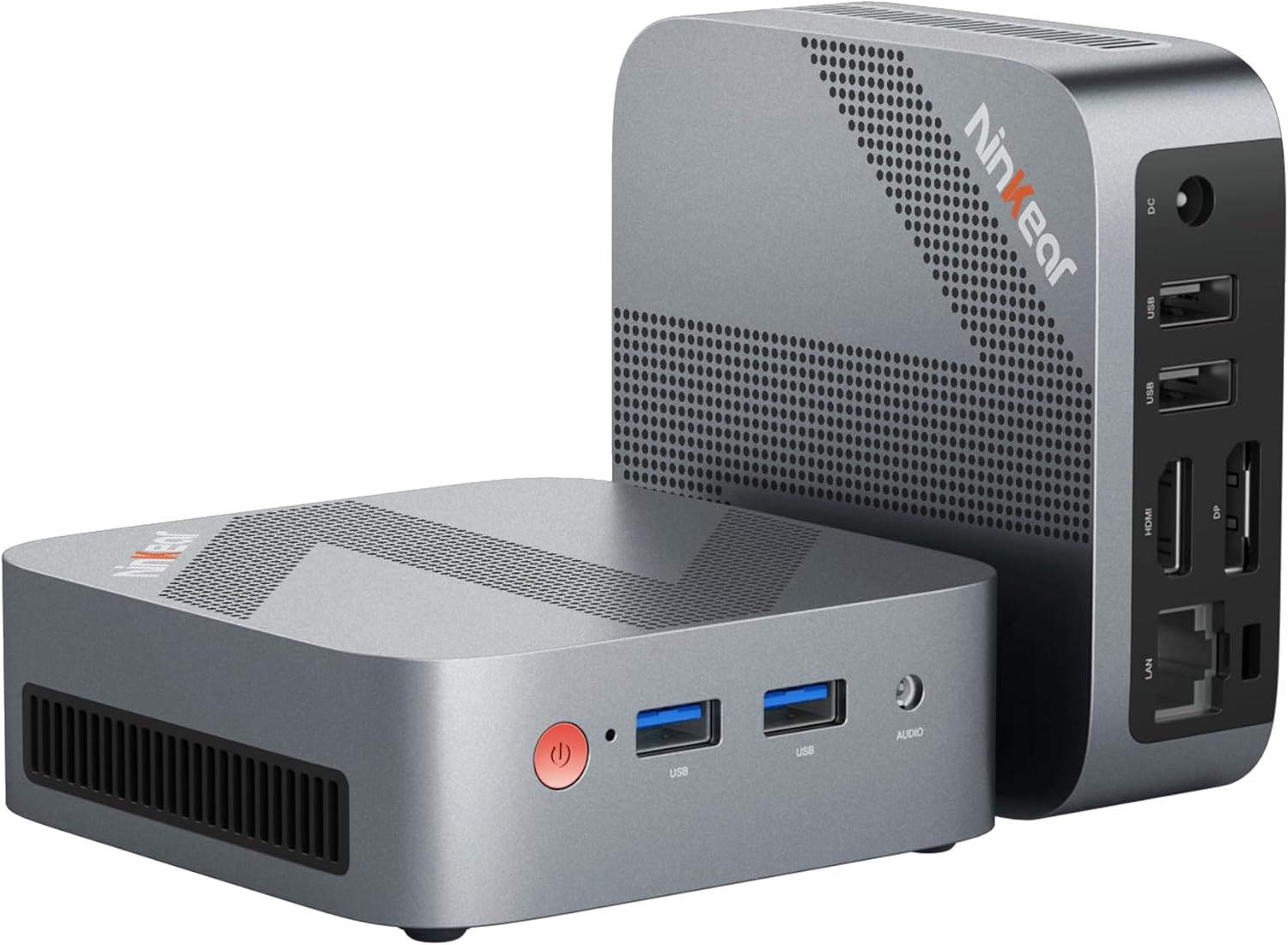
Figure 0.1: Ninkear Mini PC W-11. This compact and powerful mini PC is designed for various computing needs, from office work to multimedia entertainment.
This comprehensive user manual provides detailed instructions for the Ninkear Mini PC W-11 (MBOX 11 Mini PC). It covers initial setup, daily operation, maintenance, troubleshooting common issues, and full technical specifications. Please read this manual carefully to ensure proper use and to maximize the performance and longevity of your Ninkear Mini PC for office, home, and multimedia applications.
1. 설정
1.1 언박싱 및 패키지 구성품
Carefully unpack all components from the box. Ensure all items listed below are present. If any item is missing or damaged, please contact customer support.

Figure 1.1: Package Contents. The box includes the Ninkear Mini PC, a user manual, a charging cable, an HDMI cable, and a fixed bracket for mounting.
- Ninkear Mini PC (MBOX 11)
- 사용자 설명서
- 전원 어댑터/충전 케이블
- HDMI 케이블
- 고정 브라켓(VESA 장착용)
1.2 물리적 연결
Before powering on, connect all necessary peripherals to the Mini PC. Refer to the diagrams below for port identification.

Figure 1.2: Front and Rear Ports of the Ninkear Mini PC. The front features USB 3.0 ports and an audio jack, while the rear includes LAN, HDMI, DisplayPort, USB 2.0, and DC power input.

Figure 1.3: Multi-purpose Port Diagram. This diagram illustrates the layout and function of each port on the Ninkear Mini PC, including power, USB 3.0, headphone/MIC jack on the front, and RJ45, DP, HDMI, USB 2.0, and DC on the back.
- 디스플레이에 연결: Use the provided HDMI cable to connect the Mini PC's HDMI port to your monitor or TV. The device also supports DisplayPort (DP) for alternative display connections.
- 주변기기 연결:
- 키보드 및 마우스: Connect your USB keyboard and mouse to the available USB 3.0 ports on the front or USB 2.0 ports on the rear.
- 오디오: 전면의 3.5mm 오디오 잭에 헤드폰이나 스피커를 연결합니다.
- 회로망: For a wired connection, connect an Ethernet cable to the RJ45 LAN port on the rear.
- 전원 연결: 미니 PC 뒷면의 DC 입력 포트에 전원 어댑터를 연결한 다음 어댑터를 전원 콘센트에 꽂으십시오.
1.3 최초 부팅 및 초기 구성
Once all connections are secure, press the power button on the front of the Mini PC. The device comes with Windows 11 pre-installed and ready for immediate use. Follow the on-screen prompts to complete the initial Windows setup, including language, region, network connection, and user account creation.
2. 운영
2.1 기본 작업
- 전원 켜기: 장치 전면의 전원 버튼을 누릅니다.
- 전원 끄기 : From the Windows operating system, click the Start button, then select Power > Shut down. Alternatively, you can press and hold the power button for a few seconds to force a shutdown (not recommended for regular use).
- 다시 시작: From the Windows operating system, click the Start button, then select Power > Restart.
2.2 듀얼 디스플레이 설정
The Ninkear Mini PC supports dual 4K@60Hz display output via its HDMI 2.0 and DisplayPort (DP) interfaces, allowing for enhanced multitasking and productivity.

Figure 2.1: 4K Dual Display Setup. The Mini PC can connect to two monitors simultaneously via HDMI and DisplayPort, supporting 4K resolution at 60Hz for an extended desktop experience.
- 메인 모니터를 HDMI 포트에 연결하세요.
- Connect your secondary monitor to the DisplayPort (DP).
- 두 모니터를 연결하고 전원을 켜면 Windows에서 자동으로 감지합니다.
- To configure display settings (extend, duplicate, or show only on one screen), right-click on the desktop, select "Display settings," and adjust as needed.
2.3 Connectivity (Wi-Fi, Bluetooth, Ethernet)
The Mini PC offers versatile connectivity options for your network and wireless devices.

Figure 2.2: Multiple Connection Options. The Mini PC supports high-speed Ethernet (RJ45-1000M), WiFi 2.4/5.0 GHz, and Bluetooth 5.0 for comprehensive connectivity.
- 와이파이: The Mini PC supports Wi-Fi 5 (802.11ac) for fast wireless internet access. To connect, click the Wi-Fi icon in the system tray, select your network, enter the password, and click Connect.
- 블루투스: With Bluetooth 5.0, you can connect wireless peripherals suchs as keyboards, mice, headphones, and speakers. Go to Windows Settings > Bluetooth & devices to pair new devices.
- 이더넷: For a stable and high-speed wired network connection, plug an Ethernet cable into the RJ45 port. The Mini PC supports Gigabit Ethernet (1000M).
2.4 스토리지 확장
The Ninkear Mini PC comes with a 512 GB M.2 SSD. For additional storage, you can upgrade the M.2 NVMe PCIe3.0 SSD or M.2 SATA SSD up to 2 TB.

Figure 2.3: Efficient and High-Capacity Storage. The Mini PC features 16GB DDR4 RAM and a 512GB M.2 SSD, with the SSD being upgradeable up to 2TB.
Consult a qualified technician or refer to detailed upgrade guides if you plan to expand the internal storage to avoid damaging the device.
3. 유지관리
3.1 청소
To maintain optimal performance and extend the lifespan of your Mini PC, regular cleaning is recommended.
- 외부: Use a soft, dry, lint-free cloth to wipe the exterior surfaces. For stubborn smudges, slightly damp물이나 순하고 비연마성 세척제를 사용하여 천을 닦으십시오.
- 포트: Use compressed air to gently clear dust from the USB, HDMI, DP, and other ports. Avoid inserting any objects into the ports.
- 통풍: Ensure the ventilation holes are clear of dust and obstructions to allow for proper airflow and cooling.
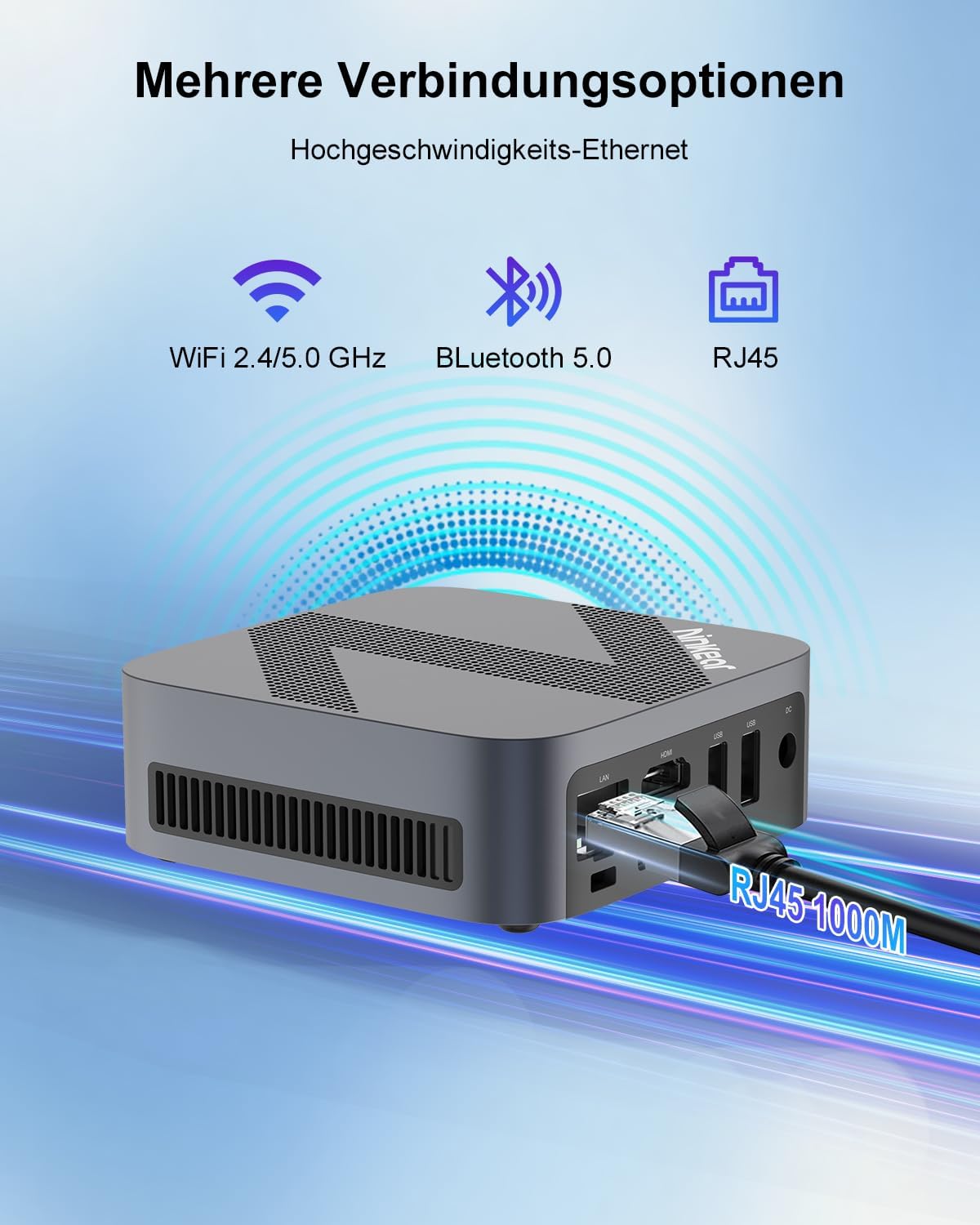
Figure 3.1: Powerful Cooling System. The Mini PC utilizes a copper pipe and aluminum heatsink design for efficient heat dissipation, ensuring quiet operation and low power consumption.
3.2 소프트웨어 업데이트
시스템 안정성, 보안 및 최적의 성능을 보장하려면 운영 체제와 드라이버를 정기적으로 업데이트하십시오.
- Windows 업데이트: Go to Windows Settings > Windows Update and check for available updates.
- 드라이버 업데이트 : While Windows Update often handles driver updates, you may occasionally need to check the Ninkear official website for the latest drivers for specific components if you encounter issues.
3.3 스토리지 관리
To maintain the health and performance of your SSD, avoid filling it to full capacity. Periodically clean up unnecessary files 및 응용 프로그램.
- 디스크 정리: Windows에 내장된 디스크 정리 도구를 사용하여 임시 파일을 삭제하세요. files and other non-essential data.
- Uninstall Programs: Remove programs you no longer use from Windows Settings > Apps > Installed apps.
4. 문제 해결
This section addresses common issues you might encounter with your Ninkear Mini PC. If the problem persists, please refer to the Warranty and Support section.
4.1 전원 없음
- 전원 연결을 확인하세요. 전원 어댑터가 Mini PC와 작동하는 전원 콘센트에 모두 단단히 연결되어 있는지 확인하세요.
- 테스트 콘센트: 다른 장치를 같은 전원 콘센트에 꽂아 작동하는지 확인하세요.
- 전원 버튼: Ensure you are pressing the power button firmly.
4.2 디스플레이 출력 없음
- 케이블 연결: Verify that the HDMI or DisplayPort cable is securely connected to both the Mini PC and the monitor.
- 모니터 입력: Ensure your monitor is set to the correct input source (e.g., HDMI 1, DP).
- Test with Another Display/Cable: If possible, try connecting the Mini PC to a different monitor or using a different HDMI/DP cable to rule out display or cable issues.
- 다시 시작: Power cycle the Mini PC and the monitor.
4.3 Wi-Fi 또는 Bluetooth 연결 문제
- Enable Wi-Fi/Bluetooth: Windows 설정에서 Wi-Fi와 Bluetooth가 활성화되어 있는지 확인하세요.
- 운전자 확인: Verify that the Wi-Fi and Bluetooth drivers are installed and up to date in Device Manager.
- Router/Device Proximity: Move closer to your Wi-Fi router or Bluetooth device.
- Restart Router/Mini PC: 와이파이 공유기와 미니 PC를 재시작하세요.
4.4 System Performance Issues (Slowdown, Lag)
- 사용하지 않는 애플리케이션 닫기: Close any applications running in the background that are not in use.
- 작업 관리자를 확인하세요: Open Task Manager (Ctrl+Shift+Esc) to identify processes consuming high CPU, RAM, or disk resources.
- 디스크 공간: SSD에 충분한 여유 공간이 있는지 확인하십시오.
- 악성코드 검사: Run a full system scan with antivirus software.
- 냉각: 미니 PC의 통풍이 잘 되는지, 과열되지 않는지 확인하십시오.
5. 사양
Below are the detailed technical specifications for the Ninkear Mini PC W-11 (MBOX 11 Mini PC).
| 특징 | 사양 |
|---|---|
| 상표 | 닌키어 |
| 모델/시리즈 | 엠박스 11 |
| 모델 번호 | MBOX 11 Mini PC |
| 색상 | 회색 |
| 제품 치수 | 9.9 x 9.9 x 3.3cm |
| 품목 무게 | 240g |
| 프로세서 브랜드 | 인텔 |
| 프로세서 유형 | Celeron N150 (4 Cores, 4 Threads) |
| 프로세서 속도 | 최대 3.6GHz |
| RAM 크기 | 16GB (XNUMX기가바이트) |
| 메모리 기술 | DDR4, SO-DIMM |
| Max Supported Storage | 2 TB (M.2 NVMe PCIe3.0 SSD or M.2 SATA SSD) |
| Hard Drive Size (Included) | 512GB (XNUMX기가바이트) |
| 하드 드라이브 기술 | SSD |
| 그래픽 코프로세서 | 인텔 UHD 그래픽 |
| 그래픽 인터페이스 | 통합 |
| 연결 유형 | Bluetooth 5.0, Wi-Fi 5 (WLAN) |
| HDMI 인터페이스 | 1(HDMI 2.0) |
| DisplayPort Interfaces | 1 |
| USB 포트 | USB 2 3.0개(전면), USB 2 2.0개(후면) |
| 이더넷 | RJ45 (기가비트) |
| 오디오 잭 | 1x 3.5mm Headphone/MIC Jack |
| 운영 체제 | Windows 11 (W11 OS) |
| Batteries (Internal) | 1 C Battery required (included) |
| 리튬 배터리 용량 | 6 와트시 |
| 리튬 배터리 무게 | 10그램 |
| Number of Lithium-Ion Cells | 1 |
참고: 사양은 사전 통지 없이 변경될 수 있습니다.
6. 보증 및 지원
Ninkear is committed to providing high-quality products and excellent customer service.
6.1 보증 정보
If you purchase the product and experience a failure due to product defects within 1 year, please contact Ninkear customer support. You will need to provide your order number, a video or photo of the defect, and a detailed description of the issue.
6.2 고객 지원
For any questions, technical assistance, or warranty claims, please contact the Ninkear Official Store or the designated customer service center. They will guide you through the repair process or provide further assistance.
자세한 내용은 다음을 방문하세요. Amazon의 Ninkear Store.


