1. 상자 안에 무엇이 들어있나요?
패키지에 모든 구성 요소가 들어 있는지 확인하세요.
- 무선 기계식 키보드
- 무선 마우스
- USB 수신기
- 마우스 패드
- USB-C Cable (for keyboard charging/wired mode)
- AA 배터리 1개 (마우스용)
2. 제품 오버view
The Taiahiro BK6301 set includes a 98-key mechanical keyboard and an ergonomic wireless mouse, designed for versatile use across gaming and professional tasks. The keyboard features blue mechanical switches for tactile and audible feedback, RGB backlighting, and triple-mode connectivity. The mouse offers adjustable DPI and dual-mode wireless connection.
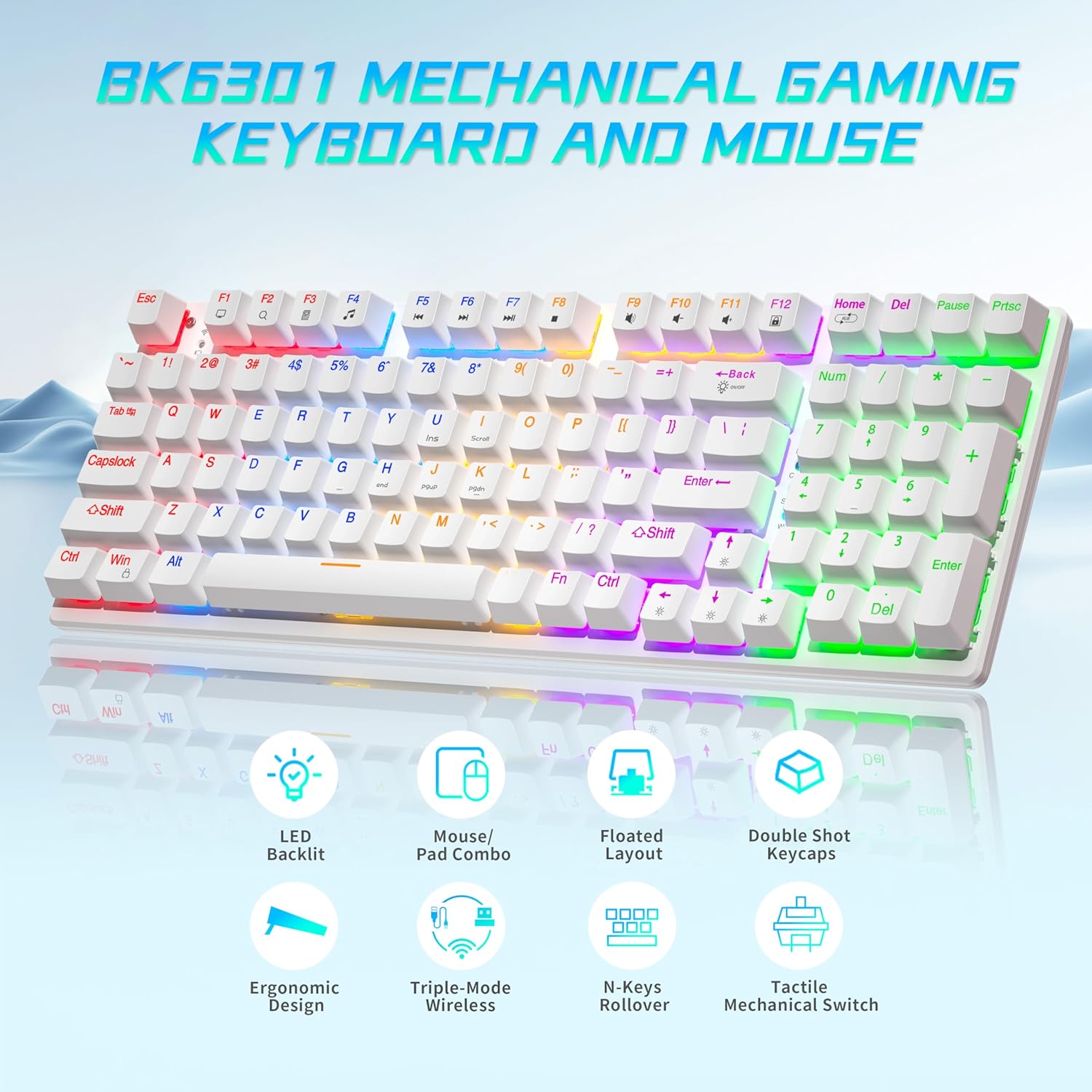
Image: The Taiahiro BK6301 keyboard and mouse combo, showcasing its LED backlit keys, mouse/pad combo, floated layout, double shot keycaps, ergonomic design, triple-mode wireless, N-keys rollover, and tactile mechanical switches.
2.1 키보드 기능
- 98키 레이아웃: Full-size keyboard including a numeric keypad.
- 블루 기계식 스위치: Provides satisfying tactile and audible feedback for typing and gaming.
- Double Shot Injection Keycaps: Ensures key legends remain clear and legible over time.
- 트리플 모드 연결: Supports USB-C wired, 2.4G wireless, and Bluetooth 5.0 connections.
- RGB 백라이트: 8 different lighting modes with adjustable brightness and breathing speed.
- 안티 고스팅: 여러 개의 키를 동시에 누르는 경우에도 정확한 입력이 이루어지도록 합니다.

이미지: 클로즈업 view illustrating the internal structure of the blue mechanical switches, highlighting their 50,000,000 keystroke life, 60±15g key force, and 2.4±0.2mm stroke travel.
2.2 마우스 기능
- Dual-Mode Wireless: Connects via 2.4G wireless or Bluetooth.
- 조정 가능한 DPI: Four DPI levels (800/1600/2400/3200) for precision control.
- 인체공학적 디자인: Contoured shape with textured grip for comfortable use.
- Anti-Skid Scroll Wheel: For improved control.

Image: The Taiahiro wireless gaming mouse, featuring its 4 adjustable DPI levels (800/1600/2400/3200) and convenient forward/back buttons.
3. 설정 지침
3.1 키보드 설정
The keyboard supports three connection modes: USB-C wired, 2.4G wireless, and Bluetooth.
- USB-C 유선 모드:
제공된 USB-C 케이블을 키보드와 컴퓨터의 사용 가능한 USB 포트에 연결하십시오. 키보드가 자동으로 인식되어 사용할 준비가 됩니다. - 2.4G 무선 모드:
Locate the USB receiver, typically stored in the mouse's battery compartment. Plug the USB receiver into an available USB port on your computer. The keyboard should connect automatically. - 블루투스 모드 :
Ensure the keyboard is in Bluetooth pairing mode (refer to keyboard specific key combination, usually Fn + a Bluetooth key). On your device (PC, laptop, tablet, phone), go to Bluetooth settings and select the keyboard from the list of available devices to pair.

Image: The Taiahiro keyboard and mouse demonstrating its 3-mode wireless capabilities, connecting to a laptop via USB-C, a monitor via 2.4GHz, and a tablet via Bluetooth.
3.2 마우스 설정
The mouse supports 2.4G wireless and Bluetooth connections.
- 배터리 설치 : The mouse requires one AA battery. Open the battery compartment on the underside of the mouse and insert the included AA battery, ensuring correct polarity.
- 전원 켜기: 마우스 바닥의 전원 스위치를 'ON' 위치로 밀어 넣습니다.
- 2.4G 무선 모드:
The USB receiver for the 2.4G connection is stored in the mouse's battery compartment. Remove it and plug it into an available USB port on your computer. The mouse should connect automatically. - 블루투스 모드 :
Ensure the mouse is in Bluetooth pairing mode (refer to mouse specific button, usually a button on the underside). On your device, go to Bluetooth settings and select the mouse from the list of available devices to pair.
Video: A brief demonstration of unboxing the keyboard and mouse, showing the initial setup and connection process.
4. 사용 설명서
4.1 Keyboard Backlighting Control
The keyboard features 8 RGB backlighting modes. Use the following key combinations to adjust:
- 조명 모드 변경: 누르다 Fn + 홈 다양한 조명 효과를 순환합니다.
- 밝기 조정: 누르다 Fn + ↑ (위쪽 화살표) 밝기를 높이려면, Fn + ↓ (아래쪽 화살표) 밝기를 낮추려면.
- 속도 조정: 누르다 Fn + ← (왼쪽 화살표) 효과 발현 속도를 줄이기 위해, Fn + → (오른쪽 화살표) 효과 발현 속도를 높이기 위해.
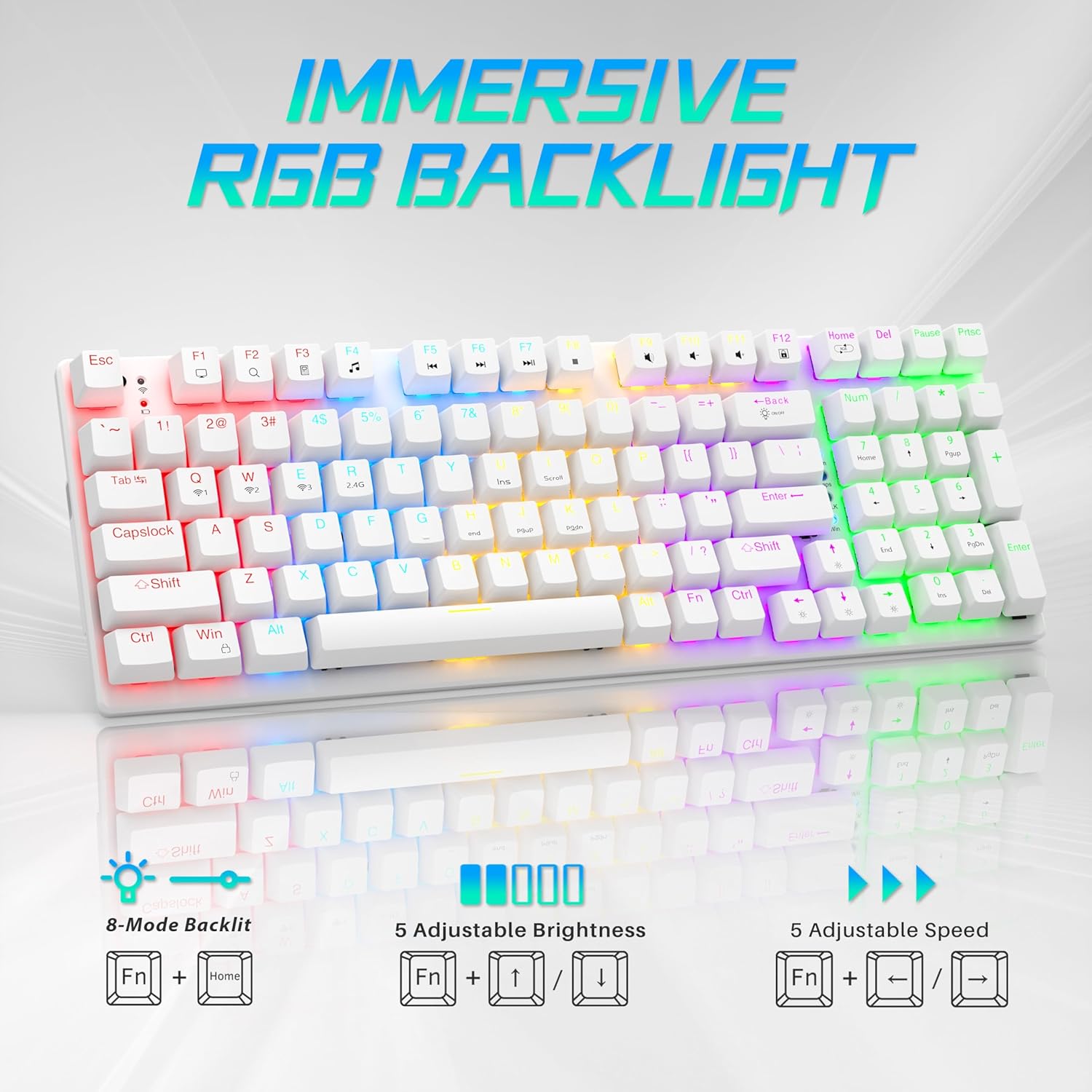
Image: Visual guide to controlling the keyboard's immersive RGB backlight, showing key combinations for 8-mode backlight, 5 adjustable brightness levels, and 5 adjustable speeds.
Video: A demonstration of the keyboard's RGB backlighting in action, highlighting the various lighting effects and colors.
4.2 마우스 DPI 조정
이 마우스는 커서 감도를 조절할 수 있도록 4단계의 DPI 조절 기능을 갖추고 있습니다.
- Change DPI: Press the DPI button located on the top of the mouse, below the scroll wheel, to cycle through the 800, 1600, 2400, and 3200 DPI settings.
5. 유지관리
- 청소: Use a soft, dry cloth to clean the surfaces of the keyboard and mouse. For deeper cleaning, a can of compressed air can remove dust and debris from between keycaps.
- Mouse Battery Replacement: When the mouse's performance degrades, replace the AA battery in the compartment on the underside.
- 키캡 제거: A keycap puller (often included with mechanical keyboards) can be used to carefully remove keycaps for cleaning or replacement.
비디오: 자세한 내용view demonstrating the mouse battery installation, USB receiver storage, and the use of a keycap puller for keyboard maintenance.
6. 문제 해결
- 장치가 연결되지 않음:
- Ensure the device is powered on and fully charged (keyboard) or has a fresh battery (mouse).
- 2.4G 무선 연결을 사용하려면 USB 수신기가 작동하는 USB 포트에 제대로 꽂혀 있는지 확인하십시오.
- For Bluetooth, ensure the device is in pairing mode and your computer's Bluetooth is enabled and searching. Try re-pairing the device.
- If using wired mode, ensure the USB-C cable is properly connected.
- 키보드 백라이트가 작동하지 않습니다:
- 키보드의 전원이 켜져 있는지 확인하세요.
- Try adjusting brightness using Fn + ↑.
- 조명 모드를 순환하려면 다음을 사용하세요. Fn + 홈.
- 마우스 커서가 튀거나 반응하지 않습니다:
- 마우스 배터리를 교체하십시오.
- 마우스 센서가 깨끗하고 이물질이 없는지 확인하십시오.
- Try using the mouse on a different surface or the provided mouse pad.
- Re-pair the mouse with your computer.
7. 사양
| 특징 | 세부 사항 |
|---|---|
| 모델 번호 | BK6301 |
| 연결 기술 | 2.4GHz 무선, 블루투스 5.0, USB-C 유선 |
| 키보드 유형 | 기계식 게임 키보드 |
| 스위치 유형 | 파란색 기계식 스위치 |
| 키 라이프 | 50 천만 클릭 |
| 백라이트 | RGB (8가지 모드) |
| 마우스 DPI 레벨 | 800/1600/2400/3200 |
| 마우스 배터리 | AA 배터리 1개(포함) |
| 호환 장치 | Laptop, PC (Windows, macOS, Android) |
| 제품 크기 (키보드 포함) | 대략 길이 14.7인치 x 너비 5.2인치 x 높이 1.8인치 |
| 품목 무게 | 2.68파운드 |

Image: The Taiahiro BK6301 keyboard and mouse with key dimensions labeled for reference.
8. 보증 및 지원
For warranty information, technical support, or any product-related inquiries, please refer to the contact details provided in your product packaging or visit the official Taiahiro web대지. 보증 청구를 위해 구매 영수증을 보관하십시오.


