1. 서론
Thank you for choosing the EvoFox Deathray V2 Gaming Keyboard and Mouse Combo. This manual will guide you through the setup, operation, and maintenance of your new gaming peripherals. Designed for precision and comfort, this combo enhances your gaming and productivity experience.

Image: The EvoFox Deathray V2 Gaming Keyboard and Mouse Combo, showcasing both devices connected via their braided cables.
2. 패키지 내용
- EvoFox Deathray V2 Gaming Keyboard
- EvoFox Deathray V2 Gaming Mouse
- 사용 설명서 (본 문서)
3. 설정 지침
- 키보드 연결: Plug the USB connector of the EvoFox Deathray V2 Keyboard into an available USB port on your computer.
- 마우스 연결: Plug the USB connector of the EvoFox Deathray V2 Mouse into another available USB port on your computer.
- 드라이버 설치: 운영 체제는 필요한 드라이버를 자동으로 감지하고 설치합니다. 일반적으로 기본 기능을 사용하는 데 추가 소프트웨어 설치는 필요하지 않습니다.
- 놓기: Place the keyboard and mouse on a flat, stable surface for optimal performance.
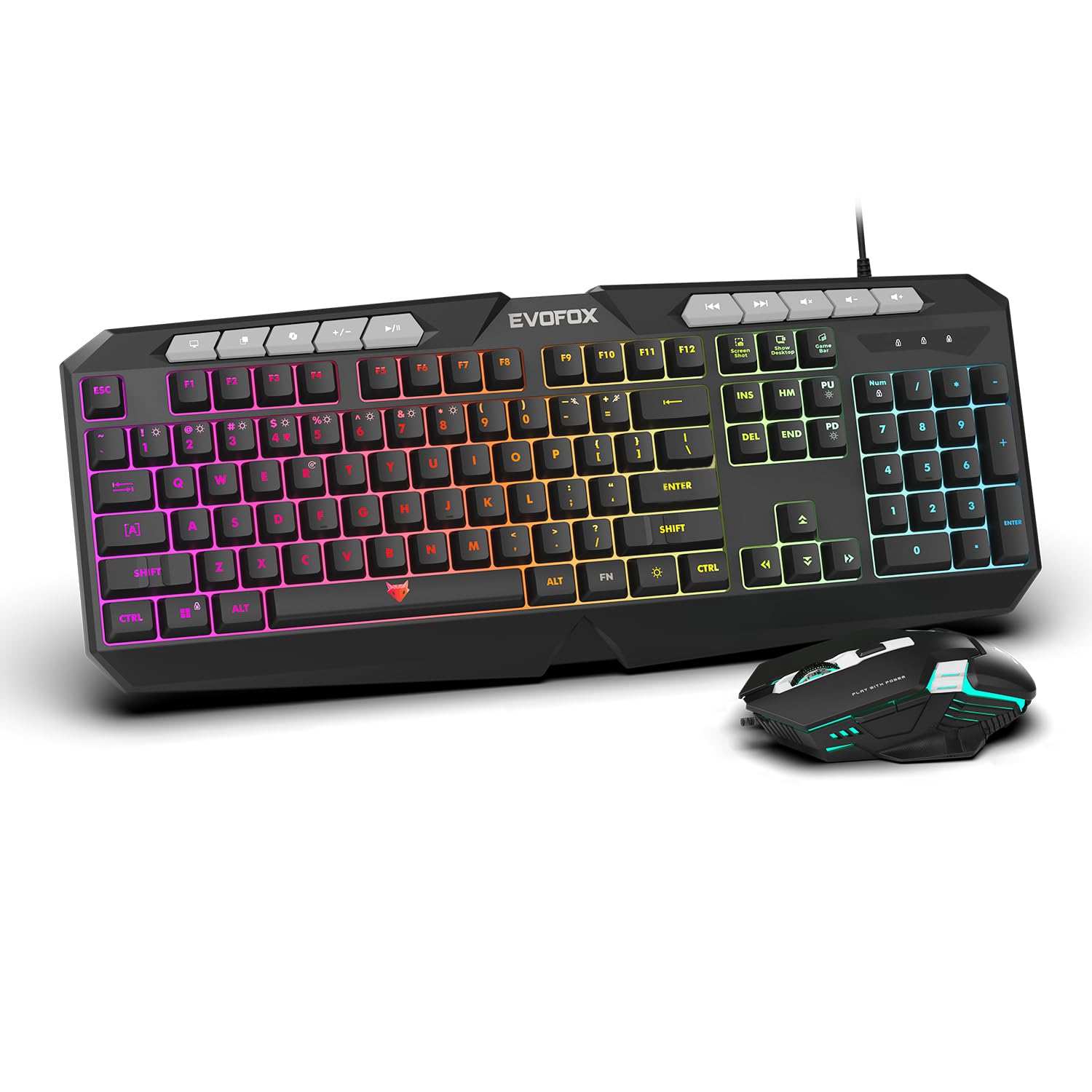
이미지: 클로즈업 view of the EvoFox Deathray V2 Keyboard and Mouse, illustrating their wired connection readiness.
4. 키보드 작동
4.1. 기본 기능
The EvoFox Deathray V2 Keyboard features a full-size layout with standard QWERTY keys, a numeric keypad, and function keys (F1-F12).
4.2. 멀티미디어 키
Dedicated multimedia keys are located above the function keys for quick access to media controls:
- 볼륨 높이기/낮추기/음소거: 오디오 레벨을 제어합니다.
- 재생/일시정지, 이전/다음 트랙: 미디어 재생을 관리합니다.
4.3. 특수 기능 키
The keyboard includes special shortcut keys for enhanced productivity and gaming:
- 스크린샷: Captures a screenshot of your display.
- 바탕 화면 표시: Minimizes all open windows to show the desktop.
- Xbox Game Bar: Opens the Xbox Game Bar for gaming features.
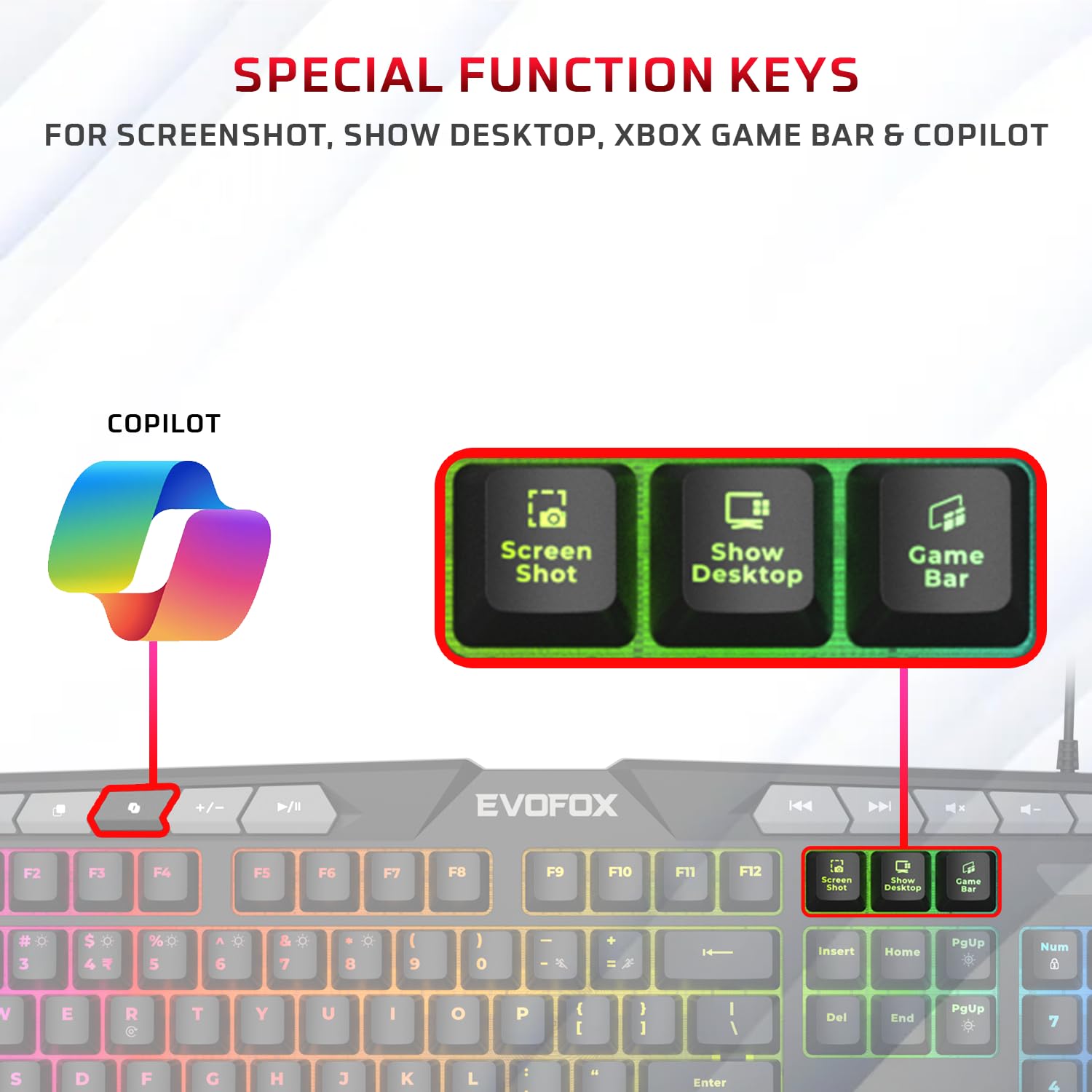
이미지: 자세한 view of the EvoFox Deathray V2 Keyboard highlighting the dedicated Screenshot, Show Desktop, and Game Bar keys.
4.4. 안티 고스팅 키
The keyboard features 19 anti-ghosting keys, ensuring that multiple simultaneous key presses are registered accurately, which is crucial for gaming.

Image: The EvoFox Deathray V2 Keyboard, visually indicating the 19 anti-ghosting key zones for precise input.
5. 마우스 작동
5.1. 버튼 및 기능
The EvoFox Deathray V2 Mouse features 6 buttons for versatile control:
- 왼쪽 클릭
- 마우스 오른쪽 클릭
- 스크롤 휠(클릭 가능)
- DPI 조정 버튼
- 앞으로 버튼
- 뒤로가기 버튼
5.2. DPI 조정
The mouse offers adjustable DPI (Dots Per Inch) settings to change cursor sensitivity. Press the DPI button located behind the scroll wheel to cycle through the available DPI levels:
- 1200DPI
- 1800DPI
- 2400DPI
- 3600DPI
Each DPI level may be indicated by a specific LED light pattern or color change on the mouse.

Image: The EvoFox Deathray V2 Mouse, illustrating its ergonomic design and the DPI adjustment button.

Image: A close-up of the EvoFox Deathray V2 Mouse, highlighting its 6-button design, rugged braided cable, and magnetic ring for data transmission.
6. Lighting Customization
6.1. Keyboard RGB Backlighting
The EvoFox Deathray V2 Keyboard features 6-zone RGB backlighting with multiple lighting modes. Use the dedicated lighting control keys (often marked with a light bulb icon or specific function key combinations) to cycle through different effects and adjust brightness.
- 8가지 조명 모드: Cycle through various preset lighting effects.
- 사용자 정의 조명: Some modes may allow for custom color assignments or patterns.

Image: The EvoFox Deathray V2 Keyboard displaying its vibrant 6-zone customizable RGB backlighting.
6.2. Mouse LED Lighting
The EvoFox Deathray V2 Mouse features 7-color LED lighting, often with a breathing effect, which changes automatically. There are typically no user-adjustable settings for the mouse lighting beyond its default cycling pattern.

Image: The EvoFox Deathray V2 Mouse illuminated with its 7-color rainbow LED lighting, featuring a breathing effect.
7. 유지관리
Proper maintenance ensures the longevity and optimal performance of your EvoFox Deathray V2 combo.
- 청소: 부드럽고 마른 천으로 키보드와 마우스를 닦으세요. 잘 지워지지 않는 얼룩은 약간 거친 천으로 닦아내세요.amp 천을 사용하여 닦되, 액체가 기기 내부로 들어가지 않도록 하십시오. 강한 화학 물질이나 연마재는 사용하지 마십시오.
- 먼지 제거: 압축 공기를 사용하여 키보드 키 사이와 마우스 센서 주변의 먼지와 이물질을 제거하십시오.
- 케이블 관리: Avoid sharp bends or excessive pulling on the braided cables to prevent damage.
- 저장: 장기간 사용하지 않을 경우, 직사광선과 극한 온도 변화를 피해 깨끗하고 건조한 곳에 보관하십시오.

Image: A close-up of the EvoFox Deathray V2 Keyboard, highlighting its durable design with a 1.8m braided cable and soft membrane keys.
8. 문제 해결
| 문제 | 가능한 원인 | 해결책 |
|---|---|---|
| 키보드/마우스가 응답하지 않습니다 | USB 연결이 느슨하거나, USB 포트에 결함이 있거나, 드라이버에 문제가 있습니다. |
|
| 키가 등록되지 않거나 고스팅됨 | Software conflict, physical obstruction, hardware issue. |
|
| 마우스 커서가 불규칙적으로 움직이거나 움직이지 않습니다. | 센서가 더럽거나, 표면이 부적절하거나, 센서가 고장난 경우. |
|
| RGB 조명이 작동하지 않습니다 | Lighting mode off, brightness too low, software issue. |
|
9. 사양
| 특징 | 세부 사항 |
|---|---|
| 제품 모델 | V2 - 2 in 1 |
| 연결성 | 유선 USB |
| 키보드 유형 | Membrane, Full-Size |
| 키보드 백라이팅 | 6-Zone RGB with 8 modes |
| 안티 고스팅 | 19개의 키 |
| 마우스 버튼 | 6 Buttons (Left, Right, Scroll Click, DPI, Forward, Backward) |
| 마우스 DPI 설정 | 1200 / 1800 / 2400 / 3600 DPI |
| 마우스 조명 | 7-Color LED Lighting (Breathing Effect) |
| 케이블 유형 | Braided Cable (1.8m for keyboard) |
| 마우스 스위치 | Huano switches, rated for 10 million clicks |
| 제품 크기 (키보드 포함) | 50 x 18 x 4cm |
| 품목 무게 | 800g |
| 원산지 | 중국 |
10. 보증 및 지원
EvoFox products are designed for durability and performance. For warranty information, technical support, or service inquiries, please refer to the official EvoFox web사이트를 방문하거나 고객 지원팀에 직접 문의하세요.
제조업체: Allied Electronics & Magnetics Private Limited
주소: C-64/4, Okhla Phase - 2, New Delhi - 110020, India
보증 청구를 위해 구매 증명서를 보관하십시오.
11. 안전 정보
- Do not expose the devices to liquid or excessive moisture.
- 극한의 온도를 피하세요.
- 기기를 직접 분해하거나 수리하지 마십시오. 그렇게 하면 보증이 무효화됩니다.
- 어린이의 손이 닿지 않는 곳에 보관하세요.