1. 서론
The Xhorse VVDI BEE Key Tool Lite is a compact and versatile device designed for locksmiths and automotive professionals using Android smartphones. It offers a range of functions for key generation, transponder cloning, and remote control operations, enhancing efficiency in key programming tasks.
2. 제품 오버view
The VVDI BEE Key Tool Lite connects directly to your Android phone via a Type-C interface, providing a user-friendly interface for various key-related functions.
주요 특징:
- Remote control generation (supports Toyota XM Smart Key, universal smart key, wireless remote, wire remote, super remote).
- Transponder cloning and identification for most common transponders.
- Generation of transponders for over 850 car models from 80 brands worldwide.
- Support for Xhorse XK wire remote, XN wireless remote, XE super remote, and smart remote generation.
- Remote generation for over 6000 vehicle remotes from 200 car brands worldwide.
- Special functions including ignition switch coil signal detection, unlocking Toyota Smartkey, 8E remote upgrade/unlock, Honda cycle key renewal, and VVDI super chip settings.
장치 구성 요소:
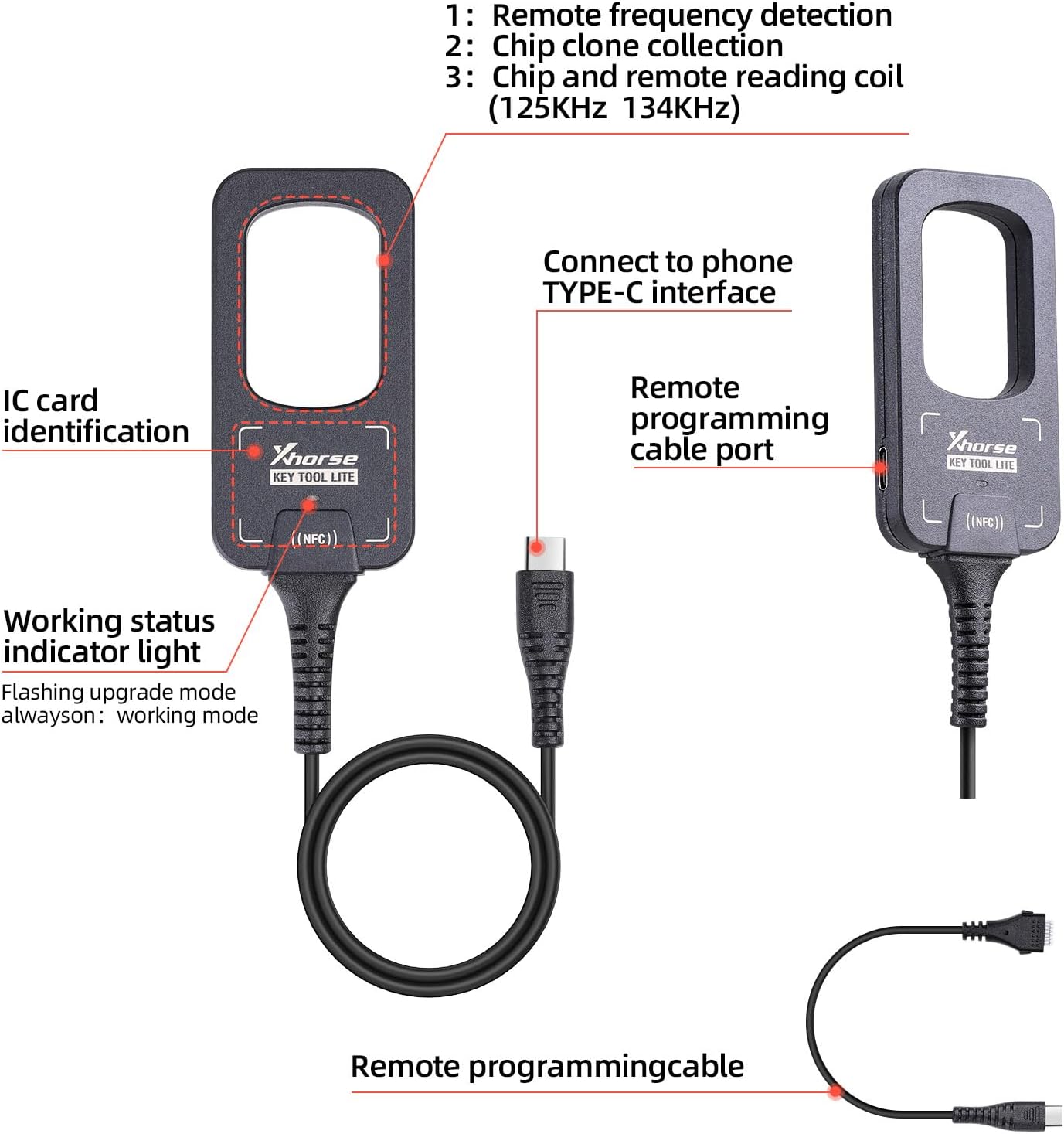
Figure 1: Key Tool Lite device showing remote frequency detection, chip clone collection, chip and remote reading coil (125KHz/134KHz), IC card identification, working status indicator light, Type-C interface, and remote programming cable port.

Figure 2: Dimensions of the Key Tool Lite device, measuring 78.9 mm in length, 40 mm in width, and 10.3 mm in thickness.
3. 상자 안에 무엇이 들어있나요?
- Xhorse VVDI BEE Key Tool Lite Device
- 6 Pcs Xhorse XKB501EN Wire Remotes
- USB Type-C 케이블
- 원격 프로그래밍 케이블
- 사용자 설명서
4. 설정
4.1 안드로이드폰 연결하기
Connect the Xhorse VVDI BEE Key Tool Lite to your Android smartphone using the provided USB Type-C cable. Ensure your phone's USB debugging mode is enabled if required by the app.

Figure 3: The Key Tool Lite connected to an Android phone, displaying the application interface.
4.2 App Installation and Device Activation
Download and install the official Xhorse application from the Google Play Store. Follow the on-screen instructions within the app to activate your device. This typically involves registering an account and linking your Key Tool Lite.

Figure 4: Step-by-step guide for device activation within the Xhorse application, including account login, security code entry, device combination, and successful activation confirmation.
5. 사용 설명서
The Xhorse VVDI BEE Key Tool Lite offers a variety of functions accessible through its dedicated Android application. Below are detailed instructions for common operations.
5.1 Remote Control Generation
This function allows you to generate various types of remote controls, including Toyota XM Smart Keys, universal smart keys, wireless remotes, wire remotes, and super remotes. Select the desired remote type from the app menu and follow the prompts to generate the remote.
5.2 응답기 복제
The device supports identification, editing, and cloning of most common transponders. Place the transponder in the designated area on the device and select the transponder cloning option in the app. Follow the instructions to complete the cloning process.
5.3 Vehicle Remote Functions
Generate Xhorse XK wire remotes, XN wireless remotes, XE super remotes, and smart remotes. The application provides extensive support for over 6000 vehicle remotes across 200 car brands. Choose your vehicle make and model within the app to find compatible remote options.
5.4 특수 기능
Access advanced features through the 'Special Function' menu in the app.
- Remote Charge Battery: Use this function to charge rechargeable keys by placing them in the device's slot and initiating the charge via the app.
- 누출 감지: Connect the leakage detection cable to the device and the key chip to be tested. The app will display the current leakage value.
- 권tage 감지: Connect the leakage detection cable to the battery. The app will display the current voltage.
- IMMO 프로그래밍: The device supports various IMMO programming models. Select 'IMMO Programming' in the app, choose the vehicle brand and model, and follow the specific programming steps.
- Key Making Process Overview:

Figure 5: Diagram illustrating the key making process, including remotes generation, battery installation, installation of remotes, key blade cutting (additional purchase), and final key matching with the vehicle using an OBD device.
6. 유지관리
6.1 Battery Installation/Replacement for Remotes
For remotes that require battery replacement, refer to the following images for guidance on accessing the circuit board and installing the battery.

Figure 6: A typical key remote disassembled, showing the external casing와 내부 회로 기판.

그림 7: 상세 view of a key remote circuit board, highlighting the control chip, buttons, power chip, and battery socket.
6.2 일반 관리
- 기기를 깨끗하게 유지하고 먼지와 습기가 없도록 하세요.
- 장치를 떨어뜨리거나 강한 충격을 가하지 마십시오.
- 사용하지 않을 때는 장치를 서늘하고 건조한 곳에 보관하십시오.
- Ensure the USB Type-C port is free from debris before connecting.
7. 문제 해결
- 장치가 휴대폰에 연결되지 않음: Ensure the USB Type-C cable is securely connected and your Android phone's USB debugging (if applicable) is enabled. Check for any loose connections.
- 앱이 기기를 인식하지 못합니다: Restart the app and reconnect the device. Ensure the app is updated to the latest version.
- Function failure: Verify that the selected function is compatible with your specific vehicle make/model and the type of key/transponder being used. Consult the app's help section for specific error codes.
- 펌웨어 업데이트 문제: Ensure a stable internet connection during firmware updates. Do not disconnect the device during the update process.
8. 사양
| 특징 | 사양 |
|---|---|
| 모델 번호 | HKSK407 |
| 상표 | 엑스호스 |
| 호환 장치 | Android Systems (Smartphones) |
| 지원되는 최대 장치 수 | 9 |
| 색상 | 검은색 |
| 품목 무게 | 12.8 온스 |
| 패키지 크기 | 10 x 7 x 1 인치 |
| 특징 | 만능인 |
9. 보증 및 지원
For warranty information, technical support, or service inquiries, please refer to the official Xhorse web사이트를 방문하거나 고객 서비스에 직접 문의하세요. 보증 청구를 위해 구매 영수증을 보관하세요.


