1. 서론
Welcome to the CyberpowerPC Gamer Xtreme GXi3200BSTV10 Gaming Desktop PC. This manual provides essential information for setting up, operating, maintaining, and troubleshooting your new gaming system. Designed for high-performance gaming and demanding applications, this PC features an Intel Core i5-14400F processor, NVIDIA GeForce RTX 5060 graphics, 16GB DDR5 RAM, and a 1TB PCIe SSD, all running on Windows 11 Home.
For optimal performance and longevity, please read this manual thoroughly before using your computer.
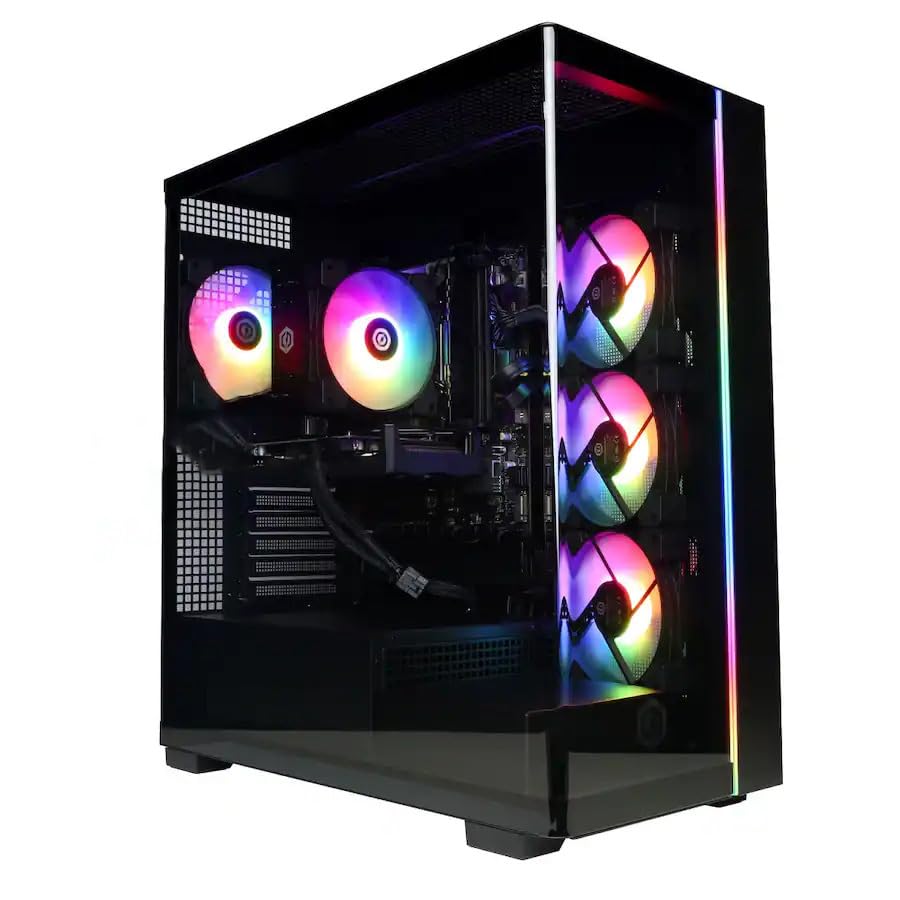
이미지: 앞면 view of the CyberpowerPC Gamer Xtreme GXi3200BSTV10 Gaming Desktop PC, showcasing its sleek design and RGB lighting elements.
2. 상자 안에 무엇이 들어있나요?
Upon unpacking your CyberpowerPC Gamer Xtreme GXi3200BSTV10, please ensure all the following items are present:
- CyberpowerPC Gamer Xtreme GXi3200BSTV10 Desktop PC
- 전원 케이블
- RGB 게이밍 키보드
- RGB 게이밍 마우스
- 문서(이 매뉴얼 포함)

Image: The included CyberpowerPC NOHI 2 Black Wired RGB 104-Key Keyboard and CyberPowerPC Elite M2 Black Wired RGB 4-Button Mouse.
3. 설정 가이드
Follow these steps to set up your new CyberpowerPC Gamer Xtreme desktop:
3.1 포장 풀기 및 배치
- PC와 모든 액세서리를 포장에서 조심스럽게 꺼내십시오. 향후 운송 또는 보증 청구를 위해 포장재를 보관하십시오.
- PC를 통풍이 잘 되는 안정적이고 평평한 곳에 놓으십시오. 공기 흡입구와 배출구 주변에 충분한 공간이 확보되어 있는지 확인하십시오.
- Remove any protective films or internal packing materials from the PC case.
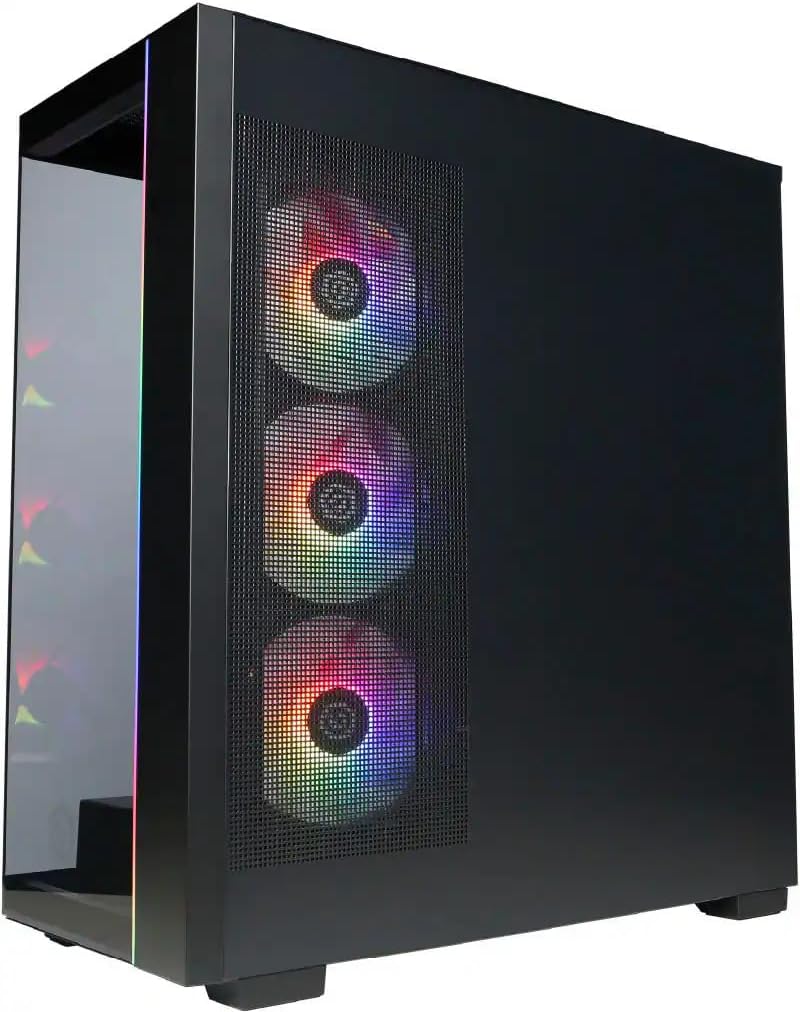
이미지: 측면 view of the PC case, highlighting the mesh panel for airflow and the RGB fans visible through it.
3.2 주변기기 연결하기
Connect your monitor, keyboard, mouse, and other devices to the appropriate ports on the back of the PC.
- 감시 장치: Connect your monitor to one of the graphics card's display outputs (DisplayPort or HDMI). Ensure it's connected to the dedicated graphics card (NVIDIA GeForce RTX 5060), not the motherboard's integrated graphics ports.
- 키보드 및 마우스: Connect the included RGB keyboard and mouse to any available USB ports.
- 회로망: For wired internet, connect an Ethernet cable to the RJ-45 port. For wireless internet, ensure the Wi-Fi antennas (if provided) are attached.
- 오디오: 스피커나 헤드폰을 오디오 출력 단자에 연결하세요.
3.3 전원 연결 및 초기 부팅
- Connect the power cable to the PC's power supply unit (PSU) and then to a grounded electrical outlet.
- PC 앞면이나 윗면에 있는 전원 버튼을 누르세요.
- Follow the on-screen instructions to complete the Windows 11 Home setup process. This may include setting up your user account, network connection, and privacy settings.
4. PC 작동 방법
This section covers basic operation of your CyberpowerPC Gamer Xtreme.
4.1 전원 켜기/끄기 및 다시 시작
- 전원 켜기: 전원 버튼을 한 번 누르세요.
- 종료: Windows에서 시작 버튼을 클릭한 다음 전원 > 시스템 종료를 선택합니다.
- 다시 시작: Windows에서 시작 버튼을 클릭한 다음 전원 > 다시 시작을 선택합니다.
- 강제 종료: If the system is unresponsive, press and hold the power button for 5-10 seconds until the PC turns off. Use this only as a last resort.
4.2 네트워크 연결
- 유선(이더넷): Once the Ethernet cable is connected, Windows 11 should automatically detect and connect to the network.
- 무선(Wi-Fi): Click the Wi-Fi icon in the taskbar, select your desired network, enter the password, and click Connect.
4.3 RGB 조명 제어
Your system features customizable RGB lighting for fans, case, and CPU cooler. Control software for RGB lighting may be pre-installed or available for download from the CyberpowerPC website. Refer to the specific software's instructions for detailed customization options.

이미지: 상세 view of the RGB fans, illustrating the vibrant lighting effects within the PC case.

Image: Close-up of the CPU cooler, showing its design and integrated RGB lighting.
5. 유지관리
정기적인 유지 관리는 PC의 수명과 최적의 성능을 보장하는 데 도움이 됩니다.
5.1 청소
- 외부: 부드러운 d를 사용하세요amp cloth to clean the exterior of the case. Avoid harsh chemicals.
- 먼지: Periodically clean dust from the internal components, especially fans and heatsinks, using compressed air. Ensure the PC is powered off and unplugged before opening the case.
- 에어 필터: If your case has removable air filters, clean them regularly to maintain optimal airflow.
5.2 소프트웨어 업데이트
- Windows 업데이트: Regularly check for and install Windows updates to ensure security and performance improvements. Go to Settings > Windows Update.
- 드라이버 업데이트 : Keep your graphics card drivers (NVIDIA GeForce) and other component drivers updated for best performance and compatibility. Visit the respective manufacturer's web최신 드라이버를 제공하는 사이트입니다.
5.3 데이터 백업
Regularly back up your important data to an external drive or cloud storage to prevent data loss in case of hardware failure or other issues.
6. 문제 해결
이 섹션에서는 일반적으로 발생할 수 있는 문제에 대한 해결책을 제공합니다.
6.1 전원 없음
- 전원 케이블이 PC와 벽면 콘센트에 모두 단단히 연결되어 있는지 확인하세요.
- Check if the power switch on the PSU (located at the back of the PC) is in the 'ON' position.
- 다른 장치로 콘센트를 테스트하여 전원이 들어오는지 확인하세요.
6.2 모니터에 디스플레이가 표시되지 않음
- Verify that the monitor is powered on and its video cable is securely connected to the graphics card (NVIDIA GeForce RTX 5060) on the PC.
- 모니터의 입력 소스가 올바르게 설정되어 있는지 확인하십시오(예: HDMI 1, DisplayPort).
- Try connecting the monitor to a different display output port on the graphics card.
6.3 System Running Slowly
- 작업 관리자(Ctrl+Shift+Esc)를 열어 CPU, RAM 또는 디스크 리소스를 과도하게 사용하는 애플리케이션이 있는지 확인하십시오.
- Windows와 드라이버가 최신 상태인지 확인하세요.
- 악성코드나 바이러스를 검사하기 위해 전체 시스템 검사를 실행하세요.
- PC의 통풍이 잘 되는지, 과열되지 않는지 확인하십시오.
7. 사양
Detailed technical specifications for your CyberpowerPC Gamer Xtreme GXi3200BSTV10:

Image: Infographic summarizing key specifications including Intel Core i5-14400F, NVIDIA GeForce RTX 5060, 16GB DDR5 RAM, and 1TB PCIe NVMe M.2 SSD.
| 요소 | 사양 |
|---|---|
| 프로세서 | Intel Core i5-14400F (10-Core, 2.5 GHz base, up to 4.7 GHz Turbo Boost) |
| 그래픽 카드 | 엔비디아 지포스 RTX 5060 8GB GDDR7 |
| 숫양 | 16GB DDR5 6000MHz |
| 저장 | 1TB PCIe NVMe M.2 SSD |
| 운영 체제 | 윈도우 11 홈 |
| 무선 연결 | Wi-Fi (802.11ax), 블루투스 |
| 오디오 | 7.1채널 고화질 오디오 |
| 디스플레이 출력 | 3x 디스플레이포트, 1x HDMI |
| USB 포트 | USB-C 3.2 포트 1개, USB-A 3.2 포트 3개, USB-A 2.0 포트 4개 |
| 치수(길이x너비x높이) | 18.1 x 9.2 x 20 인치 |
| 품목 무게 | 40파운드 |
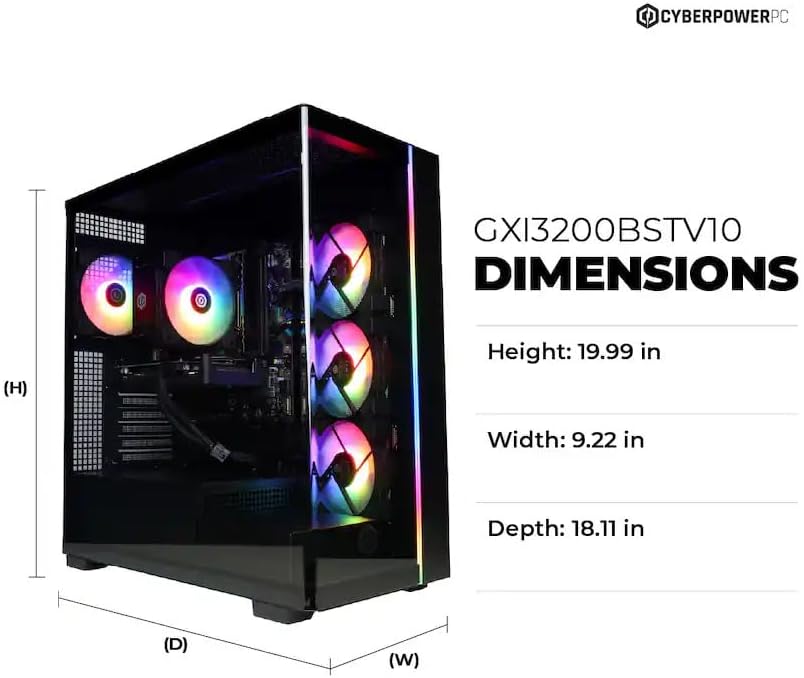
Image: Diagram illustrating the dimensions of the CyberpowerPC Gamer Xtreme GXi3200BSTV10: Height 19.99 in, Width 9.22 in, Depth 18.11 in.
8. 보증 및 지원
8.1 제조업체 보증
Your CyberpowerPC Gamer Xtreme GXi3200BSTV10 comes with a 1년 제조업체 보증. 본 보증은 정상적인 사용 환경에서 발생하는 재료 및 제조상의 결함에 적용됩니다. 보증 청구를 위해 구매 증빙 서류를 보관해 주십시오.
For specific terms and conditions of the warranty, please refer to the documentation included with your PC or visit the official CyberpowerPC web대지.
8.2 기술 지원
If you encounter issues that cannot be resolved using the troubleshooting steps in this manual, please contact CyberpowerPC technical support. Have your model number (GXi3200BSTV10) and serial number ready when contacting support.
You can typically find support contact information on the CyberpowerPC website or in the documentation provided with your system.


