소개
This manual provides essential information for the setup, operation, maintenance, and troubleshooting of your Onn 22 inch 1080P 100 Hz FHD LED Monitor. Please read this guide thoroughly before using the product to ensure optimal performance and safety.
The Onn 22 inch FHD LED Monitor is designed for a variety of applications, offering a vivid 1920x1080 resolution, a 100Hz refresh rate, and a 6.5ms response time for efficient performance. Its slim profile and T-shaped base are ideal for saving desk space.
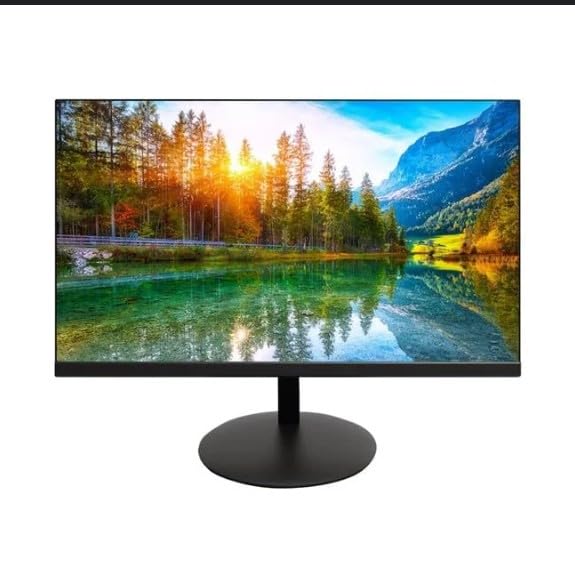
The image shows the Onn 22 inch FHD LED Monitor, highlighting its 100Hz refresh rate and 1080p resolution. The monitor features a slim design and a T-shaped base.
설치 지침
- 짐 풀기: Carefully remove the monitor and all accessories from the packaging. Ensure all components are present: monitor, T-shaped base, HDMI cable, and power adapter.
- 스탠드 조립: Attach the T-shaped base to the monitor. The design is screw-less for easy assembly. Ensure it is securely fastened.
- 장치에 연결:
The monitor supports both HDMI and VGA inputs. Connect the provided HDMI cable from your computer's HDMI output to the HDMI IN port on the monitor. Alternatively, use a VGA cable for VGA input.

This image displays the rear panel of the Onn monitor, illustrating the available input ports: HDMI IN, VGA IN, and the DC 12V power input. These ports are essential for connecting the monitor to a computer or other devices.
- 전원 연결: Connect the power adapter to the DC 12V input port on the monitor, then plug the adapter into a power outlet.
- 모니터 조정: The monitor is capable of swivel, tilt, rotation, and height adjustment. Adjust the screen to your preferred view인체공학적 편안함을 위한 각도.
- 듀얼 모니터 설정: This monitor is suitable for a fully functioning dual monitor setup. Connect a second monitor using the appropriate cables and configure your operating system's display settings.
작동 지침
- 전원 켜기/끄기: Press the power button, usually located on the bottom or back of the monitor, to turn it on or off.
- 입력 선택: If the monitor does not automatically detect the input source, use the On-Screen Display (OSD) menu buttons to manually select between HDMI and VGA inputs.
- OSD 메뉴 탐색: Use the physical buttons on the monitor (typically on the back or bottom edge) to navigate the OSD menu. This allows you to adjust settings such as brightness, contrast, color temperature, and input source.
- 해상도 및 화면 주사율: The monitor supports a native resolution of 1920x1080 at a 100Hz refresh rate. Ensure your computer's display settings are configured to these specifications for the best visual experience.
- 적응 동기화: The monitor features Adaptive Sync for gaming, which helps to reduce screen tearing and stuttering. Ensure this feature is enabled in your graphics card settings if supported.
유지
- 화면 청소: 부드럽고 보풀이 없는 천으로 화면을 부드럽게 닦으세요. 잘 지워지지 않는 얼룩은 가볍게 닦아주세요.ampen the cloth with water or a non-abrasive, monitor-specific cleaning solution. Avoid spraying liquids directly onto the screen.
- C 청소asing: 부드럽고 마른 천을 사용하여 모니터를 청소하십시오.asing. Do not use strong detergents or solvents, as they may damage the finish.
- 통풍: 과열을 방지하려면 모니터의 통풍구가 막히지 않았는지 확인하세요.
- 저장: 장기간 사용하지 않을 경우 모니터를 직사광선과 극한 온도 변화를 피해 서늘하고 건조한 곳에 보관하십시오.
문제 해결
- 전원 없음:
- 전원 케이블이 모니터와 전원 콘센트에 모두 제대로 연결되어 있는지 확인하세요.
- 전원 콘센트가 올바르게 작동하는지 확인하십시오.
- 신호 없음:
- 비디오 케이블(HDMI 또는 VGA)이 모니터와 컴퓨터에 제대로 연결되어 있는지 확인하십시오.
- 모니터의 OSD 메뉴를 사용하여 올바른 입력 소스를 선택하세요.
- 컴퓨터가 켜져 있고 절전 모드가 아닌지 확인하세요.
- 화면 깜빡임 또는 화질 저하:
- 비디오 케이블에 손상이나 느슨한 연결이 있는지 확인하세요.
- 컴퓨터의 해상도와 주사율 설정을 모니터 사양(1920x1080, 100Hz)에 맞게 조정하십시오.
- OSD 메뉴를 통해 모니터 설정을 공장 초기값으로 재설정하세요.
- 버튼이 응답하지 않음:
- Unplug the monitor from the power outlet, wait for 30 seconds, and then plug it back in.
문제가 지속될 경우 "지원 및 보증" 섹션에 제공된 지원 정보를 참조하십시오.
명세서
| 상표 | 온 |
| 모델 번호 | 100140681 |
| 모델명 | 장미유 |
| 화면 크기 | 21.5 인치 |
| 디스플레이 유형 | LED, LCD |
| 해결 | 1920 x 1080(FHD 1080p) |
| 새로 고침 빈도 | 100Hz |
| 응답 시간 | 6.5밀리초 |
| 하드웨어 인터페이스 | HDMI, VGA |
| 특별 기능 | 높이 조정 |
| View잉 각도 | 160도 |
| 종횡비 | 16시 9분 |
| 제품 치수 | 49.2 x 20 x 37.2cm; 3.24kg |
지원 및 보증
For technical support, product inquiries, or warranty information, please visit the official Onn support web사이트를 방문하거나 고객 서비스에 문의하세요.
- 공식 지원 Web대지: onnsupport.ca
- 보증: Specific warranty details may vary by region and purchase date. Please refer to the documentation included with your product or visit the support web최신 보증 정보는 사이트에서 확인하세요.


