1. 서론
This manual provides essential information for the safe and efficient operation of your NexiGo PJ40 Ultra Outdoor Netflix Projector. Please read this manual thoroughly before using the projector and retain it for future reference.
2. 안전 정보
프로젝터 손상을 방지하고 사용자의 안전을 확보하려면 다음 안전 예방 조치를 준수하세요.
- 환기구를 막지 마십시오. 프로젝터 주변에 공기가 충분히 흐르도록 하십시오.
- 프로젝터를 비, 습기 또는 극한의 온도에 노출시키지 마세요.
- 프로젝터와 함께 제공된 전원 어댑터만 사용하세요.
- 프로젝터 렌즈를 직접 쳐다보지 마십시오.amp 켜져있습니다.
- 프로젝터를 열원과 직사광선으로부터 멀리 두십시오.
- 번개가 칠 때나 장기간 사용하지 않을 때는 전원 코드를 뽑아 두세요.
3. 패키지 내용
패키지에 모든 품목이 들어 있는지 확인하세요.
- NexiGo PJ40 Ultra Projector
- 리모컨 (AAA 배터리 2개 필요)
- 전원 어댑터
- HDMI 케이블
- AV 케이블
- 렌즈 청소 천
- Spare Air Filter
- 사용자 설명서
4. 제품 오버view
The NexiGo PJ40 Ultra is a high-performance projector designed for versatile entertainment. It features native 1080p resolution, 800 ANSI lumens brightness, and AI image enhancement for clear, vibrant visuals. Integrated 20W speakers provide immersive audio. The projector includes officially licensed streaming apps like Netflix, YouTube, and Prime Video, along with comprehensive connectivity options.

Figure 4.1: NexiGo PJ40 Ultra Projector with projected Netflix screen.
주요 특징:
- 기본 1080p 해상도: Delivers crisp images with incredible detail.
- 800 ANSI 루멘 밝기: Provides clear visuals in various lighting conditions.
- AI Picture Quality Enhancement: Optimizes clarity, detail, and color reproduction with HDR and HLG support.
- Officially Licensed Streaming: Pre-installed Netflix, YouTube, and Prime Video for immediate access to content.
- AI-Enhanced Surround Sound: 20W speakers with DSP decoding for immersive audio.
- 자동 키스톤 보정: 수직 이미지 왜곡을 자동으로 조정합니다.
- 무선 화면 미러링: Supports iOS, Android, and Windows devices via 5 GHz Wi-Fi.
- 다중 연결 옵션: Includes 2 USB ports, 2 HDMI inputs, AV port, and 3.5mm audio jack.
5. 설정
5.1 초기 전원 켜기
- 전원 어댑터를 프로젝터의 전원 입력 단자에 연결한 다음 전원 콘센트에 연결하십시오.
- 프로젝터나 리모컨의 전원 버튼을 눌러 켜세요.
- Follow the on-screen instructions for initial language and network setup.
5.2 배치 및 화면 크기
Position the projector on a stable, flat surface. The projection distance affects the screen size. Refer to the table below for recommended distances.

Figure 5.1: Recommended Projection Distances.
| Screen Diagonal (in.) | 투사 거리(피트) |
|---|---|
| 72 | 7.68 |
| 100 | 10.5 |
| 120 | 12.4 |
| 150 | 15.52 |
| 300 | 30.18 |
Note: Sizing measured by NexiGo Laboratory. Test measurements do not include the screen border size.
5.3 초점 및 키스톤 보정
- 초점 조정: Rotate the focus wheel on the projector until the image is clear.
- 자동 수직 키스톤: The projector features automatic vertical keystone correction. Ensure this setting is enabled in the menu for automatic adjustment.
- Manual 4D Correction: For horizontal or more precise adjustments, navigate to the manual keystone settings in the menu.
- 줌 기능 : Use the zoom function in the settings to shrink the screen size from 100% down to 60% without moving the projector.
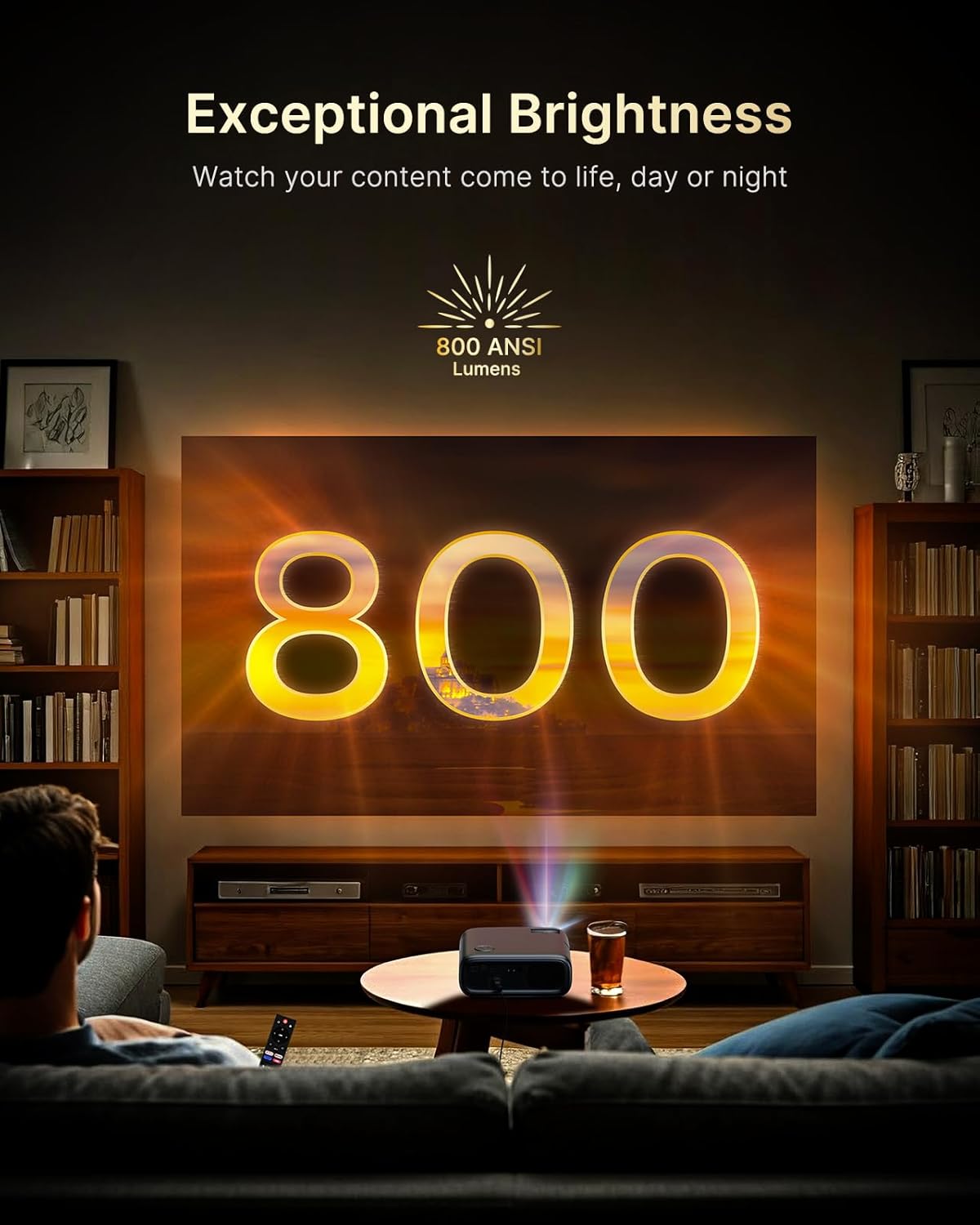
Figure 5.2: Keystone Correction and Zoom Options.
5.4 네트워크 연결
To access streaming services and screen mirroring, connect the projector to a Wi-Fi network:
- '설정' 메뉴로 이동하세요.
- Select 'Network' or 'Wi-Fi'.
- 목록에서 원하는 Wi-Fi 네트워크를 선택하고 비밀번호를 입력하세요.

Figure 5.3: Dual-Band Wi-Fi Connectivity.
5.5 외부 장치 연결
The PJ40 Ultra offers various ports for connecting external devices:
- HDMI Ports (HDMI 1, HDMI 2): Connect gaming consoles (PS5, Nintendo Switch), TV sticks, laptops, or other HDMI-enabled devices. HDMI 1 supports ARC & CEC, HDMI 2 supports CEC.
- USB 포트: Connect USB flash drives or hard drives for media playback.
- AV Input Port: 동봉된 AV 케이블을 사용하여 구형 기기를 연결하세요.
- 3.5mm 오디오 잭: 외부 헤드폰이나 스피커를 연결하세요.

Figure 5.4: Connectivity Ports.
6. 사용 설명서
6.1 원격 제어 내비게이션
Use the included remote control to navigate the projector's interface. The remote allows you to power on/off, adjust volume, select input sources, and access settings and applications.
6.2 스트리밍 애플리케이션
The projector comes with pre-installed and officially licensed applications:
- 넷플릭스: Access your Netflix library directly.
- 유튜브: Browse and watch videos from YouTube.
- 프라임 비디오: Stream content from Amazon Prime Video.
To use these apps, ensure the projector is connected to the internet and log in with your respective account credentials.

Figure 6.1: Officially Licensed Streaming Applications.
6.3 화면 미러링
The PJ40 Ultra supports wireless screen mirroring for various devices:
- iOS 기기(AirPlay): Connect your iPhone or iPad to the same Wi-Fi network as the projector and use AirPlay to mirror your screen.
- Android Devices (Screen Mirror): Use the Screen Mirroring feature on your Android device to connect wirelessly.
- Windows Devices (Windows Cast): Utilize Windows Cast functionality for screen sharing from compatible Windows computers.
Note: Due to copyright restrictions, some streaming apps (e.g., Netflix, Amazon Prime, Hulu) may not support direct screen mirroring.
6.4 오디오 설정
The projector features built-in 20W speakers with DSP decoding for enhanced audio. You can also connect external audio devices:
- 블루투스 연결 : Pair Bluetooth speakers or headphones for a wireless audio experience.
- 3.5mm 오디오 잭: 유선 헤드폰이나 외부 스피커를 연결하세요.

Figure 6.2: AI-Enhanced Surround Sound.
7. 유지관리
7.1 렌즈 청소
Use the provided lens cleaning cloth to gently wipe the projector lens. Avoid using abrasive cleaners or materials that could scratch the lens surface.
7.2 공기 필터 유지 관리
The projector includes an air filter to prevent dust accumulation. Periodically check and clean the air filter to maintain optimal performance and cooling. A spare air filter is included for replacement when necessary.
7.3 일반 관리
- 프로젝터를 깨끗하고 건조한 환경에 보관하십시오.
- When not in use, cover the lens with the protective cap.
- 프로젝터를 떨어뜨리거나 강한 충격을 가하지 마십시오.
8. 문제 해결
일반적인 문제 및 해결책:
- 전원 없음: Ensure the power adapter is securely connected to both the projector and a working power outlet. Try a different outlet.
- 이미지 없음:
- 프로젝터의 전원이 켜져 있는지 확인하세요.
- 입력 소스가 올바르게 선택되었는지 확인하십시오(예: HDMI 1, HDMI 2).
- 연결된 장치가 켜져 있고 신호를 출력하고 있는지 확인하십시오.
- 흐릿한 이미지: Adjust the focus wheel on the projector until the image is sharp. Check keystone correction settings.
- 소리 없음:
- 프로젝터와 연결된 소스 기기의 볼륨을 높이세요.
- 외부 스피커나 헤드폰이 블루투스를 통해 제대로 연결 또는 페어링되었는지 확인하십시오.
- Ensure the audio output setting on the source device is correct.
- Wi-Fi 연결 문제:
- Wi-Fi 비밀번호가 올바르게 입력되었는지 확인하세요.
- 프로젝터와 Wi-Fi 라우터를 다시 시작하세요.
- Move the projector closer to the Wi-Fi router to improve signal strength.
- Projector Randomly Powers On: Some users have reported the projector powering on from standby mode unexpectedly. If this occurs, ensure the projector is fully powered off at the main power switch or unplugged when not in use to prevent unintended operation. Check for any available firmware updates that might address this behavior.
9. 사양
| 특징 | 사양 |
|---|---|
| 상표 | 넥시고 |
| 모델 번호 | PJ40 울트라 |
| 제품 치수 | 11.3 x 10.78 x 4.8 인치 |
| 품목 무게 | 7.99파운드 |
| 디스플레이 해상도 | 1920 x 1080 (Native 1080p) |
| 명도 | 800 ANSI 루멘스 |
| 연결 기술 | HDMI, USB, Wi-Fi |
| 특별 기능 | Official Netflix-Licensed, Built-in 20W Speaker, HDMI CEC Support, Wireless Screen Mirroring, Auto Keystone, 4K Support Input |
| 제조업체 | (주)넥사이트 |
| 첫 번째 이용 가능 날짜 | 2년 2025월 XNUMX일 |
10. 보증 및 지원
NexiGo is committed to customer satisfaction and provides comprehensive support for its products.
- 고객 지원: 24시간 고객 지원이 가능합니다.
- 반품/교환 정책: Enjoy a 30-day return or exchange period.
- 기술 지원: 귀하의 제품에 대해서는 평생 기술 지원이 제공됩니다.

Figure 10.1: NexiGo Customer Support Information.
For further assistance or to contact support, please visit the official NexiGo web자세한 내용은 해당 사이트를 참조하거나 제품 포장과 함께 제공된 연락처 정보를 참조하세요.


