1. 서론
This manual provides essential information for the proper installation, operation, and maintenance of your GAMEON Pro Series 27-inch Fast IPS Gaming Monitor (Model: GOAE27QHD165IPS). Please read this manual thoroughly before using the product to ensure optimal performance and safety. Keep this manual for future reference.

이미지 1.1: 앞면 view of the GAMEON Pro Series 27-inch Fast IPS Gaming Monitor, showcasin얇은 베젤과 스탠드를 갖추고 있습니다.
The GAMEON Pro Series 27-inch Fast IPS Gaming Monitor features a QHD 2K (2560x1440p) resolution, a 165Hz refresh rate, and a 0.5ms MPRT response time. It supports Adaptive-Sync and Variable Refresh Rate (VRR) technologies for smooth, tear-free gameplay. Connectivity options include dual HDMI 2.1 ports and dual DisplayPort 1.4 ports, along with an audio-out jack and integrated speakers. This monitor is compatible with various gaming consoles and PCs, including PS5.
2. 패키지 내용
제품을 개봉하신 후 구성품을 확인해 주십시오. 누락된 품목이나 손상된 품목이 있을 경우 판매점에 문의해 주십시오.
- GAMEON Pro Series 27-inch Fast IPS Gaming Monitor
- 모니터 스탠드(베이스 및 넥)
- 전원 어댑터 및 전원 케이블
- HDMI 케이블
- DisplayPort 케이블
- 사용자 설명서
3. 설정
3.1 모니터 조립
- 모니터를 포장에서 조심스럽게 꺼내되, 화면을 보호하십시오.
- 스탠드 목 부분을 모니터 패널에 부착하십시오. 딸깍 소리가 나면서 단단히 고정되었는지, 또는 제공된 나사를 사용하여 고정되었는지 확인하십시오.
- 스탠드 받침대를 스탠드 목 부분에 부착하고 받침대 하단의 나사를 조입니다.
- 조립된 모니터를 안정적이고 평평한 표면에 놓으세요.
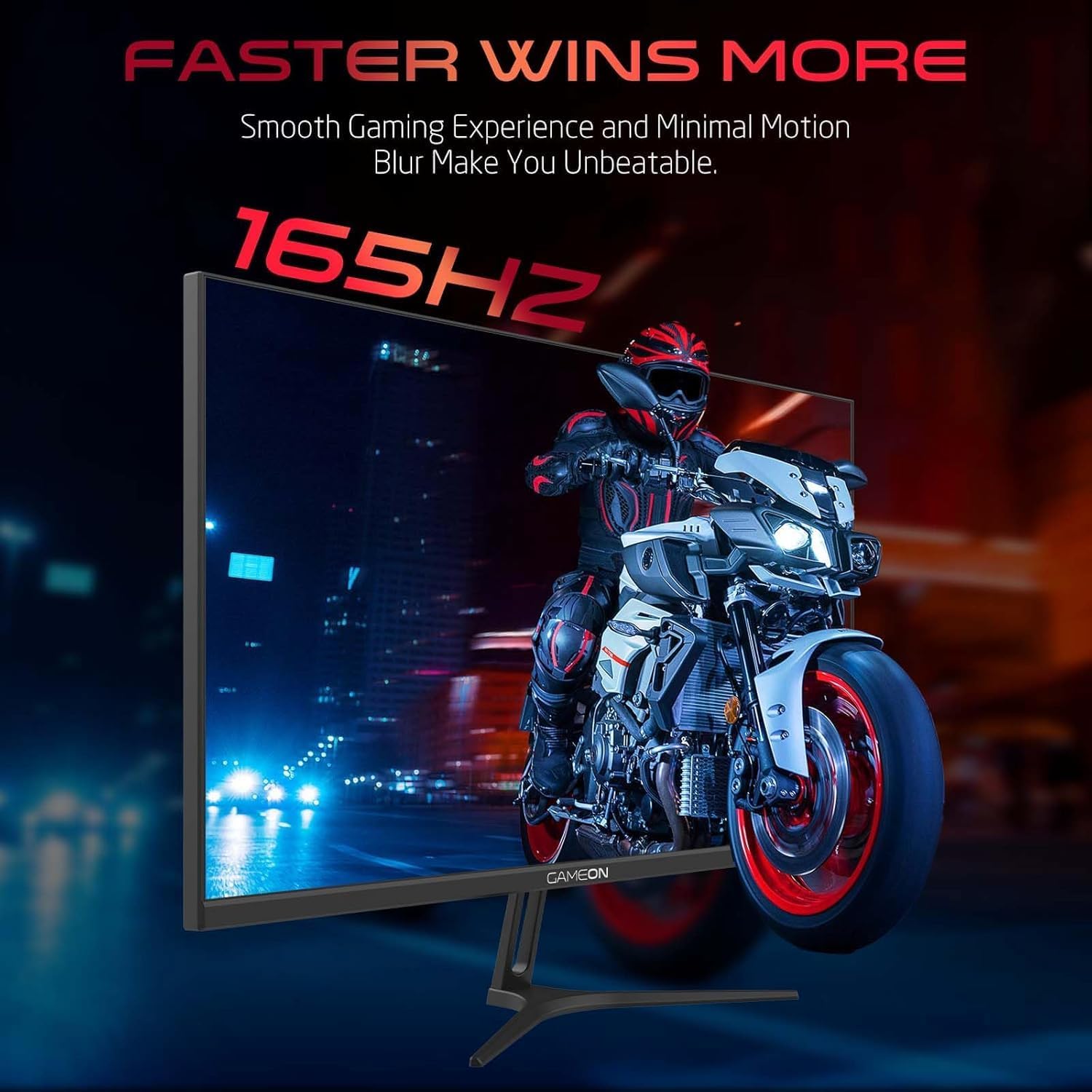
Image 3.1: Illustration of the monitor with its stand, ready for assembly.
3.2 장치에 연결하기
The monitor offers multiple input options. Choose the appropriate cable for your device (PC, gaming console, etc.).

이미지 3.2: 후면 view of the monitor, highlighting the input ports and VESA mounting points.

Image 3.3: Detailed diagram illustrating the various input/output ports and their corresponding devices.
- HDMI 연결: Connect one end of the HDMI cable to the HDMI output port of your device (PC, PS5, Xbox, TV box) and the other end to one of the HDMI 2.1 ports on the monitor.
- 디스플레이포트 연결: Connect one end of the DisplayPort cable to the DisplayPort output of your PC and the other end to one of the DisplayPort 1.4 ports on the monitor.
- 오디오 출력: For external audio, connect headphones or external speakers to the 3.5mm audio-out jack on the monitor.
3.3 전원 연결
- Connect the power adapter to the DC IN port on the monitor.
- Plug the power cable into the power adapter, then plug the other end of the power cable into a power outlet.
4. 사용 설명서
4.1 전원 켜기/끄기
모니터에 있는 전원 버튼을 눌러 모니터를 켜거나 끄세요. 모니터가 켜지면 전원 표시등이 켜집니다.
4.2 온스크린 디스플레이(OSD) 메뉴
The monitor features a menu button (often a joystick or a series of buttons) usually located on the back or bottom right of the monitor. Use this to navigate the OSD menu and adjust settings.
- Press the menu button to open the OSD menu.
- 탐색 컨트롤을 사용하여 메뉴 옵션을 이동하세요.
- Press the menu button again (or a designated 'Enter' button) to select an option.
- Use the navigation controls to adjust values or select sub-menus.
- Select 'Exit' or press the menu button repeatedly to close the OSD menu.
4.3 일반적인 OSD 설정
- 사진 설정: 밝기, 대비, 선명도, 감마, 색온도를 조정합니다.
- 색상 설정: RGB 값, 색조 및 채도를 세밀하게 조정합니다.
- 입력 소스: Manually select between HDMI 1, HDMI 2, DisplayPort 1, or DisplayPort 2.
- 오디오: 내장 스피커 또는 연결된 헤드폰의 볼륨을 조절하세요.
- 게임 기능: Enable/disable Adaptive-Sync/FreeSync, adjust overdrive settings, and activate crosshair overlays if available.
4.4 PS5 120Hz Setup Guide
To enable 120Hz output on your PlayStation 5 with this monitor, follow these steps:

Image 4.1: Visual guide for configuring 120Hz refresh rate on a PlayStation 5 console.
- Enable 120Hz from PS5 Settings:
- 이동하다 설정 > 화면 및 비디오 > 비디오 출력.
- 세트 Enable 120Hz Output 에게 오토매틱.
- 세트 해결 에게 1080p or 오토매틱. (Note: While the monitor supports 1440p, some PS5 games may require 1080p for 120Hz output.)
- Enable Performance Mode for Gamers:
- 이동하다 설정 > Save Data and Game App Settings > 게임 사전 설정.
- 세트 성능 모드 기본값으로.
- Check In-Game Settings:
- Go to the specific game's 게임 설정 > 비디오 설정 그리고 선택하세요 120fps or 성능 모드.
5. 유지관리
5.1 화면 청소
- 모니터를 끄고 전원 케이블을 뽑으세요.
- 부드럽고 보풀이 없는 천을 살짝 사용하십시오. damp물이나 특수 스크린 세척제로 세척하세요.
- Wipe the screen gently. Do not press hard or use abrasive materials.
- Avoid using alcohol, ammonia, or benzene-based cleaners, as they may damage the screen surface.
5.2 C 청소asing
- 부드럽고 마른 천을 사용하여 모니터를 닦으세요.asing.
- 잘 지워지지 않는 얼룩은 가볍게 damp물과 순한 세제를 묻힌 천으로 물기를 닦아내세요.
6. 문제 해결
모니터에 문제가 발생하면 다음 문제 해결 가이드를 참조하십시오.
| 문제 | 가능한 원인 | 해결책 |
|---|---|---|
| 화면에 이미지가 없습니다. | 전원이 켜지지 않음; 잘못된 입력 소스; 비디오 케이블이 헐거워짐 | Ensure power cable is securely connected and power outlet is active. Press power button. Check OSD menu to select correct input source (HDMI/DP). Reconnect video cable firmly. |
| 이미지가 흐릿하거나 왜곡됩니다. | Incorrect resolution; Video cable issue | Set display resolution to 2560x1440p in your device's display settings. Try a different video cable. |
| 소리가 나지 않습니다 | Volume too low; Incorrect audio output selected; Loose audio cable | Adjust monitor volume via OSD. Ensure monitor is selected as the audio output device on your PC/console. Check external audio cable connection if using headphones/speakers. |
| 화면 깜박임 | Refresh rate mismatch; Adaptive-Sync/VRR issue | Ensure your device's refresh rate is set to 165Hz. If flickering persists with Adaptive-Sync/VRR enabled, try disabling it in the OSD or your graphics card settings. |
| Monitor not detected by PC/console | Video cable issue; Driver issue | Try a different video cable or port. Update your graphics card drivers. Restart your PC/console. |
7. 사양
Below are the technical specifications for the GAMEON Pro Series 27-inch Fast IPS Gaming Monitor (GOAE27QHD165IPS):
| 특징 | 사양 |
|---|---|
| 디스플레이 크기 | 27인치 |
| 패널 유형 | 빠른 IPS |
| 해결 | QHD 2K (2560x1440p) |
| 새로 고침 빈도 | 165Hz |
| 응답 시간 | 0.5ms MPRT |
| 대비율 | 1000시 1분 |
| 명도 | 280 (±30) nits typical |
| View잉 앵글 | 넓은 viewing angles (IPS technology) |
| 적응형 동기화 기술 | Adaptive-Sync, FreeSync, VRR Compatible |
| 연결성 | HDMI 2.1 포트 2개, DisplayPort 1.4 포트 2개, 3.5mm 오디오 출력 포트 1개 |
| 오디오 | Built-in 4Ω2W speakers |
| VESA 마운트 호환성 | 100x100mm |
| 전원 입력 | 외부 DC 12V 4A 어댑터 |
| 최대 전력 소비량 | 48와트 |
| 제품 치수(스탠드 포함) | 16.2 x 61.4 x 45.3cm |
| 제품 무게 | 5.84kg |
| 모델 번호 | GOAE27QHD165IPS |
8. 보증 및 지원
The GAMEON Pro Series 27-inch Fast IPS Gaming Monitor comes with a 2년 보증 구매일로부터. 본 보증은 정상적인 사용 중 발생한 제조상의 결함에 적용됩니다. 보증 청구를 위해 구매 증빙 서류를 보관해 주십시오.
For technical support, warranty inquiries, or service requests, please contact GAMEON customer service through their official website or the retailer where the product was purchased. Provide your monitor's model number (GOAE27QHD165IPS) and a detailed description of the issue to expedite assistance.


