소개
Thank you for choosing the TECKNET Wireless Mouse. This manual provides detailed instructions for setting up, operating, and maintaining your mouse to ensure optimal performance. This mouse offers versatile connectivity options, precise control, and a comfortable, silent user experience.
제품 끝view
TECKNET 무선 마우스의 구성 요소를 숙지하십시오.

이미지: 앞면 및 하단 view of the TECKNET Wireless Mouse, highlighting the scroll wheel, left/right buttons, forward/backward buttons, DPI switch, Bluetooth pairing button, USB receiver storage, and battery compartment.
- 왼쪽/오른쪽 버튼: 일반적인 마우스 클릭 기능.
- 스크롤 휠: 수직 스크롤과 가운데 클릭 기능.
- 앞으로/뒤로 버튼: 탐색하다 web pages or documents. (Note: Side buttons are not compatible with macOS).
- DPI 전환 버튼: Adjusts mouse sensitivity (4800/3200/2400/1600/1200/800 DPI).
- 블루투스 페어링 버튼: 블루투스 페어링 모드를 시작합니다.
- 2.4G/Off/BT Switch: Selects connection mode or turns off the mouse.
- USB 수신기: Stores securely within the mouse for 2.4G wireless connection.
- 배터리 칸: AAA 배터리 2개(별도 구매)가 필요합니다.
- LED 표시등: Displays connection status and low battery warning.
설정
1. 배터리 설치
- 마우스 아랫면에 있는 배터리함 덮개를 여세요.
- AAA 배터리 2개(별도 구매)를 넣을 때, 극성(+/-)을 정확히 확인하십시오.
- 배터리 덮개를 닫습니다.

Image: The underside of the mouse with the battery cover removed, showing two AAA batteries correctly inserted.
2. 마우스 연결
The TECKNET Wireless Mouse supports two connection modes: 2.4G Wireless (via USB receiver) and Bluetooth.
2.1. 2.4G 무선 연결 (USB 수신기)
- 마우스 배터리 칸에 보관된 USB 수신기를 찾으세요.
- USB 수신기를 컴퓨터의 사용 가능한 USB-A 포트에 꽂습니다.
- 마우스 바닥의 스위치를 "2.4G" 위치로 밀어 넣으세요.
- 마우스가 자동으로 컴퓨터에 연결됩니다.

Image: A green TECKNET Wireless Mouse positioned between a laptop with a USB-A receiver plugged in and a tablet, illustrating dual connectivity options.
Text Description for Video: This video demonstrates the process of installing AAA batteries into the TECKNET Wireless Mouse and connecting it via the 2.4G USB receiver. It shows the location of the battery compartment and the USB receiver, as well as the power/mode switch on the underside of the mouse. The video also highlights the forward/backward buttons and DPI switch on the top of the mouse.
2.2. 블루투스 연결
- 마우스 하단의 스위치를 "BT" 위치로 밀어주세요.
- Press and hold the Bluetooth pairing button (usually located near the mode switch) for 3-5 seconds until the LED indicator starts blinking blue, indicating pairing mode.
- 컴퓨터나 기기에서 Bluetooth 설정으로 가서 새 기기를 검색하세요.
- Select "TECKNET Mouse" (or similar name) from the list of available devices to pair.
- The LED indicator will stop blinking and remain solid blue once connected.
Text Description for Video: This video provides a detailed demonstration of how to set up and pair the TECKNET Wireless Mouse using its Bluetooth functionality. It shows the user switching the mouse to Bluetooth mode, pressing the pairing button, and then connecting it to a computer. The video also briefly showcases the silent click feature and the ergonomic design of the mouse.
Text Description for Video: This video highlights the silent click feature of the TECKNET Wireless Mouse and demonstrates its easy pairing process via Bluetooth. The user shows the mouse's underside, including the battery compartment and the mode switch, and then performs a silent click to emphasize the quiet operation. The video also briefly mentions the convenience of using AAA batteries.
작동 지침
DPI 조정
Press the DPI switch button located on the top of the mouse to cycle through 6 adjustable DPI settings: 800, 1200, 1600, 2400, 3200, and 4800. This allows you to customize cursor speed and precision to your preference.

Image: The TECKNET Wireless Mouse with an overlay showing the 6 adjustable DPI settings, emphasizing precise control.
무음 클릭 기능
The mouse is designed for silent operation, providing whisper-quiet clicks. This feature is ideal for environments where noise reduction is important, such as libraries, offices, or late-night use.

Image: A person using the TECKNET Wireless Mouse in a quiet environment, with text indicating "Silent Click" and "Inaudible click sound, quiet and focused, without disturbing others."
자동 절전 모드
배터리 수명을 절약하기 위해 마우스는 약 5분간 사용하지 않으면 자동으로 절전 모드로 전환됩니다. 마우스를 다시 켜려면 아무 버튼이나 클릭하세요.
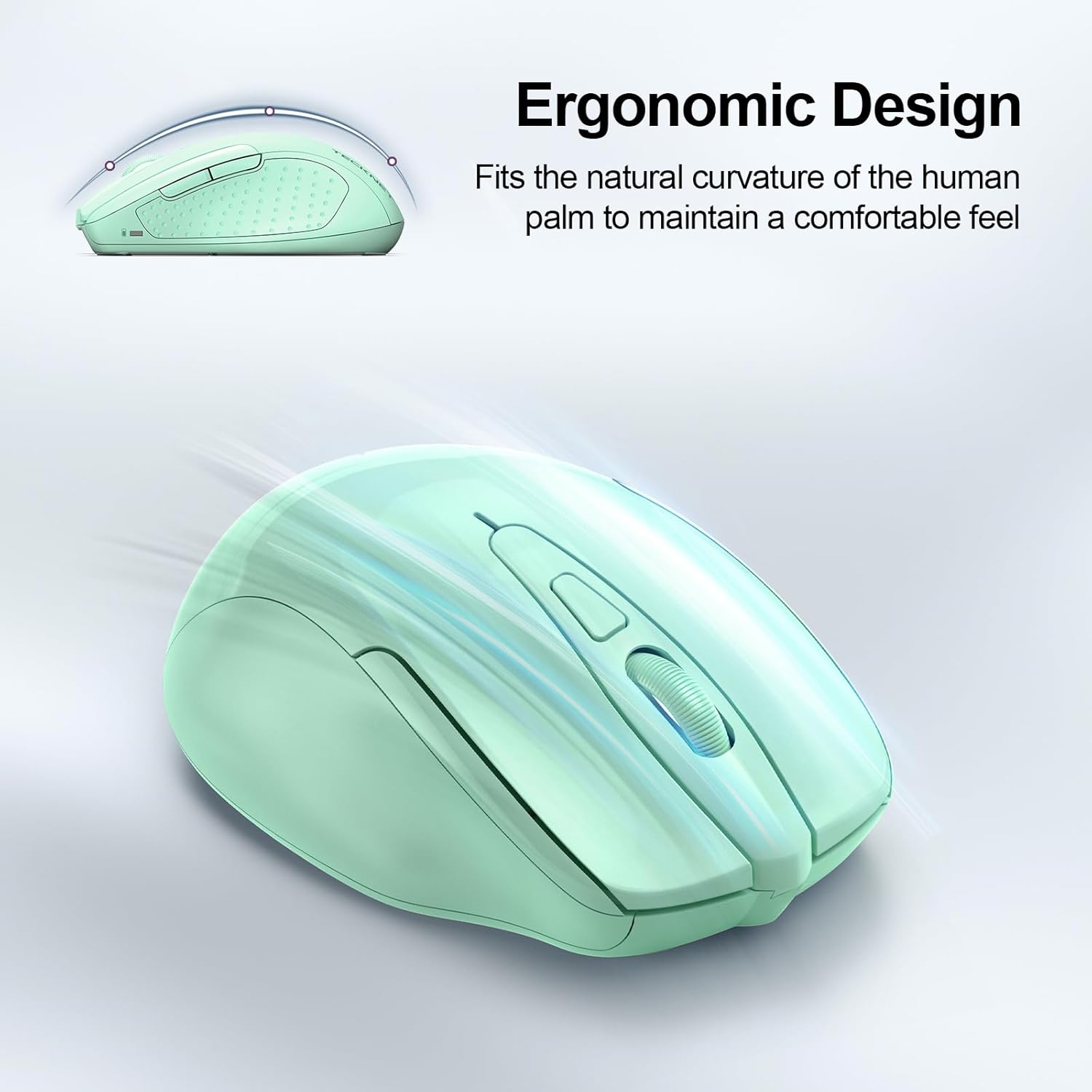
Image: A visual representation of the mouse's power states: Working, Stand-by, Auto-sleep, and how to activate it by pressing a button.
유지
- 청소: 부드럽고 마른 천을 사용하여 마우스를 닦으세요. 강한 화학 물질이나 연마재는 사용하지 마세요.
- 배터리 교체: Replace batteries when the LED indicator shows a low battery warning (red light).
- 저장: When not in use for extended periods, turn off the mouse using the switch on the bottom to further conserve battery life.
문제 해결
| 문제 | 해결책 |
|---|---|
| 마우스가 응답하지 않습니다. |
|
| 커서 움직임이 불규칙하거나 느립니다. |
|
| 블루투스 연결이 자주 끊어집니다. |
|
| macOS에서 측면 버튼이 작동하지 않습니다. | Side buttons are not compatible with macOS. This is a known limitation. |
명세서
| 특징 | 세부 사항 |
|---|---|
| 모델 | BM307 |
| 연결성 | 2.4G Wireless (USB-A receiver), Bluetooth 5.0/3.0 |
| DPI 레벨 | 800, 1200, 1600, 2400, 3200, 4800 (Adjustable) |
| 버튼 | 6 Buttons (Left/Right, Scroll Wheel, Forward/Backward, DPI Switch, Bluetooth Pairing) |
| 전원 | AAA 배터리 2개(포함되지 않음) |
| 특별 기능 | Silent Click, Ergonomic Design, Automatic Sleep Mode |
| 호환성 | Windows, macOS (side buttons not compatible), Chrome OS, Linux |
| 치수 | 4.53 x 3.15 x 1.85 인치 |
| 무게 | 3.52 온스 |
보증 및 지원
TECKNET은 다음을 제공합니다. 36개월 보증 (Registered Only) for this product. If you encounter any problems or have questions regarding the use of your TECKNET Wireless Mouse, please contact our professional customer service team for assistance.
연락처 정보는 일반적으로 TECKNET 공식 웹사이트에서 찾을 수 있습니다. web사이트나 구매 플랫폼을 통해서도 구매하실 수 있습니다.


