1. 제품 오버view
The Ruko F11PRO 2 Drone is a professional-grade quadcopter designed for aerial photography and videography. It features a 6K camera with a 3-axis brushless gimbal for stable and smooth footage, extended flight time, and intelligent GPS flight modes for enhanced control and cinematic possibilities.
주요 특징:
- 6K Camera & 3-Axis Gimbal: Captures crisp 6K photos and smooth 4K/30fps video with superior stability and enhanced wind resistance.
- 연장된 비행 시간: Two batteries provide a total of 70 minutes of flight (35 minutes per battery).
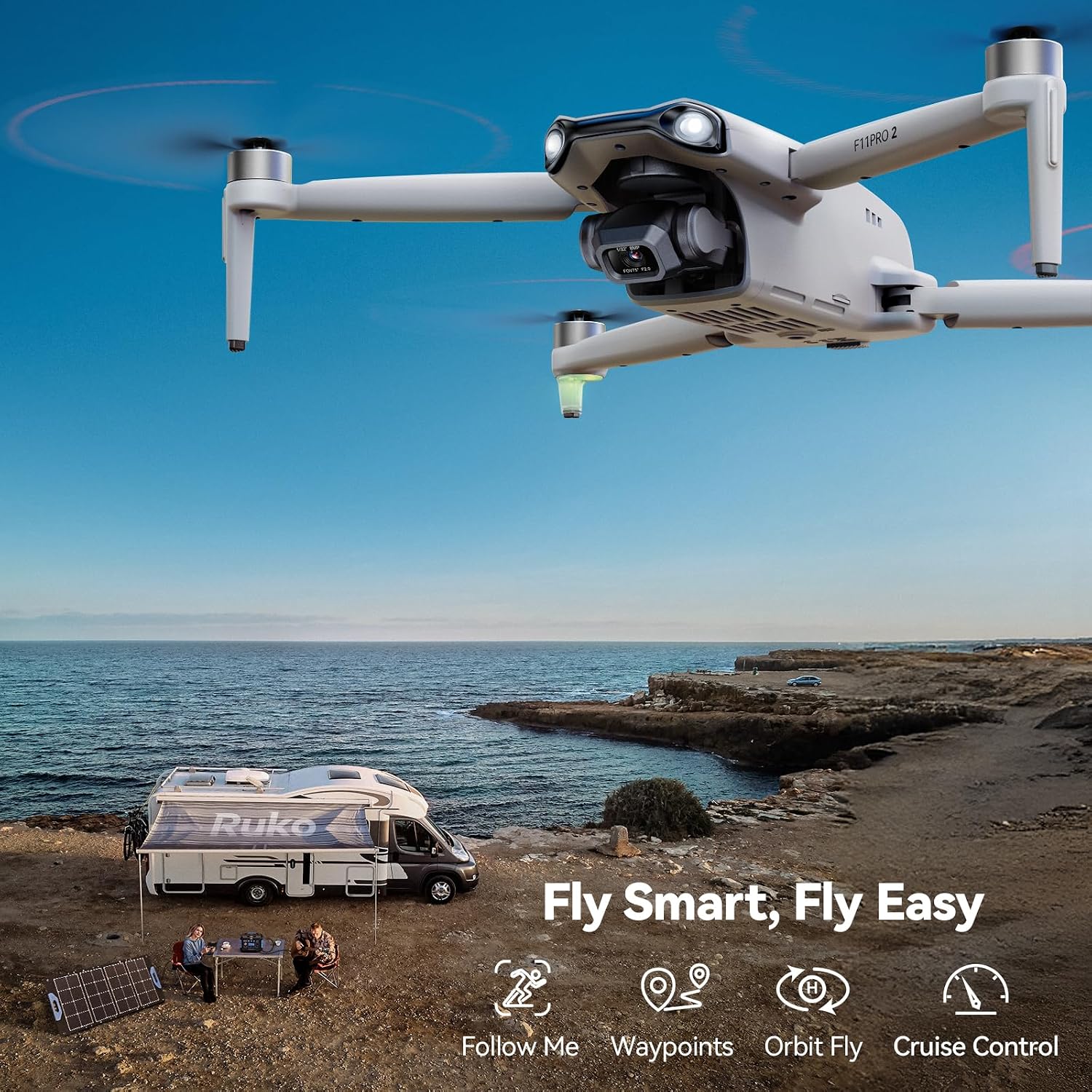
- Intelligent GPS Flight Modes: Includes Follow-Me, Orbit Flight, Cruise Control, and Waypoint Planning for simplified operation and professional footage.
- 10,000ft FPV Transmission: Offers ultra-long-range transmission and stable digital connection for expansive exploration.
- 야간 모드: Designed for enhanced aerial adventures after dark with frame retention technology for captivating visuals.
- 초보자 모드: Limits height, distance, and speed for easier control.
- Built-in Remote ID Module: Compliant with FAA regulations.
2. 패키지 내용
Your Ruko F11PRO 2 Drone package includes the following items:
- 1 x Ruko F11PRO 2 Drone
- 비행용 배터리 2개
- 1 x Rechargeable Remote Control
- 1 x 운반 케이스
- Complete Set of Accessories (Charging Cable, Extra Propeller Blades, Screws, Screwdriver, User Manual)
Note: Charger is not included. For optimal charging performance, please use the Ruko charger and avoid chargers with an output higher than 12V.

Image: All components included in the Ruko F11PRO 2 Drone package, neatly arranged.
3. 설정 가이드
3.1 Unfolding the Drone:
- Carefully unfold the front arms of the drone first.
- Then, unfold the rear arms. Ensure all arms are securely locked into place.
3.2 배터리 설치:
- Insert a fully charged flight battery into the drone's battery compartment until it clicks securely.
3.3 Gimbal Cover Removal:
중요한: Before turning on the drone, please remove the gimbal cover. Starting the drone without removing the cover can cause the gimbal to get stuck during its self-check process, potentially leading to damage.
3.4 원격 제어 설정:
- Extend the phone holder on the remote control.
- Place your smartphone securely into the holder.
- Connect your smartphone to the remote control using the appropriate RC cable (USB-C or Lightning).
- Download and install the Ruko Pro app on your smartphone. A QR code for the app can be found in the user manual.

Image: The Ruko F11PRO 2 Drone with its remote control and a smartphone attached, ready for setup.
4. 사용 설명서
4.1 전원 켜기:
- 드론의 전원 버튼을 표시등이 켜질 때까지 길게 누르세요.
- Press and hold the power button on the remote control until it powers on and connects to the drone.
4.2 GPS Calibration:
For stable flight and intelligent features, GPS calibration is crucial. Follow the on-screen prompts in the Ruko Pro app to complete calibration. This typically involves rotating the drone horizontally and vertically.
4.3 Takeoff and Landing:
- 원키 이륙/착륙: Press the dedicated takeoff/landing button on the remote control for automatic ascent or descent.
- 수동 이륙: Push both joysticks simultaneously towards the bottom-inner corners to start the propellers, then gently push the left joystick up to ascend.
4.4가지 비행 모드:
The Ruko F11PRO 2 offers various intelligent flight modes accessible via the app:
- GPS 추적: The drone will automatically follow the remote control's GPS signal. Ensure the drone is 26 to 164 feet above you for this mode.
- 궤도 비행: The drone will circle a designated point.
- 웨이포인트 계획: Set custom flight paths on the map for automated flight.
- 크루즈 컨트롤: Maintain a steady speed and direction.
- 초보자 모드: Limits height, distance, and speed for easier control.

Image: The Ruko F11PRO 2 Drone utilizing its GPS positioning for stable flight.
5. 미디어 갤러리
제품 이미지:

The drone features a 3-axis brushless gimbal for superior stability.
All accessories included in the F11PRO 2 package.
The drone and remote control ready for outdoor use.
공식 제품 영상:
Video shot with Ruko F11PRO 2 Drone, showcasing its 4K/30fps video capabilities in various landscapes.
F11PRO 2 - Unboxing video, detailing the contents and initial setup of the drone.
F11PRO 2 - Recall the beauty of vocation, a short promotional video highlighting scenic flights.
6. 유지관리
- 배터리 관리 : For optimal charging performance, always use the Ruko charger. Avoid using chargers designed for other devices or those with an output higher than 12V.
- 프로펠러 검사: Regularly check propellers for any damage or wear. Replace damaged blades immediately using the provided spare propellers and screwdriver.
- 짐벌 보호: Always remove the gimbal cover before powering on the drone to prevent damage during self-check.
- 저장: Store the drone and all accessories in the provided carrying case to protect them from dust and physical damage.
7. 문제 해결
일반적인 문제:
- 드론 전원이 켜지지 않음: 배터리가 완전히 충전되었고 올바르게 삽입되었는지 확인하세요.
- 리모컨이 연결되지 않음: Verify both the drone and remote control are powered on. Re-attempt the pairing process as described in the user manual.
- GPS 신호 문제: Ensure you are in an open area with clear sky. Perform GPS calibration as instructed in the setup guide.
- 불안정한 비행: Re-calibrate the drone's compass and IMU (Inertial Measurement Unit) as per the user manual. Check propellers for damage.
- 카메라 오작동: Ensure the gimbal cover is removed. Check app settings for camera mode and resolution. If issues persist, contact customer support.
FAA 규정 준수:
The Ruko F11PRO 2 Drone is Remote ID compliant. For recreational flyers, registration with the FAA and passing a free safety test may be required. Refer to the official FAA website for current regulations and the drone's user manual for its Remote ID serial number location.
8. 사양
| 기인하다 | 세부 사항 |
|---|---|
| 상표 | 루코 |
| 모델명 | F11프로 2 |
| 치수 | 15.16인치 길이 x 13.78인치 너비 x 2.56인치 높이 |
| 품목 무게 | 12.6온스(357그램) |
| 비디오 캡처 해상도 | 4K@30fps |
| 카메라 기능 | 6K Photo, 3-Axis Brushless Gimbal, Night Vision, LED Light, Supports Portrait Shooting |
| 최대 범위 | 10,000 피트 |
| 비행 시간 | 70분 (배터리 2개 사용 시) |
| 제어 유형 | 원격 제어 |
| 기술 수준 | All (Beginner - Professional) |
9. 보증 및 지원
Ruko is committed to providing reliable care for its products. Your Ruko F11PRO 2 Drone comes with:
- 30-Day Returns or Exchanges: For any initial issues or dissatisfaction.
- 90-Day Coverage: For manufacturing defects or malfunctions.
- Ongoing Expert Assistance: Dedicated customer support is available for any questions or issues you may encounter.
추가 자료:
- 사용 설명서 (PDF)
- 사용 설명서 (PDF)
- For direct support, please refer to the contact information provided in your physical user manual or visit the official Ruko web대지.


