소개
This manual provides detailed instructions for the setup, operation, and maintenance of your iSinbox Projector, Model GC357. Please read this manual thoroughly before using the product to ensure proper functionality and safety.
The iSinbox Projector is designed to provide a high-quality visual experience with its native 1080P resolution and 4K support. It features advanced connectivity options including WiFi 6 and Bluetooth 5.2, and incorporates smart automation for focus and keystone correction.
제품 특징
- Full Automation: Features auto-focus, auto-keystone correction, auto-obstacle avoidance, and auto-screen alignment for simplified setup.
- High Visual Quality: Native 1080P resolution with 4K support and 850 ANSI lumens brightness for clear and vibrant images.
- 고급 연결성 : Dual-band 2.4G/5G WiFi 6 and Bidirectional Bluetooth 5.2 for stable streaming and audio connections.
- 강력한 성능: Powered by the MTK9269 chip, supporting PPT playback and projection sizes up to 300 inches with 50-100% zoom.
- 개인 설정: Customizable image modes, brightness levels, and wallpapers, including a unique companion mode.
상자 안에 무엇이 들어있나요?
패키지를 열었을 때 다음 품목이 모두 포함되어 있는지 확인하세요.
- iSinbox Projector (Model GC357)
- AV 케이블
- HDMI 케이블
- 전원 코드
- 원격 제어
- 사용 설명서 (본 문서)
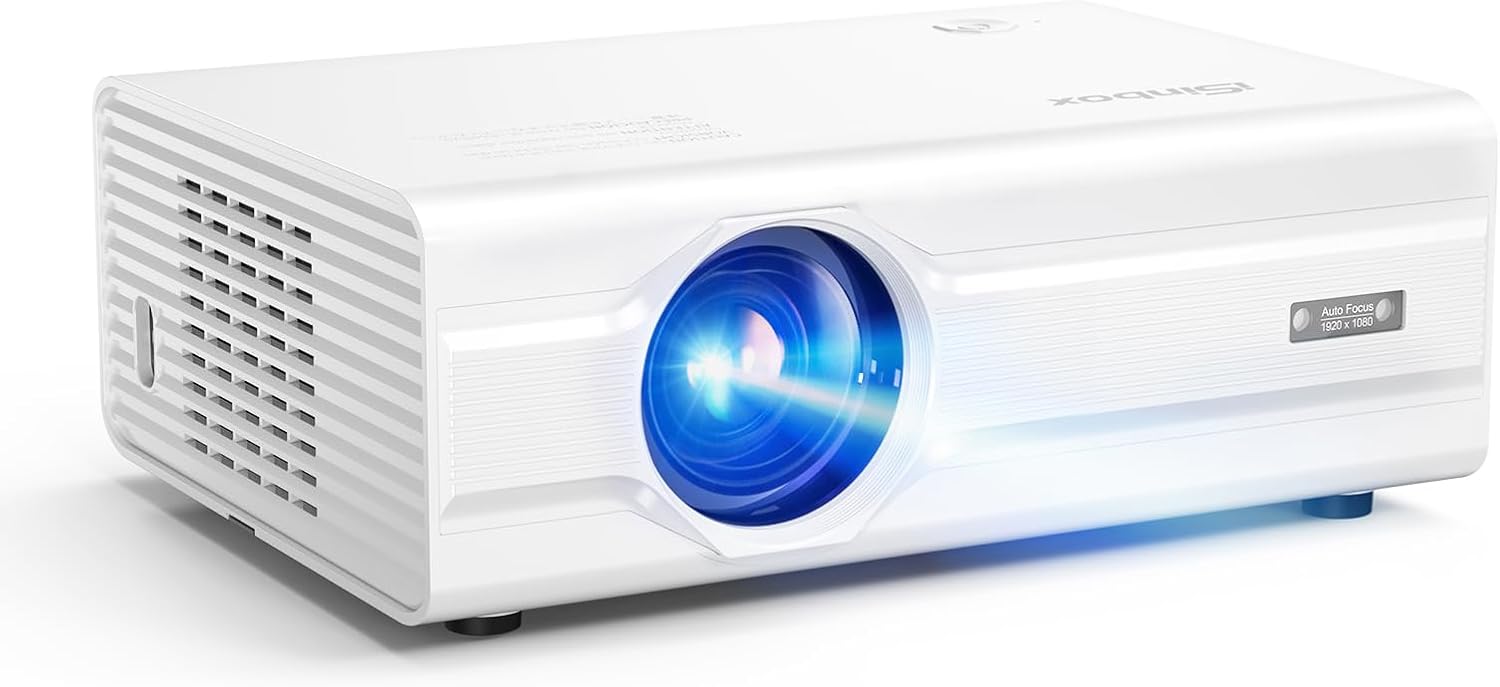
Image: The iSinbox Projector and its standard accessories, including cables, remote, and user manual.
설정
1. 배치
프로젝터를 안정적이고 평평한 표면에 놓으십시오. 과열을 방지하기 위해 프로젝터 주변에 충분한 통풍이 이루어지도록 하십시오. 최적의 성능을 위해서는 view프로젝터를 스크린이나 벽 바로 앞에 놓으십시오.

Image: Illustration of the projector's automatic focus and keystone correction features, demonstrating ideal placement for a clear image.
2. 전원 연결
- 프로젝터의 전원 입력 포트에 전원 코드를 연결하십시오.
- 전원 코드의 다른 쪽 끝을 벽면 콘센트에 꽂습니다.
- 프로젝터나 리모컨의 전원 버튼을 눌러 전원을 켜세요.
3. 장치 연결
프로젝터는 다양한 입력 소스를 지원합니다. 적절한 케이블을 사용하여 장치를 연결하십시오.
- HDMI : Connect a TV stick, laptop, gaming console, or Blu-ray player using an HDMI cable.
- USB: Insert a USB drive for direct media playback or office presentations (PPT, Word, Excel).
- 유명인 : Use the provided AV cable for older devices.
- 블루투스: Pair with external Bluetooth speakers or use the projector as a Bluetooth speaker.
- 와이파이: Connect to your wireless network for streaming content.

Image: The projector connected to a TV stick, illustrating its compatibility with various streaming devices and operating systems.

Image: The projector displaying an office presentation, highlighting its ability to read fileUSB 드라이브에서 직접.
작동 지침
1. Initial Power On and Auto-Adjustment
Once powered on, the projector will automatically perform auto-focus, auto-keystone correction, and auto-obstacle avoidance to optimize the image. Allow a few moments for these adjustments to complete.
2. Navigation and Input Selection
Use the remote control to navigate the projector's menu. Press the "Source" or "Input" button to select your desired input (HDMI, USB, AV, Wi-Fi).
3. 이미지 설정 조정
Access the "Settings" menu to customize image modes, brightness, contrast, and color. The projector supports personalized settings for an optimized view경험.

Image: Diagram illustrating the MTK chip and various personalized settings available, such as DIY image brightness, image modes, and wallpaper.
4. Wi-Fi 및 블루투스 연결
- 와이파이: Go to Network Settings, select your Wi-Fi network, and enter the password. The projector supports 2.4G and 5G networks.
- 블루투스: In Bluetooth settings, enable Bluetooth and search for devices. You can connect to external speakers (Bluetooth Output) or use the projector as a speaker (Bluetooth Input).

Image: The projector connected via WiFi 6, illustrating faster and smoother streaming capabilities compared to older Wi-Fi standards.

Image: The projector demonstrating its two-way Bluetooth 5.3 functionality, allowing it to connect to external speakers or act as a standalone Bluetooth speaker.
5. 줌 기능
The projector features a digital zoom function, allowing you to adjust the screen size from 50% to 100% without moving the projector. Access this setting in the image or display menu.
유지
1. 렌즈 청소
프로젝터 렌즈는 광학 표면 전용으로 제작된 부드럽고 보풀 없는 천으로 살살 닦아주세요. 연마성 세척제나 과도한 힘을 사용하면 렌즈에 흠집이 생길 수 있으므로 사용하지 마세요.
2. 외부 청소
프로젝터 외부를 닦을 때는 부드럽고 마른 천을 사용하십시오. 잘 지워지지 않는 얼룩은 약간 거친 천으로 닦아내십시오.amp 천을 사용한 후 마른 천으로 닦아주세요. 강한 화학 물질은 사용하지 마세요.
3. 환기
Ensure that the ventilation vents are clear of dust and obstructions. Blocked vents can lead to overheating and reduce the lifespan of the projector. Periodically use compressed air to clear dust from the vents.
4. 보관
장시간 사용하지 않을 경우, 프로젝터를 서늘하고 건조한 곳에 직사광선과 극한의 온도를 피해 보관하십시오. 원래 포장재나 보호 케이스를 사용하는 것이 좋습니다.
문제 해결
| 문제 | 가능한 원인 | 해결책 |
|---|---|---|
| 이미지가 표시되지 않음 |
|
|
| 이미지가 흐릿하거나 초점이 맞지 않습니다. |
|
|
| 이미지가 왜곡됩니다(사다리꼴 모양) |
|
|
| 소리가 나지 않거나 볼륨이 작음 |
|
|
| Wi-Fi에 연결할 수 없습니다 |
|
|
명세서
| 특징 | 세부 사항 |
|---|---|
| 상표 | 아이신박스 |
| 모델 번호 | GC357 |
| 디스플레이 해상도 | 네이티브 1920 x 1080(1080P), 4K 지원 |
| 명도 | 850 ANSI 루멘스 |
| 연결 기술 | Wi-Fi 6 (2.4G/5G), Bluetooth 5.2 (Bidirectional), HDMI, USB, 3.5mm Jack |
| 특별 기능 | Auto Focus, Auto Keystone, Auto-obstacle avoidance, Auto Screen Alignment, Personalized User Experience, MTK9269 Chip |
| 추천 용도 | Home Cinema, Outdoor Movies, Gaming, Business Presentations, Education |
| 제품 치수 | 6.97 x 3.46 x 9.37 인치 |
| 품목 무게 | 3.41파운드 |
| 색상 | 하얀색 |
보증 및 지원
iSinbox provides comprehensive after-sales support to ensure your satisfaction. For any issues or inquiries regarding your projector, please refer to the following:
- 보증 정보: 자세한 약관은 제품에 동봉된 보증서를 참조하십시오.
- 고객 서비스: For technical support or service requests, please contact iSinbox customer service through the contact information provided on the official iSinbox web사이트 또는 구매 플랫폼.
- 온라인 리소스: Visit the official iSinbox store on Amazon for FAQs and additional product information: iSinbox Amazon Store.
Your satisfaction is our priority. We are committed to providing effortless and enjoyable experience with your iSinbox projector.


