1. 서론
This manual provides essential instructions for setting up, operating, and maintaining your VGKE Mini Projector. Please read it thoroughly before using the product to ensure optimal performance and longevity.

Figure 1: VGKE Mini Projector and its stand.
2. 설정
2.1 언박싱
Carefully unpack all components from the product box. Ensure all items listed in the package contents are present.
Video 1: Unboxing the projector and its accessories.
2.2 Physical Setup and Power Connection
Place the projector on a stable, flat surface. The projector features a 90-degree adjustable and retractable stand for flexible positioning. Connect the power cord to the projector and then to a power outlet.

Figure 2: The VGKE Mini Projector demonstrating its 90-degree adjustable lens for flexible projection onto walls or ceilings.
Video 2: Demonstrating power connection and initial startup of a smart Android projector.
2.3 원격 제어 페어링
To ensure full functionality, pair the remote control with your projector. Follow the on-screen instructions or refer to the video below.
Video 3: Instructions on how to pair the Bluetooth remote control with the projector.
2.4 네트워크 구성
Connect your projector to your Wi-Fi network and sign in to your Google account to access smart features and apps. Follow the on-screen prompts.
Video 4: Guide on how to start and configure the projector, including Wi-Fi and Google account setup.
2.5 iOS/안드로이드 기기 연결하기
The projector supports AirPlay/Miracast/Google Cast for screen mirroring. Ensure your device and projector are on the same Wi-Fi network.
- iOS 기기의 경우: Select the 'E-Share' app on the home page, turn on 'AirPlay' in settings, and select the projector from your iOS device's screen mirroring options.
- Android 기기의 경우: Select the 'E-Share' app on the home page, turn on 'Miracast' in settings, and select the projector from your Android device's wireless projection options.

Figure 3: Instructions for connecting to an iOS device for screen mirroring.

Figure 4: Instructions for connecting to an Android device for screen mirroring.
3. 사용 설명서
3.1 투영 조정
The projector features 3D TOF autofocus and auto keystone correction for a clear image. You can also manually adjust the focus if needed.
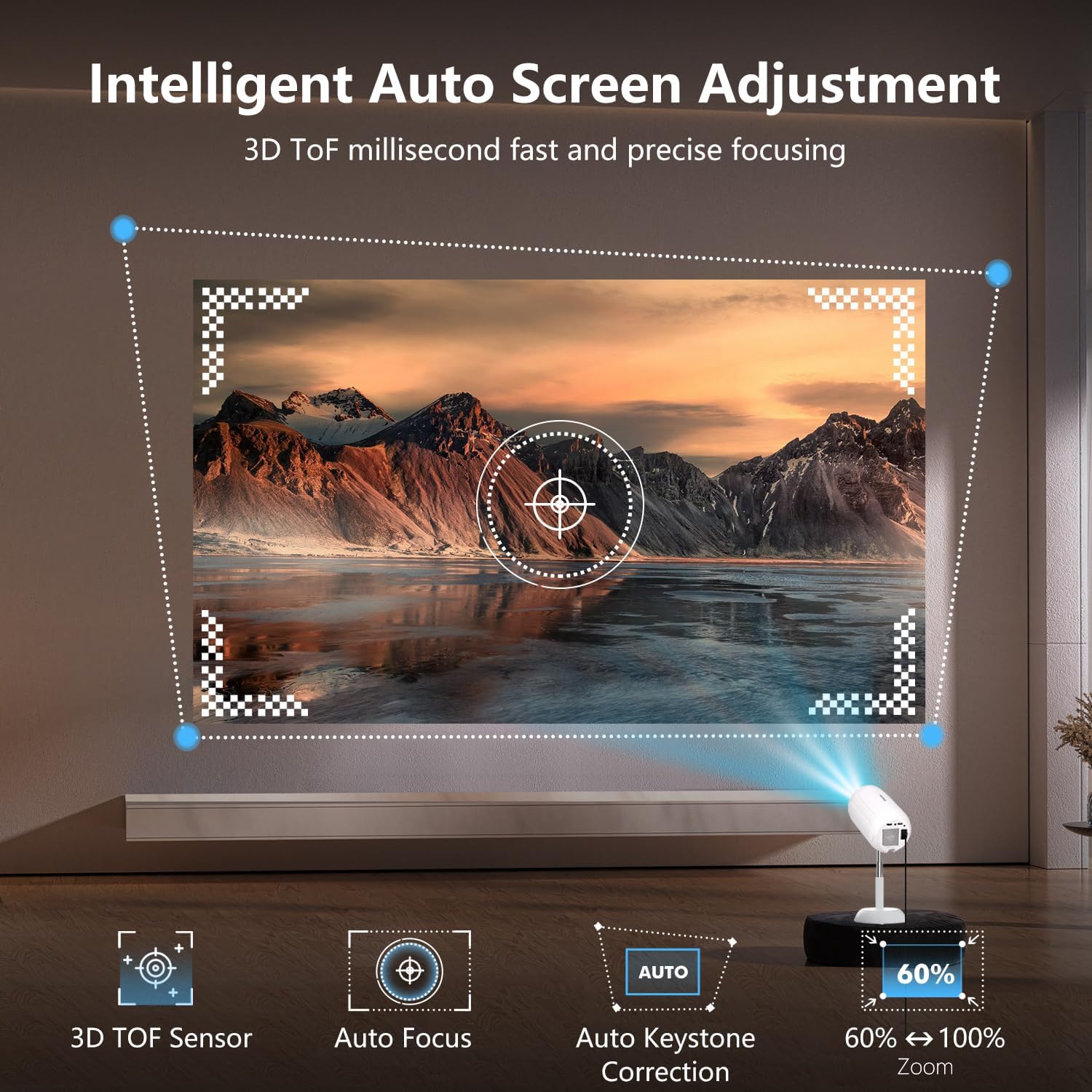
Figure 5: Illustration of the projector's intelligent auto screen adjustment features, including 3D TOF sensor, autofocus, and auto keystone correction.
3.2 내장 앱 사용
The projector runs on Android 13.0, allowing direct access to over 8,000 apps like Netflix, Prime Video, YouTube, and Disney+ without external devices.

Figure 6: The VGKE Mini Projector displaying its smart interface with pre-installed applications for direct streaming.
3.3 화면 미러링
Mirror content from your iOS or Android devices seamlessly using AirPlay, Miracast, or Google Cast. Ensure a stable WiFi 6 connection for optimal performance.
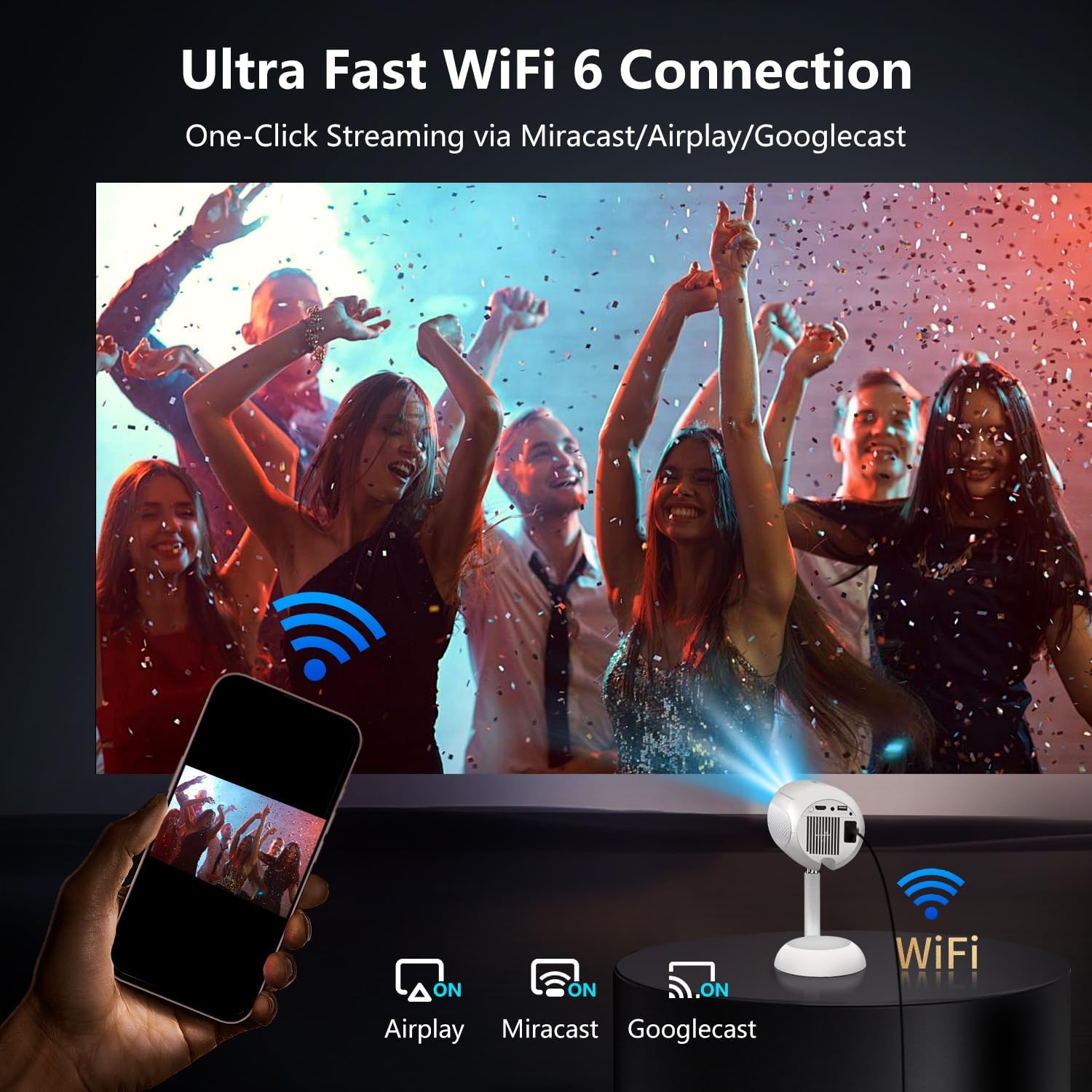
Figure 7: The projector connected via Ultra Fast WiFi 6, demonstrating one-click streaming via Miracast, Airplay, and Googlecast.
3.4 블루투스 연결
Connect external Bluetooth 5.2 devices such as soundbars or headphones for an enhanced audio experience.

Figure 8: The VGKE Mini Projector utilizing two-way Bluetooth 5.2 for immersive stereo audio experience with external speakers.
3.5 외부 장치 연결
Utilize the HDMI, AV, and USB ports to connect various devices like smartphones, laptops, tablets, DVD players, and TV sticks/boxes.

Figure 9: The projector's versatile connectivity options, including HDMI, USB, and Audio ports, compatible with smartphones, laptops, and gaming consoles.
4. 유지관리
4.1 Cleaning the Projector Lens and Internal Dust
Regular cleaning ensures optimal image quality. Use a flat screwdriver or art knife to open the dust cover. Use a cotton swab from the cleaning kit to gently clean any black spots on the projector LCD screen. Remember to put the dust cover back on after cleaning.
Video 5: Detailed instructions on how to clean the internal dust from the projector.
5. 문제 해결
- 이미지 없음: Ensure the power cord is securely connected and the projector is turned on. Check the input source (HDMI, USB) is correctly selected.
- 흐릿한 이미지: Use the auto-focus feature or manually adjust the focus dial. Ensure the projection surface is flat and the projector is positioned correctly.
- 소리 없음: Check the volume settings on the projector and any connected external audio devices. Ensure Bluetooth audio is correctly paired or HDMI audio is selected.
- 연결 문제(Wi-Fi/Bluetooth): Ensure the projector is within range of the network/device. Re-enter Wi-Fi passwords or re-pair Bluetooth devices.
- 리모콘이 응답하지 않음: Check the batteries in the remote control. Re-pair the remote control if necessary.
6. 사양
| 특징 | 세부 사항 |
|---|---|
| 상표 | VGKE |
| 모델 | 16000LM_Android Projector |
| 제품 치수 | 15.49 x 15.49 x 24.38cm |
| 품목 무게 | 1.36kg |
| 폼 팩터 | 가지고 다닐 수 있는 |
| 화면 해상도 | 1280 x 720 (기본 해상도) |
| 디스플레이 해상도 최대 | 3840 x 2160 픽셀 (4K 지원) |
| 운영 체제 | 안드로이드 13.0 |
| 특별 기능 | 3D TOF Autofocus, Auto Keystone, 90° Adjustable, Built-in Apps |
| 연결 기술 | Bluetooth 5.2, HDMI, Wi-Fi 6 (2.4G/5G), AV, USB |
| 전원 | AC(230볼트) |
| 포함된 구성 요소 | Power Cord, Remote, User Manual |
7. 보증 및 지원
VGKE is committed to providing reliable after-sales support. For any inquiries, technical assistance, or warranty claims, please contact VGKE customer service. Our team is always ready to provide you with consultation or assistance.
구체적인 보증 조건 및 연락처는 구매 서류를 참조하십시오.


