1. 서론
This manual provides essential information for the proper setup, operation, and maintenance of your FUNYET 2-in-1 Laptop Tablet. Please read this manual thoroughly before using the device to ensure optimal performance and longevity. Keep this manual for future reference.
2. 제품 오버view
2.1 패키지 내용
- FUNYET 2-in-1 Laptop Tablet
- 분리형 키보드
- AC 전원 어댑터
- 사용 설명서 (본 문서)
2.2 장치 레이아웃 및 포트
Familiarize yourself with the various ports and buttons on your device.

영상: 옆 view of the FUNYET 2-in-1 Laptop Tablet illustrating the location of the power button, volume control, two Type-C ports, and Micro HDMI port.
- 전원 버튼: Press and hold to power on/off or sleep/wake the device.
- 볼륨 조절: 시스템 볼륨을 조정합니다.
- Type-C (Full-featured): 데이터 전송, 비디오 출력 및 전력 공급을 지원합니다.
- Type-C (Charging and Data Transfer): Primarily for charging the device and data transfer.
- 마이크로 HDMI: Connects to external displays.
2.3 주요 특징
- 프로세서: Intel 12th Gen Celeron N100 (up to 3.4 GHz, 4 cores, 4 threads).
- 메모리: 효율적인 멀티태스킹을 위한 16GB DDR5 RAM.
- 저장: 512GB SSD for fast boot times and amp르 스토리지.
- 표시하다: 14-inch 1920 x 1200 IPS Touchscreen.
- 연결성: Wi-Fi 6(802.11ax) 및 블루투스 5.2.
- 카메라: 2MP 전면 카메라와 5MP 후면 카메라.
- 건반: Detachable, backlit keyboard.
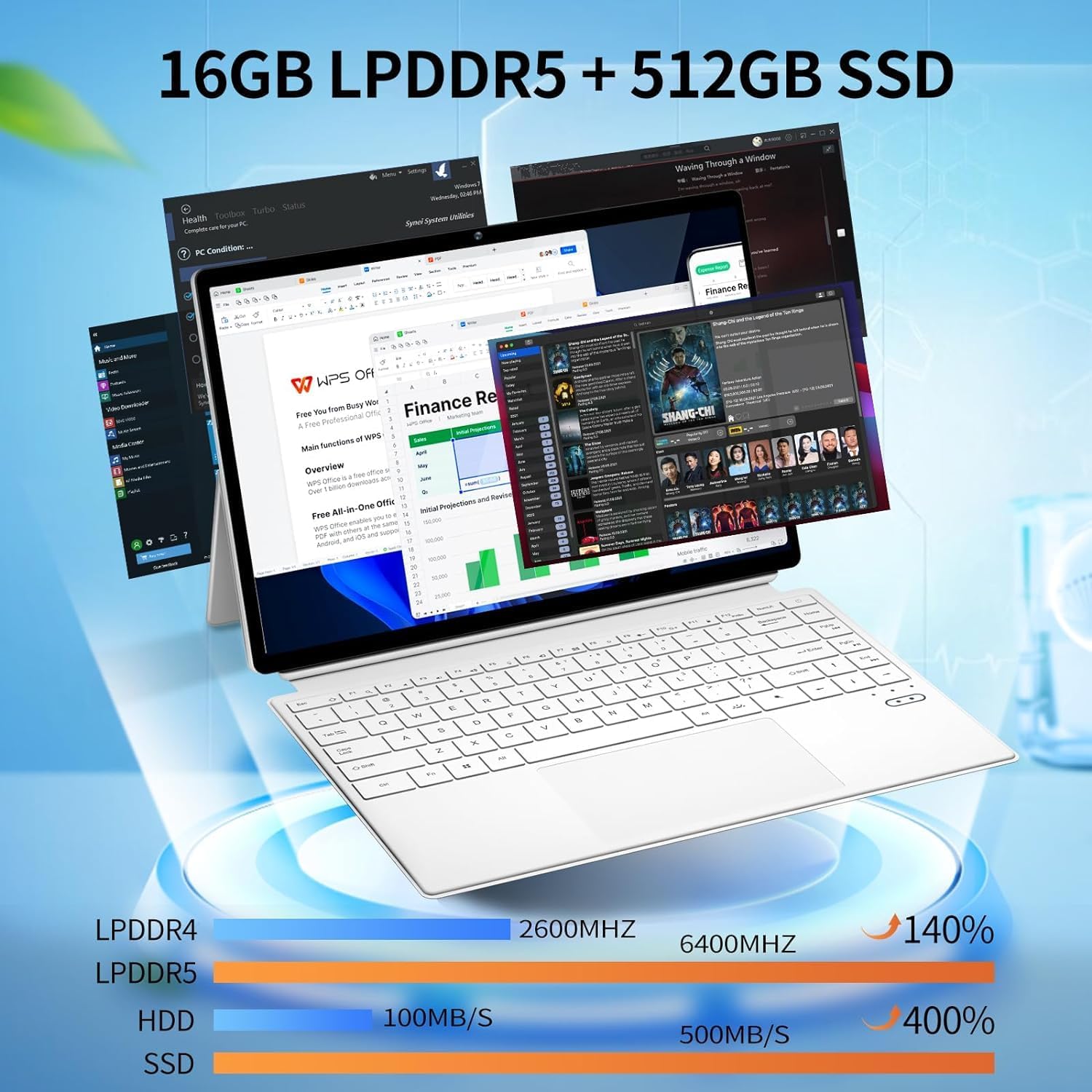
영상: The device displaying multiple open applications, illustrating its multitasking capabilities with 16GB LPDDR5 RAM and 512GB SSD.
3. 설정
3.1 초기 충전
Before first use, connect the AC power adapter to the device's charging Type-C port and a power outlet. Charge the device until the battery is full. The battery indicator will show charging status.
3.2 키보드 부착 및 분리
The keyboard connects magnetically to the tablet. Align the magnetic connectors on the tablet and keyboard until they snap into place. To detach, gently pull the tablet away from the keyboard.
3.3 Adjusting the Kickstand
일체형 킥스탠드는 다양한 용도로 사용할 수 있습니다. viewing angles. Extend the kickstand from the back of the tablet and adjust it to your desired position. Ensure the kickstand is fully extended and stable to prevent the device from tipping.

영상: Visual guide demonstrating the correct method for deploying the device's kickstand for stable use, alongside examples of incorrect positioning.
3.4 첫 번째 부팅 및 Windows 설치
Press and hold the Power Button until the screen turns on. Follow the on-screen instructions to complete the Windows 11 Pro setup, including language selection, network connection, and user account creation.
4. 사용 설명서
4.1 전원 켜기/끄기 및 절전 모드
- 전원 켜기: 전원 버튼을 몇 초 동안 길게 누르세요.
- 전원 끄기 : From Windows, go to Start > Power > Shut down. Alternatively, press and hold the Power Button, then select 'Shut down' from the options.
- 수면 모드 : Briefly press the Power Button to enter or exit sleep mode.
4.2 터치스크린 사용
The 14-inch display supports multi-touch gestures. Use your fingers to navigate, tap, swipe, pinch-to-zoom, and interact with applications.
4.3 키보드 및 터치패드 사용
When the keyboard is attached, it functions as a standard laptop keyboard. The integrated touchpad supports multi-touch gestures for navigation. The keyboard features backlighting for use in low-light conditions.

영상: 클로즈업 view of the detachable backlit keyboard, showing the key layout and touchpad.
4.4 주변기기 연결하기
- USB-C 장치: Connect compatible USB-C devices to the Type-C ports for data transfer or external display output (if full-featured).
- 외부 디스플레이: Use the Micro HDMI port to connect to an external monitor or TV. An appropriate adapter may be required.
4.5 무선 연결
- 와이파이: Access network settings in Windows to connect to available Wi-Fi 6 networks.
- 블루투스: Pair Bluetooth devices such as headphones, mice, or keyboards through Windows Bluetooth settings.

영상: The device in use, highlighting its wireless capabilities (Wi-Fi 6, Bluetooth 5.2) and integrated cameras (2MP front, 5MP rear).
4.6 카메라 사용
The device includes a 2MP front camera and a 5MP rear camera. Use the built-in Camera application in Windows to take photos, record videos, or participate in video calls.
5. 유지관리
5.1 청소
부드럽고 보풀 없는 천으로 화면과 외부 표면을 닦으십시오. 잘 지워지지 않는 얼룩은 d를 사용하십시오.amp천에 물이나 화면에 안전한 세척제를 살짝 묻혀 닦아주세요. 강한 화학 물질이나 연마재는 사용하지 마세요.
5.2 배터리 관리
배터리 수명을 연장하려면:
- 극한의 온도를 피하세요.
- 배터리를 자주 완전히 방전시키지 마세요.
- If storing the device for an extended period, charge it to about 50-70%.

영상: An illustration of the 38Wh battery capacity and estimated usage times: 10 hours for daily use, 6-8 hours for video playback (Wi-Fi off), and 4 hours for video playback (Wi-Fi on).
5.3 소프트웨어 업데이트
Regularly check for and install Windows updates to ensure system stability, security, and access to the latest features. Go to Start > Settings > Windows Update.
5.4 스토리지 관리
주기적으로 다시view and manage your storage space. Delete unnecessary files, 사용하지 않는 애플리케이션을 제거하고 대용량의 클라우드 스토리지를 고려하세요. file최적의 성능을 유지하기 위해.
6. 문제 해결
- 기기의 전원이 켜지지 않습니다: Ensure the device is charged. Connect the AC adapter and try again. If unresponsive, press and hold the power button for 15-20 seconds to perform a hard reset.
- 키보드가 응답하지 않습니다: Ensure the keyboard is securely attached. Check if the keyboard's power is on (if it has a separate power switch or indicator). Re-attach the keyboard.
- Wi-Fi 연결 문제: Windows 설정에서 Wi-Fi가 활성화되어 있는지 확인하십시오. 라우터와 기기를 재시작하십시오. Wi-Fi 네트워크 범위 내에 있는지 확인하십시오.
- 느린 성능: Close unnecessary applications. Check for background processes consuming resources. Ensure sufficient free storage space. Run a system scan for malware.
- 화면이 회전하지 않음: Ensure auto-rotation is enabled in Windows settings (Action Center).
7. 사양
| 특징 | 사양 |
|---|---|
| 모델명 | FUNYET-2-IN-1-LAPTOP-TABLET-1 |
| 프로세서 | Intel Celeron N100 (12th Gen) |
| 숫양 | 16GB DDR5 |
| 저장 | 512GB SSD |
| 화면 크기 | 14 인치 |
| 화면 해상도 | 1920 x 1200 픽셀 |
| 운영 체제 | 윈도우 11 프로 |
| 무선형 | 802.11ax(와이파이 6) |
| 블루투스 | 블루투스 5.2 |
| 전면 카메라 | 2 MP |
| 후방 카메라 | 5 MP |
| 품목 무게 | 5.37파운드 |
| 제품 치수 | 12.5 x 8.4 x 0.4 인치 |
| 색상 | 하얀색 |
8. 보증 및 지원
FUNYET offers a 30일 무료 교환 그리고 1년 무상수리 service for all its products. For any questions or assistance regarding your FUNYET 2-in-1 Laptop Tablet, please contact FUNYET support. We aim to respond within 24 hours.
For support, please visit the official FUNYET store or contact customer service through your purchase platform.


