소개
This manual provides detailed instructions for the installation, operation, and maintenance of your AINAVI QLED Touch Screen Car Stereo. Designed specifically for Toyota Tacoma models from 2005 to 2015, this head unit offers advanced features including Android 12, Wireless CarPlay, Android Auto, GPS Navigation, 5G WiFi, and a 48-band Equalizer. Please read this manual thoroughly before installation and use to ensure proper function and safety.
제품 끝view
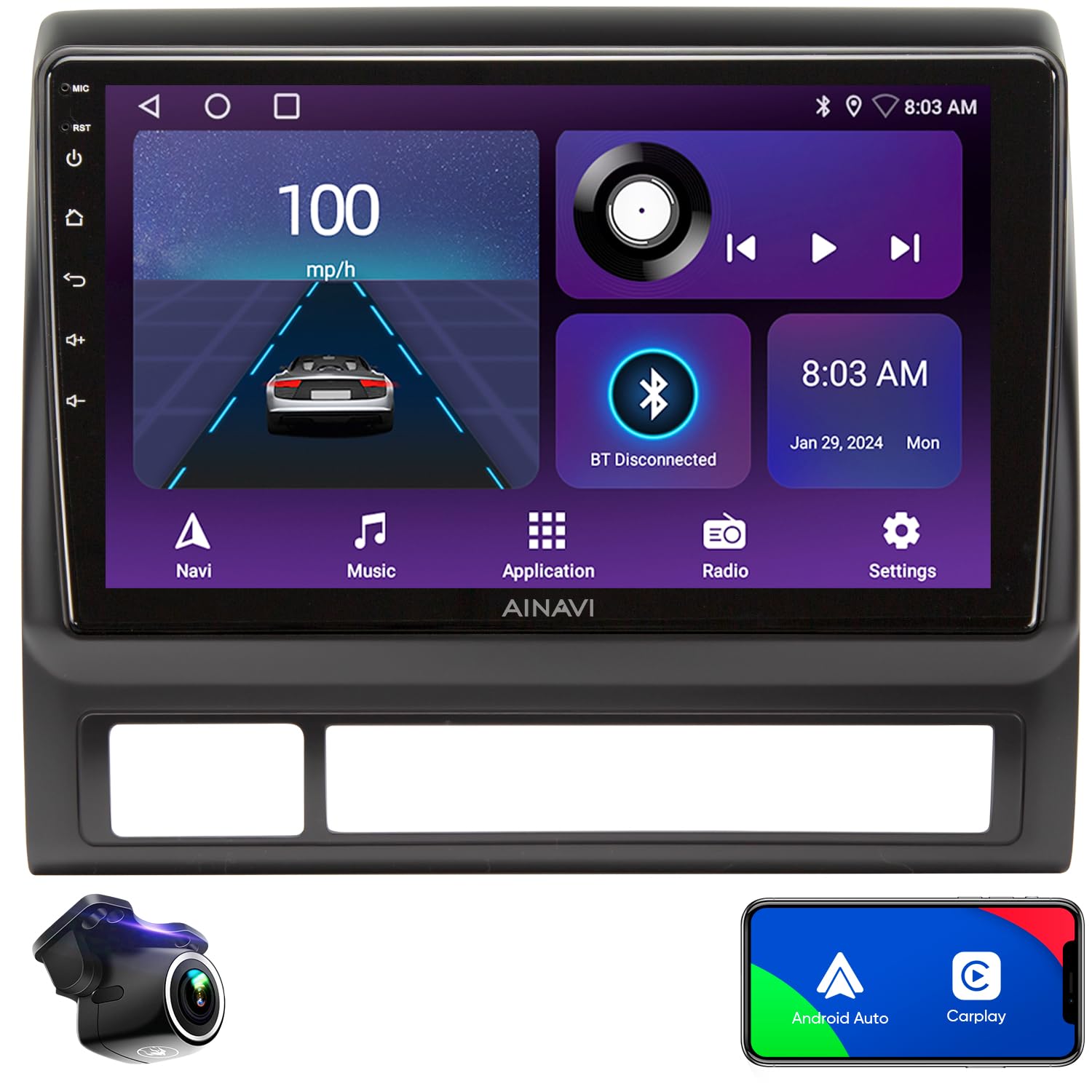
The AINAVI QLED Touch Screen Car Stereo is an advanced multimedia system designed to enhance your driving experience. Key features include:
- 9인치 QLED 터치스크린: 선명한 영상과 반응성이 뛰어난 터치 제어를 위한 고해상도 1280x720 디스플레이.
- 안드로이드 12 운영체제: Provides a modern and customizable user interface with access to a wide range of applications.
- 무선 CarPlay 및 Android Auto: 내비게이션, 음악, 통화 및 메시지를 위해 스마트폰과 완벽하게 통합됩니다.
- GPS 네비게이션: Supports various satellite services and mapping applications with 5G WiFi for accurate real-time navigation.
- 5G WiFi & 4-Core CPU: Ensures fast network speeds and smooth operation for applications and multimedia.
- 2GB RAM + 64GB ROM: Ample memory for multitasking and storage for applications and media.
- 분할 화면 기능: 화면에서 두 개의 애플리케이션을 동시에 실행하세요.
- 48-Band EQ with Professional DSP: Advanced audio processing for customizable sound profiles and precise sound stag주고받음.
- 1080P 후면 View 카메라 지원 : Provides clear reversing scenes with trajectory lines (if supported by vehicle).
- Colorful Panel Lights: Customizable 7-color button lights for personalized aesthetics.
- USB-RCA 출력: Allows independent video playback on multiple screens for rear-seat entertainment (adapter not included).
상자 안에 무엇이 들어있나요?
설치를 시작하기 전에 모든 구성 요소가 있는지 확인하세요.
- Car Head Unit with Frame for Toyota Tacoma (1 unit)
- 전원 케이블 (1개)
- AHD 1080P 후면 View 카메라 (1대)
- GPS 안테나 (1개)
- USB 4Pin Cable (1 unit)
- USB 6Pin Cable (1 unit)
- 마이크 (1개)
- Blue Frame Removal Tool (1 unit)
- 사용 설명서(1부)

이미지: 제품 패키지에 포함된 모든 구성품.
설치 가이드
Professional installation is recommended. If performing a DIY installation, ensure you have the necessary tools and knowledge. The head unit comes with a trim perfectly fitted for the 2005-2015 Toyota Tacoma. Connections are generally plug-and-play, but some wiring may be required, especially for the backup camera. Refer to the included wiring diagrams and consult technical support if needed.
사전 설치 단계:
- 전기 단락을 방지하려면 차량의 배터리를 분리하세요.
- Carefully remove the existing factory radio and trim using the provided frame removal tool.
- Identify the OEM unit type (e.g., JBL, SiriusXM component) as this may affect wiring.
배선 및 연결:
- 주 전원선을 차량 배선에 연결합니다.
- Connect the GPS antenna and external microphone.
- For the AHD 1080P Rear View Camera, a specific wire may need to be spliced. Ensure proper insulation after connection.
- Route the auxiliary USB ports to a convenient location, such as the glovebox or front console.
- Connect any additional accessories like external amplifiers or headrest monitors using the RCA output cables (adapter not included for headrest monitors).
설치 후:
- Secure the new head unit into the dashboard opening.
- Reinstall the trim pieces.
- 차량 배터리를 다시 연결합니다.
- Power on the unit and perform initial setup and testing of all functions.

Image: Comparison of the dashboard before and after installing the AINAVI car stereo.
작동 지침
1. 무선 CarPlay 및 Android Auto
Connect your iPhone or Android smartphone wirelessly to access navigation, music, calls, and messages directly on the car stereo screen. Ensure Bluetooth is enabled on your phone and pair it with the head unit.
Video: Demonstrates how to connect wireless CarPlay to the Toyota Tacoma car radio.

Image: Wireless CarPlay and Android Auto functionality on the head unit.
2. 분할 화면 기능
The split screen feature allows you to run two applications simultaneously, such as navigation on one side and music or video on the other. This enhances multitasking capabilities while driving.
Video: Demonstrates how to use the split screen function on the Toyota Tacoma car stereo, displaying two applications simultaneously.

Image: Split screen mode displaying multiple applications for enhanced multitasking.
3. GPS 내비게이션
Utilize the built-in GPS module and 5G WiFi for accurate navigation. The system supports various map applications, offering 2D and 3D perspectives, multiple route options, and voice guidance.
Video: Demonstrates Google Earth Maps GPS Navigation on the Toyota Tacoma Stereo.

Image: GPS Navigation display with map and route details.
4. Professional DSP and 48-Band EQ
Customize your audio experience with the professional Digital Sound Processor (DSP) and 48-band equalizer. Adjust sound settings, including bass boost, surround sound patterns, and individual speaker volume control, to achieve optimal sound quality tailored to your preferences and seating position.
Video: Illustrates the Pro DSP and Split Screen features on the Toyota Tacoma Carplay Radio, allowing use of two apps simultaneously.

Image: Detailed DSP and 48-band EQ settings for audio customization.
5. Mobile Phone Mirroring (Tlink)
The Tlink function allows you to mirror your smartphone's screen (both iPhone Airplay and Android) onto the head unit display. This enables viewing phone content directly on the larger screen.
Video: Demonstrates Android Mirror Projection and USB network connection on the Tacoma Radio.

Image: Mobile phone mirroring (Tlink) for both iPhone and Android devices.
6. Color Key Panel Light and Steering Wheel Control
Personalize the aesthetic of your car stereo with customizable 7-color button lights. The unit also supports steering wheel controls (SWC), allowing you to manage media playback, volume, and other functions directly from your steering wheel for convenience and safety.
Video: Shows color key panel light, video player, and steering wheel control functions.

Image: Steering wheel control setup and split screen functionality.
7. 후면 View 카메라
포함된 AHD 1080P 후면 view 이 카메라는 선명한 광각 영상을 제공합니다. view behind your vehicle, enhancing safety during reversing maneuvers. The display includes astern ruler lines and can show trajectory if your car supports it.
이미지: 후면view 카메라 view 주차 보조선이 있습니다.
유지
AINAVI 차량용 스테레오의 수명과 최적의 성능을 유지하려면 다음 유지 관리 지침을 따르십시오.
- 화면 청소: Use a soft, lint-free cloth to gently wipe the QLED touch screen. Avoid abrasive cleaners or harsh chemicals that could damage the display.
- 소프트웨어 업데이트: 시스템이 효율적으로 작동하고 최신 기능과 보안 패치를 갖추도록 정기적으로 소프트웨어 업데이트를 확인하고 설치하십시오.
- 케이블 연결: Ensure all cables are securely connected and free from damage. Loose connections can lead to intermittent functionality.
- 환경 조건: 제품을 극한 온도나 직사광선에 장시간 노출시키지 마십시오. 성능 및 수명에 영향을 미칠 수 있습니다.
문제 해결
If you encounter issues with your AINAVI car stereo, refer to the following common troubleshooting steps:
- 전원 없음: 모든 전원 연결부를 점검하고 차량 배터리가 제대로 연결되어 있는지 확인하십시오. 퓨즈가 손상되지 않았는지 확인하십시오.
- 소리 없음: Check speaker connections, volume settings, and equalizer settings. Ensure the audio output mode is correctly configured.
- 터치 스크린이 응답하지 않음: 기기를 다시 시작해 보세요. 문제가 지속되면 공장 초기화가 필요할 수 있습니다(참고: 개인 정보가 삭제됩니다).
- GPS Not Accurate: GPS 안테나가 제대로 설치되었고 깨끗한지 확인하십시오. view of the sky. Check 5G WiFi connection for enhanced accuracy.
- CarPlay/Android Auto 연결 문제: Verify Bluetooth is on and paired. For wired connections, ensure the USB cable is functional and securely connected.
- Unit Shuts Down Occasionally: This could indicate a power supply issue or overheating. Ensure proper ventilation around the unit. If persistent, contact technical support.
For further assistance, please contact our professional technical support team.
명세서
| 특징 | 세부 사항 |
|---|---|
| 품목 무게 | 4.4파운드 |
| 패키지 크기 | 13.03 x 12.76 x 5.63 인치 |
| 디스플레이 크기 | 9 인치 |
| 모델명 | RM |
| 차량 서비스 유형 | Car (Toyota Tacoma 2005-2015) |
| 연결 기술 | 블루투스, USB, Wi-Fi, 무선 |
| 지도 유형 | 유럽, 북미, 남미, 전 세계 |
| 오디오 출력 모드 | 서라운드 스테레오 |
| 장착 유형 | 대시 보드 마운트 |
| 특별 기능 | Android Auto, Built-In Bluetooth, Mirroring, Touchscreen, RDS, Split Screen Function, Panel light and Four Themes, USB(4Pin+6Pin), 48EQ (Sound Point Control) + Premium DSP, Highest Level QLED, Equalizer, Wireless CarPlay |
보증 및 지원
Your AINAVI QLED Touch Screen Car Stereo comes with a 12개월 제조사 보증. For any installation assistance, technical issues, or warranty claims, please contact our professional technical support team. We are committed to providing prompt assistance.
You can typically find contact information for support on the product packaging, included documentation, or the seller's store page.

Image: Customer Installation Support details, including phone number.


