1. 서론
This manual provides detailed instructions for the AULA F75 75% Wireless Mechanical Keyboard and the AULA SC580 Wireless Gaming Mouse. Please read this manual carefully before using the product to ensure proper operation and to maximize your user experience.

Image 1.1: The AULA F75 Wireless Mechanical Keyboard and SC580 Wireless Gaming Mouse Combo.
2. 상자 안에 무엇이 들어있나요?
- AULA F75 무선 기계식 키보드
- AULA SC580 무선 게임용 마우스
- USB-C 케이블(충전 및 유선 연결용)
- 2.4GHz USB 수신기
- 키캡 풀러
- 스위치 풀러
- Spare Switches (as gift)
- 사용자 설명서
3. Keyboard Features (AULA F75)
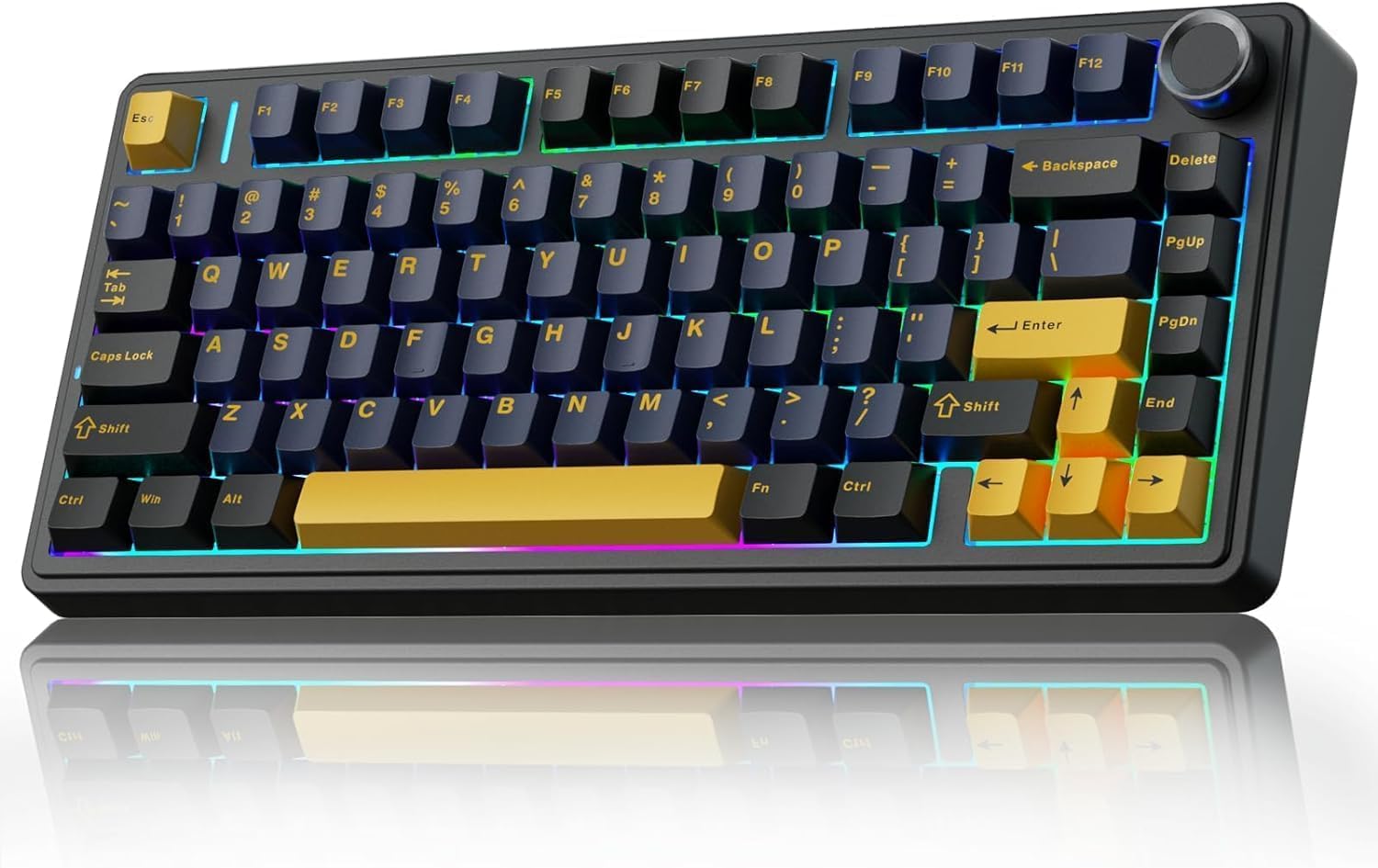
Image 3.1: The AULA F75 Wireless Mechanical Keyboard.
3.1 XNUMX모드 연결
- 블루투스 5.0 : 최대 3개의 기기에 동시에 연결할 수 있습니다.
- 2.4GHz 무선: Utilizes a dedicated USB receiver for low-latency connection.
- USB 유선: Direct connection via USB-C cable for charging and data.
The F75 keyboard is compatible with PC, laptops, tablets, mobile phones, PS, and XBOX. It features a 4000mAh battery for extended wireless use.

Image 3.2: The compact 75% layout of the AULA F75 keyboard, highlighting its BT5.0/3.0, 2.4GHz, and Type-C connection options.
3.2 핫스왑 가능 설계
- Supports 3-pin or 5-pin mechanical switches.
- 납땜 없이 간편하게 스위치를 교체할 수 있습니다.
- Equipped with pre-lubricated stabilizers and LEOBOG Graywood V3 switches for a smooth typing experience.

Image 3.3: The hot-swappable feature of the AULA F75 keyboard, showing included tools and spare switches.
3.3 Gasket Structure & PCB Single Key Slotting
- Gasket structure enhances resilience and stability, providing a softer, more elastic feel.
- Five layers of sound-dampening material (silicone pad, sound-absorbing cotton, IXPE shaft bottom pad, PET voice actor pad, PO base cotton) reduce cavity noise.
- PCB single key slotting further optimizes the typing sound and feel.

Image 3.4: Diagram illustrating the advanced gasket structural design and five layers of sound dampening in the AULA F75 keyboard.
4. Mouse Features (AULA SC580)

이미지 4.1: 상단 view of the AULA SC580 Wireless Gaming Mouse.
4.1 Tri-mode Connection & Compatibility
- 2.4GHz 무선: For stable, low-latency connection.
- Bluetooth 5.0 (x2): Connects to two Bluetooth devices.
- USB-C 유선: 직접 연결하여 충전합니다.
- Can save up to 4 devices and switch quickly via the bottom switch button.
- Compatible with Windows 7/8/10/XP/Vista, Mac OS, Linux, and Android systems.

Image 4.2: The AULA SC580 mouse demonstrating its tri-mode connectivity across various devices.
4.2 Adjustable DPI Levels & High Polling Rate
- 6단계 DPI 조절 가능: 800/1600/2400/3200/6400/10,000 DPI.
- DPI can be adjusted via the DPI button on the mouse or custom software.
- 1000Hz 폴링 속도: Ensures low-latency and responsive performance.

Image 4.3: The AULA SC580 mouse highlighting its 6 adjustable DPI levels up to 10,000.

이미지 4.4: 이상view of AULA SC580 mouse features including tri-mode connection, DPI, custom macro, battery life, polling rate, weight, and ergonomic design.
5. 설정 지침
5.1 Keyboard Setup (AULA F75)
- 전원 켜기: 키보드의 전원 스위치를 찾아 '켜짐' 위치로 밀어주세요.
- 모드 선택: Use the side button or shortcut keys (refer to keyboard specific function keys) to select your desired connection mode: 2.4GHz, Bluetooth, or Wired.
5.1.1 2.4GHz 무선을 통한 연결
- Ensure the keyboard is in 2.4GHz mode.
- 2.4GHz USB 수신기를 컴퓨터의 사용 가능한 USB 포트에 연결합니다.
- The keyboard should automatically connect. If not, press and hold the designated 2.4GHz pairing key (refer to keyboard manual for specific key combination) until the indicator light flashes, then release.
5.1.2 블루투스를 통한 연결
- 키보드가 Bluetooth 모드인지 확인하세요.
- Press and hold one of the Bluetooth pairing keys (e.g., Fn + 1, Fn + 2, or Fn + 3) until the indicator light flashes rapidly, indicating pairing mode.
- On your device (PC, tablet, phone), go to Bluetooth settings and search for new devices.
- 사용 가능한 장치 목록에서 "AULA F75"을 선택하여 페어링하십시오.
5.1.3 USB-C 유선 연결
- USB-C 케이블의 한쪽 끝을 키보드의 USB-C 포트에 연결하세요.
- USB-C 케이블의 다른 쪽 끝을 컴퓨터의 사용 가능한 USB 포트에 연결합니다.
- 키보드는 자동으로 유선 모드로 전환되어 충전을 시작합니다.
5.2 Mouse Setup (AULA SC580)
- 전원 켜기: 마우스 하단에 있는 전원 스위치를 찾아 '켜짐' 위치로 밀어주세요.
- 모드 선택: Use the switch button on the bottom of the mouse to select your desired connection mode: 2.4GHz, Bluetooth 1, Bluetooth 2, or Wired.
5.2.1 2.4GHz 무선을 통한 연결
- Ensure the mouse is in 2.4GHz mode.
- Plug the 2.4GHz USB receiver (usually stored in the mouse's bottom compartment) into an available USB port on your computer.
- 마우스가 자동으로 연결됩니다.
5.2.2 블루투스를 통한 연결
- Ensure the mouse is in Bluetooth 1 or Bluetooth 2 mode.
- Press and hold the pairing button (refer to mouse manual for specific button) until the indicator light flashes rapidly.
- 기기에서 블루투스 설정으로 이동하여 새 기기를 검색하세요.
- Select "AULA SC580" from the list of available devices to pair.
5.2.3 USB-C 유선 연결
- Connect one end of the USB-C cable to the mouse's USB-C port.
- USB-C 케이블의 다른 쪽 끝을 컴퓨터의 사용 가능한 USB 포트에 연결합니다.
- 마우스가 자동으로 유선 모드로 전환되고 충전이 시작됩니다.
6. 사용 설명서
6.1 Keyboard Operation (AULA F75)
- 모드 전환: Use the dedicated switch or Fn key combinations to cycle between 2.4GHz, Bluetooth (BT1, BT2, BT3), and Wired modes.
- 볼륨 노브: Rotate the metal knob in the top right corner to adjust system volume. Press the knob to mute/unmute.
- 기능 키(Fn 조합): The F75 keyboard features various Fn key combinations for media control, backlight adjustment, and other functions. Refer to the keycap legends for specific commands (e.g., Fn + F1-F12 for media, Fn + arrow keys for backlight).
- 백라이트 제어: Adjust RGB lighting effects, brightness, and speed using designated Fn key combinations.
- 핫 스와핑 스위치: To replace a switch, gently pull off the keycap using the keycap puller. Then, use the switch puller to carefully remove the switch. Align the pins of the new switch with the holes on the PCB and press firmly until it clicks into place. Replace the keycap.
6.2 Mouse Operation (AULA SC580)
- DPI 조정: Press the DPI button (usually located behind the scroll wheel) to cycle through the 6 available DPI levels (800/1600/2400/3200/6400/10,000). The indicator lights will change to reflect the current DPI setting.
- 모드 전환: Use the switch on the bottom of the mouse to select between 2.4GHz, Bluetooth 1, Bluetooth 2, and Wired modes.
- 사용자 지정 매크로: Utilize the official AULA software (downloadable from the AULA website) to program custom macros and button assignments for enhanced gaming and productivity.
7. 유지관리
- 청소: Use a soft, dry cloth to wipe down the keyboard and mouse. For deeper cleaning, use a can of compressed air to remove dust and debris from between keycaps. For the keyboard, keycaps can be removed with the included keycap puller for thorough cleaning.
- 배터리 관리 : To prolong battery life, avoid fully discharging the devices frequently. Charge them when the battery indicator is low. If storing for an extended period, charge to about 50% and power off.
- 저장: 기기를 직사광선과 극한의 온도를 피해 서늘하고 건조한 곳에 보관하세요.
8. 문제 해결
- 장치가 연결되지 않음:
- Ensure the device is powered on and in the correct connection mode (2.4GHz, BT, Wired).
- 2.4GHz의 경우, USB 수신기가 제대로 연결되어 있는지 확인하세요.
- For Bluetooth, ensure Bluetooth is enabled on your host device and the device is in pairing mode. Try re-pairing.
- For wired, ensure the USB-C cable is properly connected to both the device and the computer.
- 배터리 수준을 확인하고 필요한 경우 충전하세요.
- 지연 또는 연결 끊김:
- Move the 2.4GHz receiver closer to the device or use a USB extension cable.
- 다른 무선 장치의 간섭을 줄이세요.
- 장치가 완전히 충전되었는지 확인하십시오.
- Keys or Mouse Buttons Not Responding:
- Restart the device and your computer.
- For keyboard, if a specific key is not working, try hot-swapping the switch with a spare one.
- Ensure no debris is lodged under the keycap or button.
- 백라이트가 작동하지 않음:
- Ensure the backlight is not turned off via Fn key combinations.
- 배터리 잔량을 확인하십시오. 배터리가 부족하면 백라이트가 꺼질 수 있습니다.
9. 사양
9.1 AULA F75 Keyboard Specifications
| 특징 | 세부 사항 |
|---|---|
| 상표 | 아울라 |
| 모델 | F75 |
| 연결성 | Bluetooth 5.0, 2.4GHz 무선, USB-C 유선 |
| 키보드 유형 | 75% 기계 |
| 스위치 | LEOBOG Graywood V3 (Hot-Swappable 3/5-pin) |
| 구조 | 개스킷 장착 |
| 배터리 용량 | 4000mAh |
| 백라이트 | RGB |
| 재료 | 플라스틱 |
9.2 AULA SC580 Mouse Specifications
| 특징 | 세부 사항 |
|---|---|
| 상표 | 아울라 |
| 모델 | SC580 |
| 연결성 | Bluetooth 5.0 (x2), 2.4GHz Wireless, USB-C Wired |
| DPI 레벨 | 800/1600/2400/3200/6400/10,000 |
| 폴링 속도 | 1000Hz |
| 호환 장치 | PC, 노트북, 맥, 안드로이드 |
10. 보증 및 지원
AULA products are designed for reliability and performance. For warranty information, technical support, or further assistance, please visit the official AULA brand store or contact AULA customer service through their official channels.
자세한 정보와 지원 리소스는 다음에서 찾을 수 있습니다. AULA Brand Store.


