1. 서론
This manual provides detailed instructions for the setup, operation, maintenance, and troubleshooting of your NIIMBOT B1 Portable Thermal Label Printer. Please read this manual thoroughly before using the device to ensure proper function and longevity.

Image 1.1: The NIIMBOT B1 Label Maker shown with examples of printed labels for various applications.
2. 제품 오버view
2.1 패키지 내용
패키지에 모든 품목이 들어 있는지 확인하세요.
- NIIMBOT B1 Label Maker x1
- C형 케이블 x1
- 사용 설명서 x1
- Roll label tape (50x30mm) x1 (pre-installed in some models)

Image 2.1: The NIIMBOT B1 Label Maker and its included accessories.
2.2 주요 특징
- 2-Inch Label Printing: Supports label widths from 20mm to 50mm (1-2 inches).
- 열 인쇄: 잉크나 토너가 필요 없어 운영 비용이 절감됩니다.
- 자동 라벨 식별: For faster and easier printing.
- 연결성: Compatible with iOS & Android smartphones via Bluetooth, and PC via USB.
- NIIMBOT App: Offers 10+ fonts/languages, 100+ borders, 1500+ symbols, barcodes, QR codes, icons, time stamps, pictures, photos, and OCR print functions.
- 휴대성 있는 디자인: 휴대가 간편하고 사용하기 쉽도록 작고 가볍습니다.
- 자동 종료: Customizable auto-off settings (15min, 30min, 60min, never) to conserve battery.
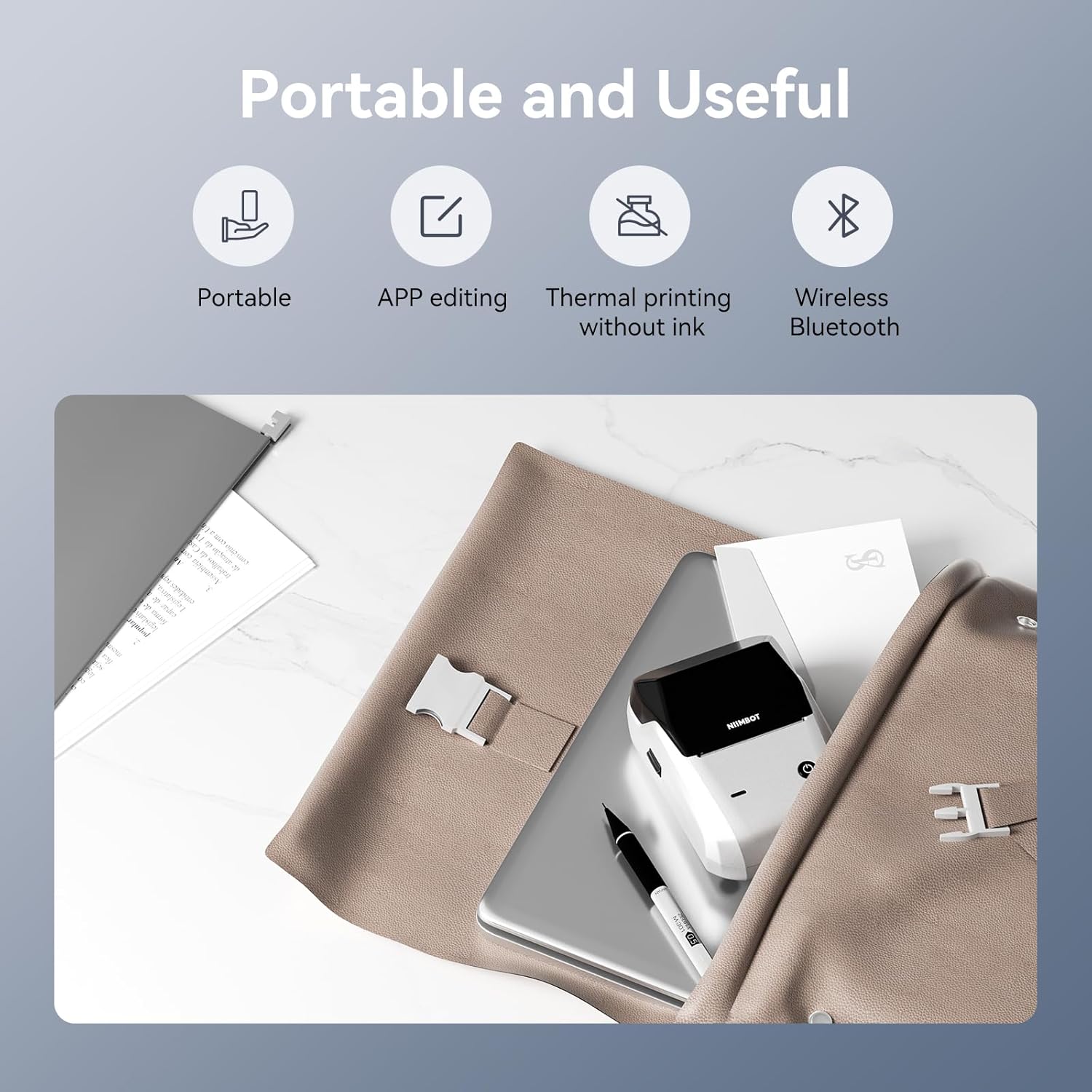
이미지 2.2: 이상view of the NIIMBOT B1's portable and useful features.
3. 설정
3.1 라벨 테이프 적재
- Rotate the side latch to open the tape slot.
- Load the label tape into the slot, ensuring the label side faces upwards.
- Adjust the guide plate to fit the label roll snugly.
- Close the tape slot, leaving a small portion of the label tape extending for smooth feeding.

Image 3.1: Proper installation of label tape in the NIIMBOT B1.
3.2 앱 설치 및 연결
The NIIMBOT B1 requires the NIIMBOT app for smartphone operation.
- Download the NIIMBOT app from the App Store (iOS) or Google Play Store (Android). 검색 "NIIMBOT".
- 휴대폰의 Bluetooth가 활성화되어 있는지 확인하세요.
- Open the NIIMBOT app and click "Connect" to search for nearby devices.
- Select your B1 printer from the list (e.g., B1-XXXXXX) to pair. If prompted for a pairing code, enter 0000 or 1234.
- Once connected, the app will automatically identify the label tape in the printer.

Image 3.2: NIIMBOT App download and connection process.
3.3 PC 연결(Windows)
For PC connectivity, you will need to download the driver from the official NIIMBOT web대지.
- 니임봇 공식 홈페이지를 방문해 보세요 website and download the B1 printer driver for Windows 7/10.
- Install the driver on your PC.
- Connect the NIIMBOT B1 printer to your PC using the provided USB Type-C cable.
- Open the NIIMBOT desktop software to begin printing.

Image 3.3: Connecting the NIIMBOT B1 to a PC via USB.
3.4 Quick Start Video Guide
Watch this video for a quick visual guide on setting up and using your B1 Label Maker.
Video 3.4: A quick start guide demonstrating the initial setup and basic operation of the NIIMBOT B1 Label Maker.
4. 사용 설명서
4.1 레이블 생성 및 편집
- In the NIIMBOT app, select a template or create a new label.
- Use the various editing tools to add text, images, icons, barcodes, QR codes, and other elements.
- Customize font styles, sizes, alignment, and other layout options.
- The app supports features like OCR (Optical Character Recognition) for converting images to text.

Image 4.1: The NIIMBOT App interface for creating and editing labels.
4.2 라벨 인쇄
- After designing your label, click the "Print" button in the app.
- Adjust the number of copies and print density as needed.
- Confirm the print settings and initiate printing.
- The printer will automatically feed and print the labels. Gently tear off the printed labels.

Image 4.2: Smartphone printing process with the NIIMBOT B1.
4.3 표시등의 의미
Understand the status of your printer through its indicator light:
- 플래시 블루: 펌웨어 업그레이드가 진행 중입니다.
- 계속 파란색: 프린터가 대기 모드입니다.
- 플래시 그린: Printer is actively printing.
- 녹색 점등: Bluetooth is successfully connected.
- 플래시 레드: Printer is charging.
- 계속 빨간색: Cover is open, out of paper, or low battery.

Image 4.3: Guide to the NIIMBOT B1 indicator light statuses.
4.4 사용 예amp레
The NIIMBOT B1 is versatile for various labeling needs:
- 가정용: Kitchen labels, gift labels, kids' item labels, trip item labels.
- 업무용: Beauty & personal care, DIY item labels, mail labels, perfume labels, bakery food labels.

이미지 4.4: Examples of NIIMBOT B1 usage for home organization.

이미지 4.5: Examples of NIIMBOT B1 usage for small businesses.

이미지 4.6: Examples of labels for bakery and food products.
Video 4.7: Demonstration of the NIIMBOT B1 Label Maker's ease of use for various labeling tasks.
비디오 4.8: 쇼casing the multipurpose capabilities of the NIIMBOT B1 Label Maker for different applications.
5. 유지관리
5.1 프린트 헤드 청소
정기적으로 프린트 헤드를 청소하면 최적의 인쇄 품질을 보장할 수 있습니다.
- 프린터 전원을 끄고 전원 케이블을 분리하세요.
- 라벨함을 엽니다.
- 면봉으로 프린트 헤드를 부드럽게 닦아주세요.amp이소프로필 알코올로 소독함.
- Allow the print head to dry completely before closing the compartment and turning on the printer.
5.2 배터리 관리
- 배터리 수명 유지를 위해 자주 사용하지 않더라도 프린터를 정기적으로 충전하십시오.
- 프린터를 극한의 온도에 노출시키지 마십시오.
- 충전 시에는 제공된 Type-C 케이블만 사용하세요.
6. 문제 해결
6.1 일반적인 문제 및 해결 방법
| 문제 | 가능한 원인 | 해결책 |
|---|---|---|
| 프린터가 켜지지 않습니다 | 배터리 부족; 전원 버튼을 충분히 길게 누르지 않음 | 프린터를 충전하려면 전원 버튼을 3초 동안 길게 누르십시오. |
| 블루투스를 통해 연결할 수 없습니다 | Bluetooth off on phone; Printer not in pairing mode; App permissions | Ensure Bluetooth is on; Restart printer; Check app permissions for nearby devices. |
| 인쇄 품질이 좋지 않음 | Dirty print head; Incorrect print density; Low battery | Clean the print head (see 5.1); Adjust print density in the app; Charge the printer. |
| 라벨이 제대로 공급되지 않음 | Incorrect label installation; Guide plate not adjusted | Reinstall label tape correctly (see 3.1); Adjust the guide plate to fit the label roll. |
| PC에서 프린터를 인식하지 못합니다. | Driver not installed; Faulty USB cable | Install the correct PC driver (see 3.3); Try a different USB cable. |
7. 사양
| 특징 | 세부 사항 |
|---|---|
| 모델명 | B1 |
| 인쇄 기술 | 열의 |
| 연결성 | 블루투스, USB |
| 최대 인쇄 해상도 | 203dpi |
| 최대 인쇄 속도(흑백) | 15mm/초 |
| 최대 미디어 크기 | 2인치(50mm) |
| 호환 장치 | Smartphone (Android & iOS), PC (Windows 7/10) |
| 품목 무게 | 1.1파운드(499그램) |
| 제품 치수 | 5.5인치 깊이 x 3.5인치 너비 x 2.5인치 높이 |
| 배터리 | 1 배터리 필요 (포함) |
| 특정 용도 | Labeling for Small Business Product Price/Address, School and Office Files Classification, Home Supplies Organization, Personal Item Identification, Name Tags and Warehouse |
8. 보증 및 지원
8.1 보증 정보
The NIIMBOT B1 Label Printer comes with a 1-year warranty coverage. Please retain your proof of purchase for warranty claims.
8.2 고객 지원
For further assistance, technical support, or warranty inquiries, please contact NIIMBOT customer service through their official web사이트 또는 제품 포장과 함께 제공된 연락처 정보를 참조하세요.


