1. 서론
This manual provides essential information for setting up, operating, maintaining, and troubleshooting your HP Pro Mini 400 G9 MFF Mini PC. Please read this manual thoroughly before using your device to ensure proper functionality and longevity.
2. 상자 안에 무엇이 들어있나요?
모든 품목이 포장에 들어 있는지 확인하세요.
- HP Pro Mini 400 G9 MFF Mini PC
- 전원 어댑터(90W)
- HP 유선 데스크탑 320K 키보드
- HP 125 유선 마우스
- Vertical Stand (optional, may vary by region)
- 문서(빠른 시작 가이드, 보증 정보)
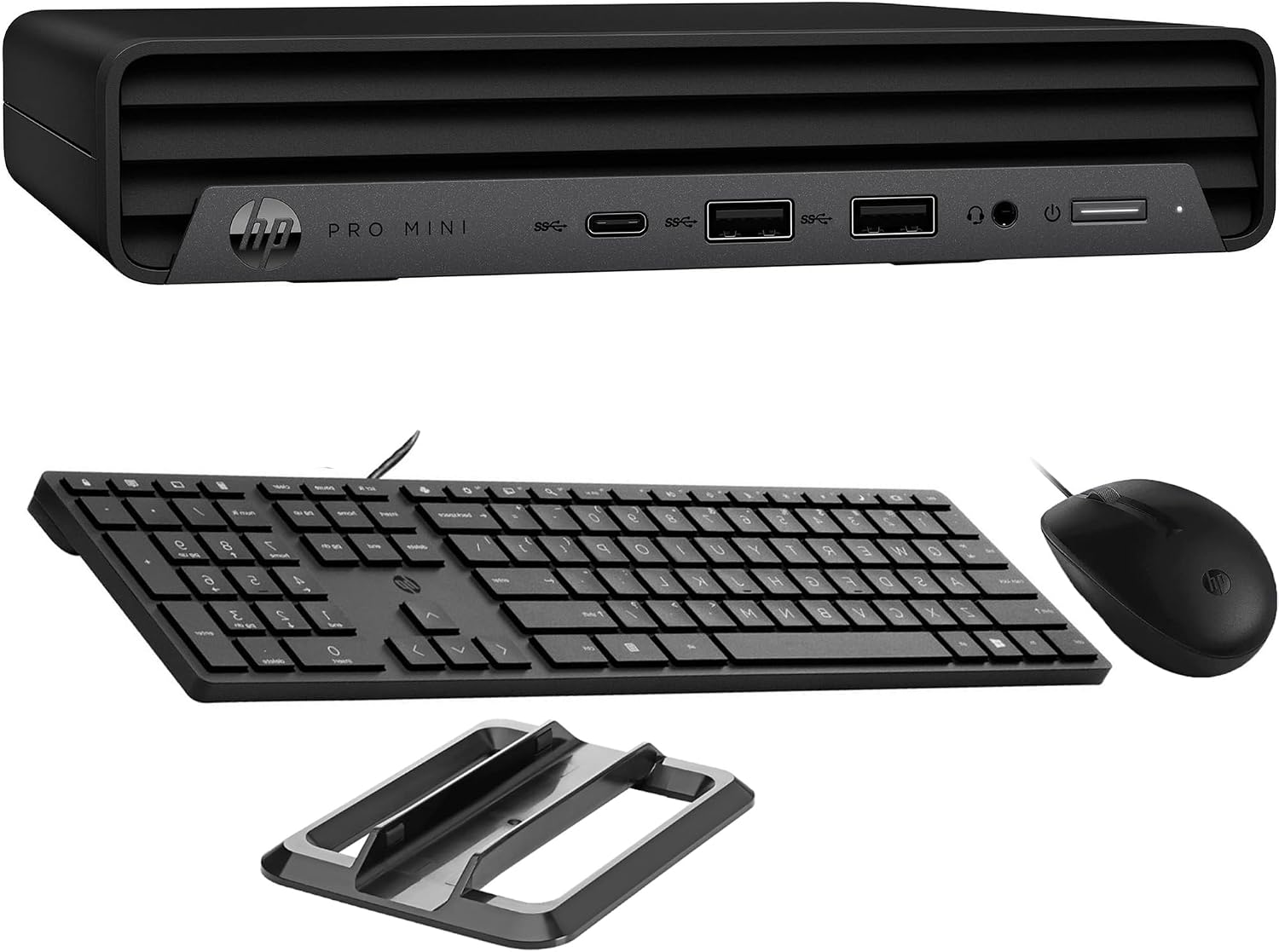
Image: HP Pro Mini 400 G9 Mini PC shown with its wired keyboard, wired mouse, and a vertical stand.
3. 신체적 이상view
3.1 전면 패널
The front panel provides easily accessible ports for common peripherals and power control.
- 전원 버튼: PC를 켜거나 끕니다.
- 헤드폰/마이크 콤보 잭: 오디오 입력 및 출력용.
- SuperSpeed USB Type-A 10Gbps (Charging): For high-speed data transfer and charging devices.
- SuperSpeed USB Type-A 10Gbps: 고속 데이터 전송을 위해.
- SuperSpeed USB Type-C 20Gbps: For ultra-high-speed data transfer and display output.

이미지: 앞면 view of the HP Pro Mini 400 G9, highlighting the power button, USB Type-A ports, USB Type-C port, and headphone/microphone combo jack.
3.2 후면 패널
The rear panel contains ports for display, network, and additional USB devices.
- 전원 커넥터 : Connects to the external power adapter.
- RJ-45(이더넷) 포트: 유선 네트워크 연결용.
- SuperSpeed USB Type-A 10Gbps: 고속 데이터 전송을 위해.
- SuperSpeed USB Type-A 5Gbps (x2): 표준 데이터 전송용입니다.
- DisplayPort 1.4 (x2): 외부 디스플레이를 연결하는 데 사용됩니다.
- HDMI 2.1 : 외부 디스플레이를 연결하는 데 사용됩니다.

이미지: 후면 view of the HP Pro Mini 400 G9, detailing the power connector, RJ-45 Ethernet port, various USB Type-A ports, two DisplayPort 1.4 ports, and one HDMI 2.1 port.
3.3 포트 다이어그램
A comprehensive diagram illustrating all available ports on the HP Pro Mini 400 G9.
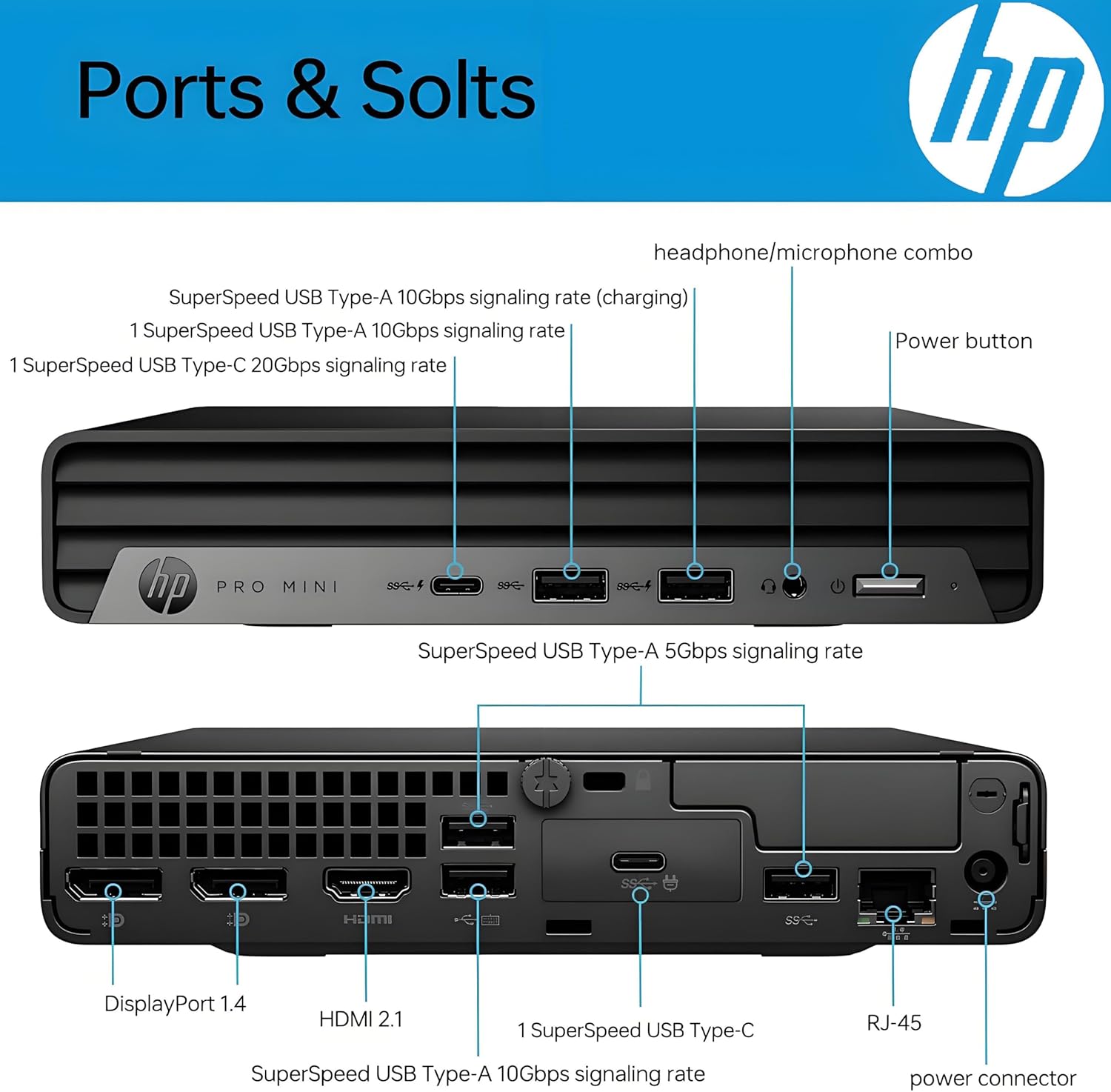
Image: Detailed diagram labeling each port on both the front and rear panels of the HP Pro Mini 400 G9 for easy identification.
3.4 치수 및 무게
The HP Pro Mini 400 G9 is designed for a compact footprint.
- 치수(폭 x 깊이 x 높이): 6.97 x 6.89 x 1.34인치(17.7 x 17.5 x 3.4cm)
- 무게: 약 3.13파운드(1.42kg)

Image: The HP Pro Mini 400 G9 with its physical dimensions (width, depth, height) and weight clearly indicated.
4. 초기 설정
Follow these steps to set up your HP Pro Mini 400 G9:
- PC 압축 풀기: 미니 PC와 모든 액세서리를 포장에서 조심스럽게 꺼내세요.
- 주변기기 연결:
- Connect the wired keyboard and mouse to any available USB Type-A ports on the front or rear panel.
- Connect your monitor(s) to the DisplayPort or HDMI ports on the rear panel.
- 네트워크에 연결(선택 사항):
- For a wired connection, connect an Ethernet cable from your router/modem to the RJ-45 port on the rear panel.
- For wireless (Wi-Fi), the PC will prompt you to connect during Windows setup.
- 전원 연결: Connect the power adapter cable to the power connector on the rear panel of the PC, then plug the power adapter into a wall outlet.
- 첫 번째 부팅: Press the power button on the front panel. The PC will start, and you will be guided through the Windows 11 Pro initial setup process.
5. 사용 설명서
5.1 전원 켜기/끄기
- 전원을 켜려면: 전면 패널의 전원 버튼을 누릅니다.
- 종료하려면: Windows에서 시작 버튼을 클릭한 다음 전원 > 시스템 종료를 선택합니다.
- 재시작하기 위해: Windows에서 시작 버튼을 클릭한 다음 전원 > 다시 시작을 선택합니다.
- 잠들다: Windows의 시작 버튼을 클릭한 다음 전원 > 절전을 선택합니다.
5.2 무선 네트워크(Wi-Fi) 연결하기
- 시스템 트레이(화면 오른쪽 하단)에 있는 Wi-Fi 아이콘을 클릭하세요.
- 목록에서 원하는 Wi-Fi 네트워크를 선택하세요.
- '연결'을 클릭하고 메시지가 나타나면 네트워크 보안 키(비밀번호)를 입력하세요.
5.3 USB 및 디스플레이 포트 사용
- USB 포트: Connect USB devices such as external hard drives, flash drives, printers, or other peripherals. The USB Type-C port supports data transfer and can also be used for display output with an appropriate adapter (sold separately).
- Display Ports (HDMI, DisplayPort): Connect up to three external monitors simultaneously for extended desktop or mirrored display configurations.
6. 유지관리
Regular maintenance helps ensure optimal performance and extends the life of your Mini PC.
- 청소: Use a soft, dry cloth to clean the exterior of the PC. For dust accumulation in vents, use compressed air. Ensure the PC is powered off and unplugged before cleaning.
- 소프트웨어 업데이트: Regularly check for and install Windows updates and HP driver updates to maintain system security and performance.
- 데이터 백업: 데이터 손실을 방지하려면 중요한 데이터를 주기적으로 외장 드라이브나 클라우드 스토리지에 백업하세요.
- 통풍: PC의 통풍구가 막히지 않도록 하여 적절한 공기 흐름을 확보하고 과열을 방지하십시오.
7. 문제 해결
이 섹션에서는 일반적으로 발생할 수 있는 문제에 대해 설명합니다.
| 문제 | 가능한 해결책 |
|---|---|
| PC 전원이 켜지지 않습니다 | Ensure the power adapter is securely connected to both the PC and a working power outlet. Test the outlet with another device. |
| 모니터에 표시되지 않음 | Check that the monitor is powered on and the video cable (HDMI/DisplayPort) is securely connected to both the PC and the monitor. Try a different video port or cable if available. |
| 인터넷 연결 없음 | For wired connection, check the Ethernet cable and router/modem status. For Wi-Fi, ensure Wi-Fi is enabled and you are connected to the correct network with the correct password. Restart your router/modem. |
| 키보드 또는 마우스가 작동하지 않습니다 | Ensure the USB cables for the keyboard and mouse are securely plugged into the PC. Try different USB ports. |
| 시스템 속도가 느리거나 응답하지 않습니다. | Close unnecessary applications. Check Task Manager for high resource usage. Ensure Windows and drivers are up to date. Restart the PC. |
8. 기술 사양
Key technical specifications for the HP Pro Mini 400 G9 MFF Mini PC (configuration may vary).
| 특징 | 사양 |
|---|---|
| 운영 체제 | 윈도우 11 프로 |
| 프로세서 | Intel 6-Core i5-12500T (up to 4.20 GHz) |
| 제도법 | 통합 Intel UHD Graphics 770 |
| 숫양 | 8GB DDR4 RAM(확장 가능) |
| 저장 | 256GB PCIe NVMe TLC SSD (M.2) |
| 무선 연결 | Intel AX201 Wi-Fi 6 (2x2) and Bluetooth 5.2 combo |
| 전면 포트 | 1x Headphone/Microphone combo, 1x SuperSpeed USB Type-A 10Gbps (charging), 1x SuperSpeed USB Type-A 10Gbps, 1x SuperSpeed USB Type-C 20Gbps |
| 후면 포트 | 1x Power connector, 1x RJ-45, 1x SuperSpeed USB Type-A 10Gbps, 2x SuperSpeed USB Type-A 5Gbps, 2x DisplayPort 1.4, 1x HDMI 2.1 |
| 전원 공급 장치 | 90 W external power adapter |
| 치수(폭 x 깊이 x 높이) | 6.97 x 6.89 x 1.34인치(17.7 x 17.5 x 3.4cm) |
| 무게 | 약 3.13파운드(1.42kg) |
9. 보증 및 지원
Your HP Pro Mini 400 G9 MFF Mini PC comes with a standard limited warranty. Please refer to the warranty documentation included in your product packaging for specific terms and conditions.
기술 지원, 드라이버 다운로드 및 추가 제품 정보는 HP 공식 지원 웹사이트를 방문하십시오. web대지:
You may also find helpful resources and community forums on the HP web대지.