1. 서론
This manual provides detailed instructions for setting up, operating, and maintaining your Womier SK80 PRO 75% Wireless Mechanical Keyboard. Please read this guide thoroughly to ensure proper usage and to maximize your keyboard's features.

Image 1.1: Womier SK80 PRO keyboard, wrist rest, and mouse pad setup.
2. 패키지 내용
패키지에 모든 품목이 들어 있는지 확인하세요.
- Womier SK80 PRO 75% 무선 기계식 키보드
- Matching Wrist Rest
- Matching Mouse Pad
- USB-C 케이블
- 2.4G USB Receiver (stored magnetically in the keyboard)
- 키캡 풀러
- 스위치 풀러
- 사용 설명서 (본 문서)
3. 설정
3.1 물리적 설정
- 키보드를 안정된 표면에 놓으십시오.
- Position the wrist rest in front of the keyboard for ergonomic support.
- Place the mouse pad next to your keyboard.
- Adjust the keyboard's feet for your preferred typing angle.

Image 3.1: Ergonomic design and dimensions of the keyboard and wrist rest.
3.2 연결 모드
Womier SK80 PRO는 2.4G 무선, 블루투스 및 USB-C 유선의 세 가지 연결 모드를 지원합니다.
- 2.4G 무선 모드:
- Locate the 2.4G USB receiver stored magnetically on the underside of the keyboard.
- 수신기를 컴퓨터의 사용 가능한 USB 포트에 연결하십시오.
- Switch the mode selector on the keyboard's underside to '2.4G'.
- 키보드가 자동으로 연결되어야 합니다.
- 블루투스 모드 :
- Switch the mode selector on the keyboard's underside to 'BT'.
- 기기(컴퓨터, 태블릿, 휴대전화)에서 Bluetooth를 활성화하고 새로운 기기를 검색하세요.
- Select 'Womier SK80 PRO' from the list of available devices to pair.
- The keyboard can connect to up to 3 Bluetooth devices. Use Fn + Q/W/E to switch between paired devices.
- USB-C 유선 모드:
- 제공된 USB-C 케이블을 키보드의 USB-C 포트에 연결합니다.
- 케이블의 다른 쪽 끝을 컴퓨터의 사용 가능한 USB 포트에 연결하십시오.
- Switch the mode selector on the keyboard's underside to 'USB'.
- 키보드는 유선 장치로 작동하며 동시에 충전도 가능합니다.

Image 3.2: The keyboard supports three versatile connection modes.
3.3 Driver/Software Installation
For advanced customization, including key remapping, macro settings, RGB lighting effects, and custom GIF images on the multimedia screen, download the official Womier SK80 PRO software from the Womier website. The software is compatible with Windows systems.
Video 3.3: Demonstration of the Womier SK80 PRO programming software.
4. 사용 설명서
4.1 기본 키보드 기능
The keyboard features a 75% layout with standard keys. Refer to the keycap legends for primary and secondary functions. Use the Fn key in combination with other keys to access secondary functions (e.g., media controls, F-keys).
4.2 멀티미디어 화면 기능
The built-in color multimedia smart display screen can show various information and custom content:
- 표시 정보 : Time, connection status, and battery level.
- 사용자 지정 GIF 이미지: Upload custom GIF images via the software for a personalized display.

Image 4.1: Multimedia screen displaying various functions and custom GIFs.
Video 4.2: Demonstration of the multimedia display features.
4.3 RGB 조명 사용자 정의
The keyboard features 16.8 million RGB backlight colors with south-facing LEDs for enhanced illumination. Customize lighting effects, brightness, and speed using the dedicated software or onboard controls (refer to the keyboard's quick guide for specific key combinations).

Image 4.3: RGB customization options via software.
4.4 핫스왑 가능 스위치
The PCB supports 3-pin/5-pin hot-swappable switches, allowing you to easily replace the pre-lubed linear cream switches with other compatible mechanical switches without soldering.
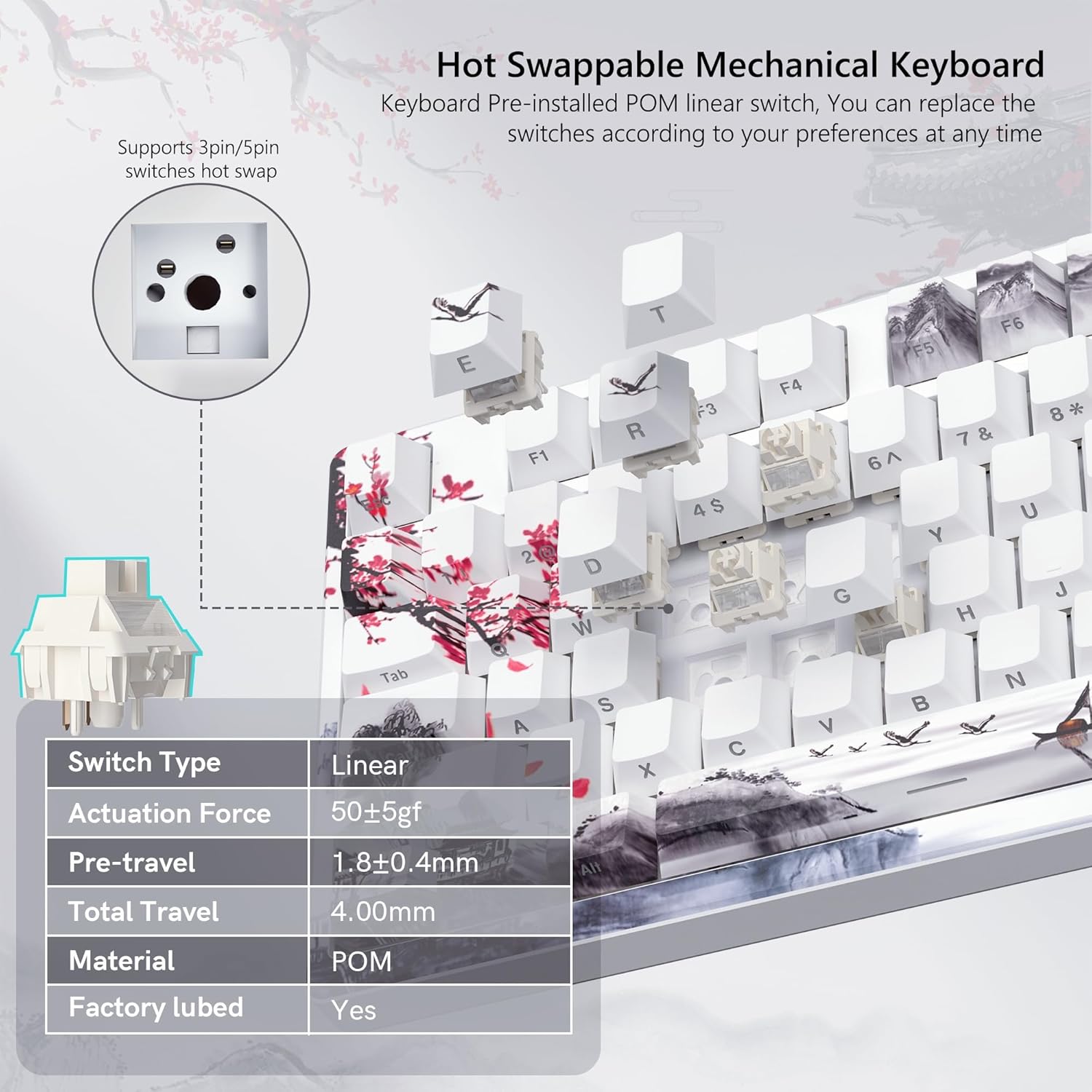
Image 4.4: Hot-swappable switch mechanism.
Video 4.5: Demonstration of hot-swappable switches and connectivity modes.
4.5 Key Remapping and Macro Settings
Utilize the Womier SK80 PRO software to redefine key functions and set up custom macros, enhancing your productivity and gaming experience.
5. 유지관리
5.1 청소
- 청소하기 전에 키보드를 장치에서 분리하세요.
- 키캡 제거 도구를 사용하여 키캡을 조심스럽게 분리한 후 꼼꼼하게 청소하십시오.
- 키보드 표면을 부드러운 천으로 닦으세요.amp 천으로 닦아주세요. 과도한 습기는 피해주세요.
- 압축 공기를 사용하여 키 사이의 먼지와 이물질을 제거합니다.
5.2 배터리 관리
The keyboard is equipped with a 4000mAh battery. To prolong battery life:
- 처음 사용하기 전에 키보드를 완전히 충전하세요.
- 배터리를 자주 완전히 방전시키지 마세요.
- 장시간 사용하지 않을 때는 키보드를 서늘하고 건조한 곳에 보관하세요.
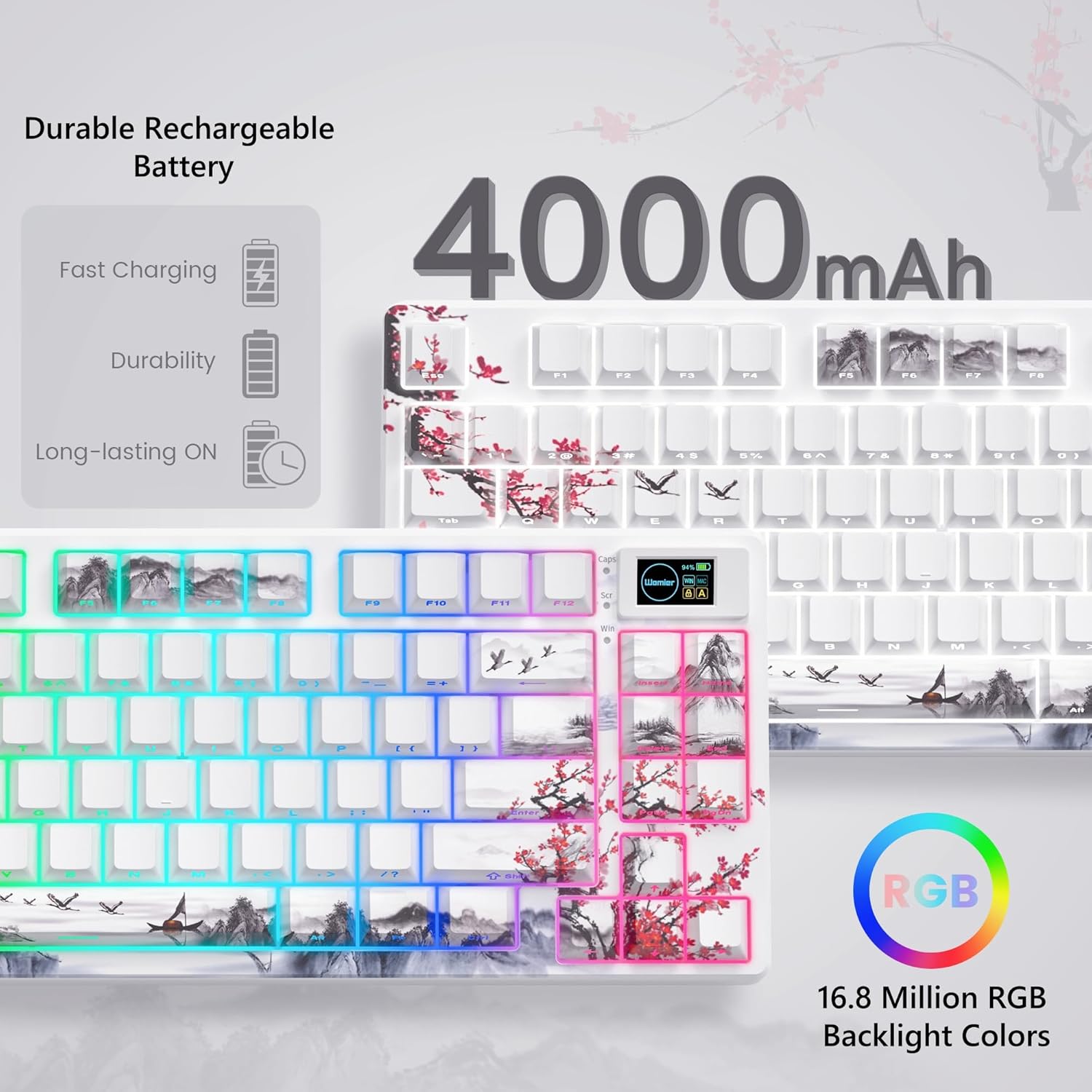
Image 5.1: Battery and RGB features.
5.3 스위치 교체
스위치를 교체하려면:
- 제공된 키캡 제거 도구를 사용하여 원하는 키캡을 제거하십시오.
- Use the switch puller to gently grasp and pull the switch upwards until it detaches from the PCB.
- 새로운 스위치의 핀을 PCB의 구멍에 맞춥니다.
- 새 스위치를 딸깍 소리가 나면서 제자리에 고정될 때까지 단단히 누르십시오. 핀이 구부러지지 않았는지 확인하십시오.
- 키캡을 다시 부착하세요.
6. 문제 해결
- 키보드가 응답하지 않습니다:
- Check the connection mode switch (2.4G, BT, USB) on the underside of the keyboard.
- Ensure the USB-C cable or 2.4G receiver is securely connected.
- 블루투스를 사용하는 경우, 기기에서 키보드가 페어링되어 선택되어 있는지 확인하십시오.
- 배터리 수준을 확인하세요. 낮으면 충전하세요.
- RGB 조명이 작동하지 않거나 사용자 지정이 안 됩니다.
- 키보드의 전원이 켜져 있는지 확인하세요.
- Install and use the Womier SK80 PRO software for full customization.
- Refer to the quick guide for onboard RGB control shortcuts.
- Multimedia screen not displaying correctly:
- Ensure the keyboard is connected and powered.
- Use the Womier SK80 PRO software to upload or reset custom GIFs.
- 키가 등록되지 않거나 두 번 입력됨:
- 이는 스위치 불량을 나타낼 수 있습니다. 스위치 풀러를 사용하여 해당 스위치를 교체하십시오.
- 스위치가 PCB에 완전히 고정되었는지 확인하세요.
7. 사양
| 특징 | 세부 사항 |
|---|---|
| 모델 번호 | JM-AZ-129 |
| 공들여 나열한 것 | 75% |
| 연결성 | 2.4G 무선, 블루투스, USB-C 유선 |
| 호환 장치 | PC (Windows, Mac, Android, iOS) |
| 스위치 | Womier Customized Pre-lubed Linear Cream Switches (Hot-swappable 3-pin/5-pin) |
| 키캡 | Theme Art Keycaps (Shine-through) |
| 백라이트 | 16.8 Million RGB (South-facing LED) |
| 배터리 용량 | 4000mAh 리튬 폴리머 |
| 특별 기능 | Color Multimedia Smart Display Screen, Gasket Mount Design, EVA Positioning Plate, Bottom Filling |
| 제품 치수 | 13.39 x 6.69 x 1.38 인치 |
| 품목 무게 | 2.97파운드 |
8. 보증 및 지원
Womier products are designed for reliability and performance. For warranty information, technical support, or service inquiries, please visit the official Womier website or contact customer support directly. Keep your purchase receipt for warranty claims.


