소개
The PeriPage P40 is a sleek, portable mini thermal printer designed for mobile and wireless printing. It utilizes Bluetooth connectivity and requires no ink, making it suitable for printing documents, photos, and even tattoo stencils directly from your Android or iOS device. This manual provides comprehensive instructions for setting up, operating, and maintaining your P40 printer.

Image: The PeriPage P40 Mini Thermal Printer, a compact white device.
안전 정보
- Do not disassemble, repair, or modify the printer.
- 프린터를 물, 습기, 직사광선으로부터 멀리 두세요.
- 지정된 충전 케이블과 전원 어댑터만 사용하세요.
- 인쇄 직후에는 프린트 헤드가 뜨거울 수 있으므로 만지지 마십시오.
- Store the printer and thermal paper in a cool, dry place.
- 어린이의 손이 닿지 않는 곳에 보관하세요.
패키지 내용
상자를 푼 후 패키지 내용물을 확인하세요.
- PeriPage P40 Mini Thermal Printer
- Thermal Paper Roll (Included Components: Paper)
- USB Type-C 충전 케이블
- 사용 설명서 (본 문서)
제품 끝view
Familiarize yourself with the various parts of your PeriPage P40 printer.

이미지: 상세 view of the PeriPage P40 printer showing the Power Button with Indicator Light, Cover-open Button, Type-C Interface for charging/connection, and the internal mechanism for easy paper replacement.
- 전원 버튼/표시등: Used to turn the printer on/off and indicates status.
- Cover-open Button: Releases the top cover for paper loading.
- Type-C 인터페이스 : For charging the printer and connecting to a computer (if applicable, though primarily Bluetooth).
- 용지 배출구: Where printed paper emerges.
- 종이 칸: Holds the thermal paper.
설정
1. 프린터 충전하기
Before first use, fully charge the printer. Connect the provided USB Type-C cable to the printer's Type-C interface and the other end to a USB power adapter (not included) or a computer's USB port. The indicator light will show charging status (e.g., red while charging, green when fully charged).
The printer features a 2600mAh battery, offering approximately 3 hours of continuous printing or up to 90 days of standby time on a full charge, capable of printing around 360 papers.
Image: Information graphic detailing the PeriPage P40's battery performance: 90 days standby, 2600mAh battery, 3 hours continuous print, and 360 papers print per full charge.
2. Installing Thermal Paper
The PeriPage P40 supports two types of thermal paper: folding paper and inner roll paper.

Image: Illustration showing the two supported paper types for the PeriPage P40: Folding Paper for automatic paging and multiple paper printing, and Inner Roll Paper for portability, free space, and customized paper length.
- Press the Cover-open Button to open the printer's top cover.
- Insert the thermal paper into the paper compartment, ensuring the printing side faces the print head. For roll paper, ensure it unwinds from the bottom. For folding paper, align it correctly.
- Pull a small amount of paper out of the paper exit slot.
- 윗덮개를 딸깍 소리가 나면서 제자리에 고정될 때까지 단단히 닫으세요.
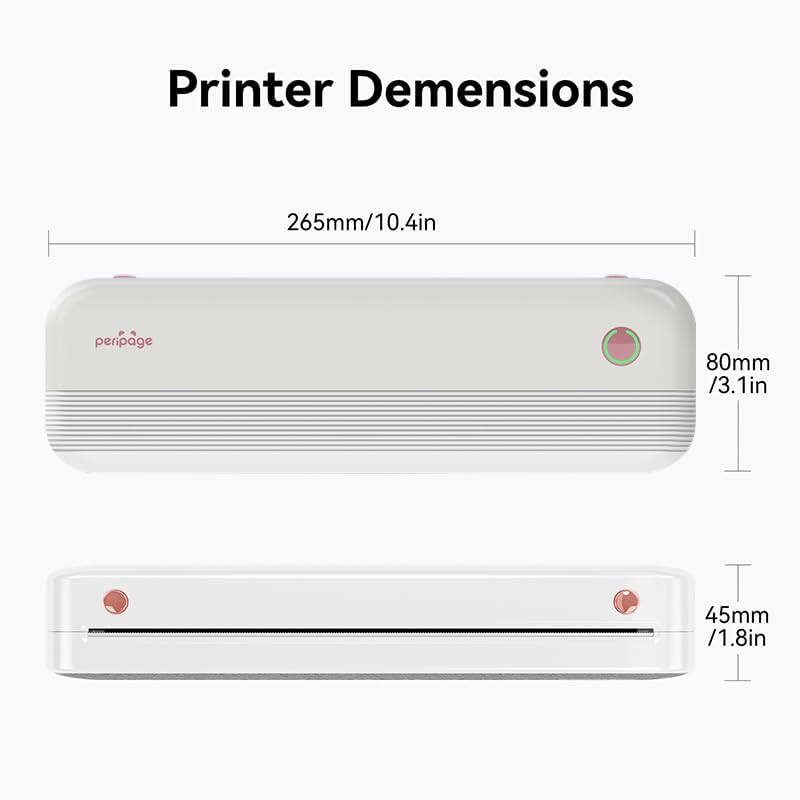
Image: The PeriPage P40 printer actively printing a document, with paper emerging from the front slot.
3. 앱 다운로드 및 블루투스 연결
The PeriPage P40 printer operates via the dedicated "PeriPage" mobile application.
- 검색 "PeriPage" in your device's APP store (Google Play Store for Android, Apple App Store for iOS) and download the official application. Alternatively, scan the QR code provided in the physical instruction manual to download the app.
- 프린터 전원이 켜져 있고 배터리가 완전히 충전되었는지 확인하십시오.
- 모바일 기기에서 Bluetooth를 활성화하세요.
- Open the "PeriPage" app. The app will guide you through connecting to your printer via Bluetooth. Select "P40" from the list of available devices.
- Once connected, the indicator light on the printer may change color or status to confirm the connection.
작동 지침
켜기/끄기
- 켜려면: 전원 표시등이 켜질 때까지 전원 버튼을 길게 누르세요.
- 끄기: 전원 표시등이 꺼질 때까지 전원 버튼을 길게 누르세요.
앱에서 인쇄하기
Once your printer is connected to the PeriPage app:
- 스마트폰에서 PeriPage 앱을 엽니다.
- 인쇄하려는 콘텐츠 유형을 선택하세요(예: 문서, 사진, web page, note).
- Adjust print settings such as density, size, and orientation within the app as needed.
- Confirm your selection and tap the print icon. The printer will begin printing.
유지
- 프린트 헤드 청소: If print quality degrades, gently wipe the print head with a cotton swab lightly dampened with isopropyl alcohol. Ensure the printer is off and cool before cleaning. Allow it to dry completely before use.
- 외부 청소: Use a soft, dry cloth to wipe the printer's exterior. Do not use abrasive cleaners or solvents.
- 저장: When not in use for extended periods, turn off the printer and store it in a cool, dry place away from direct sunlight and extreme temperatures. Remove any paper if storing for very long durations to prevent dust accumulation.
문제 해결
| 문제 | 가능한 원인 | 해결책 |
|---|---|---|
| 프린터가 켜지지 않습니다. | 배터리가 부족하거나 충전되지 않았습니다. | Connect the printer to a power source and charge it fully. |
| Bluetooth를 통해 연결할 수 없습니다. | Bluetooth is off on device; printer not in pairing mode; app issue. | Ensure Bluetooth is enabled on your phone. Restart the printer and the app. Try pairing again within the PeriPage app. |
| Poor print quality / Blank prints. | Incorrect paper loading; low battery; dirty print head; non-thermal paper. | Ensure thermal paper is loaded correctly with the print side facing up. Charge the printer. Clean the print head. Use only thermal paper. |
| 종이 걸림. | 용지 적재 불량; 이물질. | Turn off the printer. Open the cover and carefully remove any jammed paper. Ensure paper is loaded straight. |
명세서

Image: Diagram illustrating the dimensions of the PeriPage P40 printer: 265mm/10.4in (length), 80mm/3.1in (width), and 45mm/1.8in (height).
| 특징 | 세부 사항 |
|---|---|
| 모델명 | PeriPage-P40 |
| 인쇄 기술 | 열의 |
| 연결 기술 | 블루투스 |
| 호환 장치 | 스마트폰(안드로이드, iOS) |
| 해결 | 300 x 300 dpi (Max Black and White Print Resolution, Max Color Print Resolution) |
| 최대 미디어 크기 | 210mm (8.26"x11.69" Sheet Size) |
| 인쇄 매체 | Thermal Paper (Folding Paper, Inner Roll Paper) |
| 최대 입력 시트 용량 | 10 |
| 프린터 출력 | 단색화 |
| 배터리 | 2600mAh (approx. 3 hours continuous print, 90 days standby) |
| 제품 치수 | 2.5"D x 11"W x 4.1"H (약 265mm x 80mm x 45mm) |
| 품목 무게 | 2.18파운드 |
| 색상 | 하얀색 |
보증 및 지원
For warranty information and technical support, please refer to the warranty card included with your product or visit the official PeriPage web사이트. 보증 청구를 위해 구매 증빙 자료로 구매 영수증을 보관하세요.
For further assistance, you may contact PeriPage customer service through the contact information provided on their official website or within the PeriPage mobile application.


