1. 서론
Thank you for choosing the ATTACK SHARK X85 Wireless Gaming Keyboard. This 75% mechanical keyboard is designed for gamers and typists, offering versatile connectivity, a comfortable typing experience, and customizable RGB lighting. This manual provides detailed instructions to help you set up, operate, and maintain your new keyboard.
2. 패키지 내용
모든 품목이 들어 있는지 확인하기 위해 패키지를 주의 깊게 확인하세요.
- ATTACK SHARK X85 Wireless Gaming Keyboard
- Coiled USB-C to USB-A Cable
- 2.4GHz USB 동글
- 키캡/스위치 풀러 도구
- 추가 키캡 (해당 모델에 포함된 경우)
- 사용 설명서 (본 문서)
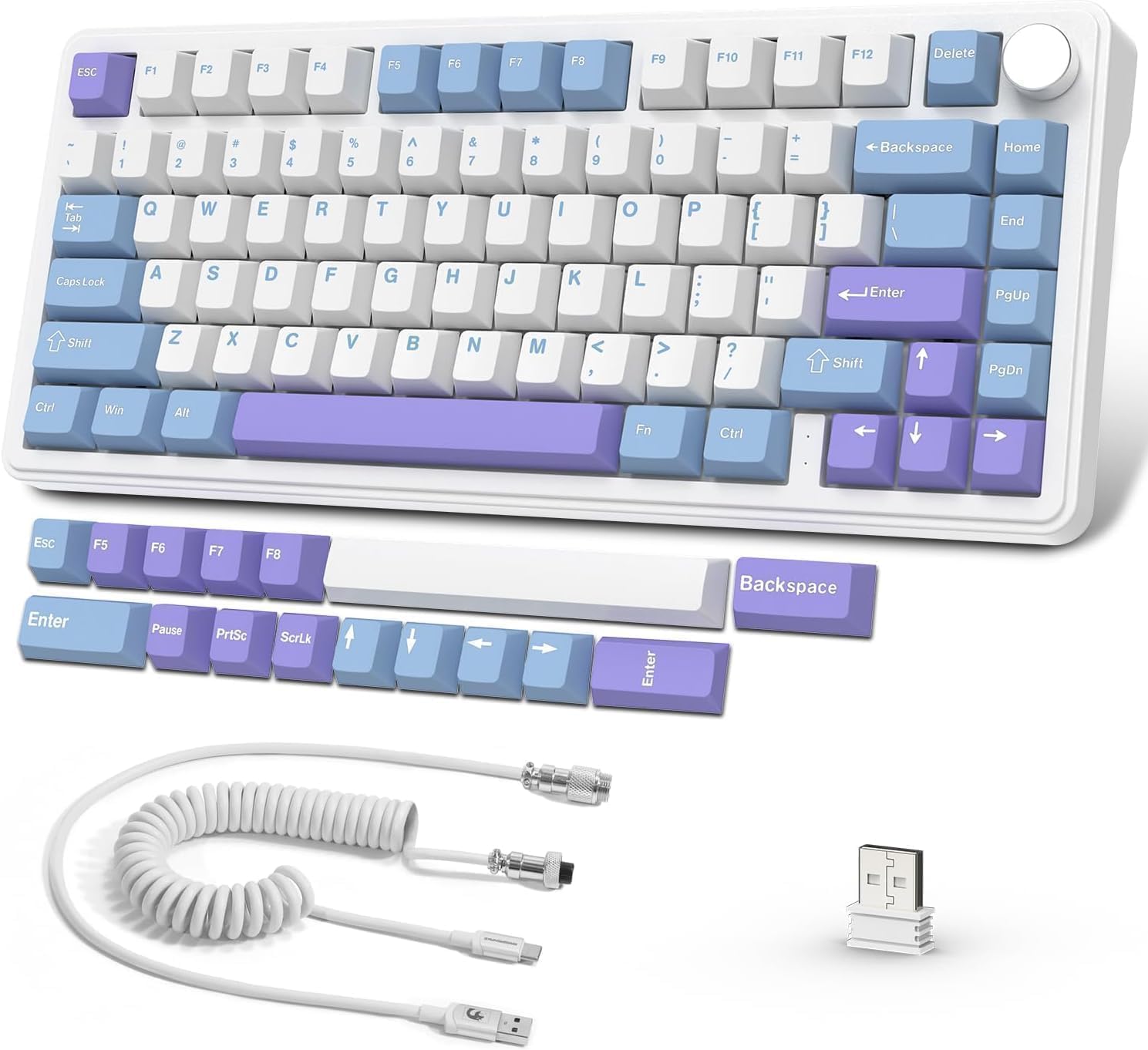
Image: The ATTACK SHARK X85 keyboard, coiled USB-C cable, 2.4GHz USB dongle, and additional keycaps.
3. 제품 오버view
The ATTACK SHARK X85 features a compact 75% layout, retaining essential keys while saving desk space. It incorporates advanced design and components for a superior user experience.
3.1 주요 특징
- 75% TKL 레이아웃: Compact 81-key design for efficiency and portability.
- 핫스왑 가능 스위치: Supports 3-pin switches, allowing for easy customization and replacement. Pre-lubed linear White Jade switches provide a smooth typing feel.
- Upgraded Leaf-Spring Gasket Structure: Features 5 layers of shock-absorbing and sound-deadening foams, along with a 1.2mm single-key slotted PCB, to reduce cavity noise and enhance typing feel.
- 트리플 모드 연결: Seamlessly switch between Wired (USB-C), 2.4GHz wireless, and Bluetooth (up to 3 devices).
- 남향 RGB 백라이트: 19 customizable backlight effects with adjustable brightness and speed.
- CNC Multi-function Knob: Control volume and switch RGB lighting modes with a simple press and rotation.
- 대용량 5000mAh 배터리: Ensures long-lasting performance for extended work or gaming sessions.
- Programmable Software Support: Customize RGB effects, music rhythms, and macro keys.
- 내구성이 뛰어난 PBT 키캡: High-grade Cherry profile PBT keycaps are resistant to wear, friction, and solvents.
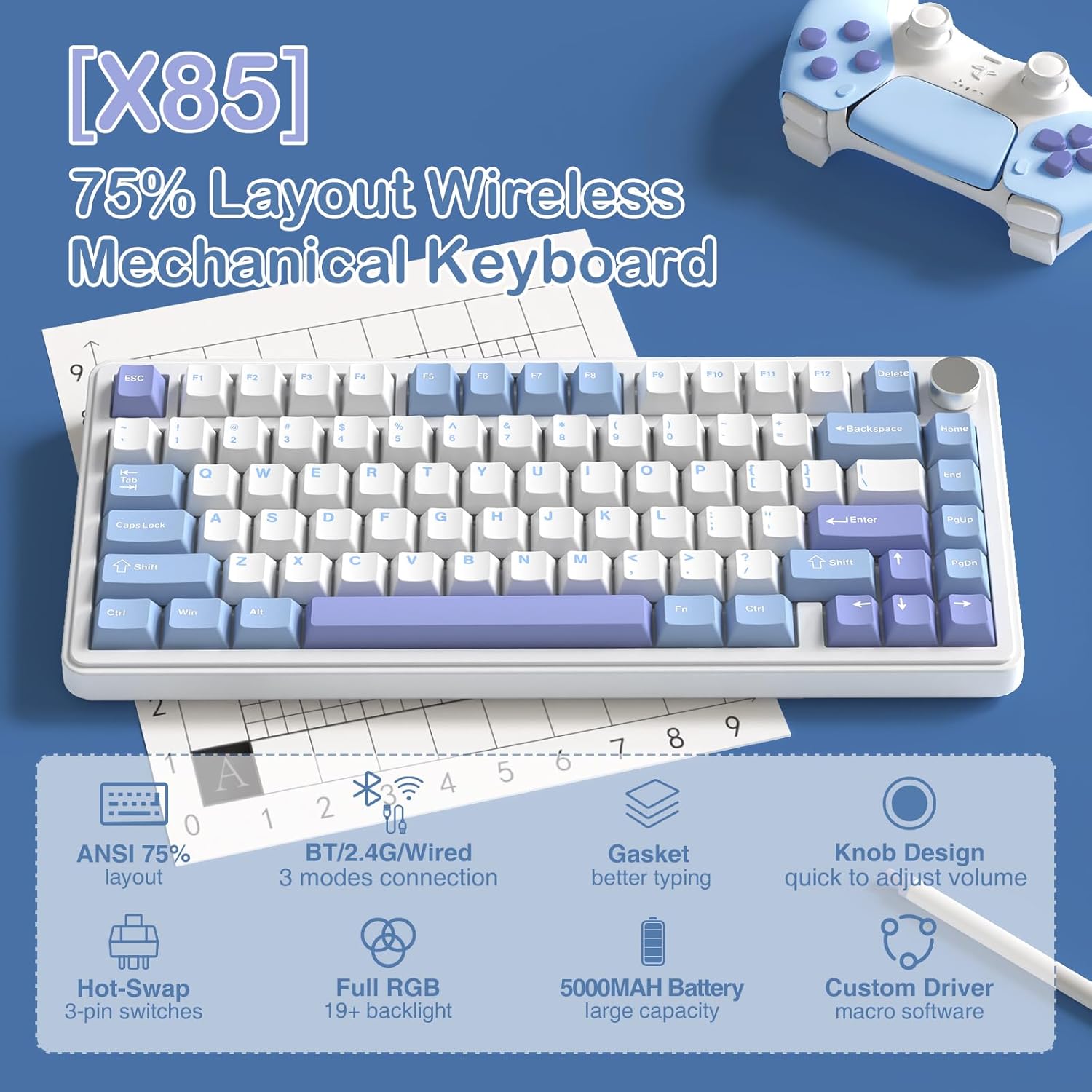
이미지: 이상view of the X85 keyboard highlighting its 75% layout, multi-mode connection, gasket structure, hot-swap capability, RGB, knob design, and 5000mAh battery.
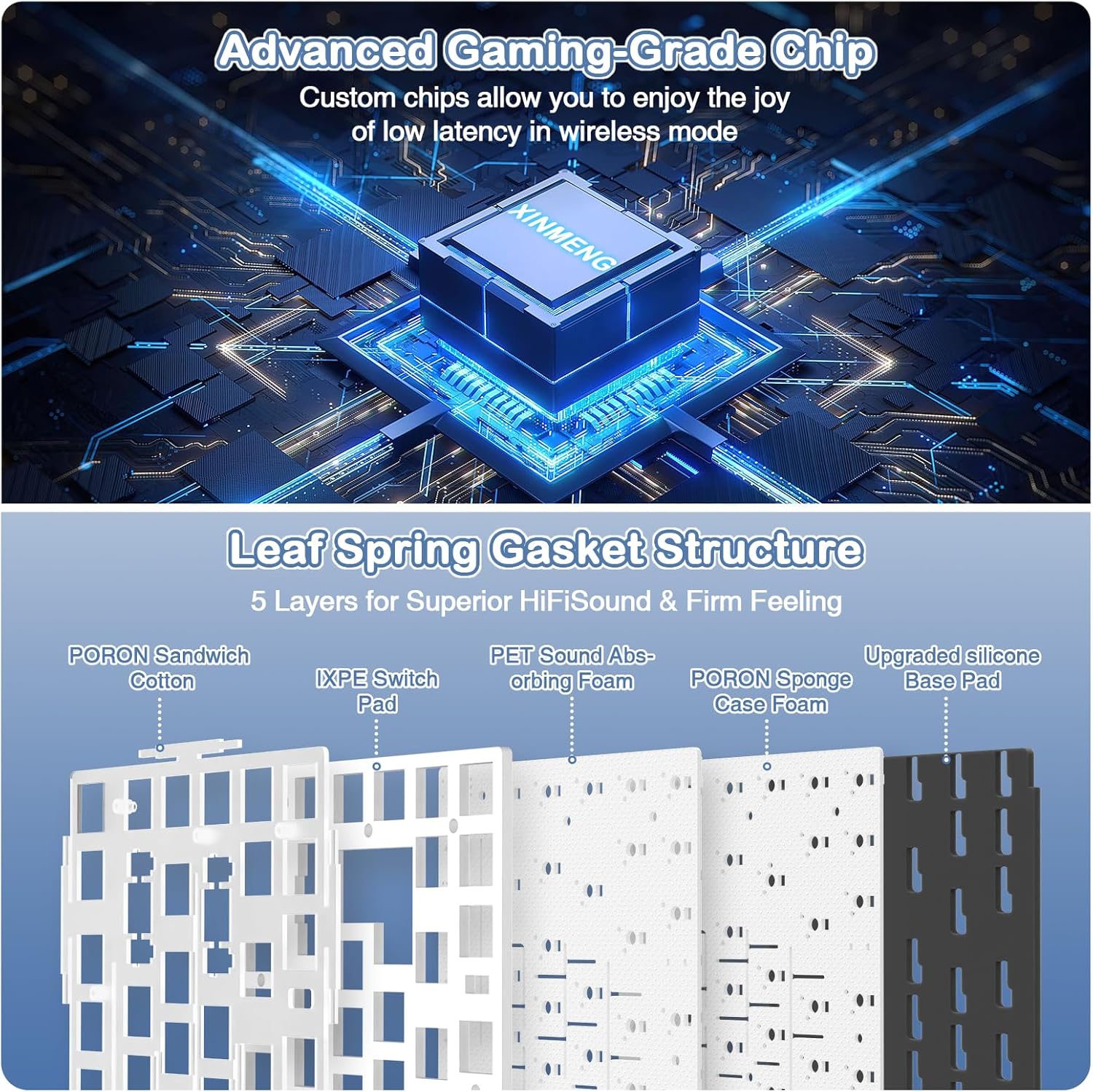
이미지: 폭발 view illustrating the five-layer gasket structure for sound damp타이핑 느낌이 더욱 좋아졌습니다.
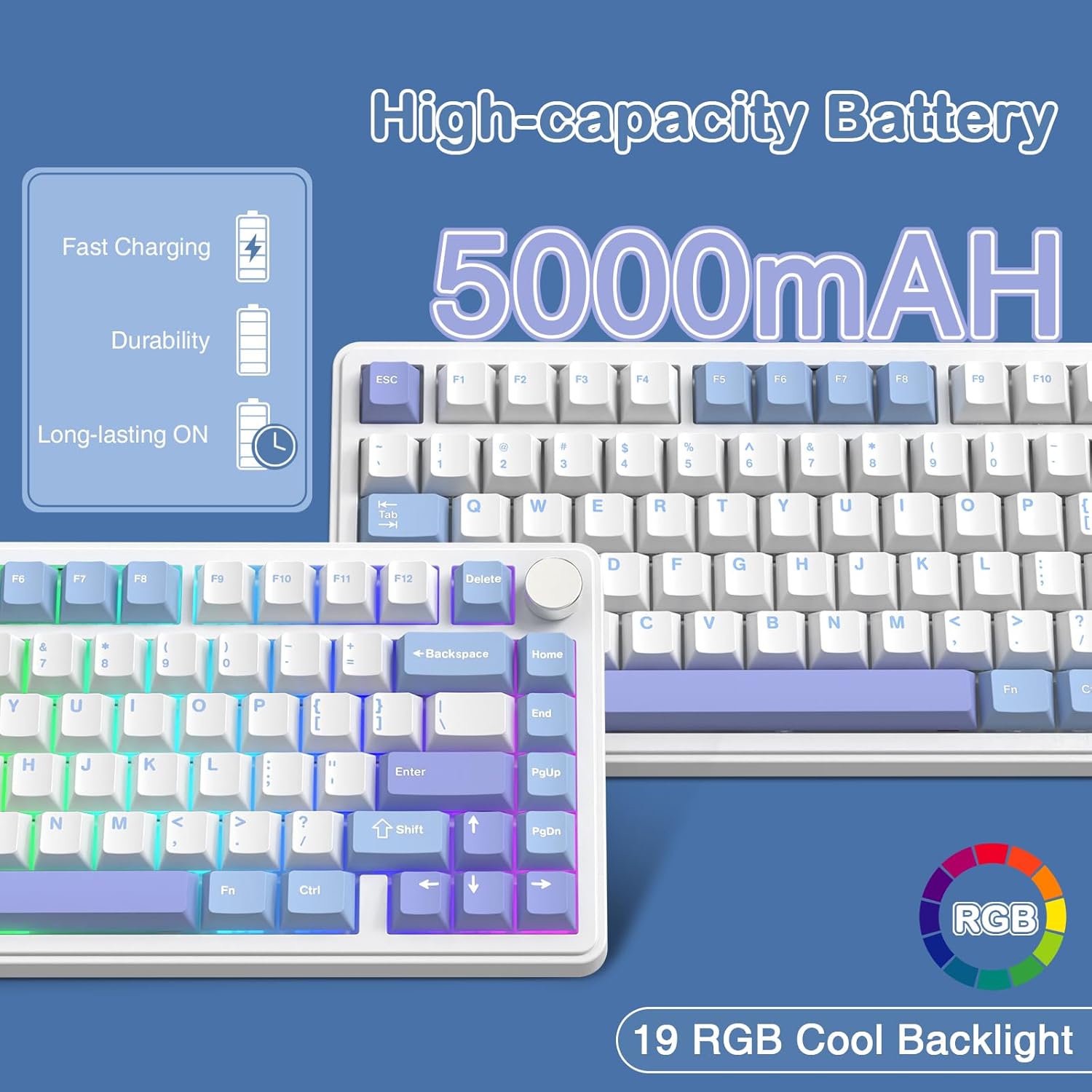
Image: Visual representation of the 5000mAh high-capacity battery and the 19 RGB cool backlight effects.
3.2 제품 비디오 끝view
영상: 공식 발표view of the ATTACK SHARK X85 Mechanical Gaming Keyboard, demonstrating its features, sound, and functionality.
4. 설정
4.1 연결 모드
The ATTACK SHARK X85 supports three connection modes: Wired, 2.4GHz Wireless, and Bluetooth. You can switch between these modes using the toggle switches located on the back of the keyboard.
- 유선 모드(USB-C):
Connect the provided USB-C coiled cable to the keyboard's USB-C port and the other end to your computer's USB-A port. The keyboard will automatically be recognized and ready for use. This mode also charges the keyboard battery.
- 2.4GHz 무선 모드:
Insert the 2.4GHz USB dongle into an available USB port on your computer. Slide the switch on the back of the keyboard to the "2.4G" position. The keyboard will automatically connect to the dongle. This mode offers low latency for gaming.
- 블루투스 모드 :
Slide the switch on the back of the keyboard to the "BT" position. The keyboard can connect to up to three Bluetooth devices. To pair, press FN+Q, FN + 승, 또는 FN + 전자 for 3 seconds until the corresponding key flashes, indicating pairing mode. On your device, search for "ATTACK SHARK X85" and connect. Once paired, you can switch between the three connected devices by pressing FN + Q/W/E 간단히.
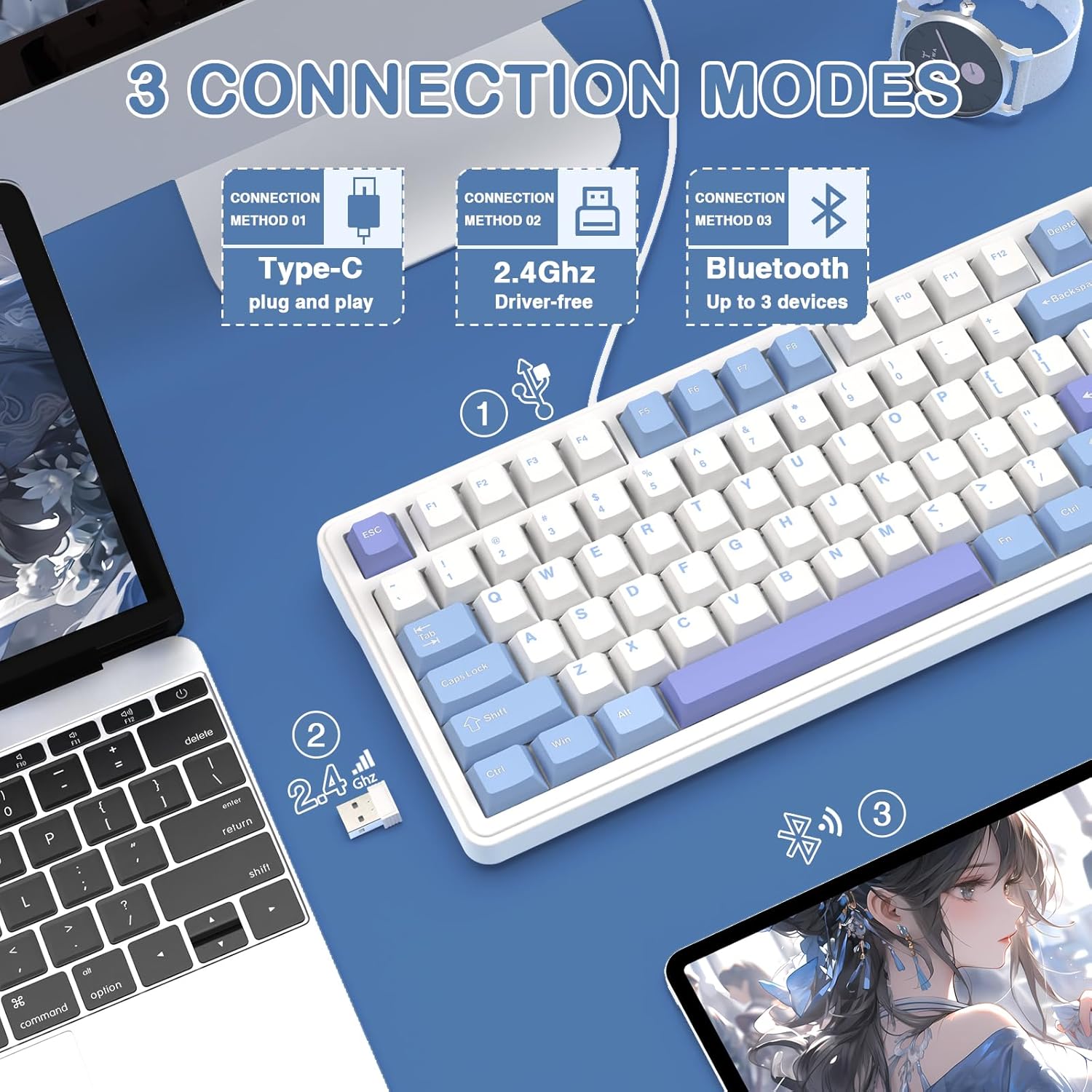
Image: Diagram showing the three connection methods: Type-C wired, 2.4GHz wireless, and Bluetooth, with corresponding devices.
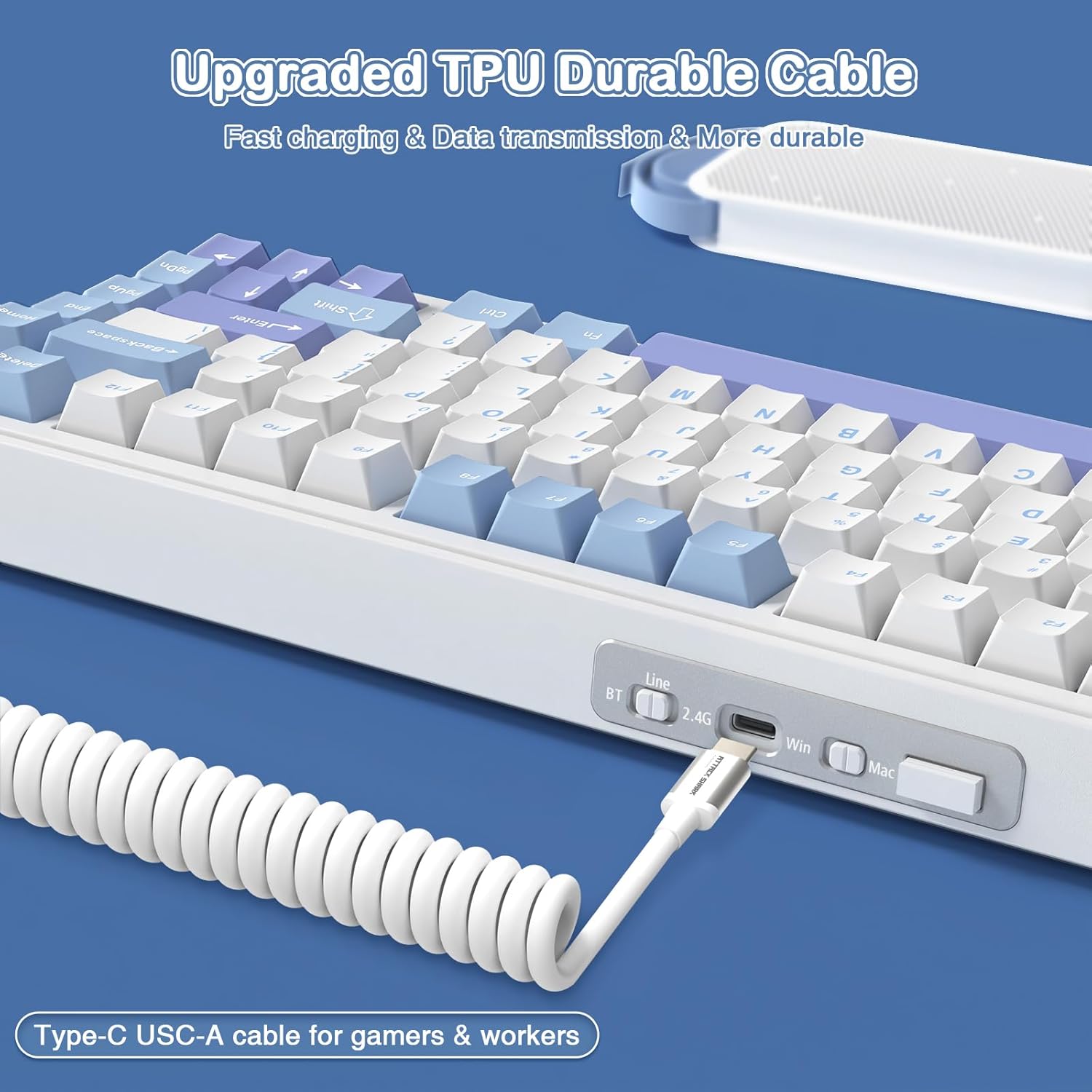
Image: Close-up of the keyboard's side, showing the USB-C port, BT/2.4G/Wired switch, Win/Mac toggle, and 2.4G receiver slot.
4.2 운영 체제 호환성
The keyboard is compatible with Windows (2000/XP/Vista/Win7/Win8/Win10/Win11) and MacOS. Use the dedicated Win/Mac toggle switch on the back of the keyboard to select the appropriate operating system mode. This ensures correct key mapping for your system.
4.3 소프트웨어 설치
For advanced customization of RGB lighting effects, music rhythms, and macro keys, please download the official software driver. The driver is typically available on the ATTACK SHARK official website or via a link provided in the product packaging. Ensure the keyboard is connected in 2.4GHz wireless mode when running the driver for optimal functionality.
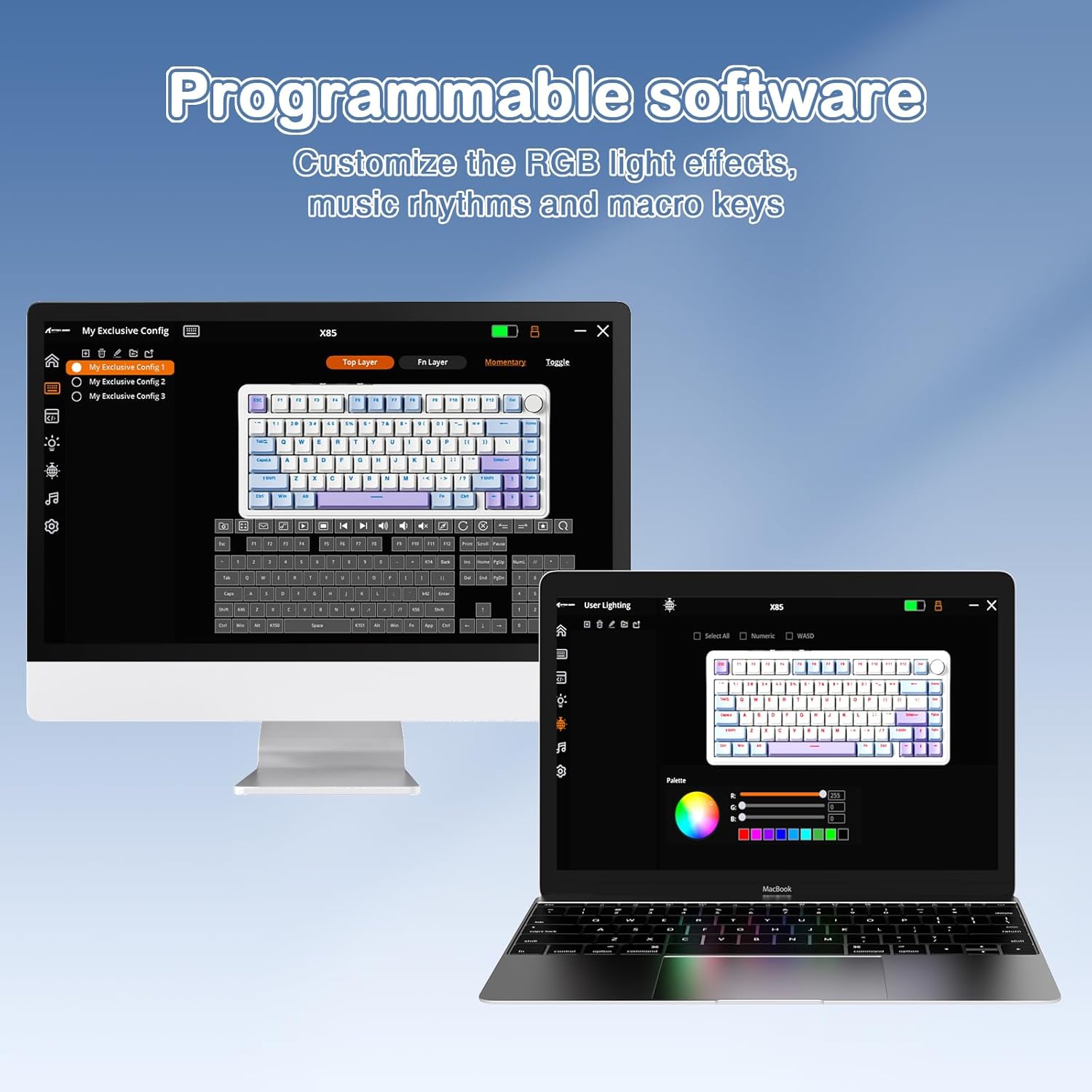
Image: Screenshot of the programmable software interface, showing options for customizing lighting and macro settings.
5. 사용 설명서
5.1 Multi-function Knob Control
The CNC multi-function knob located in the upper right corner of the keyboard provides quick access to volume and lighting controls.
- 볼륨 조절:
Long press the knob for more than 3 seconds to switch to multimedia mode. Rotate the knob to adjust the system volume (clockwise for volume up, counter-clockwise for volume down). Press the knob to play/mute audio.
- Lighting Control (Default Mode):
In default mode, press the knob once to switch between the 19 available RGB backlight effects. Rotate the knob to adjust the brightness or speed of the current lighting effect.

Image: Detailed explanation of the CNC knob's functions for adjusting volume and changing light modes.
5.2 RGB 백라이트 효과
The keyboard features 19 dynamic RGB backlight effects. You can cycle through them using the multi-function knob or customize them further using the software driver. The south-facing RGB design ensures vibrant illumination.
5.3 핫 스와핑 스위치
The ATTACK SHARK X85 is hot-swappable, allowing you to change switches without soldering. This keyboard supports 3-pin mechanical switches.
- 제공된 키캡 풀러를 사용하여 교체하려는 스위치에서 키캡을 조심스럽게 제거하세요.
- Use the switch puller tool to carefully grip the top and bottom clips of the switch. Pull the switch straight up to remove it from the PCB.
- 새 스위치의 핀을 PCB의 구멍에 맞추세요. 핀이 구부러지지 않도록 똑바로 놓으세요.
- Gently push the new switch down until it clicks into place. It should sit flush with the plate.
- 키캡을 다시 부착하세요.
Note: Be careful not to bend the switch pins during installation. If a switch is not working, remove it and check if the pins are bent. Straighten them gently with tweezers if necessary.
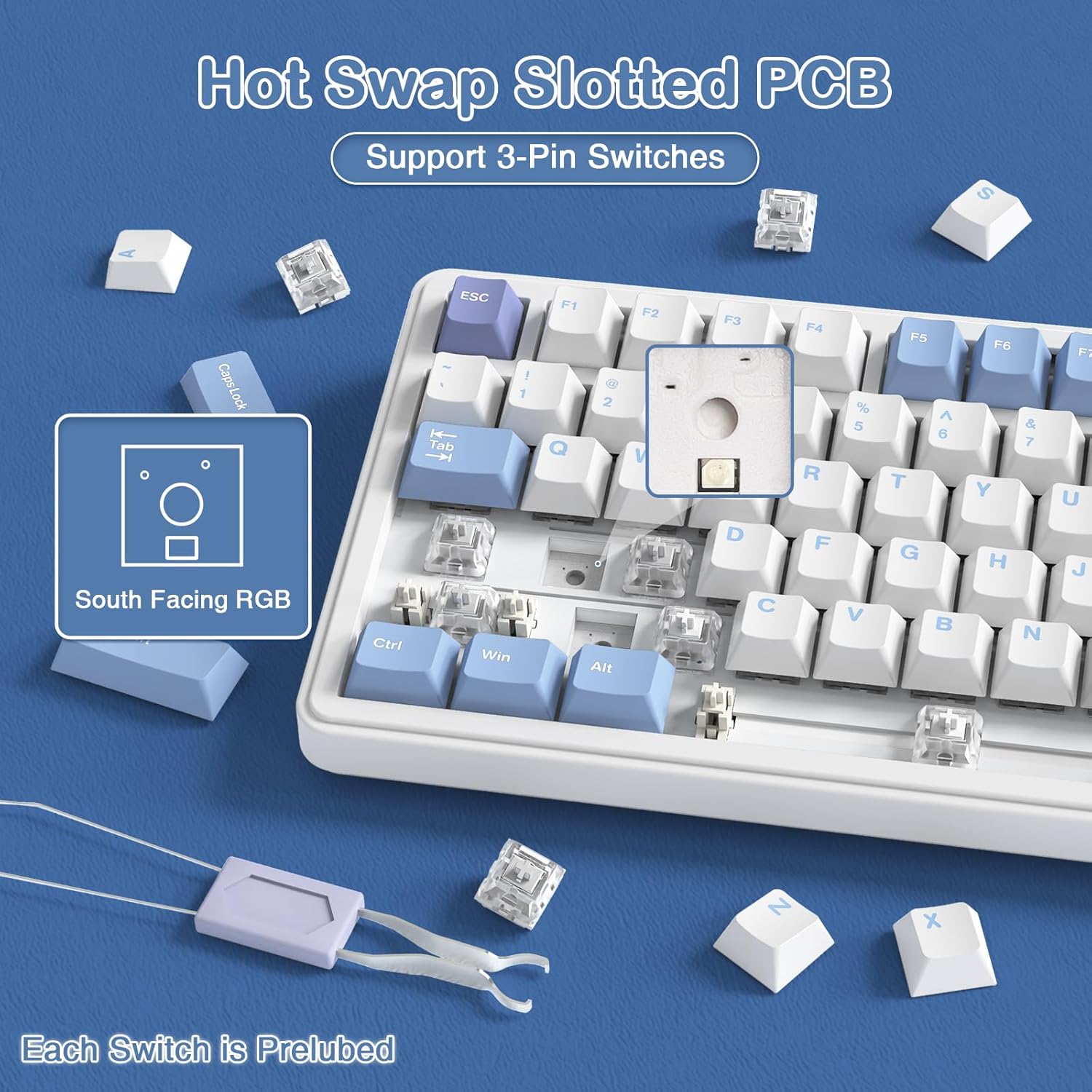
Image: Illustration of the hot-swappable PCB, showing a switch being removed and the south-facing RGB LED.
5.4 매크로 프로그래밍
Utilize the custom software driver to program macros for specific keys. This allows you to assign complex sequences of commands or keystrokes to a single key, enhancing your gaming or productivity workflow. Refer to the software's built-in guide for detailed macro setup instructions.
6. 유지관리
Proper maintenance will extend the lifespan of your ATTACK SHARK X85 keyboard.
- 청소: Regularly clean the keyboard with a soft, dry cloth. For deeper cleaning, you can remove keycaps and use compressed air to clear dust and debris from between the switches.
- 저장: 사용하지 않을 때는 키보드를 직사광선과 극한의 온도를 피해 건조하고 서늘한 곳에 보관하세요.
- 액체를 피하세요: 키보드를 액체에 노출시키지 마십시오. 액체를 쏟은 경우 즉시 키보드를 분리하고 완전히 말린 후 다시 연결하십시오.
- 조심스럽게 다루십시오: Avoid dropping the keyboard or applying excessive force to the keys or knob.
7. 문제 해결
키보드 사용에 문제가 발생하면 다음의 일반적인 해결 방법을 참조하십시오.
| 문제 | 가능한 원인 / 해결책 |
|---|---|
| 키보드가 응답하지 않음(유선) |
|
| 키보드가 응답하지 않습니다(무선/블루투스) |
|
| RGB 조명이 작동하지 않거나 올바르지 않습니다. |
|
| 키가 등록되지 않거나 두 번 입력됨 |
|
| 조절 손잡이가 작동하지 않습니다 |
|
If the problem persists after trying these solutions, please contact ATTACK SHARK customer support for further assistance.
8. 사양
| 특징 | 세부 사항 |
|---|---|
| 모델 번호 | X85 |
| 공들여 나열한 것 | 75% TKL (81키) |
| 연결성 | 유선(USB-C), 2.4GHz 무선, 블루투스 |
| 스위치 | Hot-Swappable 3-pin (Pre-lubed Linear White Jade) |
| 키캡 | 체리 프로file 영어: PBT (미국) |
| 백라이트 | South-Facing RGB (19 effects) |
| 배터리 용량 | 5000mAh |
| 치수 | 13.98 x 7.24 x 1.97 인치 |
| 품목 무게 | 3.54파운드 |
| 호환 장치 | 노트북, PC, 태블릿 |
| 운영 체제 지원 | Windows 2000/XP/Vista/Win7/Win8/Win10/Win11, MacOS |
9. 보증 및 지원
ATTACK SHARK products come with a standard manufacturer's warranty. For specific warranty terms and conditions, please refer to the warranty card included in your product packaging or visit the official ATTACK SHARK web대지.
For technical support, troubleshooting assistance, or any inquiries regarding your ATTACK SHARK X85 keyboard, please contact our customer support team through the official channels provided on the ATTACK SHARK web사이트 또는 구매 플랫폼.
당사는 고품질의 제품과 탁월한 고객 서비스를 제공하기 위해 최선을 다하고 있습니다.


