1. 서론
The Keychron V5 Max is a highly customizable wireless mechanical keyboard designed for peak productivity and gaming. It features a 96% compact layout with 100 keys, offering versatile connectivity options including 2.4 GHz wireless, Bluetooth 5.1, and wired USB-C. This keyboard supports QMK/VIA for extensive key remapping and macro programming, and comes with vibrant RGB backlighting. Built with a gasket mount design, sound-absorbing foam, and durable double-shot PBT keycaps, it provides an enhanced typing experience. The V5 Max is compatible with macOS, Windows, and Linux systems.

Figure 1: Keychron V5 Max Wireless Mechanical Keyboard in use.
2. 상자 안에 무엇이 들어있나요?
Upon unboxing your Keychron V5 Max keyboard, please ensure all the following items are present:
- Keychron V5 Max 무선 기계식 키보드
- USB-C 케이블(유선 연결 및 충전용)
- 추가 키캡(Mac/Windows 레이아웃 사용자 지정용)
- 키캡 풀러 도구
- 스위치 풀러 도구
- 육각 렌치 (앨런 렌치)
- 사용 설명서 (본 문서)
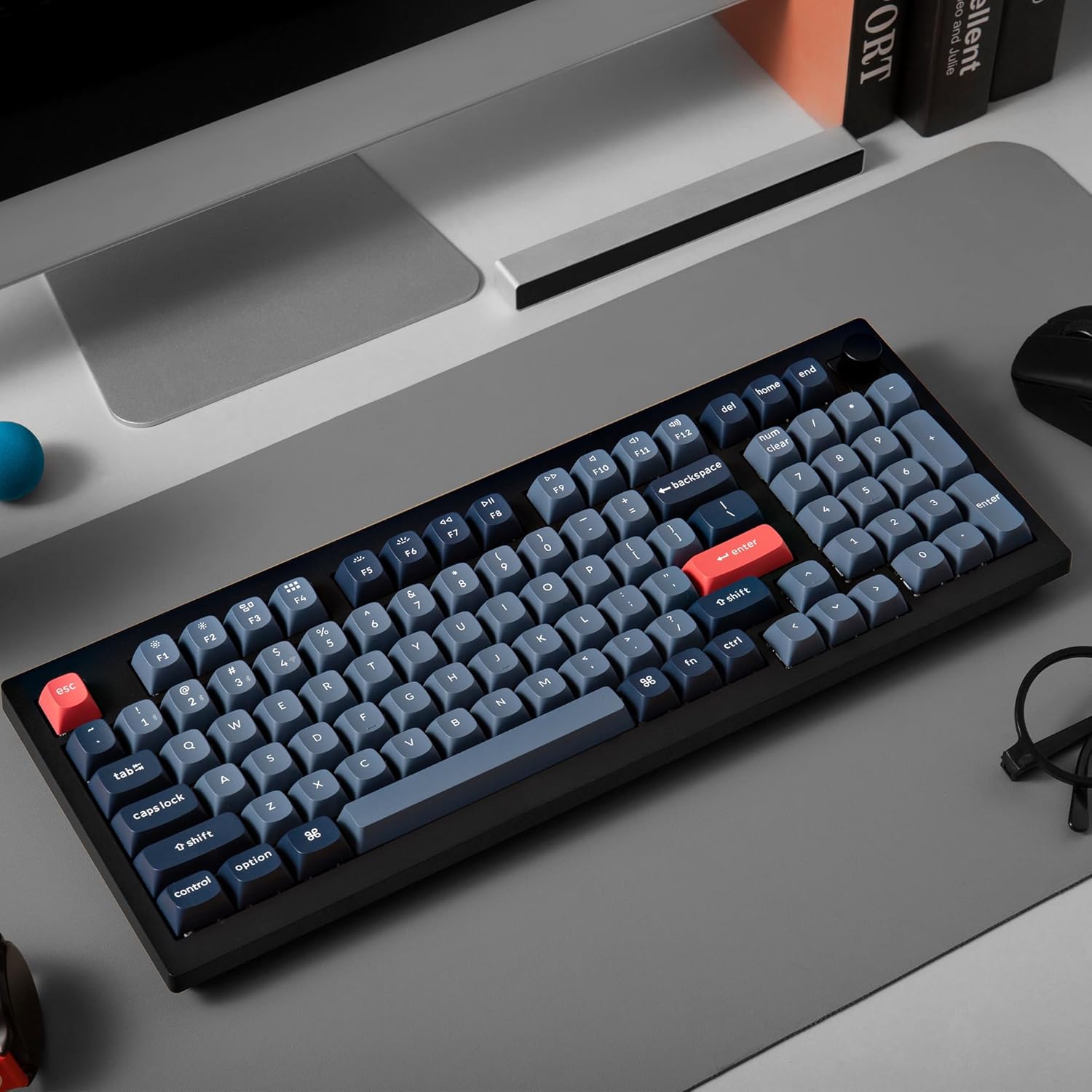
Figure 2: Included accessories with the Keychron V5 Max.
3. 설정
3.1 연결 모드
The Keychron V5 Max offers three connectivity options:
- 2.4GHz 무선: For high-performance, low-latency connection, ideal for gaming. Requires the included USB receiver.
- 블루투스 5.1 : For seamless multitasking across up to three devices (computer, phone, tablet).
- 유선 USB-C: For a direct, stable connection and simultaneous charging.
3.2 Switching Operating System Layouts
The keyboard features a physical switch on the side to toggle between macOS and Windows layouts. Ensure this switch is set correctly for your operating system to ensure proper key functionality.

Figure 3: Mac/Windows layout switch and USB-C port.
3.3 초기 연결
- 유선 연결: Connect the USB-C cable from the keyboard to your computer's USB port. The keyboard will automatically detect the connection.
- 2.4GHz 무선 연결:
- Locate the 2.4 GHz USB receiver (often stored in a compartment on the keyboard).
- 수신기를 컴퓨터의 사용 가능한 USB 포트에 연결하십시오.
- Toggle the connectivity switch on the keyboard to the '2.4G' position. The keyboard should connect automatically.
- 블루투스 연결 :
- Toggle the connectivity switch on the keyboard to the 'BT' position.
- 사용하시는 기기(컴퓨터, 휴대폰, 태블릿)에서 블루투스를 활성화하고 새 기기를 검색하세요.
- Select 'Keychron V5 Max' from the list of available devices to pair.
- To switch between paired Bluetooth devices, use the Fn + 1/2/3 key combinations.
3.4 QMK/VIA Software
The Keychron V5 Max is QMK/VIA programmable, allowing you to remap keys, create macros, and customize lighting effects. Download the VIA software from the official Keychron website. Connect the keyboard via USB-C to your computer to use the software. The software provides a graphical interface for easy customization.
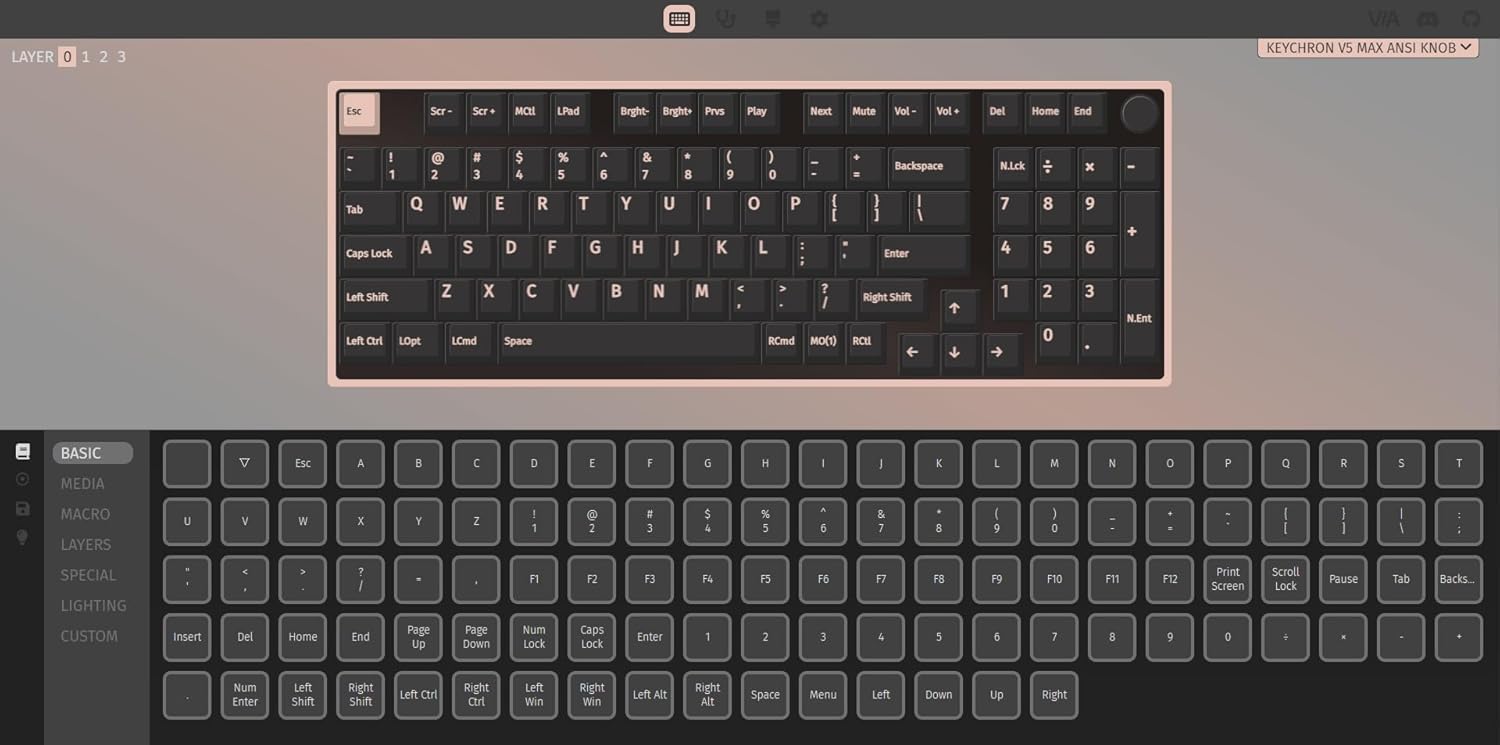
그림 4: 사용자 정의를 위한 QMK/VIA 소프트웨어 인터페이스.
4. 운영
4.1 기본 사용법
The keyboard functions as a standard 100-key layout. Function keys (F1-F12) can be accessed directly or by holding the 'Fn' key, depending on your system settings and VIA configuration. The rotary knob typically controls volume by default, but its function can be customized via VIA.
4.2 RGB 백라이트
The V5 Max features per-key RGB backlighting. You can cycle through various lighting effects and colors using onboard shortcuts (refer to the Quick Start Guide for specific key combinations) or customize them extensively using the VIA software. The backlighting enhances visibility in dim environments and adds a personalized aesthetic.
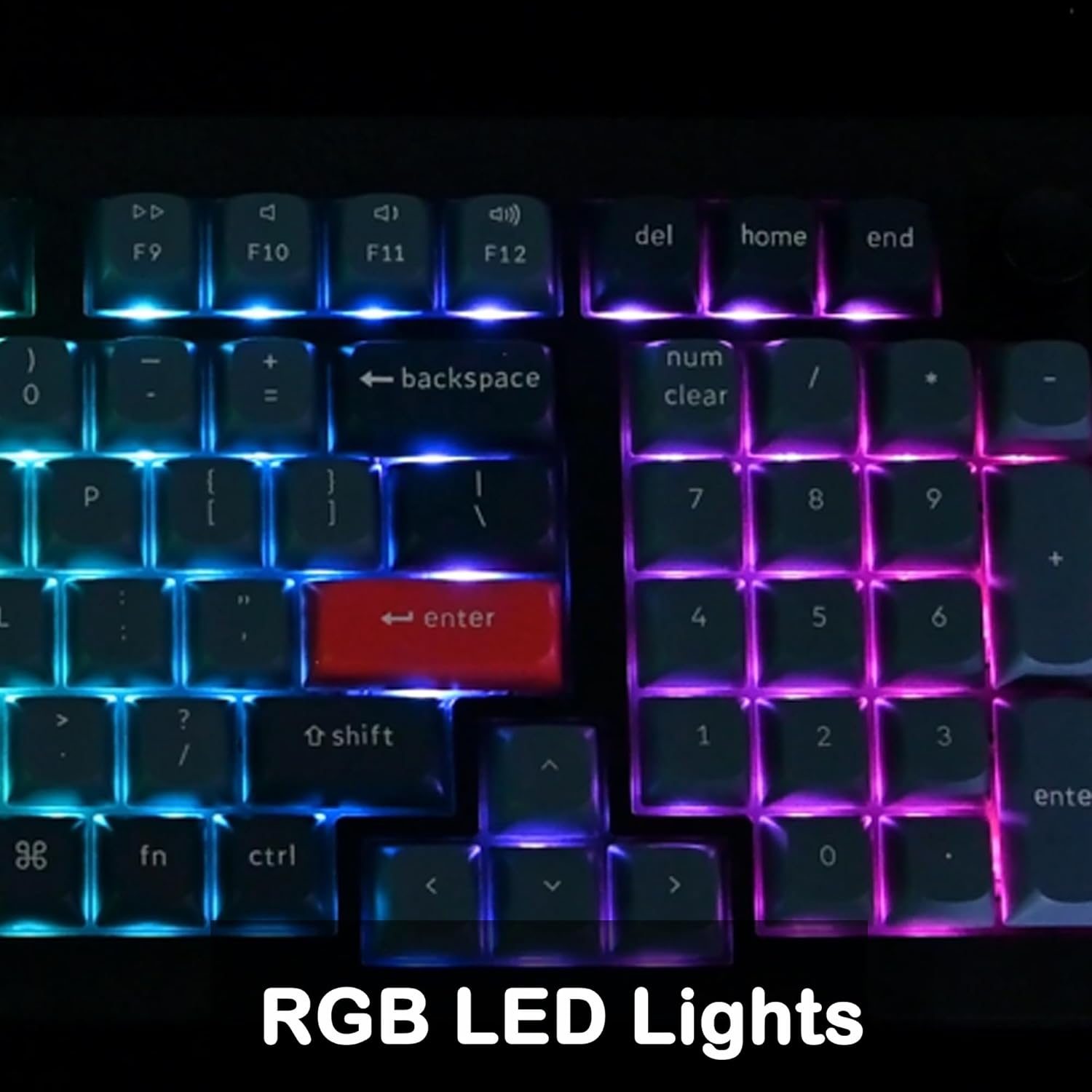
Figure 5: RGB LED Lights in action.
4.3 핫스왑 가능 스위치
The V5 Max is equipped with hot-swappable sockets, allowing you to change mechanical switches without soldering. This feature enables customization of typing feel and sound. The PCB supports both 3-pin and 5-pin MX mechanical switches.
- 키캡 제거: Use the included keycap puller tool to gently remove the desired keycap.
- 스위치 제거: Use the included switch puller tool to carefully grip and pull out the switch.
- 새 스위치 설치: Align the pins of the new switch with the holes on the PCB and press down gently until it clicks into place. Ensure pins are straight before insertion to avoid bending.
- 새 키캡 설치하기: Place the new keycap over the switch stem and press down firmly.
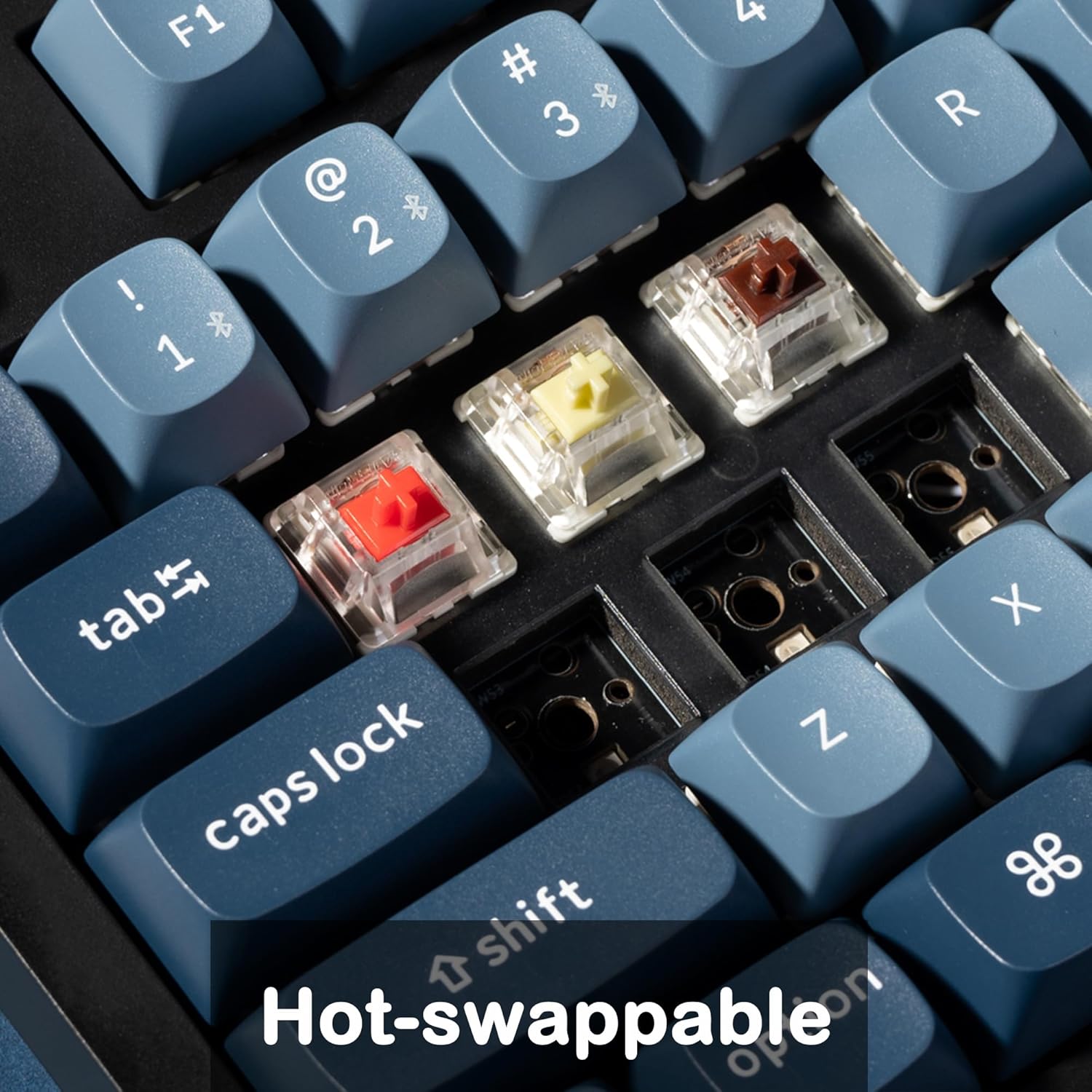
그림 6: 핫스왑 가능 스위치 메커니즘.
4.4 배터리 및 충전
The keyboard is powered by a 4000 mAh Lithium Ion battery. It charges automatically when connected via the USB-C cable. A red indicator light typically signifies charging, turning off when fully charged. The battery life varies depending on usage and RGB lighting intensity.
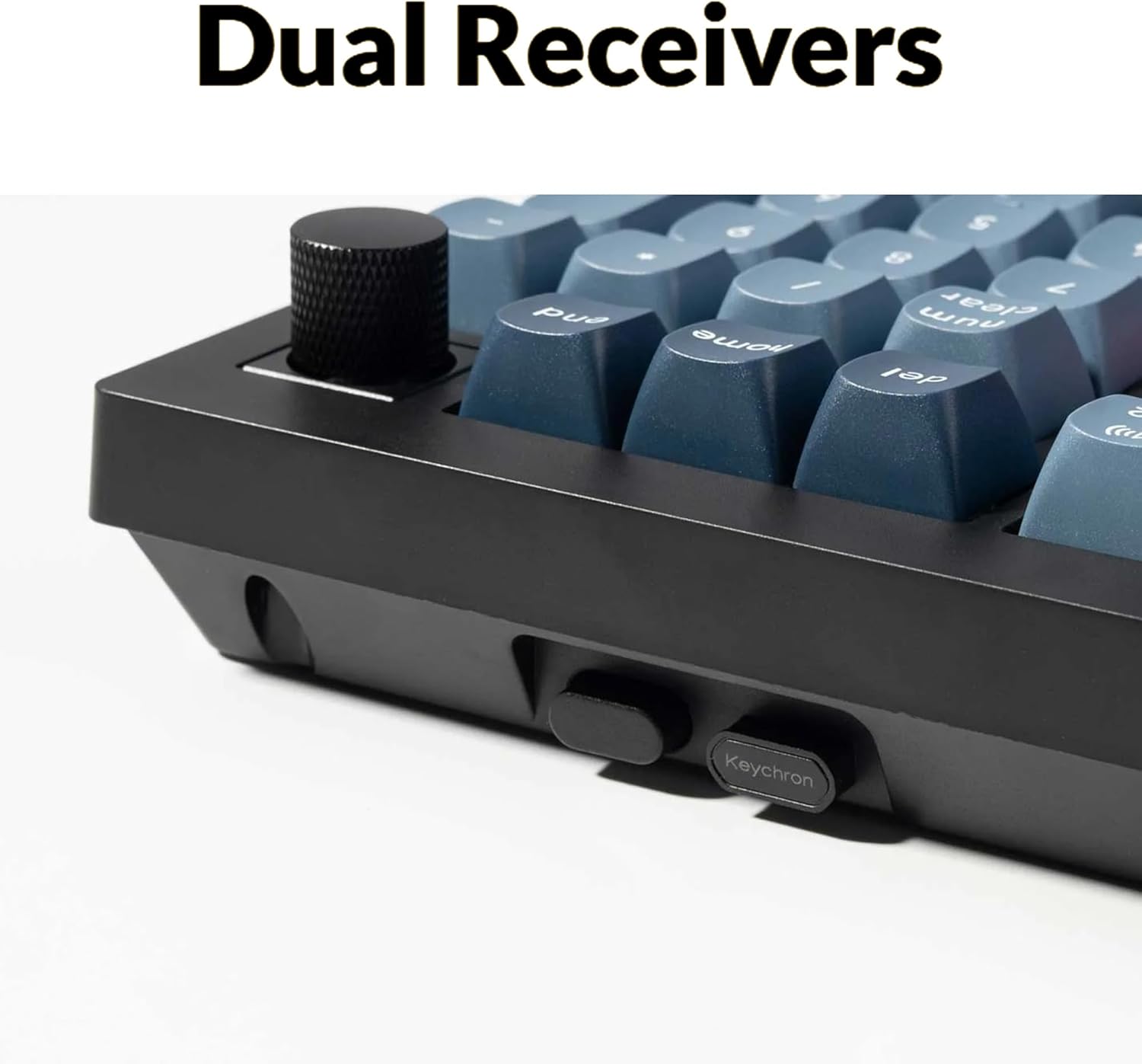
Figure 7: 4000 mAh battery capacity.
5. 유지관리
5.1 청소
To maintain optimal performance and appearance, regularly clean your keyboard. Use a soft, lint-free cloth to wipe down the keycaps and case. For deeper cleaning, remove keycaps using the keycap puller and use compressed air to clear debris from beneath the switches. Avoid using harsh chemicals or abrasive materials.
5.2 키캡 및 스위치 교체
As detailed in Section 4.3, the hot-swappable design allows for easy replacement of switches and keycaps. This can be done to customize the keyboard or replace worn-out components. Ensure you use compatible switches and keycaps.

그림 8: 폭발 view of keyboard components.
6. 문제 해결
6.1 연결 문제
- 2.4GHz / 블루투스 연결 안 됨: Ensure the keyboard's mode switch is set to the correct position (2.4G or BT). For Bluetooth, ensure your device's Bluetooth is on and the keyboard is in pairing mode. Try re-pairing the device.
- 간헐적인 연결: Check for interference from other wireless devices. Ensure the USB receiver (for 2.4 GHz) is not obstructed. For Bluetooth, try moving closer to your device.
6.2 Key Not Responding or Double-Typing
- 스위치 확인: Due to the hot-swappable nature, a switch might be improperly seated or faulty. Use the switch puller to remove the keycap and switch, then re-insert the switch firmly. If the issue persists, try swapping the problematic switch with a known working one from a less critical key.
- 키캡 아래 청소하기: Debris under the keycap or switch can cause issues. Remove the keycap and clean the area.
6.3 RGB 백라이트가 작동하지 않습니다
- Ensure the backlight is enabled and brightness is turned up (check onboard shortcuts or VIA software).
- If only specific keys are affected, it might indicate a faulty LED or switch.
6.4 공장 초기화
If you encounter persistent issues or wish to revert all customizations, you can perform a factory reset. Refer to the official Keychron website or the Quick Start Guide for the specific key combination to initiate a factory reset for the V5 Max model.
7. 사양
| 특징 | 세부 사항 |
|---|---|
| 모델 번호 | V5M-D1 |
| 공들여 나열한 것 | 96% (100개 키) |
| 연결성 | 2.4 GHz Wireless, Bluetooth 5.1, Wired USB-C |
| 스위치 | Gateron Jupiter Red (Hot-Swappable) |
| 키캡 | 더블샷 PBT |
| 백라이트 | RGB |
| 배터리 | 4000mAh 리튬 이온 |
| 호환성 | 맥OS, 윈도우, 리눅스 |
| 프로그램 작성 | QMK/비아 |
| 품목 무게 | 3.54파운드 |
| 패키지 크기 | 17.7 x 8 x 2.17 인치 |
8. 보증 및 지원
Keychron products are covered by a limited warranty. For detailed warranty information, please refer to the warranty card included in your product packaging or visit the official Keychron website. If you encounter any issues or require technical assistance, please contact Keychron customer support through their official channels. Provide your product model number (V5M-D1) and a detailed description of the issue for efficient support.


